manuals.online logo
Brands
  1. Home
  2. •
  3. Brands
  4. •
  5. Primera
  6. •
  7. Printer
  8. •
  9. Primera 000424-510171-(05) User manual

Primera 000424-510171-(05) User manual

This manual suits for next models

1

Other Primera Printer manuals

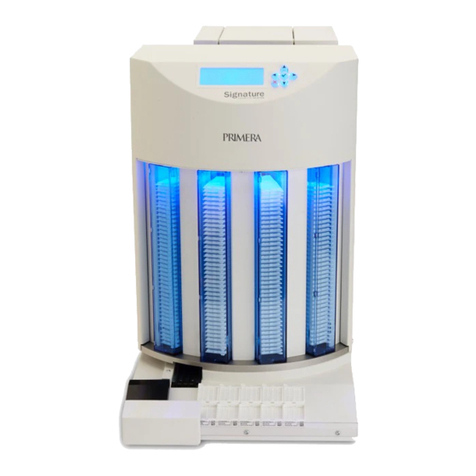
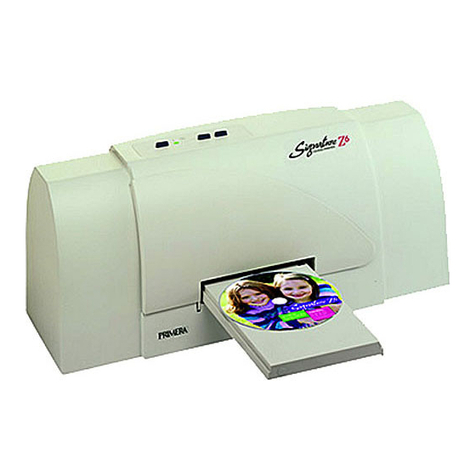
Primera Primera Signature Z1 User manual

Primera

Primera Primera Signature Z1 User manual

Primera Signature Z6 User manual

Primera

Primera Signature Z6 User manual

Primera FX500E User manual

Primera

Primera FX500E User manual

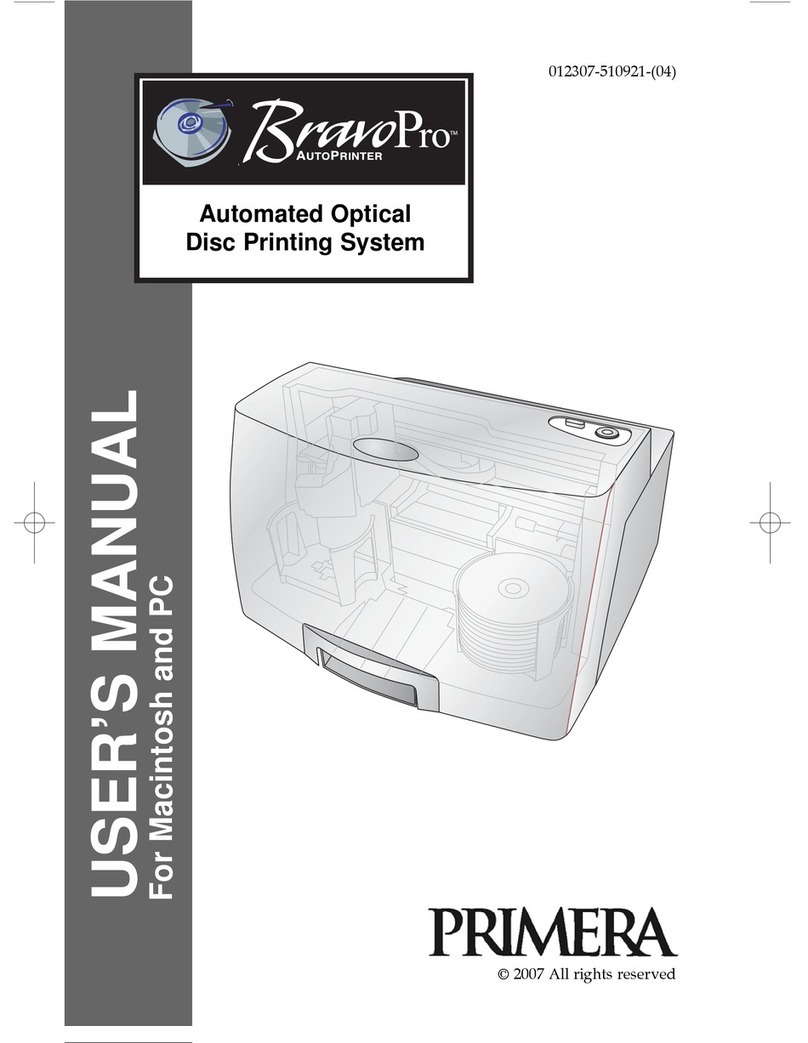
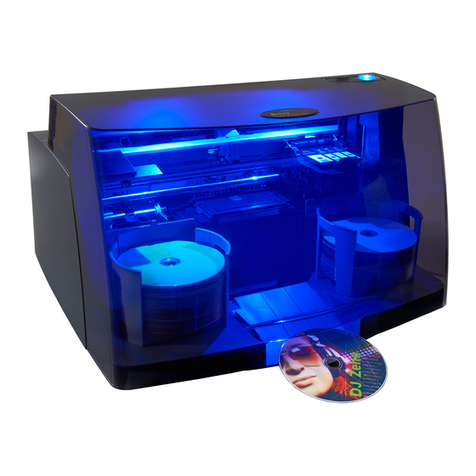
Primera Bravo Pro User manual

Primera

Primera Bravo Pro User manual

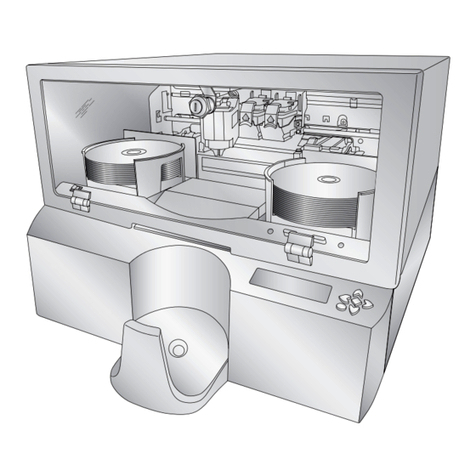
Primera optical disc publisher pro User manual

Primera

Primera optical disc publisher pro User manual

Primera FX400e User manual

Primera

Primera FX400e User manual

Primera III User manual

Primera

Primera III User manual

Primera Signature IV User manual

Primera

Primera Signature IV User manual

Primera RX900e User manual

Primera

Primera RX900e User manual

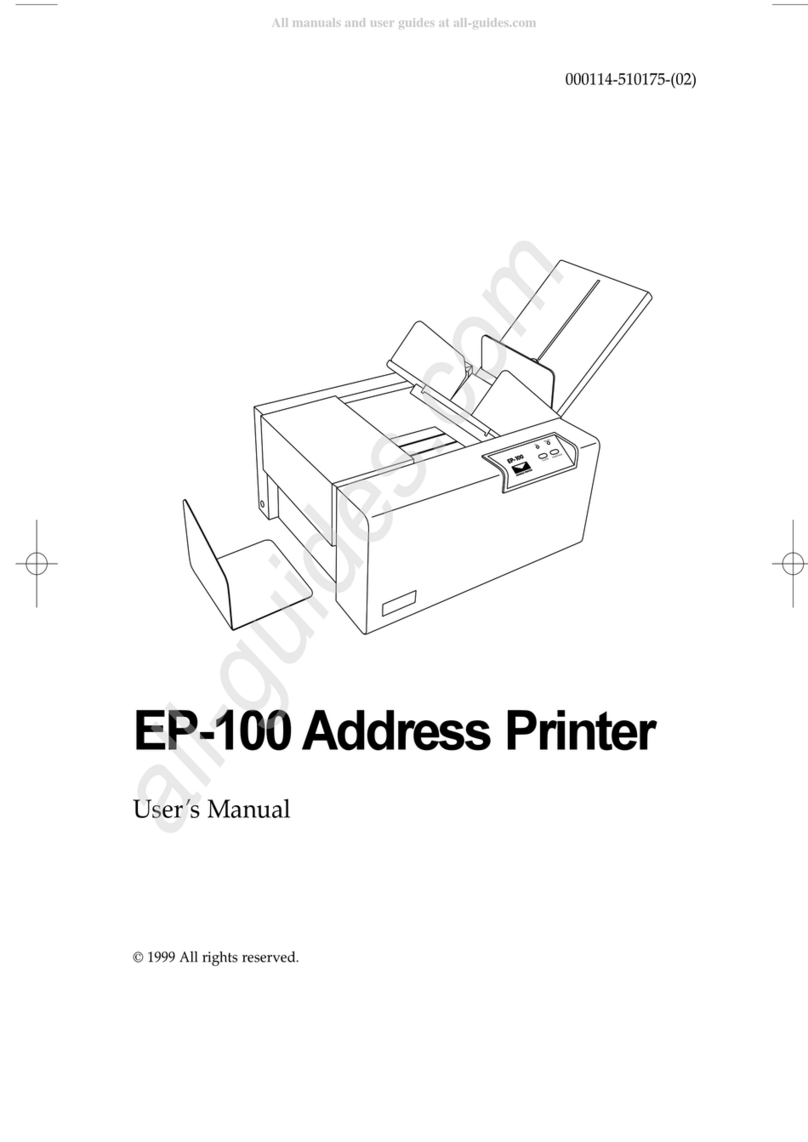
Primera EP-100 User manual

Primera

Primera EP-100 User manual

Primera PX450e User manual

Primera

Primera PX450e User manual

Primera Pictura 310cs User manual

Primera

Primera Pictura 310cs User manual

Primera Impressa IP60 User manual

Primera

Primera Impressa IP60 User manual

Primera Pictura 310s User manual

Primera

Primera Pictura 310s User manual

Primera VIPColor VP485 Unwinder User manual

Primera

Primera VIPColor VP485 Unwinder User manual

Primera Eddie PT-E763-001 User manual

Primera

Primera Eddie PT-E763-001 User manual

Primera Bravo SE User manual

Primera

Primera Bravo SE User manual

Primera Impressa 2 User manual

Primera

Primera Impressa 2 User manual

Primera BravoPro Automated Optical Disc Printing... User manual

Primera

Primera BravoPro Automated Optical Disc Printing... User manual

Primera Bravo II User manual

Primera

Primera Bravo II User manual

Primera Signature Pro User manual

Primera

Primera Signature Pro User manual

Primera Inscripta User manual

Primera

Primera Inscripta User manual

Primera Signature User manual

Primera

Primera Signature User manual

Primera CD/DVD Printer 6 User manual

Primera

Primera CD/DVD Printer 6 User manual

Popular Printer manuals by other brands

Evolis Elypso user guide

Evolis

Evolis Elypso user guide

Lexmark 522n - C Color Laser Printer Service manual

Lexmark

Lexmark 522n - C Color Laser Printer Service manual

Panduit COUGAR LS9Q Operator's manual

Panduit

Panduit COUGAR LS9Q Operator's manual

Olivetti PG L2140 Operation guide

Olivetti

Olivetti PG L2140 Operation guide

Samsung SL-M2820DW user manual

Samsung

Samsung SL-M2820DW user manual

Kyocera FS-9530DN specification

Kyocera

Kyocera FS-9530DN specification

Canon LASER SHOT LBP-1210 Specifications

Canon

Canon LASER SHOT LBP-1210 Specifications

Canon PIXMA PRO-1 Series Getting started

Canon

Canon PIXMA PRO-1 Series Getting started

Canon LBP113w Getting started

Canon

Canon LBP113w Getting started

Lexmark Infoprint 1332 user manual

Lexmark

Lexmark Infoprint 1332 user manual

Epson M1120 user guide

Epson

Epson M1120 user guide

TransAct POSJET 1500 Spare parts

TransAct

TransAct POSJET 1500 Spare parts

Telpar MTP-1500 user manual

Telpar

Telpar MTP-1500 user manual

Star DP8340 SERIES user manual

Star

Star DP8340 SERIES user manual

MGI JETVARNISH 3DS user manual

MGI

MGI JETVARNISH 3DS user manual

Kyocera TASKalfa PA4500ci Operation guide

Kyocera

Kyocera TASKalfa PA4500ci Operation guide

Emaar EP-360 user manual

Emaar

Emaar EP-360 user manual

Fujitsu DL7400 user manual

Fujitsu

Fujitsu DL7400 user manual

manuals.online logo
manuals.online logoBrands
  • About & Mission
  • Contact us
  • Privacy Policy
  • Terms and Conditions

Copyright 2025 Manuals.Online. All Rights Reserved.

000424-510171-(05)
Users Manual
© 2000 All rights reserved.
CD Color Printer III
510171Pr5.qxd 5/2/2000 3:39 PM Page i
Notices: The inf rmati n in this d cument is subject t change with ut n tice.
NO WARRANTY OF ANY KIND IS MADE WITH REGARD TO THIS MATERIAL, INCLUDING, BUT
NOT LIMITED TO, THE IMPLIED WARRANTIES OF MERCHANTABILITY AND FITNESS FOR A
PARTICULAR PURPOSE. N liability is assumed f r err rs c ntained herein r f r incidental r
c nsequential damages in c nnecti n with the furnishing, perf rmance, r use f this material. This
d cument c ntains pr prietary inf rmati n which is pr tected by c pyright. All rights are reserved.
N part f this d cument may be ph t c pied, repr duced, r translated int an ther language
with ut pri r written c nsent.
Trademark Acknowledgments: IBM is a registered trademark f Internati nal Business
Machines C rp rati n. Wind ws is a trademark f Micr s ft C rp rati n. Apple and Macint sh are
registered trademarks and QuickDraw and AppleTalk are trademarks f Apple C mputer, Inc. All
ther trademarks are the pr perty f their respective wners. CandelaC l r®Charged by Pict graphics
is a registered trademark f Pict graphics Internati nal C rp rati n.
Printing History
Editi n 1.3, #000424, © C pyright 2000, All rights reserved.
FCC Compliance Statement: This device c mplies with part 15 f the FCC rules. Operati n
is subject t the f ll wing tw c nditi ns: (1) this device may n t cause harmful interference, and (2)
this device must accept any interference received, including interference that may cause undesired
perati n.
For Users in the United States: This equipment has been tested and f und t c mply with
the limits f r a Class B digital device, pursuant t Part 15 f the FCC Rules. These limits are designed
t pr vide reas nable pr tecti n against harmful interference in a residential installati n. This
equipment generates, uses, and can radiate radi frequency energy and, if n t installed and used in
acc rdance with the instructi ns, may cause harmful interference t radi c mmunicati ns. H wever,
there is n guarantee that interference will n t ccur in a particular installati n. If this equipment d es
cause harmful interference t radi r televisi n recepti n, which can be determined by turning the
equipment ff and n, the user is enc uraged t try t c rrect the interference by ne r m re f the
f ll wing measures:
 Re- rient r rel cate the receiving antenna.
 Increase the separati n between the equipment and receiver.
 C nnect the equipment int an utlet n a circuit different fr m that t which the receiver is
c nnected.
 C nsult the dealer r an experienced radi /TV technician f r help.
Use f a shielded cable is required t c mply with the Class B limits f Part 15 f the FCC Rules. Y u
are cauti ned that any changes r m dificati ns n t expressly appr ved in this manual c uld v id
y ur auth rity t perate and/ r btain warranty service f r this equipment.
For Users in Canada: This digital apparatus d es n t exceed the Class B limits f r radi n ise
f r digital apparatus set ut n the Radi Interference Regulati ns f the Canadian Department f
C mmunicati ns. Le present appareil numerique nemet pas de bruits radi electriques depassant les
limites applicables aux appareils numeriques de la class B prescrites dans le Reglement sur le
br uillage radi electrique edicte par le ministere des C mmunicati ns du Canada.
CAUTION
TO PREVENT FIRE OR SHOCK HAZARD, DO NOT EXPOSE THE UNIT TO RAIN OR MOISTURE.
TO REDUCE THE RISK OF ELECTRIC SHOCK, DO NOT REMOVE EXTERIOR PANELS. NO USER-
SERVICEABLE PARTS INSIDE. REFER SERVICING TO QUALIFIED SERVICE PERSONNEL. OPERATE
THE UNIT WITH ONLY THE PROPER ELECTRICAL SPECIFICATIONS AS LABELED ON THE
PRINTER AND AC ADAPTER
ii

510171Pr5.qxd 5/2/2000 3:39 PM Page ii
iii
Read Me First!
C ngratulati ns n the purchase f y ur new CD C l r Printer. T
begin printing with y ur new printer immediately, please refer t the
f ll wing quick start instructi ns. F r m re c mplete inf rmati n
regarding all aspects f y ur printers perati n, please refer t the
printers main Users Manual.
HARDWARE SETUP
1. Unpackage y ur printer, and check that the f ll wing
items are included:
 P wer Adapter: P wer C rd (220-240V units)
 Printer S ftware CD
 C l r Ink Cartridge
 Spare Ink Cartridge H lder
 Cardb ard CD Templates (5)
 Warranty Statement and Registrati n Card
 Operat rs Manual and Other Printed Inf rmati n
2. C nnect y ur printers p wer.
3. Install the included c l r ink cartridge by pressing the
Ink Cartridge Butt n and inserting the cartridge
c pper-end first int the ink cartridge carrier. Then, push
the t p f the cartridge back until it snaps int place. When
the cartridge is in place, press the Ink Cartridge Butt n
again t reset the cartridge carrier.
4. Press the CD Tray Butt n, and install ne f the
cardb ard CD templates int the CD Tray.
5. Run a self test acc rding t the instructi ns in Secti n 2-D
f the printer Users Manual. This will ensure that b th the
printer and the ink cartridge are functi ning pr perly. This
procedure should also be done whenever you install a
new ink cartridge or if your printer has sat for a few days
without printing. If s me f the n zzles d n t seem t be
firing, perf rm a clean perati n after the printer driver
has been installed. Refer t the cleaning pr cedure
explained within the cartridge butt n descripti n f secti n
3-D r 4-D in the manual t clean the cartridge n zzles.
510171Pr5.qxd 5/2/2000 3:39 PM Page iii
iv
The self-test should look like this:
6. C nnect the printer t y ur c mputer using the pr per
interface cable. F r best results, use a IEEE 1284-C mpliant
cable and d n t c nnect t an A/B switch b x. Als , n te
that the printer will print fastest if y ur c mputers
parallel p rt is set t ECP m de (m st new c mputers are
set t ECP). Y ur c mputers manual will have inf rmati n
n changing the parallel p rt m de if y u need t switch it
t ECP.
SOFTWARE INSTALLATION
Once y u have set up y ur printer, y u must then install all f
the appr priate s ftware required f r printing. The included
CD c ntains all f the necessary s ftware. At a minimum, y u
must install the printer driver appr priate f r y ur c mputers
specific perati n system (Wind ws®95/98, Wind ws
NT/2000, r Macint sh®). Bel w is a descripti n f the CD
c ntents as well as installati n instructi ns f r each s ftware
c mp nent.
CD Contents:
 CD C l r Printer Driver III f r Wind ws 95/98
 CD C l r Printer Driver III f r Wind ws NT/2000
 CD C l r Printer Driver III f r Macint sh
 32-Bit Print Sp ler f r Wind ws 95/98 (pr vides
ptimum print pr cessing under Wind ws 95/98)
 2 Sample CD Designs (TIFF f rmat)
510171Pr5.qxd 5/2/2000 3:39 PM Page iv
v
nstallation nstructions:
Wind ws 95/98 r Wind ws NT/2000 Printer Drivers:
1. Insert the included CD int y ur c mputers CD-ROM
drive.
2. Click n the Start butt n n the task bar, p int t Settings,
and select Printers.
3. D uble-click n the Add Printer ic n. This will launch the
Add Printer Wizard. Click Next, then click Next again.
4. Click the Have Disk butt n.
5. Click Browse, select y ur CD-ROM drive.
6. F r Wind ws 95/98, pen the Win95-98 f lder, then select
the Driver f lder and select the file named
CDCOLOR3. NF. F r Wind ws NT r Wind ws 2000,
pen the NT f lder and select the file named
OEMSETUP. NF.
(Example: If y u are installing the Wind ws 95/98, and
y ur CD-ROM drive is drive D:, then y u w uld br wse
t : D:\Wind ws and NT S ftware\Wind ws Driver. Y u
w uld then select the file named CDCLOR3. NF). F ll w
the n-screen instructi ns t c mplete installati n.
Macintosh Printer Driver:
1. Insert the included CD int y ur c mputers CD-ROM
drive.
2. D uble-click n the CD Color Printer nstaller t install
the printer driver.
32 Bit Print Spooler: (MUST INSTALL if using Wind ws 95/98
nly)
1. Insert the included CD int y ur c mputers CD-ROM
drive.
2. Cl se d wn all ther s ftware applicati ns.
3. Click the Start butt n, p int t Settings, and select Control
Panel.
4. D uble-click n the Add/Remove Programs ic n, and
select the nstall butt n.
5. Click Next, the click n the Browse butt n.
510171Pr5.qxd 5/2/2000 3:39 PM Page v
vi
6. Select y ur CD-ROM drive, pen the f lder named
Win95-98 folder, then pen the f lder named 32 Bit Print
Spooler.
7. D uble-click n the Setup.exe file then select the Finish
butt n t c mplete installati n.
IMPORTANT
Once the printer driver software is installed, the Image
Placement values labeled on your printers rear panel must
be entered into the printer drivers Calibrate window. These
values have been optimized specifically for your printer and
allow images to be centered on a C when printed.
510171Pr5.qxd 5/2/2000 3:39 PM Page vi
vii
Please Note
The Spare Ink Cartridge Holder provides a convenient
place to store an extra ink cartridge and also prevents an
opened ink cartridge from drying out. To use this holder,
simply set it next to the printer. The Spare Ink Cartridge
Holder must always remain in an upright or vertical
position. Insert an Ink Cartridge into the holder, copper-end
first, until it snaps into place. To remove the Ink Cartridge,
push ack on the holders securing ta and lift the Ink
Cartridge out.
Please Note
To fully utilize Signature IIIs high-speed printing, you must
set your PC parallel printer port to the ECP setting.
Otherwise, you may find that print speed is up to 50%
slower than you might expect.
Please refer to your computer systems documentation for
instructions on ena ling ECP. It is almost always found in
the CMOS settings which are entered upon power-up.
Interactive Feature in this
PDF Document
There are interactive features that will allow you to jump to
different locations within the document. Each listing in the
Ta le of Contents is interactive. Place the cursor on either
the words or the page num er. A small hand with a pointing
finger icon appears. Click on the line with the icon and the
document will jump to that page. If you want to return to the
Ta le of Contents, move the icon to the top of the page and
click on the arrow marked TOC. Navigating through the
Index is similar. Place the icon on one of the listings or
page num ers, click on it, and it will move to that page. The
text relating to the Index listing will appear in red. Returning
to the Index can e done y clicking on the arrow marked
Index.
510171Pr5.qxd 5/5/2000 4:50 PM Page vii
viii
510171Pr5.qxd 5/2/2000 3:39 PM Page viii
ix
Table of Contents
Section 1: Getting Started
A. Choosing a Good Location...............................................................................1
B. Unpacking and Inspection ...............................................................................1
C. Identifying the Parts..........................................................................................2
D. Applying Power.................................................................................................
Section 2: Ink Cartridges and Printable CDs
A. About Ink Cartridges and Printable CDs ......................................................4
B. Installing an Ink Cartridge ..............................................................................4
C. Loading Blank CD Media.................................................................................6
D. Printing a Self Test .............................................................................................7
E. Replacing or Switching Ink Cartridges..........................................................8
Section 3: Using the CD Color Printer III with Windows
A. Connecting the Printer to Your Computer ..................................................11
B. Installing the Printer Driver...........................................................................12
C. Installing the 2-Bit Spooler for Windows 95/98.......................................14
D. Setting Up the Printer Driver ........................................................................16
E. Printing a CD....................................................................................................24
Section : Using the CD Color Printer III with Macintosh
A. Connecting the Printer to Your Computer ..................................................26
B. Installing the Printer Driver...........................................................................27
C. The Chooser......................................................................................................28
D. Setting Up the Printer Driver ........................................................................29
E. Printing a CD.................................................................................................... 4
Section 5: Using the Print Backgrounder for Macintosh
A. Installing the Backgrounder........................................................................... 6
B. Printing with the Backgrounder.................................................................... 6
C. The Backgrounder Status Window............................................................... 7
D. Backgrounder Menus...................................................................................... 8
E. Problems During a Background Print..........................................................40
Section 6: Interpreting the Printer Indicator Lights...............................................41
Section 7: Maintaining the Printer
A. Cleaning the Ink Cartridge Nozzles.............................................................4
B. Cleaning the CD Tray and Printer Casing...................................................4
C. Clearing a CD Media Jam ..............................................................................4
D. Technical Support ............................................................................................4
Section 8: Technical Specifications ...........................................................................44
Appendix A: Interfacing Information
A. Introduction......................................................................................................45
B. Mini 8-Pin Serial Interface..............................................................................46
C. 6-Pin Minicircular Auxiliary Interface .........................................................47
Index ................................................................................................................................48
Warranty..........................................................................................................................49
Supplies and Technical Support Information
510171Pr5.qxd 5/5/2000 6:21 PM Page ix
x
510171Pr5.qxd 5/2/2000 3:39 PM Page x