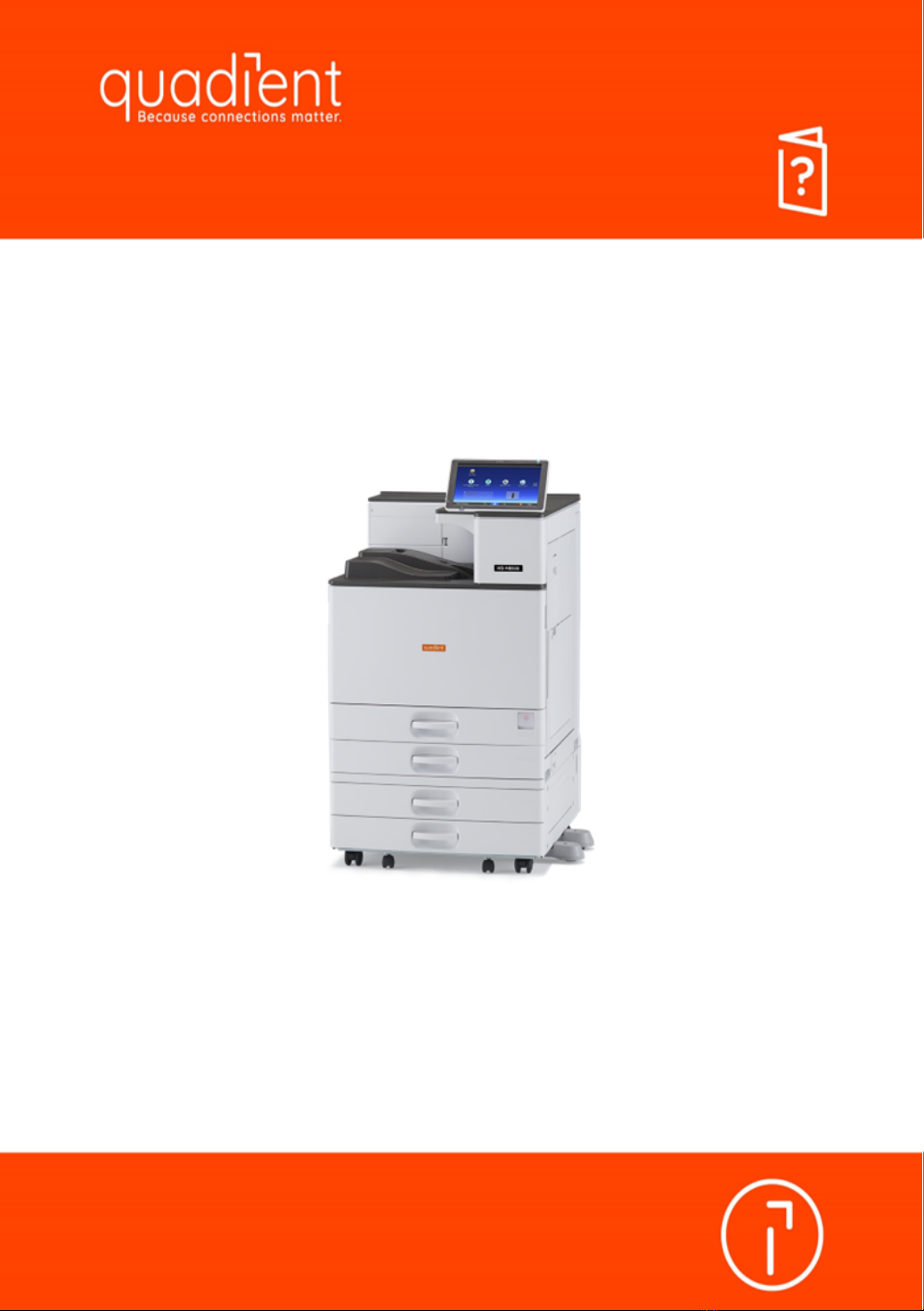
quadient HD-MB50D User manual

User Guide
B&W Document Printer
HD-MB50D

Information for This Printer
Troubleshooting
Loading Paper
Getting Started
This manual is intended solely for the use and information of Quadient, its designated agents, customers, and
their employees. The information in this guide was obtained from several different sources that are deemed
reliable by all industry standards. To the best of our knowledge, that information is accurate in all respects.
However, neither Quadient, nor any of its agents or employees shall be responsible for any inaccuracies
contained herein.
RICOH® is a registered trademark
For safe and correct use, be sure to read the Safety Information in Read This First before using the machine.

TABLE OF CONTENTS
Manuals for This Machine................................................................................................................................. 4
1. Getting Started
Before You Start..................................................................................................................................................7
How to Read the Manuals.............................................................................................................................7
Model-Specific Information...........................................................................................................................8
List of Options................................................................................................................................................. 9
Guide to Names and Functions of Components............................................................................................11
Guide to Functions of the Machine's Options................................................................................................16
Guide to Functions of the Machine's External Options.............................................................................16
Guide to the Names and Functions of the Machine's Control Panel........................................................... 19
Changing the Display Language.................................................................................................................... 20
How to Use the [Home] Screen...................................................................................................................... 21
Main Icons on the [Home] Screen..............................................................................................................23
[Printer (Classic)] Screen............................................................................................................................. 24
[Information] Screen.................................................................................................................................... 25
Possible Operations on the Screen............................................................................................................ 26
Adding Icons to the [Home] Screen........................................................................................................... 28
Turning On/Off the Power..............................................................................................................................30
Turning On/Off the Power..........................................................................................................................30
Saving Energy.............................................................................................................................................. 31
Accessing User Tools....................................................................................................................................... 33
Changing Default Settings...........................................................................................................................33
Quitting User Tools...................................................................................................................................... 34
Using Web Image Monitor............................................................................................................................. 35
Displaying Top Page................................................................................................................................... 36
Replenishing and Replacing Consumables....................................................................................................38
Adding Toner............................................................................................................................................... 38
Replacing Other Consumables...................................................................................................................40
2. Loading Paper
Loading Paper.................................................................................................................................................. 43
1

Precautions for Loading Paper....................................................................................................................43
Loading Paper into Paper Trays..................................................................................................................43
Loading Paper into the Bypass Tray...........................................................................................................45
Loading Paper into Tray 3 (LCT).................................................................................................................46
Loading Orientation-fixed Paper or Two-sided Paper..............................................................................49
Recommended Paper.......................................................................................................................................51
Recommended Paper Sizes and Types......................................................................................................51
Printing from the Bypass Tray.......................................................................................................................... 61
Specifying Regular Sizes Using the Control Panel....................................................................................61
Specifying a Custom Size Paper Using the Control Panel........................................................................61
Specifying Thick Paper, Thin Paper, or OHP Transparencies for Paper Type Using the Control Panel....
.......................................................................................................................................................................62
3. Troubleshooting
When the Machine Makes a Beeping Sound............................................................................................... 65
When a Status Icon Is Displayed....................................................................................................................66
When the Indicator Lamp for [Check Status] Is Lit or Flashing..................................................................... 67
When You Have Problems Operating the Machine..................................................................................... 69
If USB Connection Fails................................................................................................................................... 73
Messages Displayed When You Use the Printer Function............................................................................74
Messages Displayed on the Control Panel When You Use the Printer Function.................................... 74
Messages Printed on the Error Logs or Reports When You Use the Printer Function............................. 77
When Other Messages Appear..................................................................................................................... 79
When Problems Occur While Logging In..................................................................................................80
When the User Lacks Privileges to Perform an Operation........................................................................80
When You Cannot Print................................................................................................................................... 81
Other Printing Problems................................................................................................................................... 83
Removing Jammed Paper................................................................................................................................ 92
Locating Jammed Paper.............................................................................................................................. 92
4. Information for This Printer
Information on Environmental Regulations.....................................................................................................95
ENERGY STAR Program..............................................................................................................................95
Energy Saving Functions............................................................................................................................. 95
2

User Information on Electrical and Electronic Equipment (mainly Europe).........................97
Note for the Battery and/or Accumulator Symbol (For EU countries only) (mainly Europe)
.......................................................................................................................................................................98
Environmental Advice for Users (mainly Europe)..................................................................98
Notes to users in the state of California (Notes to Users in USA) (mainly North America)....
.......................................................................................................................................................................99
Trademarks.....................................................................................................................................................100
INDEX...........................................................................................................................................................103
3

Manuals for This Machine
The operating instructions of this machine are provided in the following formats:
Format Manuals
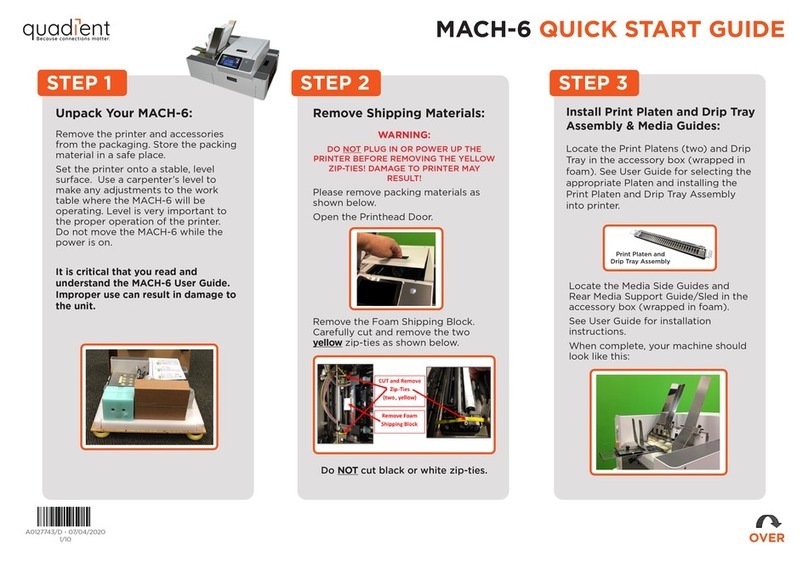
Printed manuals •Quick Installation Guide - Unbox and install
USB Thumb Drive (included with
printer) or
Quadient Website
www.quadient.com
Click on "Knowledge base"
•HD-MB50D Read This First - Safety Information
•Quick Installation Guide- Unbox and install
•HD-MB50D Start Guide - Operations Panel Basics
•HD-MB50D Security Guide
•HD-MB50D User Guide
•HD-MB50D Driver Installation Procedure
Read This First
Before using the machine, be sure to read the section of this manual entitled Safety Information.
It also describes each regulation and environmental conformance.
Start Guide
Operations Panel Basics. How to log in/out of machine. How to change display language.
How to Enable Security Settings - Network Security, Configuring User Authentication, Etc.
Quick Installation Guide
Describes procedures for unpacking and setting up the machine, which include loading paper and
installing toner cartridge, etc.
4
Security Guide
• Before you configure the extended security and authentication settings, refer to "Before Using This
Machine" in the Security Guide.

HD-MB50D Driver Installation Procedure
Describes how to install and configure the PCL6 printer driver
5
Regarding the basic usage of this machine, frequently used functions, troubleshooting when an
error message appears, etc., summaries are provided for each user manual.
User Guide

6
Page intentionally left blank.

1. Getting Started
This section describes the symbols used in the manuals supplied with the printer, available options, and
names and functions of components.
Before You Start
How to Read the Manuals
Symbols used in the manuals
This manual uses the following symbols:
Indicates points to pay attention to when using the machine, and explanations of likely causes of paper
misfeeds, damage to originals, or loss of data. Be sure to read these explanations.
Indicates supplementary explanations of the machine's functions, and instructions on resolving user
errors.
[ ]
Indicates the names of keys on the machine's display or control panels.
Region A (mainly Europe and Asia), (mainly Europe), or (mainly Asia)
Region B (mainly North America)
Differences in the functions of Region A and Region B models are indicated by the two symbols. Read
the information indicated by the symbol that corresponds to the region of the model you are using. For
details about which symbol corresponds to the model you are using, see page 8 "Model-Specific
Information".
Disclaimer
Contents of this manual are subject to change without prior notice.
In no event will the company be liable for direct, indirect, special, incidental, or consequential damages
as a result of handling or operating the machine.
7

Notes
The manufacturer shall not be responsible for any damage or expense that might result from the use of
parts other than genuine parts from the manufacturer with your office products.
For good output quality, the manufacturer recommends that you use genuine toner from the
manufacturer.
Some illustrations in this manual might be slightly different from the machine.
About IP addresses
In this manual, "IP address" covers both IPv4 and IPv6 environments. Read the instructions that are
relevant to the environment you are using.
Model-Specific Information
This section explains how to identify the region to which your printer belongs.
There is a label on the rear of the printer, located in the position shown below. The label contains details
that identify the region to which your printer belongs. Read the label.
DUL004
The following information is region-specific. Read the information under the symbol that corresponds to
the region of your printer.
Region A (mainly Europe and Asia)
If the label contains the following, your printer is a Region A model:
• CODE XXXX -27
• 220–240 V
Region B (mainly North America)
If the label contains the following, your printer is a Region B model:
• CODE XXXX -17
• 120–127 V
1. Getting Started
8
Other manuals for HD-MB50D
1
Table of contents
Other quadient Printer manuals