13. ress the Exit Button
to return to the Accel Test screen.
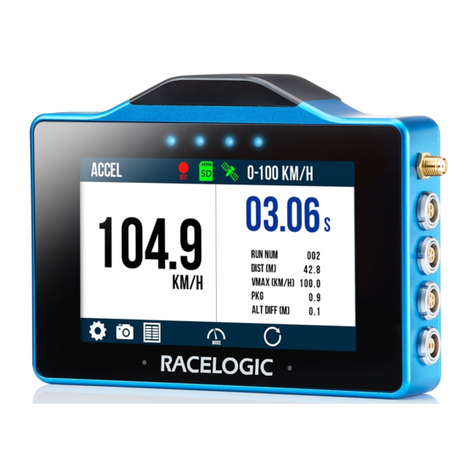
14. Take the vehicle outside and wait for the erformance Box Touch to gain satellite lock.
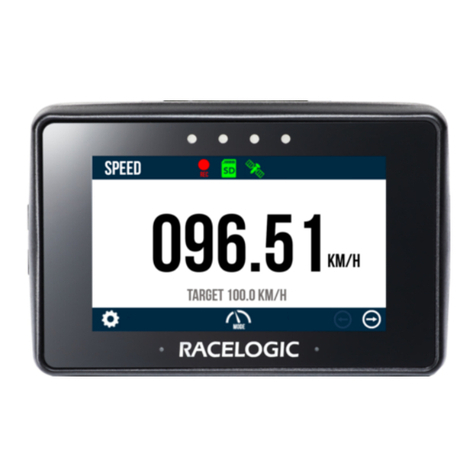
The Satellite Icon should display as solid green
.
Note: The first time that the unit is used, it may take up to 10 - 15 minutes to fully acquire satellites. After this, it will
usually take 1 - 2 minutes to acquire satellites.
15. The unit is now ready to display live Accel Test results.
16. By default, erformance Box Touch will automatically start recording when travelling over 0.5 km/h, this can be
changed within the General Settings.
17. Tapping on the SD Card Icon when green
will manually start or stop logging data, overriding the Configured Logging Strategy.
18. The Record Icon
will show when the unit is logging data to the SD card.
If you have come to a stop, but the Record Icon is still on, press the SD Card Icon to stop the logging before
removing the card.
Sometimes, due to poor satellite visibility in a garage or close to a building, the box may start recording, even if the
car is stationary. Always check the Record Icon before ejecting the card.
IMPORTANT – The SD card shouldn't be removed when the Record Icon is on as you may lose data.
https://en.racelogic.support// roduct_Info/ erformance_Meters/ erformance_Box_Touch/Quick_Start_Guides/
erformance_Box_Touch_Accel_Mode_-_Quick_Start_Guide
9