manuals.online logo
Brands
  1. Home
  2. •
  3. Brands
  4. •
  5. Radionics
  6. •
  7. Security System
  8. •
  9. Radionics D205 User manual

Radionics D205 User manual

Other manuals for D205

1

Other Radionics Security System manuals

Radionics D2112 User manual

Radionics

Radionics D2112 User manual

Radionics D9412 User manual

Radionics

Radionics D9412 User manual

Radionics D2112 User manual

Radionics

Radionics D2112 User manual

Radionics D8112 User manual

Radionics

Radionics D8112 User manual

Radionics 6112 User manual

Radionics

Radionics 6112 User manual

Radionics Security System User manual

Radionics

Radionics Security System User manual

Radionics Security System 8112 User manual

Radionics

Radionics Security System 8112 User manual

Radionics Security System 8112 User manual

Radionics

Radionics Security System 8112 User manual

Radionics READYKEY K6100 User manual

Radionics

Radionics READYKEY K6100 User manual

Radionics Security System User manual

Radionics

Radionics Security System User manual

Radionics D7212 User manual

Radionics

Radionics D7212 User manual

Radionics READYKEY K1100 User manual

Radionics

Radionics READYKEY K1100 User manual

Radionics 7112 User manual

Radionics

Radionics 7112 User manual

Radionics D636 User manual

Radionics

Radionics D636 User manual

Radionics D7212 User manual

Radionics

Radionics D7212 User manual

Radionics D6112 User manual

Radionics

Radionics D6112 User manual

Radionics D8112 User manual

Radionics

Radionics D8112 User manual

Popular Security System manuals by other brands

Polon-Alfa 4000 Installation and maintenance manual

Polon-Alfa

Polon-Alfa 4000 Installation and maintenance manual

Nexcom NViS 14162 Series user manual

Nexcom

Nexcom NViS 14162 Series user manual

Eminent EM8670 Quick install

Eminent

Eminent EM8670 Quick install

urmet domus alpha 1060 INSTALLATION AND USE BOOKLET

urmet domus

urmet domus alpha 1060 INSTALLATION AND USE BOOKLET

SmartPool YardGuard YG03 manual

SmartPool

SmartPool YardGuard YG03 manual

DSC PC5964 Mounting instructions

DSC

DSC PC5964 Mounting instructions

Secure USAB-1 operating instructions

Secure

Secure USAB-1 operating instructions

B&B 480 SERIES Operation & maintenance manual

B&B

B&B 480 SERIES Operation & maintenance manual

ADEMCO VISTA-20P Series Installation and setup guide

ADEMCO

ADEMCO VISTA-20P Series Installation and setup guide

Inner Range Concept 2000 user manual

Inner Range

Inner Range Concept 2000 user manual

Johnson Controls PENN Connected PC10 Install and Commissioning Guide

Johnson Controls

Johnson Controls PENN Connected PC10 Install and Commissioning Guide

Aeotec Siren Gen5 quick start guide

Aeotec

Aeotec Siren Gen5 quick start guide

Swann SW-P-MC2 Specifications

Swann

Swann SW-P-MC2 Specifications

Ecolink Siren+Chime user manual

Ecolink

Ecolink Siren+Chime user manual

EDM Solution 6+6 Wireless-AE installation manual

EDM

EDM Solution 6+6 Wireless-AE installation manual

Siren LED GSM operating manual

Siren

Siren LED GSM operating manual

Detection Systems 7090i Installation and programming manual

Detection Systems

Detection Systems 7090i Installation and programming manual

FRIEDLAND MA10 Installation and operating instructions

FRIEDLAND

FRIEDLAND MA10 Installation and operating instructions

manuals.online logo
manuals.online logoBrands
  • About & Mission
  • Contact us
  • Privacy Policy
  • Terms and Conditions

Copyright 2025 Manuals.Online. All Rights Reserved.

Security System Users Guide
1
Table of Contents
About This Users Guide ......................................................... 2
Introduction ............................................................................ 2
Security System Basics ............................................................ 3
Controlled Points .................................................................... 4
24-Hour Points ........................................................................ 5
Keypad Keys ............................................................................ 5
Keypad Lights ......................................................................... 6
Keypad Tones .......................................................................... 7
System Events ......................................................................... 8
Silencing Alarms ..................................................................... 9
Turning the System Off ........................................................ 10
Turning the System All On ................................................... 11
Turning the System All On, with No Delay ......................... 12
Turning On Part of the System (Part On) ............................ 13
Turning the System Part On, with No Delay ....................... 14
Turning System On, With Points Open (Bypassing Points) 15
Viewing Alarm Memory ........................................................ 16
Resetting the System ............................................................. 17
Selecting Watch Tone ........................................................... 18
Selecting Watch Points ......................................................... 19
Checking System Troubles ................................................... 20
Changing Passcodes ............................................................. 21
Step Outside .......................................................................... 22
Exit Only ............................................................................... 23
Silencing the Trouble Tone .................................................. 24
Show Passcode Types ........................................................... 25
Change Passcode Type ......................................................... 26
Change Other Users Passcodes ........................................... 27
System Test ........................................................................... 28
Security System Limitations ................................................. 29
Fire Safety and Evacuation ................................................... 30
Security System Glossary ...................................................... 31
Maintenance and Service ...................................................... 32
How to Clean the keypad ..................................................... 32
2
About This Users Guide
This users guide shows you how to use and maintain your
security system. It covers basic system functions, such as turning
the system on and off.
The functions described in this guide are programmed by your
security company. Some of them may not be included in your
system. Some of the functions covered may require you to enter
your personal passcode.
Introduction
Your system helps to secure life, property, and investments
against fire, theft, and bodily harm. It consists of a keypad (or
keypads), sensors such as motion detectors or devices located on
doors and windows, and other sensing devices designed to detect
the presence of smoke or combustion. Each of these devices is
connected to a sophisticated electronic brain, which processes all
events registered by the system.
Control of your security system is achieved through the keypad,
which offers a variety of basic and advanced features. Its function,
versatility, and ease of operation make it ideal for home or office.
The keypad is tailored to meet your individual needs. Moreover, it
has been designed with you, the user, in mind.
3
Security System Basics
What is a Point?
A point is a detection device, or group of devices connected
to your security system. The keypad shows point status through
the lights numbered 1 through 8 on the keypad display. Each point
can represent a single door, window, motion sensor, smoke detec-
tor, or other detection device.
What is a Faulted Point?
When a point (such as a door or window) is closed, it is said to
be normal. When the door or window is open, the point is said
to be faulted, or not normal. When you turn your system on, you
will usually want all of the points in your system to be normal. You
can turn your system on with faulted points by using the Bypassing
Points procedure.
The keypad shows faulted points by lighting the point status
display (numbered 1 through 8) .
Are All Points the Same?
No. There are two basic types of points, Controlled and 24-hour.
4
Controlled Points
Controlled points respond to alarm conditions depending upon
whether the system is turned on or turned off . They are pro-
grammed to either respond instantly to alarm conditions or to
provide a delay for you to reach the keypad and turn the system off.
Various controlled points may be located throughout your house.
When you turn your system on, you have the option of turning on
all controlled points (All On) or just some of the controlled points
(Part On).
All On
When you turn your system All On, you are turning on all
controlled points, both interior (motion detectors) and exterior
(doors and windows of the building).
Part On
When you turn your system Part On, you are turning on a
portion of the controlled points. The particular points included in
this portion are determined by your alarm company. Part points
may include only the exterior (doors and windows) of your system,
or the points on the first floor of a two-story house. Check with
your security company to learn which points are Part points.
5
24-Hour Points
24-hour points are always on, even when the system is turned
off. There are two types of 24-hour points, Fire points and Non-
Fire points.
Fire Points
Fire points only monitor fire detection devices, such as smoke
detectors. They are always on and cannot be turned off.
Non-Fire 24-Hour Points
Non-fire points are always on and cannot be turned off.
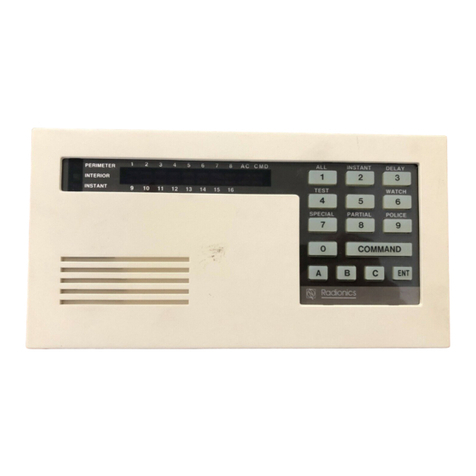
Keypad Keys
Your keypad has 15 keys. These keys perform various functions,
as described below.
1, 2, 3, 4, 5, 6, 7, 8, 9, 0
Each of the numeric keys performs a different function. For a
description of each, refer to the section of this guide that describes
the various system functions.
CLEAR
Use the CLEAR key to exit any function and start over.
A
A special function may be assigned to this key by your security
company. For your system this key_________________________.
B
A special function may be assigned to this key by your security
company. For your system this key_________________________.
C
A special function may be assigned to this key by your security
company. For your system this key_________________________.
✽✽
✽✽
✽
This key is not used.
6
Keypad Lights
The keypad uses lights to indicate various conditions, such as
whether your system is on or off, the status of protective points,
whether there is a system trouble, and whether there is an alarm.
Light Function
On Lights when the system is All or Part On.
Flashes during exit delay and when an alarm
occurs
No Delay Lights when the system is All or Part On
without entry or exit delay. Flashes during Step
Outside function.
1 to 8 Point lights show the status of each point.
When a point light is on steadily, that point
has been turned on. When the point light is
winking, the point is faulted. When the point
light is flashing, an alarm is indicated.
All Lights when the system is All On. When the
system is off, the All light comes on when all
points are ready to turn on (no doors or
windows are open). Winks when turning All On
with door or windows open.
Part Lights when the system is Part On. When the
system is off, lights when Part points are ready
to turn on. Flashes when changing passcodes.
OK Flashes when an alarm occurs. Winks when
there is a system trouble.
7
Keypad Tones
Your keypad emits several distinct tones and flashes keypad
lights to alert you to system events. Additional bells or sirens may
also be connected to your system. Bells or sirens mounted on the
exterior of your premises alert neighbors to emergencies and
provide an audible guide for police and fire fighters.
1. Fire Alarm Tone: When a fire point activates, the keypad
emits a warble tone on for one second, then briefly off (repeatedly).
2. Burglary Alarm Tone: When a burglary point activates
while your system is on, your keypad emits a continuous warble
tone. The tone sounds for the time set by your security company.
3. Trouble Tone: When a system component is not function-
ing properly, your keypad emits a warble tone that is on briefly,
followed by a pause, followed by the warble tone (repeatedly). If
the problem is with a point, the system display indicates which
point is faulted.
4. Keypress Tone: Pressing any key on the keypad sounds a
short pip, indicating that the entry is accepted.
5. Entry Delay Tone: When you enter the premises through a
point programmed for entry delay, the keypad emits a repeating
short beep, long beep tone to remind you to turn off your system.
If the system is not turned off before the entry delay expires, an
alarm report may be sent to your alarm company.
6. Exit Delay Tone: After you turn your system on, the keypad
emits an intermittent beep tone and counts down the exit delay
time. If you dont exit before the delay time expires, and an exit
delay door is faulted, an alarm occurs.
7. Error Tone: If you press an incorrect key, your keypad emits
an error tone to indicate an invalid entry. The error tone is the same
warble tone as the Trouble Tone, but it is not repeated.
8. OK Tone: Indicates that a keypad entry is accepted; for
example, that a correct passcode has been entered. The keypad
emits a single, high-pitched beep tone for one second.
9. Watch Tone: The keypad emits a tone to alert you when any
watched point is faulted. The tone varies in duration, depending
upon the Watch Tone selected (see Selecting Watch Tone).

8
System Events
Your system responds to four types of events. If more than one
event occurs, your system sorts them into one of four groups. The
groups (highest priority first) are: Fire Alarms, Burglary Alarms,
Fire Troubles, and Non-Fire Troubles.
Fire Alarms
Fire alarms are the highest priority events. When a fire point
activates, your keypad emits a warble tone that is on for one
second, then briefly off (repeatedly). Evacuate all occupants and
investigate for smoke or fire. Ensure that all occupants know the
difference between the burglary tone and the fire tone. The tone
sounds for the time set by your security company.
The keypad lights the point lights of the points that go into
alarm.
Burglary Alarms
Burglary alarms are the second priority. When a burglary point
activates while your system is turned on, your keypad emits a
constant warble tone. The tone sounds for the time set by your
security company.
The keypad lights the point lights of the points that go into
alarm.
Fire Trouble Events
When a fire trouble (such as a loose wire) occurs, your keypad
emits a trouble tone, which is a warble tone that is on briefly, then
followed by a pause, followed by the warble tone (repeatedly).
The keypad display winks the OK light to indicate the presence
of a system trouble. See Checking System Troubles to determine the
nature of the trouble.
Non-Fire Trouble Events
When a trouble event (e.g. power failure) occurs, your keypad
emits a trouble tone, which is a warble tone that is on briefly,
followed by a pause, followed by the warble tone (repeatedly).
The keypad display winks the OK light to indicate the presence
of a system trouble. See Checking System Troubles to determine the
nature of the trouble.
9
How Your System Reports Alarms
Your security system may be programmed to automatically
disconnect your telephones when sending reports to your security
company. Once the report is completed, your security system
returns the telephones to normal operation (check with your
security company).
Your system makes repeated attempts to send reports to your
security company. In the event your system fails to report, the
keypad will signal a system trouble. Follow the Checking System
Troubles procedure.
Note: If your telephone ser vice is interrupted, your security
system cannot send reports to your security company unless it has
an alternate means of transmitting them.
Silencing Alarms
When there is an alarm, the alarm tone sounds and the point or
points in alarm light up. If you enter your passcode before the
system dials your alarm company, the alarm is canceled.
1. When an alarm occurs, the OK light and point lights (1 to 8)
flash. For example if point 4 produces the alarm event, then point
4 flashes:
2. Enter your passcode to silence the alarm. If you enter your
passcode before the system dials your alarm company, the alarm is
canceled and the OK light stops flashing. If the OK light contin-
ues to flash, an alarm report was sent to your alarm company.
3. Use Viewing Alarm Memory to review the points that caused
the alarm. Use Resetting The System to reset the OK light and clear
alarm memory.