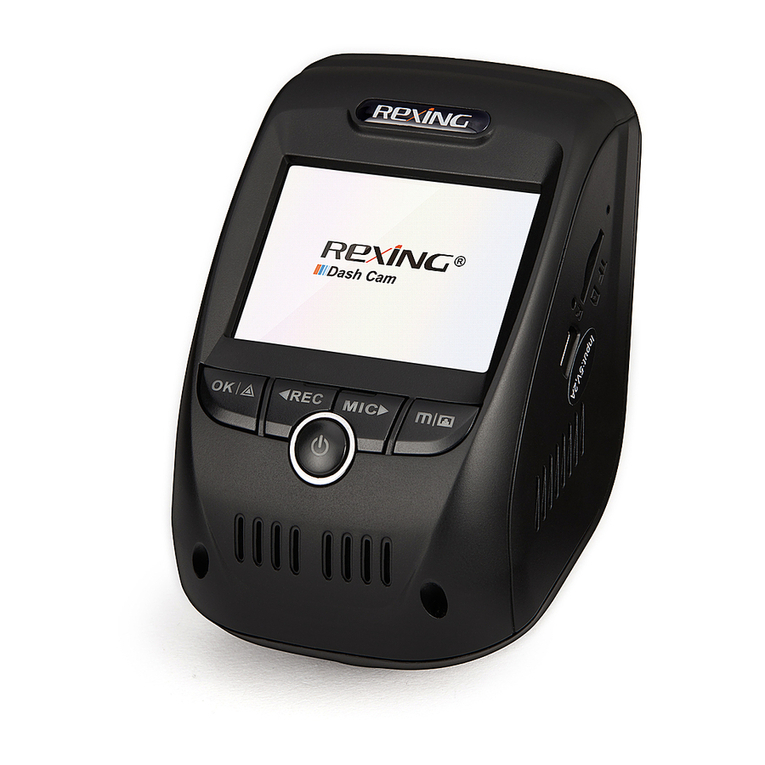
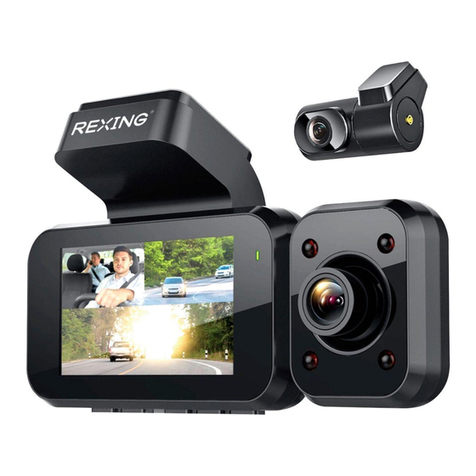
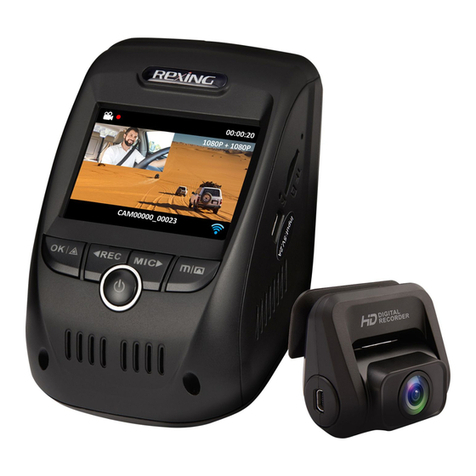
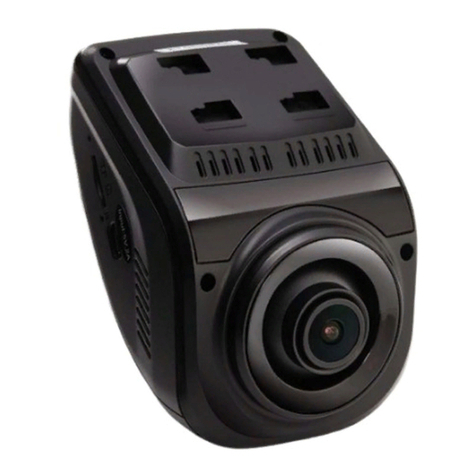
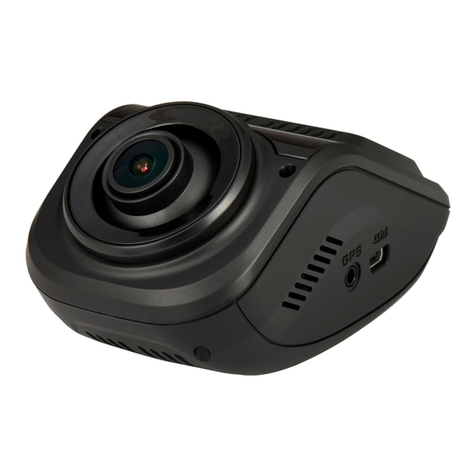
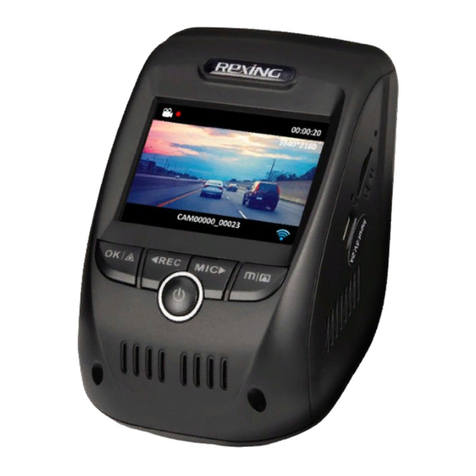
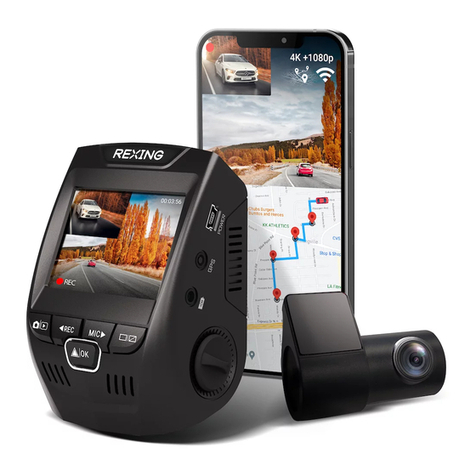
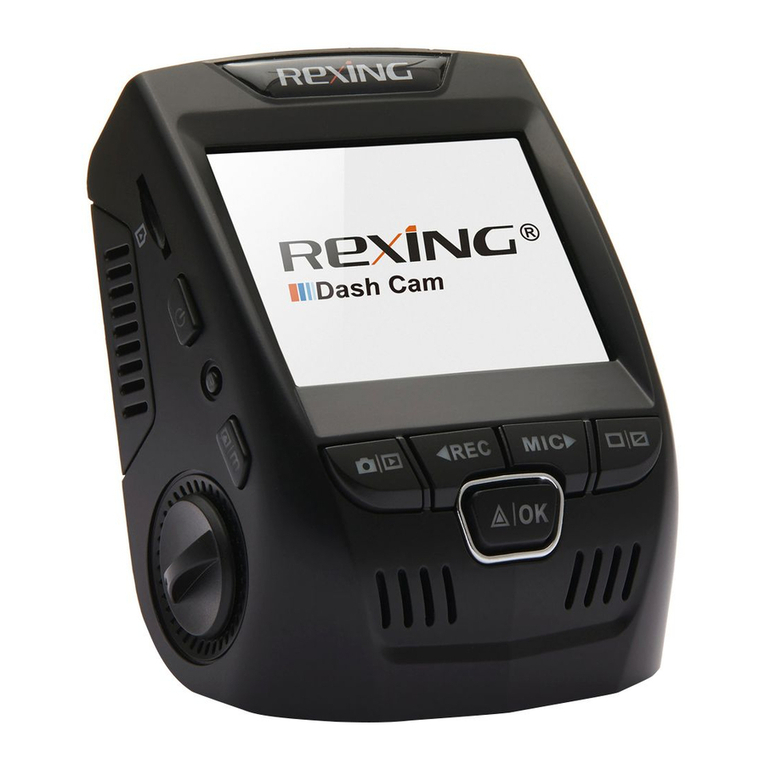
Rexing V1P Pro User manual

V1P Pro
User Manual
The information in this manual is subject to change
without notice.
www.rexingusa.com 06Rev4

32
About This Manual
This device provides high-quality digital recording using Rexing’s
high standards of design, construction and technological
expertise. This user manual describes the device’s functions
and features in detail. Please read this manual before using the
device to ensure safe and proper use. Note that all descriptions
included here are based on the device’s default settings.
•Images and screenshots may differ in appearance from
the actual product. Content may differ from the final
product or from software provided by service providers
and is subject to change without prior notice.
• For the latest version of this manual, refer to the Rexing
website at www.rexingusa.com.
• Available features and additional services may vary by
device and software.
• Applications and their functions may vary by country,
region, or hardware specifications.
• Rexing is not liable for performance issues caused by
applications from any provider other than Rexing.
• Rexing is not liable for performance issues or
incompatibilities caused by failure to install the device
as stated in this manual. Attempting to customize the
installation may cause the device or applications to work
improperly which may result in device malfunctions and
data corruption or loss. These actions are violations of
your Rexing agreement and will void your warranty.
www.rexingusa.com/support/registration/
/rexingusa
@rexingdashcam
• Default applications that come with the device are subject
to updates and possible discontinuation of support without
prior notice. If you have questions about an application
provided with the device, contact an authorized Rexing
Service Center.

54
5. Mode Setup
Video Mode Settings
System Settings
Photo Settings
6. Troubleshooting
Update Firmware
7. Product Specications
8. Warranty & Support
Table of Contents
About This Manual
Table of Contents
1. What’s in the box?
2. Camera Overview
Device Layout
Buttons
Status Icons
3. Getting Started
Installation
Attach the Front Camera to the window mount
Inserting the Memory Card
Removing the Memory Card
Powering the Camera
Formatting the Memory Card
Mount the Rear Camera
Connect the car charger to the car’s 12V DC outlet
Turning the Device On and O
4. Basic Operation
Auotomatic Recording
Playback
Camera Playback Mode
Computer Playback
GPS Playback
Wi-Fi Connect
page
2
4
6
8
8
9
10
12
12
13
13
14
15
16
17
18
18
19
19
20
21
22
23
25
26
26
30
33
36
36
37
39
page
Parking Monitor 24

76
1. What’s in the box? The items supplied with the device and any available
accessories may vary depending on your region. Appearances
and specications are subject to change without prior notice.
Availability of accessories is subject to change.
All supplied items are designed for use only with this device
and may not be compatible with other devices. Malfunctions
resulting from the use of unapproved accessories are not
covered by the warranty service.
For more information about available accessories, refer to www.
rexingusa.com.
1. Rexing V1P Pro Dashboard Camera
2. Full HD Rear Camera
3. Rear Camera Cable (20ft)
4. Car Power Connector (12ft)
5. 3M Adhesive Mount
6. USB Cable
7. Quick Start Guide
8. Safety Guide
9. Cable Management Tool
2.
5.
4.
6.
9.
3.
7. 8.
1.

98
2. Camera Overview
Device Layout
1. OK (Conrm) Button / Emergency Lock Button
2. Up Navigation Button / Record Button
3. Power Button / Screen Toggle Button
4. Down Navigation Button / Mic Button
5. Menu Button / Mode Button
6. Micro SD Card Slot
7. Reset Button
8. USB Charging Port
9. Rear Camera Port
10. GPS Logger Port (not used by V1P Pro)
2. 4. 5.
3.
1.
9.
10.
6.
8.
7.
Buttons
Button Function
Press: Toggle display on or o
Hold: Turn the device on or o manually
Menus: Conrm a selection
Video Mode: Manually lock current recording
Photo Mode: Take photo
Playback Mode: Start / stop playback
Press: Enter menu, cycle through menus or
exit current menu
Hold: Change mode
Menus: Move selection up
Video Mode: Start / stop recording
Hold (Video or Photo Mode): Enable Wi-Fi
mode
Playback Mode: Decrease or reverse
playback speed / Cycle left through
recordings
Menus: Move selection down
Video Mode: Toggle audio recording
Hold (Video or Photo Mode): Change front /
rear camera views
Playback Mode: Increase playback speed /
Cycle right through recordings
RESET
Press and hold for 4 seconds to reset the
device in the event that it operates erratically,
hangs up, or freezes
Indicator Flashing Red – Recording

1110
Status Icons
Icon Meaning
Video resolution
Currently recording (blinking)
Wide Dynamic Range enabled
Connected to power source
Audio recording enabled
Audio recording disabled
Video Recording Mode
Playback Mode
Photo Mode
Loop Recording
Memory card detected
Exposure
GPS searching for signal (animated)
GPS signal acquired (no animation)
Current recording locked

1312
Step 1: Attach the Front Camera to the
Window Mount
Make sure that you mount the front camera in a safe,
appropriate location where it won’t obstruct the driver’s view.
Clean your windshield before applying the mount. Wait at least
20 minutes after applying the mount to the windshield before
attaching the camera.
Step 2: Inserting the Memory Card
The V1P Pro accepts Micro SD memory cards (class 10 or higher)
with a maximum capacity of 256GB.
Depending on the memory card manufacturer and type,
some cards may not be compatible with your device.
Using an incompatible card may damage the device or
the memory card or corrupt the data stored on it.
We highly recommend using Micro SD cards that are
specifically designated for use with dash cams. You can find
our recommendations on our website:
www.rexingusa.com/memory-card/.
Note: Before inserting or removing a memory card, first ensure
you’ve powered down the device.
3. Getting Started
Installation
Video guide can be found at video.rexingusa.com.
Orient the
mount as shown
Route power cable
to the Dash Cam
Plug Mini USB
Connector to the
Dash Cam
Plug charger into
power outlet or
cigarette lighter

1514
Inserting a memory card
1. If the device is powered on, press and hold the Power
button to power down.
2. Insert the card in the orientation shown.
3. Push the card into the slot, listening for a click sound
signaling the card is securely inserted.
Removing a Memory Card
Before removing a memory card from your V1P Pro, you must
rst dismount it for safe removal.
With the device powered down, press down on the memory
card until you hear a click. Gently remove your nger (or other
pressing object) to allow the spring release to push the memory
card out of the slot.
Do not remove the memory card while the device is
transferring or accessing information. Doing so can result
in data loss or corruption or damage to the memory card or
device. Rexing is not responsible for losses that result from the
use of damaged memory cards, including the loss of data.
Step 3: Formating the Memory Card
Step 3.1: Powering the Camera
You must always connect the V1P Pro to a power
source while operating the camera. Connect the camera
to your vehicle via the included car charger cable. Connect
the larger end of the car charger cable to your car’s cigarette
lighter (12V DC power outlet). Connect the other Mini-USB end
to the Mini-USB port on the device.
Connecting the charger improperly may cause serious
damage to the device. Any damage caused by misuse is
not covered by the warranty. Use only Rexing-approved
chargers. Using unapproved chargers or cables can damage
the device.
If the device receives an unstable power supply, the screen
Press the Power
button to turn the
power o

1716
may not function properly. If the device is not operating
properly using a Rexing-approved charger, please contact
Step 3.2: Formatting the Memory Card
Before formatting your memory card, always remember
to make backup copies of all important data stored on the
device. The manufacturer’s warranty does not cover loss of
data resulting from user actions.
For best results, format the memory card using the Format
function on your camera.
It’s recommended that you format your memory card after
transferring les to your computer or at least once a month.
Using your camera to format a memory card:
1. Upon turning on the camera, press the REC button to stop
recording.
2. Press the MENU button twice to enter the Setup Menu.
3. Use the REC and MIC buttons to navigate to the “Format”
option.
4. Press OK to conrm your selection.
5. You will be notied that all data will be deleted. Scroll down
to “OK” and press the OK button to conrm.
6. If you followed the instructions above, you should see a
blue box asking you to please wait while the card is being
formatted. Formatting should only take a moment, and
you will be taken back to the Setup Menu once formatting
is complete.
7. At this point, discount from the power source. The camera
will shut down automatically after 3 seconds. The next
time the camera is connected to power, the camera should
start up and begin recording automatically.
Step 4: Mount the rear camera
Rear Camera Instalation
Plug the Rear Camera
into the Dash Cam
Press the OK
button to conrm
formatting the
card
Press the Menu
button twice

18
Mount the rear camera as shown above. Use the provided rear
camera cable to connect the rear camera to the front camera.
Step 5: Connect the car charger to the car’s 12V
DC outlet
Run the cable down from your camera to the 12V cigarette
lighter port of your vehicle. Be sure to connect only Rexing-
approved chargers designed and supplied specically for use
with your device. Using an incompatible charger can cause
serious personal injury or damage to your device.
Step 6: Turning the Device On and Off
Press and hold the Power button for a few seconds to turn on
Note: If your car cigarette lighter provides constant power, the unit
may not turn on and o automatically with the car.
4. Basic Operation
4.1 Automatic Recording
The device will automatically turn on and begin recording once
it receives power, such as when you start your car. The indicator
and the red dot icon on screen will ash while recording.
Display Control
To switch between camera views on the LCD display, hold the
MIC button. Press the POWER button will turn on or off the
LCD screen. Your display settings won’t affect the way
recordings are captured.
On the rear camera, you can toggle the built-in switch to
horizontally flip the rear camera image.
Locking Videos
While recording, you can press the OK button to manually lock
19
Recording (on)
Press the REC button
to stop recording
Recording Time
Press and hold the Power
button to turn the device on
manually
the device. A welcome message
will be displayed onscreen.
To turn o the device, again
press and hold the Power
button for a few seconds.
A goodbye message will be
displayed onscreen.
The V1P Pro will switch on
and o automatically if you
keep it connected using the
car charger. The camera will
automatically start recording
when powered on. After
power is diconnected, the
device will shut down after 3
seconds.

Other manuals for V1P Pro
1
Table of contents
Other Rexing Dashcam manuals

Rexing
Rexing V360 User manual

Rexing
Rexing V1P User manual

Rexing
Rexing V1 Max User manual

Rexing
Rexing S3 User manual

Rexing
Rexing V1 User manual

Rexing
Rexing V3 User manual

Rexing
Rexing V2 PRO User manual

Rexing
Rexing V1PGEN3 Installation and operating manual

Rexing
Rexing S800 User manual

Rexing
Rexing V5 Plus User manual