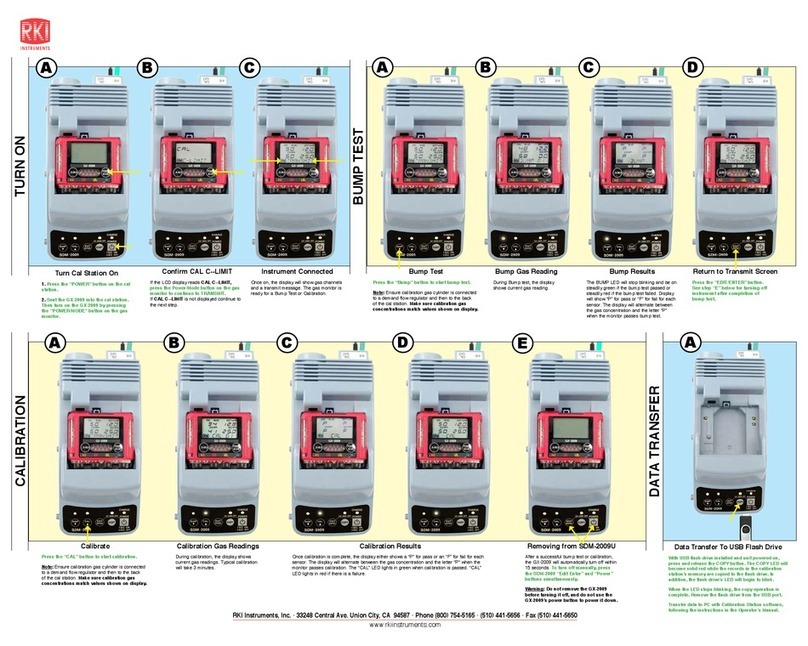
GX-6000 Calibration Station User Guide
www.rkiinstruments.com
RKI Instruments, Inc. •33248 Central Ave. Union City, CA 94587 •Phone (800) 754-5165 •(510) 441-5656 •Fax (510) 441-5650
Instrument Connected
The GX-6000 will turn on once the gas in/
gas out cover is in place. The GX-6000 will
begin its power up sequence. The status of the
instrument is shown by the Station/Instrument
Indicators at the bottom of the Function Tab.
The color of the corresponding indicator and the
logo shown in it will indicate the status of the
instrument.
Status Indications
Status Light: Sold green - No instrument
Blinking green - GX-6000 installed
Blinking orange - Charging
Solid orange - Charge complete
Solid red - Problem detected
Status Icons: GX-6000 is connected
Tab’sActiveboxisnotselected.
Cal/Bump/AlarmCheckinprogress
Green - Test Pass
Red - Test Failed
GX-6000 problem detected
Calibration
The SDM-6000 will then apply calibration gas in
the order of the active gas inlet fittings. The SDM-
6000 will analyze the results after the end of each
gas application.
the GX-6000 will shut off after 15 seconds. If the
calibration failed, the GX-6000 will shut off after 10
minutes.
Calibration Results
Once the calibration is over, the Function Tab will
displayaCALEndbutton.Toviewthetestresults,
press the Unit button to display the Unit Tab. The
displayed results will alternate between calibration
results and alarm check results. The test results
will display on the Unit Tab until you press the
CALEndbuttonintheFunctionTabevenifthe
GX-6000 is turned off. The results of the calibra-
tionwillbestoredintheSDM-6000’sSDcard.
The results can be printed by pressing the Print
button at the end of a calibration.
(if optional printer is connected)
Start Bump Test
1. If necessary, press the Function button in
the upper left corner to get the Function Tab
to appear.
2. Press the BUMP button to initiate a bump
test.
If you wish to cancel the bump test, press the
BUMP Cancel button in the Function Tab and
press Yes in the window that appears.
Fresh Air Adjustment
The SDM-6000 will apply fresh air to the
GX-6000forthetimedefinedbytheAIRFlush
bump test parameter.
If one or more of the sensors fails the fresh air
adjustment, the SDM-6000 will abort the bump
test and will not apply calibration gas. If this
happens, the Unit Tab will indicate which chan-
nels passed and failed the fresh air adjustment.
(AboveisanexampleofanO2channelfailure)
above)adjustment.
Bump Testing
The SDM-6000 will apply calibration gas in the
order of the active gas inlet fittings. The SDM-
6000 will analyze the results after the end of
each gas application.
The GX-6000 will shut off after 15 seconds. If
the bump test failed, the GX-6000 will shut off
after 10 minutes.
Bump Test Results
Once the bump test is over, the Function Tab
willdisplayaBUMPEndbutton.Toviewthe
test results, press the Unit button to display
the Unit Tab. The displayed results will alter-
nate between bump test results and alarm
check results. The test results will display
on the Unit Tab until you press the BUMP
EndbuttonintheFunctionTabevenifthe
GX-6000 is turned off.
The results can be printed by pressing the
Print button at the end of a bump test.
(if optional printer is connected)
Remove GX-6000
To turn off the GX-6000 before it is auto-
matically turned off, press the Detector Off
button in the lower left corner of the Unit
Tab.
Then push the red gas in/gas out cover
toward the GX-6000 and then release it.
It should return to its unused state at the
top of the SDM-6000. Remove the GX-6000
from the SDM-6000.
Start Calibration
1. If necessary, press the Function button in
the upper left corner to get the Function Tab to
appear.
2. Press the CAL button to initiate a calibration.
Ifyouwishtocancelthecalibration,presstheCAL
Cancel button in the Function Tab and press Yes in
the window that appears.
Remove GX-6000
To turn off the GX-6000 before it is automatically
turned off, press the Detector Off button in the
lower left corner of the Unit Tab.
Then push the red gas in/gas out cover toward
the GX-6000 and then release it. It should return
to its unused state at the top of the SDM-6000.
Remove the GX-6000 from the SDM-6000.
Install GX-6000
1. Flip the SDM-6000’s power switch so that it’s
in the ON position.
2. Orient the GX-6000 so the belt clip is facing
away from the SDM-6000. Set the bottom of the
GX-6000 in the bottom of the instrument cradle
and push the top of the GX-6000 toward the
SDM-6000.
2. Push the red gas in/gas out cover down until
it touches the GX-6000 and then release it.
Fresh Air Adjustment
The SDM-6000 will apply fresh air to the GX-6000
forthetimedefinedbytheAIRFlushcalibration
parameter.
If one or more of the sensors fails the fresh air
adjustment, the SDM-6000 will abort the calibra-
tion and will not apply calibration gas. If this hap-
pens, the Unit Tab will indicate which channels
passed and failed the fresh air adjustment.
BUMP TEST
CALIBRATION
ALARM CHECK
TURN ON
To perform an alarm check:
1. If necessary, press the Function button in the upper left
corner to get the Function Tab to appear.
2. Press the Alarm Check button to initiate an alarm check.
Thebuzzerwillsound,theLEDswillturnonforafewseconds,
the vibrator will vibrate, and the SDM-6000 will determine if these
actionswerecompletedsuccessfully.Afterthealarmcheck,the
Function Tab will display. To view the test results, press the Unit
button to display the Unit Tab. The test results will display on
theUnitTabuntilyoupresstheAlarmCheckEndbuttoninthe
Function Tab even if the GX-6000 is turned off.