SCHUBERTH SC10UA User manual

SC10UA
CONTENTS
1 INTRODUCTION............................................................................................... 4
2 PACKAGE CONTENTS......................................................................................5
3 INSTALLING THE SC10UA ON YOUR HELMET .................................................6
3.1 Installing the Main Unit ....................................................................................................................7
4 GETTING STARTED.........................................................................................10
4.1 Button Operation ............................................................................................................................10
4.2 Powering On and O...................................................................................................................... 10
4.3 Charging ..........................................................................................................................................10
4.4 Checking the Battery Level ............................................................................................................11
4.5 Volume Adjustment..........................................................................................................................11
4.6 Softwares ........................................................................................................................................ 12
5 PAIRING THE SC10UA WITH BLUETOOTH DEVICES.......................................12
5.1 Mobile Phone Pairing - Mobile Phone, Bluetooth Stereo Device............................................... 13
5.2 Second Mobile Phone Pairing - Second Mobile Phone, GPS, and SR10................................... 13
5.3 Advanced Selective Pairing - A2DP Stereo or Handsfree .......................................................... 14
6 MOBILE PHONE, GPS, SR10 ...........................................................................15
6.1 Mobile Phone Call Making and Answering ...................................................................................15
6.2 Speed Dialing...................................................................................................................................16
6.3 GPS Navigation............................................................................................................................... 17
6.4 Sena SR10, Two-Way Radio Adapter............................................................................................. 17
7 STEREO MUSIC ..............................................................................................17
7.1 Bluetooth Stereo Music ................................................................................................................. 17
7.2 Music Sharing ................................................................................................................................. 18
8 INTERCOM .....................................................................................................18
8.1 Intercom Pairing..............................................................................................................................19
8.2 Two-way Intercom ......................................................................................................................... 20
8.3 Three-way Intercom ....................................................................................................................... 21
8.4 Four-way Intercom ........................................................................................................................ 22
9 THREE-WAY CONFERENCE PHONE CALL WITH INTERCOM
PARTICIPANT................................................................................................. 23
10 GROUP INTERCOM ....................................................................................... 24
11 UNIVERSAL INTERCOM................................................................................. 25
11.1 Universal Intercom Pairing ............................................................................................................ 26
11.2 Two-way Universal Intercom ........................................................................................................ 26
11.3 Three-way Universal Intercom.......................................................................................................27
11.4 Four-way Universal Intercom........................................................................................................ 28
12 FM RADIO ...................................................................................................... 30
12.1 FM Radio On and O .................................................................................................................... 30
12.2 Preset Stations............................................................................................................................... 30
12.3 Region Selection ............................................................................................................................. 31
13 FUNCTION PRIORITY......................................................................................31

English
SC10UA
14 CONFIGURATION SETTING ........................................................................... 32
14.1 Mobile Phone Pairing..................................................................................................................... 33
14.2 Second Mobile Phone Pairing....................................................................................................... 33
14.3 Phone selective pairing ................................................................................................................. 34
14.4 Media Selective Pairing................................................................................................................. 34
14.5 Assigning Speed Dial ..................................................................................................................... 34
14.6 Enabling/Disabling Audio Boost ................................................................................................... 35
14.7 Enabling/Disabling Voice Activated Phone Answering .............................................................. 35
14.8 Enabling/Disabling Voice Activated Intercom ............................................................................. 36
14.9 Enabling/Disabling HD Intercom .................................................................................................. 36
14.10 Setting Intercom VOX Sensitivity .................................................................................................37
14.11 Enabling/Disabling Voice Prompts...............................................................................................37
14.12 Enabling/Disabling RDS AF............................................................................................................37
14.13 Enabling/Disabling Sidetone ......................................................................................................... 38
14.14 Enabling/Disabling Advanced Noise Control™ .......................................................................... 38
14.15 Delete All Bluetooth Pairing Information...................................................................................... 38
14.16 Remote Control Pairing ................................................................................................................. 38
14.17 Universal Intercom Pairing ............................................................................................................ 39
14.18 Factory Reset................................................................................................................................. 39
14.19 Exit Voice Conguration Menu..................................................................................................... 39
15 REMOTE CONTROL ........................................................................................41
16 FIRMWARE UPGRADE ....................................................................................41
17 TROUBLESHOOTING ..................................................................................... 42
17.1 Intercom Failure ............................................................................................................................. 42
17.2 Intercom Reconnection................................................................................................................. 42
17.3 Fault Reset ..................................................................................................................................... 42
17.4 Factory Reset................................................................................................................................. 42
18 QUICK OPERATION REFERENCE................................................................... 43
CERTIFICATION AND SAFETY APPROVALS......................................................... 44
• FCC Compliance Statement .............................................................................................................. 44
• FCC RF Exposure Statement ............................................................................................................ 45
• FCC Caution........................................................................................................................................ 45
• CE Declaration of Conformity............................................................................................................ 45
• Industry Canada Statement .............................................................................................................. 45
• Bluetooth License .............................................................................................................................. 46
• WEEE (Waste Electrical and Electronic Equipment)....................................................................... 46
SAFETY INFORMATION ....................................................................................... 46
• Product Storage and Management................................................................................................... 46
• Product Use .........................................................................................................................................47
• Battery..................................................................................................................................................47
PRODUCT WARRANTY AND DISCLAIMER........................................................... 48
• Limited Warranty................................................................................................................................. 48
• Warranty Exclusions ........................................................................................................................... 50
• Warranty Service ................................................................................................................................ 52


SC10UA
4
1 INTRODUCTION
Thank you for choosing the Schuberth SC10UA for E1/C3PRO/C3
Basic. With the SC10UA, you can call handsfree on your Bluetooth
mobile phone, listen to stereo music or voice instructions of GPS
navigations wirelessly, and have intercom conversations in full duplex
with a passenger or other motorcycle riders.
The SC10UA is compliant with the Bluetooth 4.1 supporting the
following proles: Headset Prole, Hands-Free Prole (HFP), Advanced
Audio Distribution Prole (A2DP), and Audio Video Remote Control
Prole (AVRCP). Please check with the manufacturers of other device
to determine their compatibility with this headset.
Please read this User’s Guide carefully before using the headset. Also
check www.schuberth.com for the latest version of the User’s Guide
and additional information related to SCHUBERTH Bluetooth products.
The SC10UA features:
•Bluetooth 4.1
•Invisible beauty with custom design
•Bluetooth intercom up to 1.6 kilometer (1.0 miles)*
•Four-way intercom
•Voice prompts
•Smartphone App for iPhone and Android
•Built-in FM radio tuner with a station scan and save function
•Universal Intercom™
•Music sharing
•Advanced Noise Control™
•Firmware upgradeable
* in open terrain

SC10UA
5
English
Key Specications:
•Bluetooth 4.1
•Supporting proles: Headset Prole, Hands-Free Prole (HFP),
Advanced Audio Distribution Prole (A2DP), and Audio Video Remote
Control Prole (AVRCP).
2 PACKAGE CONTENTS
•
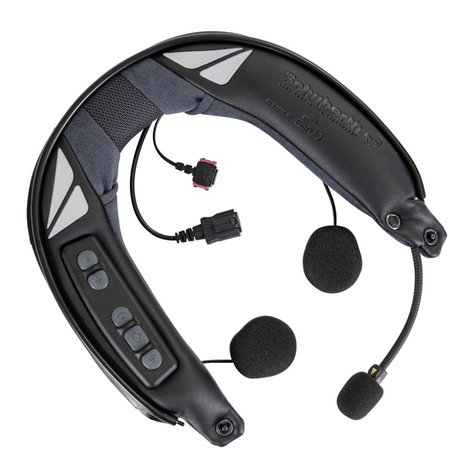
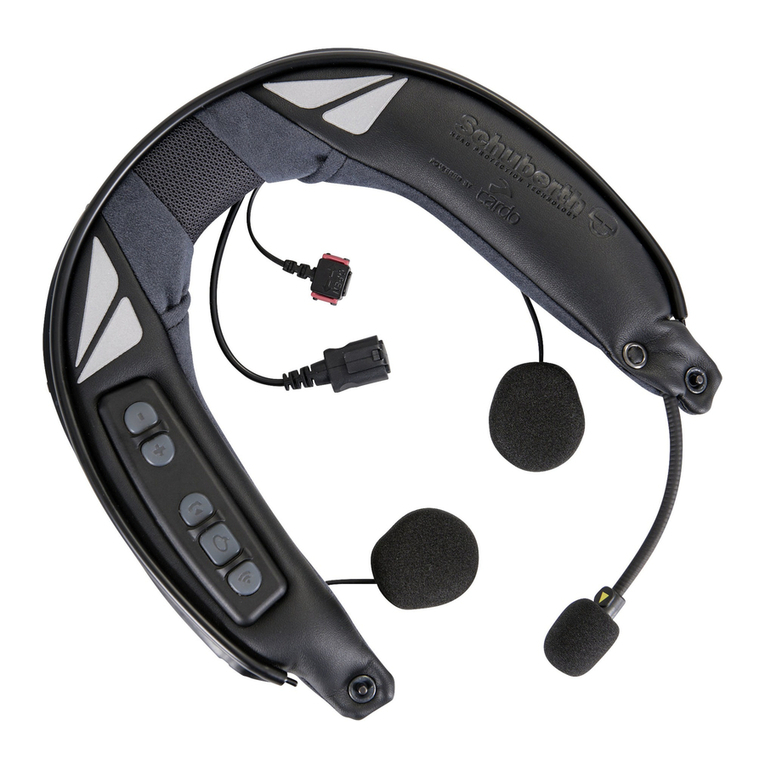
SC10UA Headset

SC10UA
6
3 INSTALLING THE SC10UA ON YOUR
HELMET
DC Power Charging &
Firmware Upgrade Port
Status LED
Speakers
Antenna
Main Unit
Microphone
Headset Buttons
•
Hook and Loop Fasteners for Speakers
•
Foam Speaker Covers
•
Speaker Pads
•
USB Power & Data Cable

SC10UA
7
English
3.1 Installing the Main Unit
1. Before you install the SC10UA, remove the cheek pads and ear pads
of your helmet.
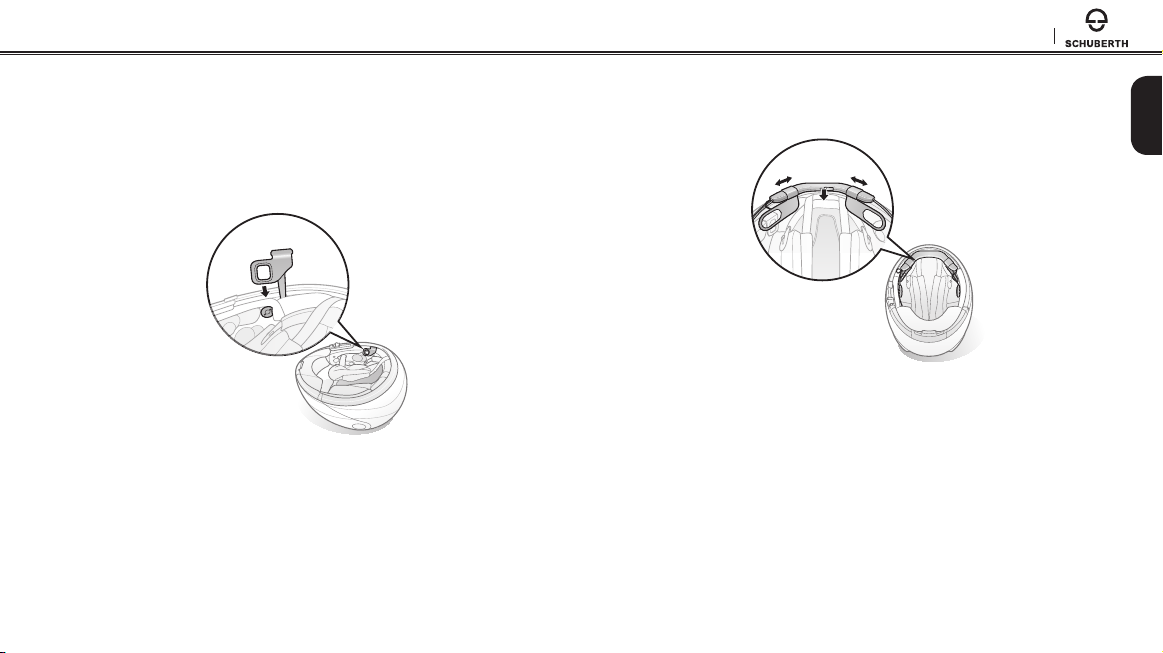
2. Slide in the antenna between the external shell and the rear left
inner shell. Align its snap holder with the rear left snap.
3. Insert the main unit between the external shell and the inner shell.
Align its snap holders with the rear snaps.

SC10UA
8
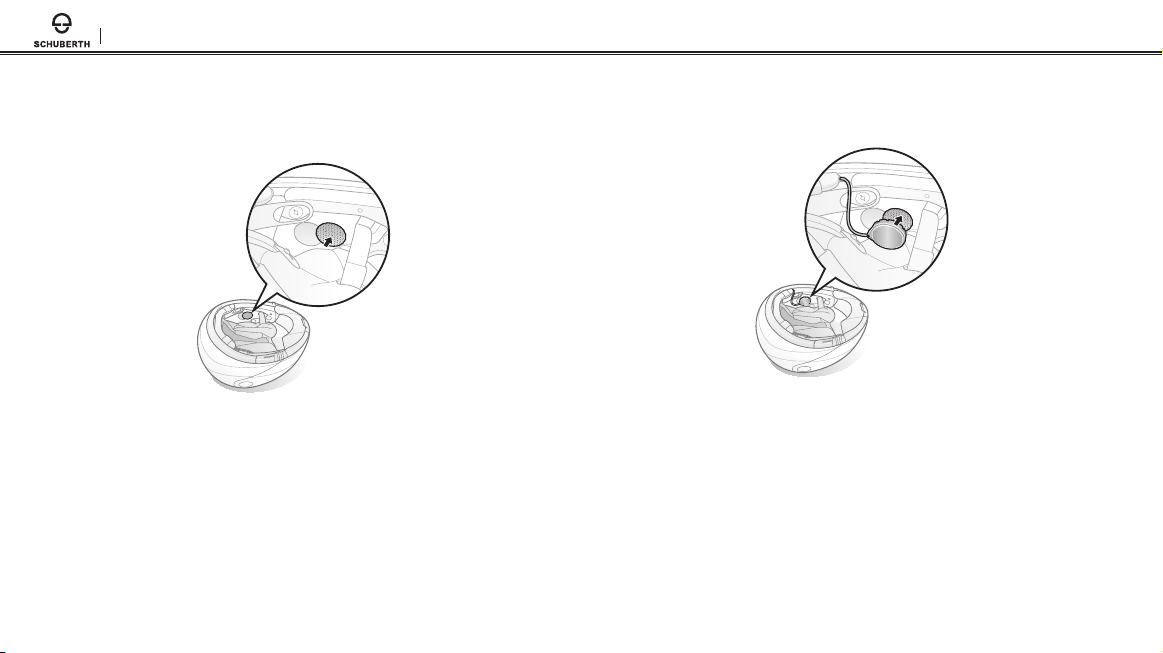
4. Peel o each cover of the hook and loop fasteners for speakers to
expose the adhesive surface. Then, attach the fasteners to the ear
pockets inside the helmet.
5. Attach the speakers to the hook and loop fasteners for speakers
inside the helmet. Then click the snaps through the snap holders.

SC10UA
9
English
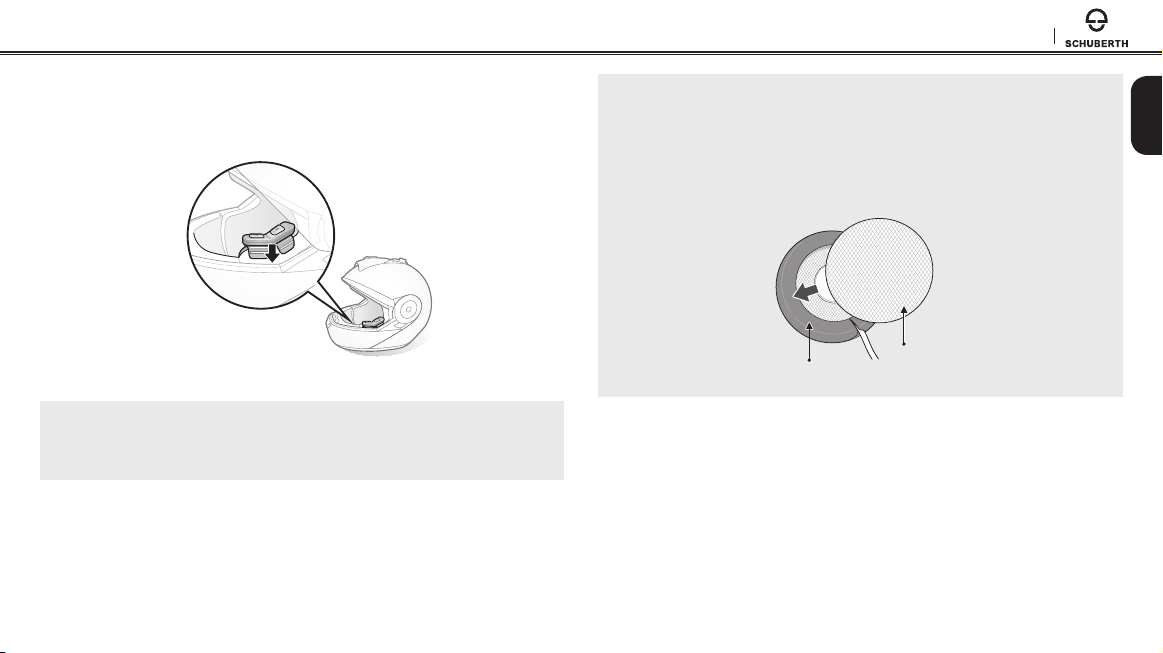
6. Insert the control buttons and microphone unit between the
external shell and the left inner shell. Click the snap through its
snap holder.
7. Hide the wires behind the center pad and reinstall the cheek pads.
Note:
If you have trouble inserting the neckroll, lift the battery unit and reinstall the
neckroll while holding them together.
Note:
To enhance the audio quality, you can make use of the foam speaker covers.
Cover each speaker with the foam and attach the hook fastener at the back of
the speaker. Then place the speakers in the helmet as described above. Foam
covered speakers work most eectively when they are slightly touching your
ears.
Hook Fastener
Foam Speaker Cover

SC10UA
10
4.3 Charging
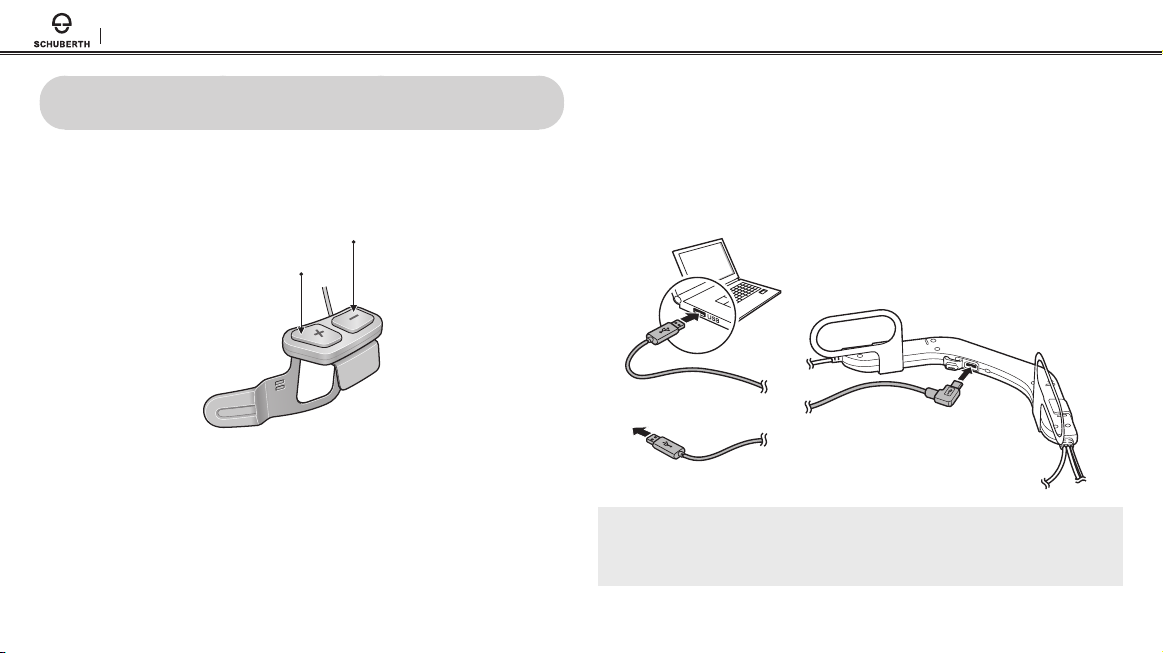
You can charge the headset by connecting the supplied USB power &
data cable into a computer’s USB port or USB wall charger. You can use
any standard micro USB cable to charge the unit. You can also charge
it on the road using the cigarette charger. The charging LED turns red
while charging and turns blue when fully charged. It takes about 2.5
hours to be completely charged.
or
AC Adapter
Note:
Please make sure to take o your SC10UA-installed helmet while charging. The
headset automatically turns o during charging.
4 GETTING STARTED
4.1 Button Operation
(+) Button
(–) Button
4.2 Powering On and O
To power on the headset, press and hold the (+) Button and the (-)
Button at the same time for 1 second while hearing ascending beeps
and a voice prompt, “Hello”. To power o the headset, press and hold
the (+) Button and the (-) Button at the same time for 3 seconds while
hearing descending beeps and a voice prompt, “Goodbye”.
Other manuals for SC10UA
2
Table of contents
Other SCHUBERTH Headset manuals