English
25
4. BASIC SETUP AND CONFIGURATION
4.1 GENERAL FUNCTIONS
DESIRED RESULT REQUIRED ACTION
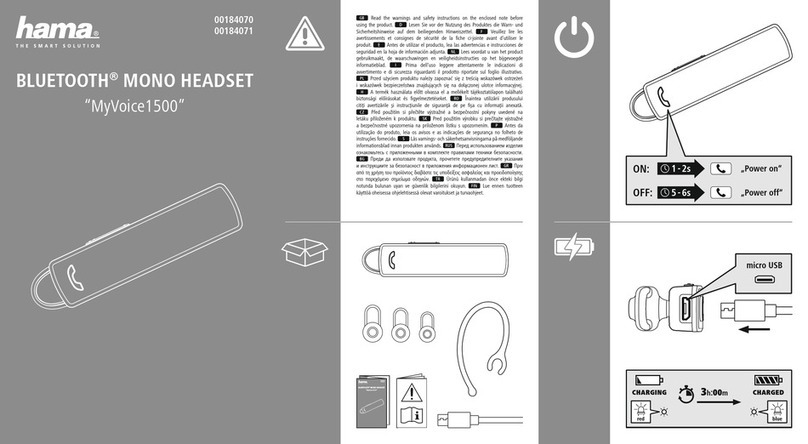
Turn on the headset Press the Mobile Button steadily for at least three
seconds
Led indication: Three blue ashes.
Audio feedback: Ascending tone (low-high).
Turn o the headset Press the Mobile Button steadily for at least three
seconds
Led indication: Three red ashes.
Audio feedback: Descending tone (high-low).
Increase the volume Tap the Volume Up Button
Decrease the volume Tap the Volume Down Button
Mute Simultaneously tap Volume Up and Volume Down
while any audio is on
Battery Level
Indicator
While on standby, press and hold the Volume Up
Button for 3 seconds
Blue light = Battery is fully charged
Red/blue light = Battery is half full
Red light = Battery is almost empty
4.2 SPOKEN STATUS ANNOUNCEMENTS
Your SRC-System headset oers various audio status messages sent
through your speakers. Among others, it will announce your con-
nection state, e.g. whether you are in mobile phone or on intercom
mode, it will conrm changes of such modes and more. By default
the feature is ON, and can be disabled as outlined below.
The Voice menu can be set at any one of the available language op-
tions. In the future, more languages will be available for downloading
from our website (see section 4.4 for Firmware Upgrade).
Entering the Voice Menu: Press and hold the CHANNEL “A” button
and CHANNEL “B” button simultaneously for 3 seconds while the
headset is on standby. Now, follow the voice instructions in English or
choose your preferred language.
Disable/Enable status announcements: While on standby, press
and hold the Volume Down Button for 6 seconds.
Led ON: indication: Solid blue + Audio feedback: One short beep
Led OFF: indication: Solid red + Audio feedback: Two short beeps
4.3 AUDIO SOURCES AND PRIORITIES
The dierent audio sources connected to the SRC-System are
prioritized as shown below, i.e. the higher priority source will always
override and interrupt the lower one.
For example, incoming mobile phone calls will interrupt ongoing
Intercom calls, while incoming intercom calls will interrupt the audio
from the built-in FM Radio etc.
Higher Priority 1. Mobile phone audio or GPS instructions
(device specic)
2. Intercom
3. A2DP audio source
4. FM Radio (built-in)
5. Auxiliary Line-In Port (for corded connection
e.g. MP3 players).
Lower Priority
4.4 FIRMWARE UPGRADE OPTION
In the future you will be able to install rmware upgrades and program
patches to keep the software of your SRC-System up-to-date. Among
others, future rmware upgrades will include ad-
ditional status announcements and other valuable
functions. To ensure that you don’t miss out on the latest versions, please
register online at www.src-system.com and have your serial number
ready. For downloading upgrades, please use the USB cable included in
the SRC-System’s retail package.
Until further notice, upgrades will only be available for Windows™
based computers with XP™ or Vista™ operating systems.
4.5 RESETTING YOUR HEADSET
If your headset fails to respond despite repeated attempts, you can
reset your headset by charging it. After approximately 10 seconds,
QG SRC 131 - QG0160.indd 25 10/20/09 11:28 AM