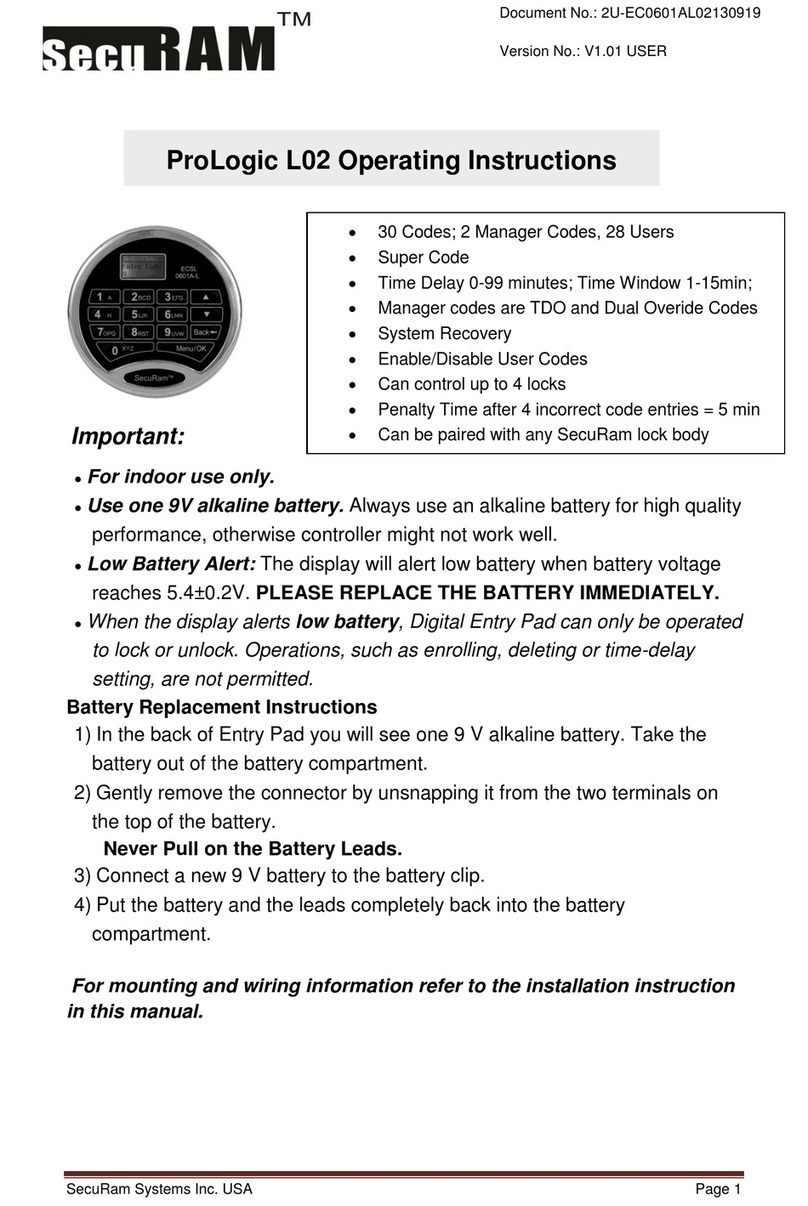
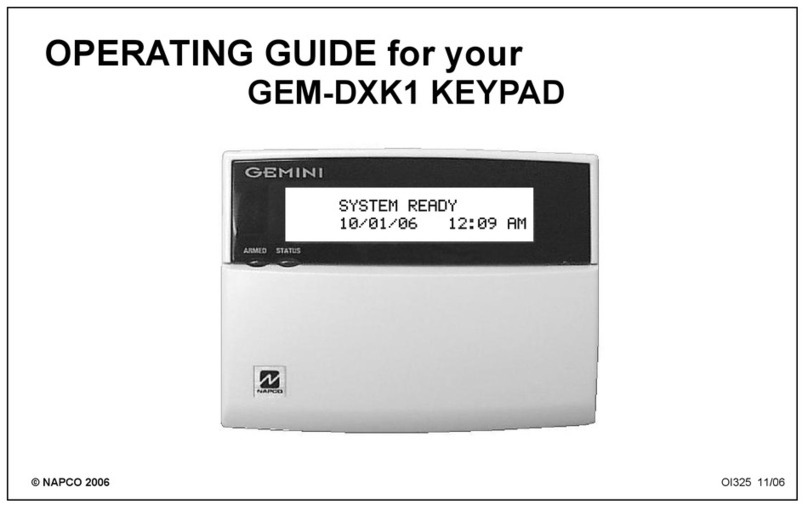
Securam ProLogic L01-C User manual

ProLogic L01-C Operation Instructions
1
ProLogic L01-C Operation Instructions
Document No: EC-0601A-CL01-170330
Version No: V1.02
1.0 System Installation
1.1 System Components
1.2 Pairing the EntryPad with the Lock(s)
1.3 Lock and EntryPad Installation
1.4 Installing Battery
1.5 Test Lock Operation
2.0 Lock Operation
2.1 Opening the Lock
2.2 Wrong Code Entry –Lock Out
2.3 Low Battery
3.0 Code Management
3.2 Enrolling New users
3.3 Change Code
3.4 Delete One User
3.5 Delete All Users
3.6 Disable/Enable User
3.7 Obfuscate Code Entry
4.0 System Identification
4.1 System Info
5.0 Manager Mode
5.1 Enable Manager Mode
5.2 Disable Manager Mode
6.0 Data Management
6.1 Encryption Key Set
7.0 Recovering the System –Reset to Default
7.1 Recovery Code Set
7.2 Recover System
7.3 Mechanical Reset
8.0 System Testing
8.1 Cycle Testing
9.0 Menus
9.1 The ProLogic L01-C Menus

ProLogic L01-C Operation Instructions
2
IMPORTANT: It is imperative that all programming be completed with the safe
door in its open position, such that the programmer can gain access to the lock
body in the event of an incorrect programming.
1.0 System Installation
1.1 System Components
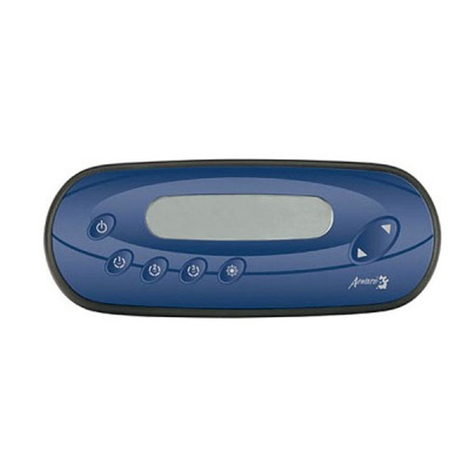
The system consists of (1) EntryPad –Part # EC-0601A-L01-C plus one of the following Lock bodies:
SwingBolt –Part # EL-0601
DeadBolt –Part # EL-0701
SpringBolt –Part #EL-0801
1.2 Pairing the EntryPad and the Lock
SecuRam safe lock systems can operate in two different modes depending upon the type of EntryPad
being used with the lock body. The ProLogic L01-C is a digital lock system and therefore the lock must
also be programmed in digital mode. Converting the lock body to digital mode can be completed with
the following the steps:
Step 1: Ensure the battery is connected to the Entry Pad.
Step 2: Ensure the lock cable is disconnected from the lock body.
Step 3: Locate the Reset Hole on the back of the lock (under the QC sticker).
Step 4: Using a paper clip depress the reset button, inside the reset hole, 3 times to dissipate
any latent energy in the lock.
Step 5: Now depress the reset button and hold.
Step 6: While continuing to depress the reset button, connect the lock cable to the lock body.
Step 7: Continue to hold down the reset button for 5 seconds and then release.
Step 8: Verify that the pairing has been completed, by opening the lock with the default code
111111.
Step 9: Press any button on the EntryPad to initiate a lock communication test. The EntryPad
will display the following information:
Model Number
Software Version Number
No. of Users/ No. Users Programmed
Lock ID#/Host ID#
Model Name

ProLogic L01-C Operation Instructions
3
Followed by:
Enter a valid code to test the lock.
The Default codes are as follows:
Super Code (ID00) is 111111
Manager Code (ID01) is 123456
Upon entry of a valid code, the lock will open. If the lock does not open and the LCD screen
displays the message “Fail to Link with Lock”, repeat the reset procedure. Be sure to hold down
the reset button through steps 5-7.
If you have difficulty resetting the lock, please call SecuRam Tech Support at (805) 988-8088 or email
info@securamsys.com.
1.3 Lock and EntryPad Installation
Included within your installation kit are (2) shoulder bolts and (3) lock mounting bolts.
Install the shoulder bolts on the safe door in the pre-drilled holes above and below the spindle
hole.
Now insert the lock cable (attached to the EntryPad) through the spindle hole.
On the backside of the safe door, you will see the lock mounting plate and the predrilled lock
mounting holes.
Connect the lock cable to the lock body and position the lock body appropriately on the lock
mounting plate.
Ensure that the lock cable is positioned so that it lies in the channel on the back of the lock. This
channel is provided to protect the lock cable from damage or crimping during installation.
Using the provided lock bolts, secure the lock body to the mounting plate.
Note: it is very important to ensure that there is an adequate gap between the lock bolt and the
boltwork. This gap must be 0.125”.
1.4.1 Installing the Battery –Standard Battery Compartment (located on the back of the EntryPad)
Connect the battery terminal clip to the 9V battery. (Duracell or Energizer brands are
recommended).
Position the battery so that the terminals are in the downward position and push the battery
into the battery compartment. See Fig. 1.

ProLogic L01-C Operation Instructions
4
Carefully tuck the excess lock cable into the cavity on the back of the EntryPad and install the
EntryPad on the shoulder bolts. See Fig. 2.
Be careful not to crimp or damage the lock cable upon EntryPad installation.
1.4.2 Installing the Battery –SureLock Battery Compartment (removable battery compartment)
Locate the SureLock Battery Compartment at the 5 o’clock position of the EntryPad. See Fig. 3.
Release the latch of the battery compartment, by pulling lever downward. See Fig 4.
Pull out the battery compartment from the bottom of the EntryPad. See Fig 5.
Install a new 9V alkaline battery (Duracell or Energizer brands are recommended) into the
compartment. The battery compartment will only receive the battery when the positive and
negative terminals are oriented correctly. See Fig. 6
Put the battery compartment back into the EntryPad. Push the latch of the battery
compartment up until it snaps closed. See Fig. 3
1.5 Testing the Lock Operation
The ProLogic L01-C comes with two factory default codes:
•Super Code (ID00) is 111111
•Manager Code (ID01) is 123456
Enter one of the valid codes to verify the communication between the lock and EntryPad. The lock will
open.

ProLogic L01-C Operation Instructions
5
2.0 Lock Operation
Upon initial power up, the LCD screen starts a communications test as shown below:
Including Model Number
Software Version Number
No. of Users/ No. Users Programmed
Lock ID#/Host ID#
Model Name
After this initial power up it will also check to ensure that the system is communicating correctly. The
display will read “Link with Lock OK”.
If the Display reads: “Fail to Link with Lock” proceed to Section 1.2 entitled “Pairing the Entrypad and
the Lock”
2.1 Opening the Lock
The safe lock system has two default codes installed as follows:
•Super Code (ID00) 1-1-1-1-1-1
•Manager Code (ID01) 1-2-3-4-5-6
Step 1: Enter a valid code –for example 1-1-1-1-1-1.
The display will read “ID00 Verified”.
And the Lock will open.
The display will read:
The lock will relock after 6 seconds.
Note: Time to relock is hard coded and cannot be changed.
2.2 Wrong Code Entry –Lock Out
If an invalid code is entered, the following message will be displayed:
ID00

ProLogic L01-C Operation Instructions
6
If 4 invalid codes are entered consecutively, the safe lock will enter
The display will then report the length of time remaining in the Lock Out period every 15 seconds until it
has expired
After the 4 minute Lock out period, the following message will be displayed, you can now enter a valid
code to open the safe lock.
Enter a valid code to open the lock.
Note: If an invalid code is entered at this point, the lock will only accept 2 invalid entries before it goes
back into the 4 minute Lock out period.
2.3 Low Battery Alert
The display will alert a low battery condition when the battery voltage reaches 5.4±0.2V.
PLEASE REPLACE THE BATTERY IMMEDIATELY. Operations, such as enrolling or deleting, are not
permitted with low battery condition.
Use one 9V alkaline battery. Manufacturer recommends to use DuracellTM or Energizer® Alkaline
batteries.
3.0 Code Management
The ProLogic L01-C comes with two default codes:
•Super Code (ID00) is 111111
•Manager Code (ID01) is 123456

ProLogic L01-C Operation Instructions
7
It is strongly recommended that both these default codes are changed before the lock system is put into
service.
The ProLogic L01-C has the capability to add one additional user code, in addition to the default codes.
ID00 is the Super Code –opens the lock, preforms programming and has the ability to turn on
Manager Mode. By default this code is preprogrammed as 1-1-1-1-1-1.
ID01 is the Manager Code –opens the lock and preforms programming functions. By default this
code is preprogrammed as 1-2-3-4-5-6.
ID02 is a User Code.
3.1 Enrolling New Users
Step1: Press the Menu/OK button.
Step 2: Using the and , scroll to the System Menu and Press Menu/OK
Step 3: The display will prompt you to enter a valid Administrator code
Enter either the Super Code (ID00) or the Manager Code (ID01). The “Select Menu” message will be
displayed as follows:
Step 4: Scroll to the menu selection “Enroll New User” and Press OK
Step 5: The following informational screens will appear:
Step 6: Now enter a 6 digit code
Step 7: Repeat new code
Step 8: System will verify that code has been saved.

ProLogic L01-C Operation Instructions
8
The new code is now enrolled and available to be used to open the lock
3.2 Change Code
This programming sequence is used to change any code.
Step1: Press the Menu/OK button
Step 2: Using the and , scroll to the System Menu and Press Menu/OK
Step 3: The display will prompt you to enter a valid code. Enter the code to be changed
The “Select Menu” message will be displayed as follows:
Step 4: Scroll to the menu selection “Change Code” and Press OK
Step 5: The display will show this message on the display “Set Code of IDXX” to be changed.
Step 6: Enter the new 6 digit code.
Step 7: Repeat the new code.
The New Code has now been saved and is available for use.
3.3 Delete One User
Step1: Press the Menu/OK button
Step 2: Using the and , scroll to the System Menu and Press Menu/OK.

ProLogic L01-C Operation Instructions
9
Step 3: The display will prompt you to enter a valid code. Enter either the Super Code (ID00) or
the Manager Code (ID01).
The “Select Menu” message will be displayed as follows:
Step 4: Scroll UP to the menu selection “Delete One User” and Press OK
Step 5: Press OK
Step 6: The system will ask to confirm the deletion. Press OK.
This User Code is now deleted from the system.
3.4 Delete All Users
This feature is used to delete all users from the system. Upon executing this command, ID02 will be
deleted and Manager Code will be reset as follows:
Manager Code (ID01) is 123456
Note: Super Code will not be changed.
Step1: Press the Menu/OK button
Step 2: Using the and , scroll to the System Menu and Press Menu/OK.
Step 3: The display will prompt you to enter a valid code. Enter either the Super Code (ID00) or
the Manager Code (ID01). The “Select Menu” message will be displayed as follows:
Step 4: Scroll UP to the menu selection “Delete All Users” and Press OK.
Step 5: The system will request a Confirmation. Press OK.

ProLogic L01-C Operation Instructions
10
The system will verify that all User Codes have been deleted.
The only remaining codes will be as follows:
•Manager Code (ID01) is 123456
•Super Code (ID00) will remain unchanged.
3.5 Disable/Enable User Codes
This feature would be used in order to disable a user code as opposed to deleting it. Disable/Enable
user codes options may be used when a user’s access rights are temporarily revoked. (I.e. the user may
be on vacation or otherwise away from the business.)
After the code has been disabled, it can be re-enabled at a later time, following the same process by
selecting “Enable User”.
Step1: Press the Menu/OK button.
Step 2: Using the and , scroll to the System Menu and Press Menu/OK.
Step 3: The display will prompt you to enter a valid code. Enter either the Super Code (ID00) or
the Manager Code (ID01). The “Select Menu” message will be displayed as follows:
Step 4: Scroll and to the menu selection “Disable User” and Press OK
Step 5: The system will ask to confirm the deletion. Press OK.
Step 6: The system will verify the User has been disabled.
Other Securam Keypad manuals