- 5 - 07/2023
2023, .
Operating Mode Selection
To change the operating mode, use the / buttons to select one of
the operating modes:
• Eco mode: the icon lights up
• Comfort mode: the icon lights up
• Anti-freeze mode: the icon lights up
Temperature Setting
• Press button until the numeric display flashes. Use the /
buttons to set the desired temperature. Once the numeric temperature
value stops flashing, the settings you have made are saved.
• You can set the temperature in the range from 5 to 50°C.
• The heating element of the convector will be put into operation, the
display will show the current temperature and the icon will light up.
Note:
During use, the icon will be turned on andoff, depending
on when the convector heating element is turned on or off.
This is anormal occurrence.
Note:
The temperature cannot be set inthe anti-freeze mode.
Timer Setting
• While the convector is on, press the button until the icon
flashes.
• Use the / buttons to set the time after which the heating
element switches off. As soon as the numeric value stops flashing,
the setting you have made is saved. The current temperature will be
shown on the display, the icon will light up and the countdown
will start.
• You can set the timer time from 1 to 24 hours.
• As soon as the set time has elapsed, the convector heating element
automatically switches off and the convector stops heating.
Child Lock
• The child lock function allows you to lock the control panel and
prevents accidental changes to your settings.
• To turn on the lock function, press andhold button until the
icon is lit. The control panel will be locked and all control buttons will
be inoperative.
• To cancel the lock function, press and hold the button until the
icon turns off.
Dimming the Display
• Long press the button and the display will turn off. Pressing any
button will turn the display on again.
Open Window Detection
• The convector is equipped with asensor that alerts you if awindow
is open.
• To turn on the open window function, press andhold the button for
5 seconds, the icon will appear on the display.
• To turn off the open window function, press and hold the button for
5 seconds until the icon disappears.
• In all modes (comfort andeco mode), if the temperature drops
by4°C within 20 minutes, the open window sensor fuse is activated
and causes the convector'sheating element to switch off and the
convector stops heating. The icon will start flashing on the display.
Unlock the control panel if it was locked. Switch off the convector with
the button to reset the sensor. Then switch the convector on again.
Thermal Protection
• The appliance is equipped with athermal fuse that automatically
switches it off if it overheats.
• If this situation occurs, switch off the appliance and disconnect it from
the mains socket. Then let it cool for at least 15 minutes.
• Before putting the appliance back into operation, check that its
openings are not blocked.
• If you are unable to put the appliance into operation, please contact an
authorised service centre.
Anti-freeze Protection
The convector is equipped with an anti-freeze protection in case of very
low temperatures. If the ambient temperature drops below 5°C, the
convector switches on at full power until the ambient temperature rises
above 7°C. Then it switches off.
. . . . . . . . . . . . . . . . . . . . . . . . . . . . . . . . . . . . . . . . . . . . . . . . . . . . . . . . . . . . . . . . . . . .
REMOTE CONTROL
Inserting Batteries into the Remote Control
1. Remove the battery holder from the bottom of the remote control.
2. Insert abattery type CR2025 (3 V) into the holder. Ensure correct
polarity.
3. Insert the battery holder back into the remote control.
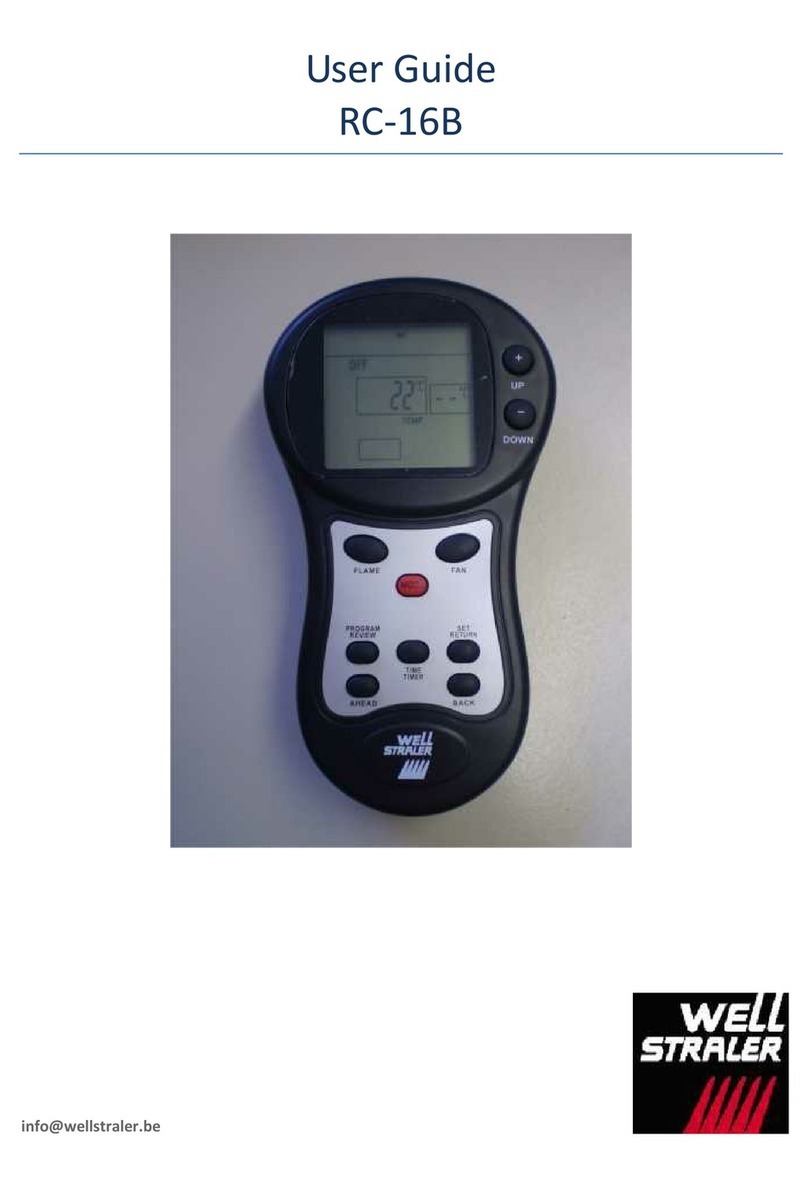
To use the remote control, point it at the heater. The maximum signal
range is 6 m. If you place the remote in such away that the transmission
of the signal is blocked by barrier, the signal may not be transmitted at all.
Note:
If you will not be using the remote control for an extended
period of time, remove the batteries from the remote control.
Never put batteries in afire, short-circuit or damage them
in any way. Dispose of them in an environmentally friendly
manner at the end of their useful life. Never dispose of
batteries in municipal waste.
The principle of operating the convector by remote control is the same as
that described in the chapter “Using the Convector”.
. . . . . . . . . . . . . . . . . . . . . . . . . . . . . . . . . . . . . . . . . . . . . . . . . . . . . . . . . . . . . . . . . . . .
CONTROL THROUGH THE Sencor HOME APP
• This convector can be controlled via the Sencor HOME application.
• Download the app to your smartphone, register and control the
convector via the app. If you already have the app installed, add the
convector to your devices.
Adding the Convector to the List of Devices via Bluetooth
You can add the convector to the Sencor HOME app by pairing via
Bluetooth.
1. Turn on the Bluetooth function on your mobile phone.
2. Switch on the convector.
3. Open the app and on the app'shome page, click the “+” icon in the
top right corner.
4. The device itself will offer the “Add Device” option.
5. Click on it and the app will automatically guide you through adding
it.
Note:
If the Bluetooth connection fails or is not possible, make
sure there are no solid obstacles between your phone and
the convector and that the two devices are close together.
Adding the Convector to the List of Devices via QR Code
• You can add the convector to the Sencor HOME app via the QR code
below. On the app'shome page, click the “+” icon and on the add
device screen, click “[-] Scan QR Code” in the top right corner. After
scanning the QR code, you will be prompted to select aWi-Fi network.
Select the network, enter your password andclick “Next”.
• You will be prompted toreset the device. Hold down the button for
about 3 seconds. The Wi-Fi indicator light is blinking. This means that
the convector is ready to be paired. Instructions can also be found on
the application screen.