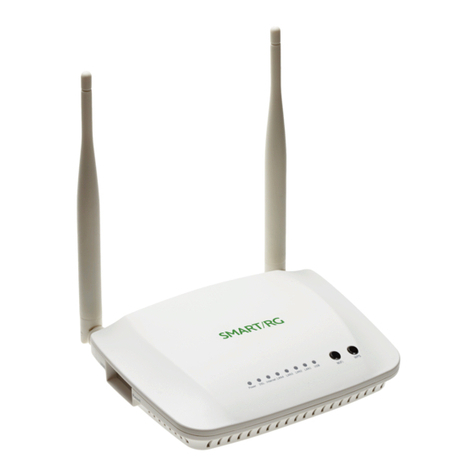
SmartRG SR510n User manual

SR510N
User Manual
VER: 1.0

User Manual
i
Contents
1Safety Precautions.............................................................................................1
2Overview............................................................................................................2
2.1 Application.............................................................................................2
2.2 Features ................................................................................................3
2.3 Standards Compatibility and Compliance..............................................4
3Hardware Description and Installation ...............................................................5
3.1 Hardware Description............................................................................5
3.1.1 Front Panel.................................................................................5
3.1.2 Rear Panel and Side Panel ........................................................6
3.2 Hardware Installation.............................................................................7
3.2.1 Choosing the Best Location for Wireless Operation...................7
3.2.2 Connecting the Device ...............................................................8
4PC Network Configuration and Login...............................................................10
4.1 PC Network Configuration...................................................................10
4.2 Logging In to the DSL Router..............................................................12
5Web-Based Management ................................................................................13
5.1 Device Information...............................................................................13
5.1.1 Summary ..................................................................................14
5.1.2 WAN .........................................................................................15
5.1.3 Statistics....................................................................................16
5.1.4 LAN...........................................................................................16
5.1.5 WAN Service ............................................................................16
5.1.6 xTM...........................................................................................17
5.1.7 xDSL.........................................................................................17
5.1.8 Route........................................................................................20
5.1.9 ARP ..........................................................................................21
5.1.10 DHCP..................................................................................21
5.2 Advanced Setup..................................................................................21
5.2.1 Layer2 Interface........................................................................22
5.2.2 WAN Service ............................................................................26
5.2.3 3G WAN Service.......................................................................51
5.2.4 LAN Configuration ....................................................................55

User Manual
ii
5.2.5 NAT...........................................................................................61
5.2.6 Security.....................................................................................65
5.2.7 Parental Control........................................................................68
5.2.8 Quality of Service......................................................................70
5.2.9 Routing .....................................................................................74
5.2.10 DNS.....................................................................................78
5.2.11 DSL .....................................................................................79
5.2.12 UPnP...................................................................................80
5.2.13 DNS Proxy...........................................................................81
5.2.14 Print Server .........................................................................81
5.2.15 DLNA...................................................................................82
5.2.16 Packet Acceleration.............................................................83
5.2.17 Storage Service...................................................................83
5.2.18 Interface Grouping...............................................................84
5.2.19 IP Tunnel.............................................................................85
5.2.20 IPSec...................................................................................87
5.2.21 Certificate............................................................................90
5.2.22 Power Management............................................................94
5.2.23 Multicast..............................................................................95
5.3 Wireless...............................................................................................96
5.3.1 Basic Settings...........................................................................97
5.3.2 Security.....................................................................................98
5.3.3 MAC Filter...............................................................................106
5.3.4 Wireless Bridge.......................................................................107
5.3.5 Advanced Settings..................................................................108
5.3.6 Station Info...............................................................................111
5.3.7 Fault Management...................................................................111
5.4 Management...................................................................................... 112
5.4.1 Settings...................................................................................113
5.4.2 System Log.............................................................................114
5.4.3 SNMP Agent ...........................................................................115
5.4.4 TR-69 Client............................................................................116
5.4.5 Internet Time...........................................................................116
5.4.6 Access Control........................................................................118

User Manual
iii
5.4.7 Update Software.....................................................................119
5.4.8 Reboot....................................................................................120
6Q&A................................................................................................................120

User Manual
1
1 Safety Precautions
Read the following information carefully before operating the device. Please follow
the following precaution items to protect the device from risks and damage caused
by fire and electric power:
Use volume labels to mark the type of power.
Use the power adapter that is packed within the device package.
Pay attention to the power load of the outlet or prolonged lines. An
overburden power outlet or damaged lines and plugs may cause electric
shock or fire accident. Check the power cords regularly. If you find any
damage, replace it at once.
Proper space left for heat dissipation is necessary to avoid any damage
caused by overheating to the device. The holes on the device are designed
for heat dissipation to ensure that the device works normally. Do not cover
these heat dissipation holes.
Do not put this device close to a place where a heat source exits or high
temperature occurs. Avoid the device from direct sunshine.
Do not put this device close to a place where is over damp or watery. Do not
spill any fluid on this device.
Do not connect this device to any PC or electronic product, unless our
customer engineer or your broadband provider instructs you to do this,
because any wrong connection may cause any power or fire risk.
Do not place this device on an unstable surface or support.

User Manual
2
2 Overview
The xDSL Router integrates wireless LAN, USB, service into one unit. It is
designed to provide a simple and cost-effective xDSL Internet connection for a
private Ethernet and 802.11b/802.11g/802.11n wireless network. The Router
combines high-speed xDSL Internet connection, Ethernet uplink, IP routing for the
LAN and wireless connectivity in one package. It is usually preferred to provide
high access performance applications for the individual users, the SOHOs, and the
small enterprises. The Router supports 3G WAN service.
The Router is easy to install and use. The Router connects to an Ethernet LAN or
computers via standard Ethernet ports. The xDSL connection is made using
ordinary telephone line with standard connectors. You can connect the Ethernet
interface of WAN to Internet with Ethernet cable for ETH uplink. Multiple
workstations can be networked and connected to the Internet by a single Wide
Area Network (WAN) interface and single global IP address. The advanced
security enhancements, packet filtering and port redirection, can help protect your
network from potentially devastating intrusions by malicious agents from outside
your network.
Network and Router management is done through the web-based management
interface that can be accessed through the local Ethernet using any web browser.
You may also enable remote management to enable configuration of the Router via
the WAN interface.
2.1 Application
Home gateway
SOHOs
Small enterprises
Higher data rate broadband sharing
Audio and video streaming and transfer
PC file and application sharing
Network and online gaming
USB storage
3G WAN service

User Manual
3
2.2 Features
User-friendly GUI for web configuration
Several pre-configured popular games. Just enable the game and the port
settings are automatically configured.
Compatible with all standard Internet applications
Industry standard and interoperable DSL interface
Simple web-based status page displays a snapshot of system configuration,
and links to the configuration pages
Downloadable flash software updates
Support for up to 8 permanent virtual circuits (PVC)
Support for up to 8 PPPoE sessions
Support RIP v1 & RIP v2
WLAN with high-speed data transfer rates, compatible with IEEE 802.11b/g/n
Optimized Linux 2.6 Operating System
IP routing and bridging
Asynchronous transfer mode (ATM) and digital subscriber line (DSL) support
Packet Transfer Mode (PTM)
Ethernet (ETH) Transfer Mode
Point-to-point protocol (PPP)
Network/port address translation (NAT/PAT)
Quality of service (QoS)
Wireless LAN security: WPA, 802.1x, RADIUS client
Universal plug-and-play(UPnP)
File server for network attached storage (NAS) devices
Print server
Web filtering
Management and control
- Web-based management (WBM)
- Command line interface (CLI)
- TR-069 WAN management protocol
- Simple Network Management Protocol (SNMP)
Remote update
System statistics and monitoring
DSL router is targeted at the following platforms: DSL modems, wireless
access points and bridge.

User Manual
4
2.3 Standards Compatibility and Compliance
Support application level gateway (ALG)
ITU G.992.1 (G.dmt)
ITU G.992.2 (G.lite)
ITU G.994.1 (G.hs)
ITU G.992.3 (ADSL2)
ITU G.992.5 (ADSL2+)
ITU G.993.1 (VDSL)
ITU G993.2 (VDSL2)
3G (WCDMA, CDMA2000, TD-SCDMA)
ANSI T1.413 Issue 2
IEEE 802.3
IEEE 802.3u
IEEE 802.11b
IEEE 802.11g
IEEE 802.11n

User Manual
5
3 Hardware Description and Installation
Note:
The figures in this document are for reference only.
3.1 Hardware Description
3.1.1 Front Panel
Figure 1 Front panel
The following table describes the indicators on the front panel.
Indicator Color Status Description
Power Green On The device is powered on and the device operates
normally.
Blink The software is upgrading.
Off The device is powered off.
Red On The device is initiating.
Blink The software is upgrading.
DSL Green
On DSL link has established.
Blink The DSL line is training.
Off Device is powered off.
Internet Green On Internet is synchronized successfully in the route
mode.
Blink Internet data is being transmitted.
Off Ethernet interface is disconnected.
Red On Authentication has failed.
LAN
1/2/3/4 Green
On The Ethernet interface is connected.
Blink Data is being transmitted through the Ethernet
interface.
Off The Ethernet interface is disconnected.
USB1 Green On The connection of 3G or USB flash disk has

User Manual
6
Indicator Color Status Description
established.
Blink Data is being transmitted.
Off No signal is detected.
WLAN Green
On WLAN is enabled.
Blink Data is being transmitted through the wireless
interface.
Off WLAN is disabled.
WPS Green
On Connection succeeds under Wi-Fi Protected
Setup.
Blink Negotiation is in progress under Wi-Fi Protected
Setup.
Off Wi-Fi Protected Setup is disabled.
3.1.2 Rear Panel and Side Panel
Figure 2 Rear panel Figure 3 Side
panel
The following table describes the interfaces and the buttons.
Interface Description
Table of contents
Other SmartRG Network Router manuals
SmartRG
SmartRG SR512nm User manual
SmartRG
SmartRG SR616ac User manual
SmartRG
SmartRG DB120-WL User manual
SmartRG
SmartRG SR505n User manual
SmartRG
SmartRG SR505n User manual
SmartRG
SmartRG SR515ac User manual

SmartRG
SmartRG SR310N User manual
SmartRG
SmartRG SR630N User manual
SmartRG
SmartRG SR506n User manual
SmartRG
SmartRG SR655ac User manual