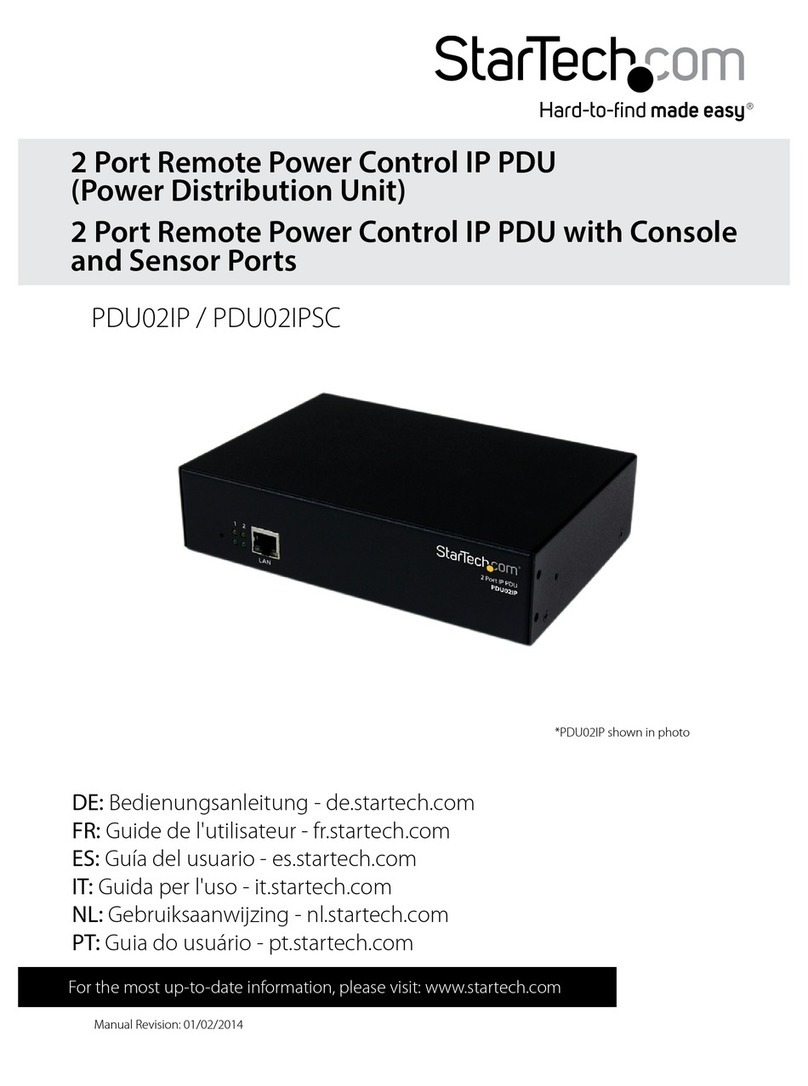
StarTech.com PDU02IP User manual

Manual Revision: 01/18/2016
For the latest information, technical specications, and support for
this product, please visit www.startech.com/PDU02IP.
DE: Bedienungsanleitung - de.startech.com
FR: Guide de l'utilisateur - fr.startech.com
ES: Guía del usuario - es.startech.com
IT: Guida per l'uso - it.startech.com
NL: Gebruiksaanwijzing - nl.startech.com
PT: Guia do usuário - pt.startech.com
PDU02IP -Rev 3
2 Port Remote Power Control IP PDU
(Power Distribution Unit)
*actual product may vary from photos

Instruction Manual
FCC Compliance Statement
This equipment has been tested and found to comply with the limits for a Class A digital
device, pursuant to part 15 of the FCC Rules. These limits are designed to provide reasonable
protection against harmful interference in a residential installation. This equipment generates,
uses and can radiate radio frequency energy and, if not installed and used in accordance with
the instructions, may cause harmful interference to radio communications. However, there
is no guarantee that interference will not occur in a particular installation. If this equipment
does cause harmful interference to radio or television reception, which can be determined by
turning the equipment o and on, the user is encouraged to try to correct the interference by
one or more of the following measures:
• Reorient or relocate the receiving antenna.
• Increase the separation between the equipment and receiver.
• Connect the equipment into an outlet on a circuit dierent from that to which the receiver
is connected.
• Consult the dealer or an experienced radio/TV technician for help.
Industry Canada Statement
This Class A digital apparatus complies with Canadian ICES-003.
Cet appareil numérique de la classe [A] est conforme à la norme NMB-003 du Canada.
CAN ICES-3 (A)/NMB-3(A)
Use of Trademarks, Registered Trademarks, and other Protected Names and Symbols
This manual may make reference to trademarks, registered trademarks, and other
protected names and/or symbols of third-party companies not related in any way to
StarTech.com. Where they occur these references are for illustrative purposes only and do not
represent an endorsement of a product or service by StarTech.com, or an endorsement of the
product(s) to which this manual applies by the third-party company in question. Regardless
of any direct acknowledgement elsewhere in the body of this document, StarTech.com hereby
acknowledges that all trademarks, registered trademarks, service marks, and other protected
names and/or symbols contained in this manual and related documents are the property of
their respective holders.

Instruction Manual
i
Table of Contents
Product Diagram....................................................................................1
Rear View...................................................................................................................................................... 1
Front View .................................................................................................................................................... 1
Introduction............................................................................................2
Packaging Contents ................................................................................................................................. 2
LED Indicators.........................................................................................2
Reset Button ...........................................................................................2
Installation .............................................................................................3
Hardware Installation .............................................................................................................................. 3
Logging In for the First Time................................................................................................................. 3
Web Console Operation ........................................................................5
Power Switch Operation......................................................................................................................... 5
Monitor Tab ................................................................................................................................................. 6
System Section........................................................................................................................................... 8
Firewall Section.......................................................................................................................................... 11
Account Section ........................................................................................................................................ 13
TimeSync Section...................................................................................................................................... 14
Event Section.............................................................................................................................................. 15
Firmware Upgrade Procedure..............................................................18
Specications..........................................................................................19
Technical Support ..................................................................................20
Warranty Information............................................................................20

Instruction Manual
1
Product Diagram
Rear View
Front View
Reset Button
LED Indicators
RJ45 LAN

Instruction Manual
2
LED Indicators
Port Indicators
(Top Row)
LED #1 is illuminated when output receptacle #1 is ON.
LED #2 is illuminated when output receptacle #2 is ON.
Reset Indicator
(Bottom Left)
Reset LED will ash when the Reset function is being
performed.
Power Indicator
(Bottom Right)
Utility Power LED is illuminated when there is an acceptable
AC voltage Present.
Reset Button
If you need to reset the PDU back to factory defaults, the Reset Button is located next
to the LED panel. Insert a paperclip to gently press and hold the Reset Button for at
least 3 seconds, then release.
Reset Button
LED Indicators
RJ45 LAN
The IP address will be reset back to 192.168.1.10.
The user name and password will be reset back to admin.
All other settings will be unchanged.
Introduction
Packaging Contents
• 1 x 2 Port PDU
• 1 x Power Cable
• 1 x Instruction Manual (CD)

Instruction Manual
3
Installation
Hardware Installation
1. Connect the power cord to the power inlet and to a wall outlet.
2. Plug your equipment into the two output receptacles.
3. Connect an Ethernet cable from the PDU to your network.
4. Turn the power switch to the ON position.
Logging In for the First Time
The minimum requirement to operate the PDU is to set up the IP Address, subnet
mask, and default gateway, which can be done through your web browser or using the
IP Search Utility application on the CD.
Default Settings
IP address: 192.168.1.10
Subnet mask: 255.255.255.0
Default Gateway: 192.168.1.1
User name / Password: admin / admin (lower case)
Web Browser Method
NOTE: The workstation and the PDU must be on the same LAN.
1. Open a web browser and input the default IP address (192.168.1.10).
2. In the Account eld, enter admin.
3. In the Password eld, enter admin.
4. Click Conrm.

Instruction Manual
4
5. To set the IP address and network info for this device, on the web interface, click on
the System tab and then click Network.
IP Search Utility
Note: The workstation and the PDU must be on the same LAN for the IP Search Utility
to detect it, and the Windows Firewall must also be turned o.
1. Open the Windows Control Panel.
2. Select Windows Firewall.
3. Select O and then click the OK button.
4. Insert the provided CD in the CD-ROM drive.
5. Launch the IP Search Utility program.
6. Click on the Refresh button to search for all PDU02IP units on the LAN.
7. Click on the detected PDU and congure the IP address, Gateway and Net Mask,
then click the Congure button twice. You will see the values you specied populate
in the main window.
8. Repeat step 7 for each device if you have multiple PDU02IP units connected.
9. Once all devices are congured, close the IP Search Utility program and turn the
Windows Firewall back on.

Instruction Manual
5
Web Console Operation
Power Switch Operation
The global outlet controls can be used to either turn on all outlets or turn o all outlets,
while each individual outlet allows for On / O / Reboot controls.
• Double-clicking the ALL ON button will turn on both outlets. Double-clicking the
ALL OFF button will turn o all of the outlets.
• Double-clicking the switch for Port 1 or Port 2 will ip the switch to the opposite
state (ON/OFF) for that individual outlet.
• If you want to Reboot (cycle o, then back on) an individual outlet, select the
Reboot check box and then double-click the switch.
ON OFF No Power
Not Authorized
(User account
restruction)

Instruction Manual
6
Monitor Tab
The Monitor tab shows you the current status of each outlet and allows you to modify
the power state of each outlet individually, or make global changes to both. From the
Monitor tab, you can also schedule events and congure the Auto-Ping feature.
Conguration Tab
Click on the Set button located on the top corner of each outlet to modify an
individual outlet. When the Set button is orange, the outlet is ready to be congured.
Description: Allows you to give each outlet a more meaningful name if desired
Start Delay Time: Each outlet can be programmed to startup at dierent time intervals
instead of both of them starting up at the same time.
Shutdown Delay Time: Each outlet can be programmed to shutdown at dierent
time intervals instead of shutting both of them down at the same time.
Save: Saves all changes.

Instruction Manual
7
Schedule Tab
Congure scheduled actions for each outlet. Click on the Set button located on the top
corner of each outlet to modify an individual outlet. When the Set button is orange,
the outlet is ready to be congured.
Period: An Action can be scheduled to occur yearly, monthly, weekly or daily at
a specic time for each individual outlet.
Time: Set the time (hours and minutes) when you want the action to occur.
Action: Set the action you want the outlet to perform, ON, OFF or Reboot.
ADD: Click the ADD button to add this action.
Delete: To delete a scheduled action, double-click X.
Save: Saves all changes.
Network Tab
Congure the Auto-PING feature to ping an IP-addressable device and detect when
that device has stopped communicating. Click on the Set button located on the top
corner of each outlet to modify an individual outlet. When the Set button is orange,
the outlet is ready to be congured.
Ping: Select this box to enable the Auto-Ping function.
Host: Enter the IP address of the connected equipment.
PING Interval Time: Set the time Interval to PING the connected device.
Ping Times: If a device fails to respond to a ping continuously and exceeds the
specied amount of attempts, the PDU02IP can notify selected personnel via email or
SMS.
Reboot: Select this box to reboot the outlet for the failed connected device.
Re-Ping Time: The time interval before restarting the Auto-Ping function after the
connected device has been rebooted.
Save: Saves all changes.
Other manuals for PDU02IP
1
Table of contents
Other StarTech.com Power Distribution Unit manuals

StarTech.com
StarTech.com RKPW161915 System manual

StarTech.com
StarTech.com USB2001EXT2PNA User manual

StarTech.com
StarTech.com RKPW161915 User manual

StarTech.com
StarTech.com RKPW081915 User manual

StarTech.com
StarTech.com PDU08C13EU User manual

StarTech.com
StarTech.com PDU02IP User manual

StarTech.com
StarTech.com US1GA30SXSC User manual

StarTech.com
StarTech.com 065030868297 User manual

StarTech.com
StarTech.com TB31PCIEX16 User manual

StarTech.com
StarTech.com PDU08C13AU User manual