logo
Brands
  1. Home
  2. •
  3. Brands
  4. •
  5. Sylvania
  6. •
  7. Media Player
  8. •
  9. Sylvania SMPK4065 User manual

Sylvania SMPK4065 User manual

Other Sylvania Media Player manuals
Sylvania SMPK8220PL User manual

Sylvania

Sylvania SMPK8220PL User manual

Sylvania SMPK3608 User manual

Sylvania

Sylvania SMPK3608 User manual

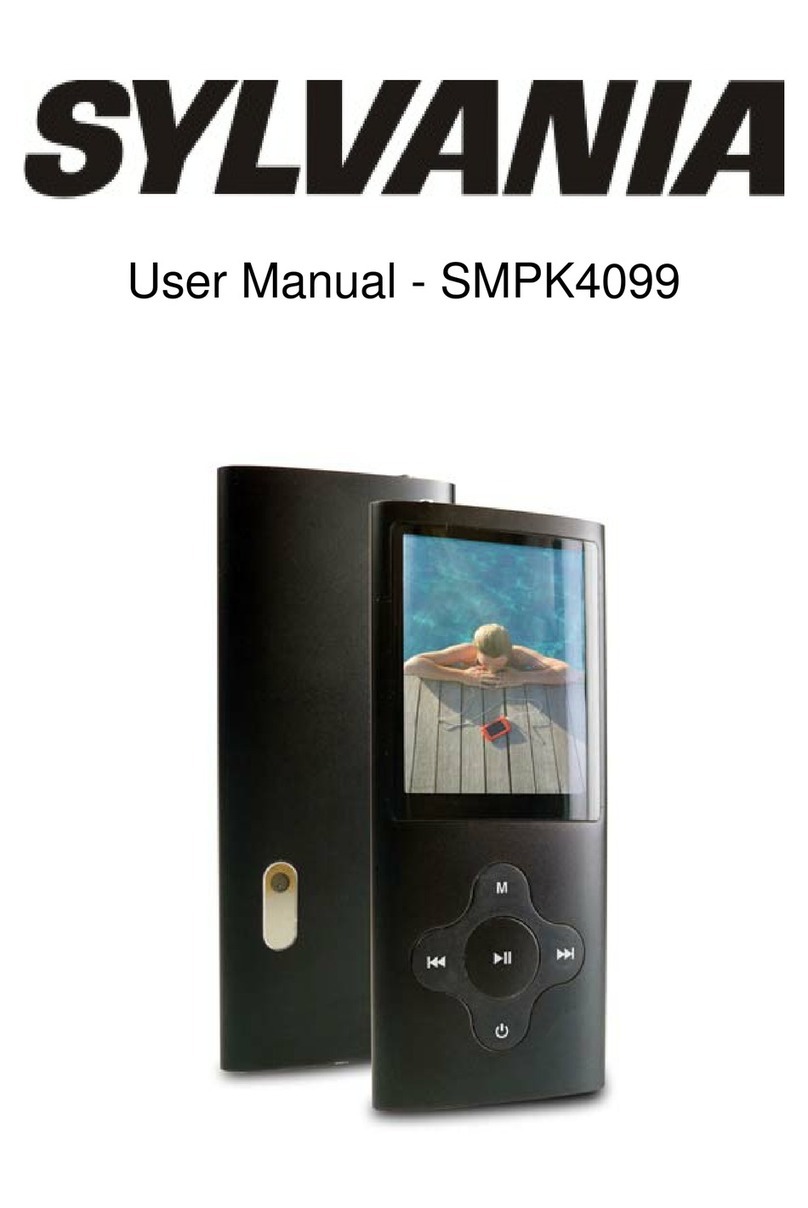
Sylvania SMPK4099 User manual

Sylvania

Sylvania SMPK4099 User manual

Sylvania SMPK4412-ASSTPL User manual

Sylvania

Sylvania SMPK4412-ASSTPL User manual

Sylvania SMPK4038B User manual

Sylvania

Sylvania SMPK4038B User manual

Sylvania SMPK2038 User manual

Sylvania

Sylvania SMPK2038 User manual

Sylvania SMPK8167 User manual

Sylvania

Sylvania SMPK8167 User manual

Sylvania SMP1002 User manual

Sylvania

Sylvania SMP1002 User manual

Sylvania SMPK2242 User manual

Sylvania

Sylvania SMPK2242 User manual

Sylvania SMPK8099 User manual

Sylvania

Sylvania SMPK8099 User manual

Sylvania SMPK4083 User manual

Sylvania

Sylvania SMPK4083 User manual
Popular Media Player manuals by other brands

Visual Land Impulse quick start guide

Visual Land

Visual Land Impulse quick start guide

Transcend DMP10 user manual

Transcend

Transcend DMP10 user manual

Philips GoGear Muse SA2MUS08 quick start guide

Philips

Philips GoGear Muse SA2MUS08 quick start guide

Fantec MM-HDRL user manual

Fantec

Fantec MM-HDRL user manual

Dune HD Duo 4K user manual

Dune HD

Dune HD Duo 4K user manual

IAdea HMP-505S user manual

IAdea

IAdea HMP-505S user manual

Camos MMS-1000 manual

Camos

Camos MMS-1000 manual

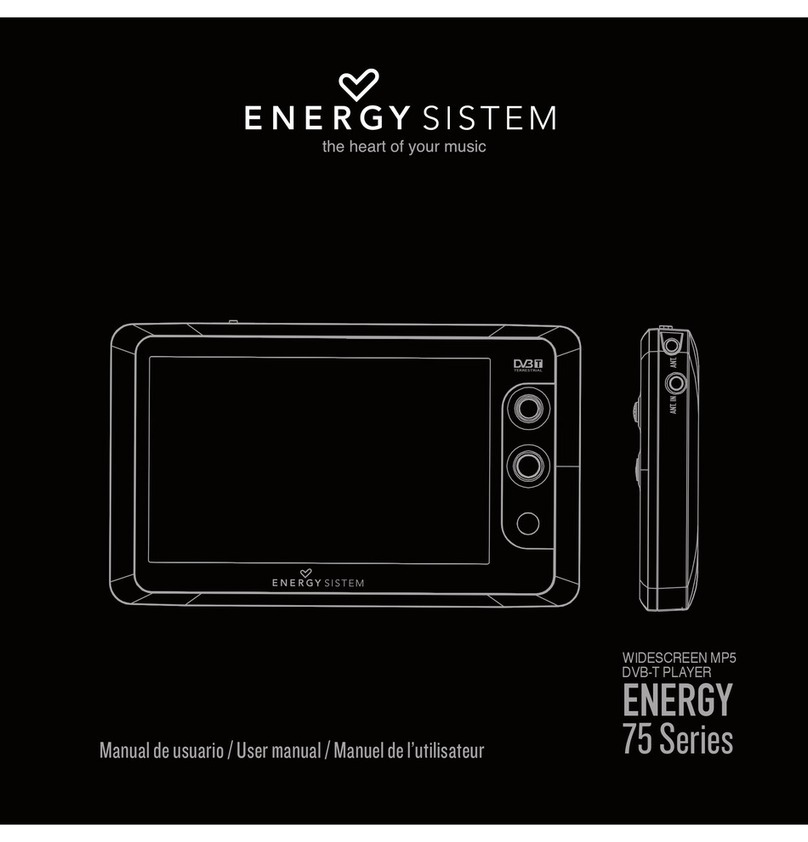
Energy 75 Series user manual

Energy

Energy 75 Series user manual

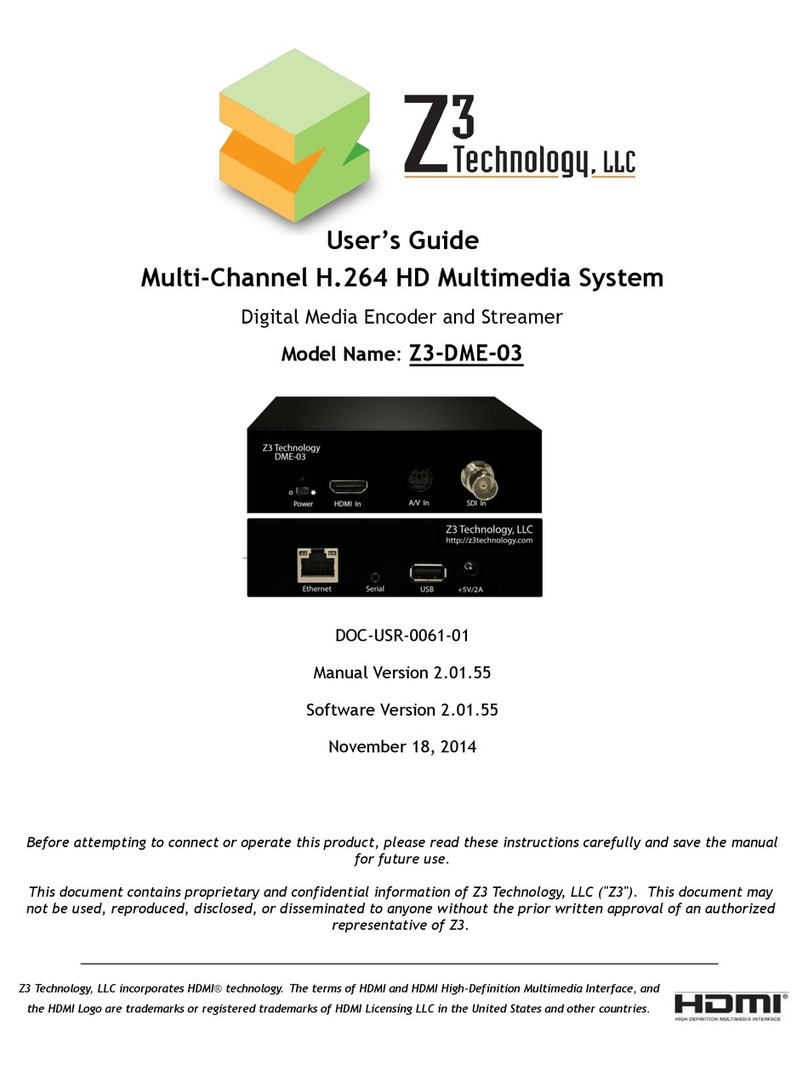
Z3 Technology DME-03 user guide

Z3 Technology

Z3 Technology DME-03 user guide

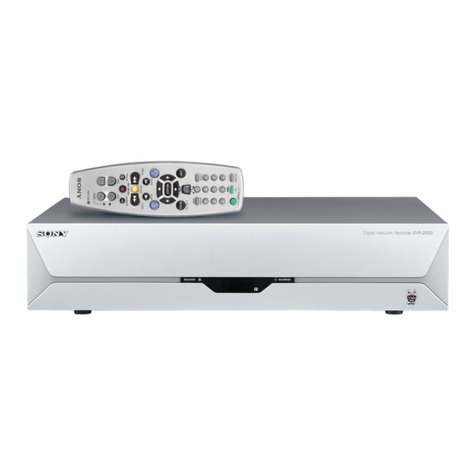
Sony SVR-2000 Dimensions

Sony

Sony SVR-2000 Dimensions

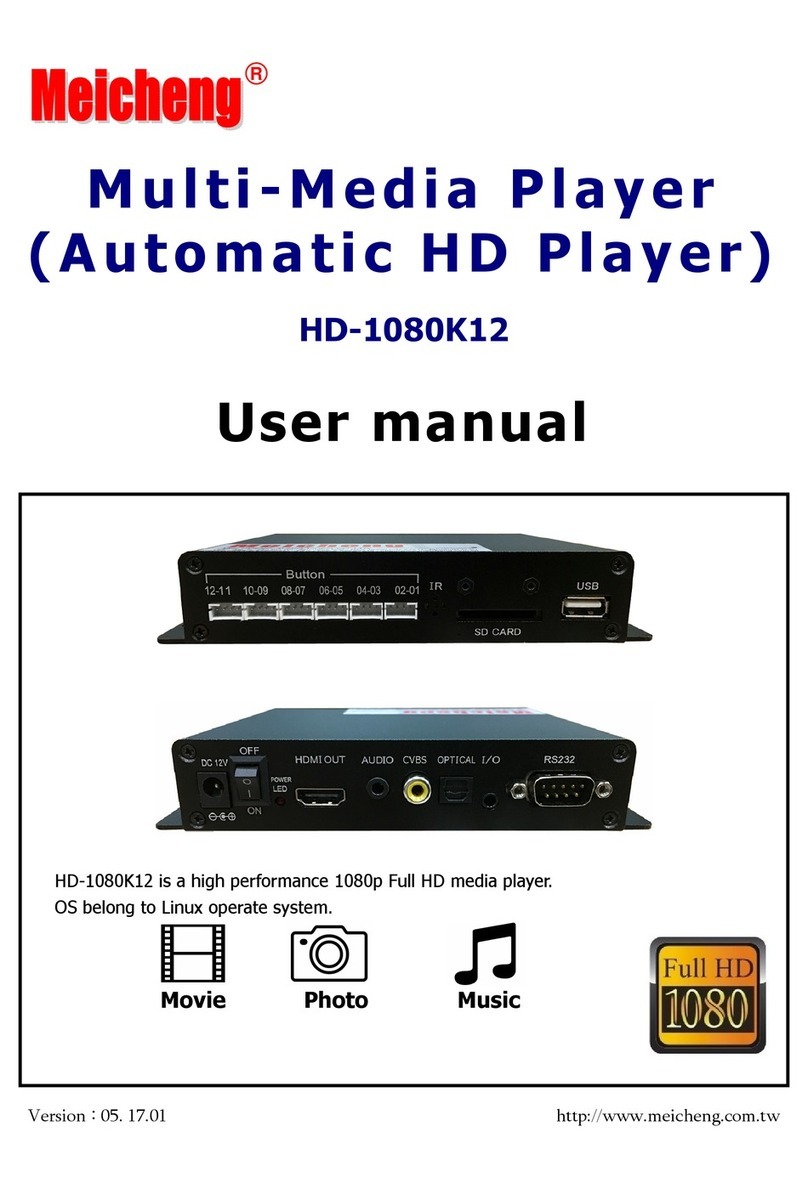
Meicheng HD-1080K12 user manual

Meicheng

Meicheng HD-1080K12 user manual

DENAFRIPS ARCE owner's manual

DENAFRIPS

DENAFRIPS ARCE owner's manual

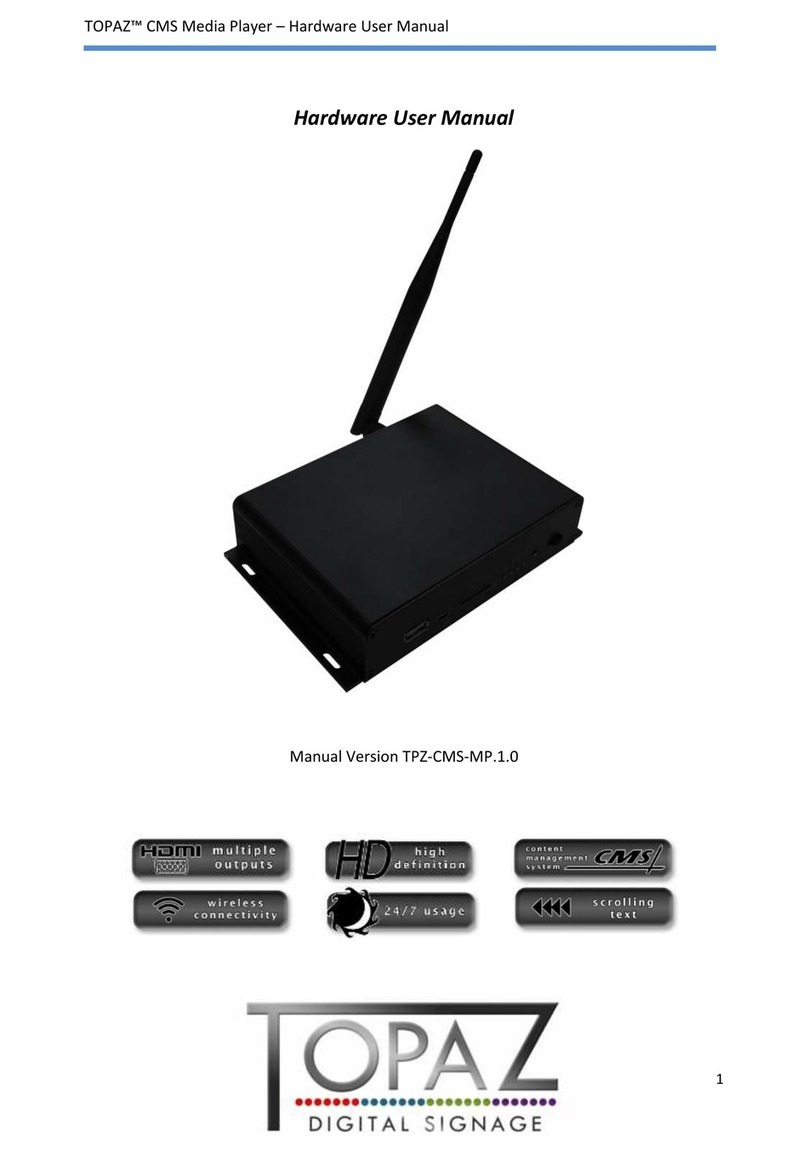
Topaz CMS Media Player Hardware user manual

Topaz

Topaz CMS Media Player Hardware user manual

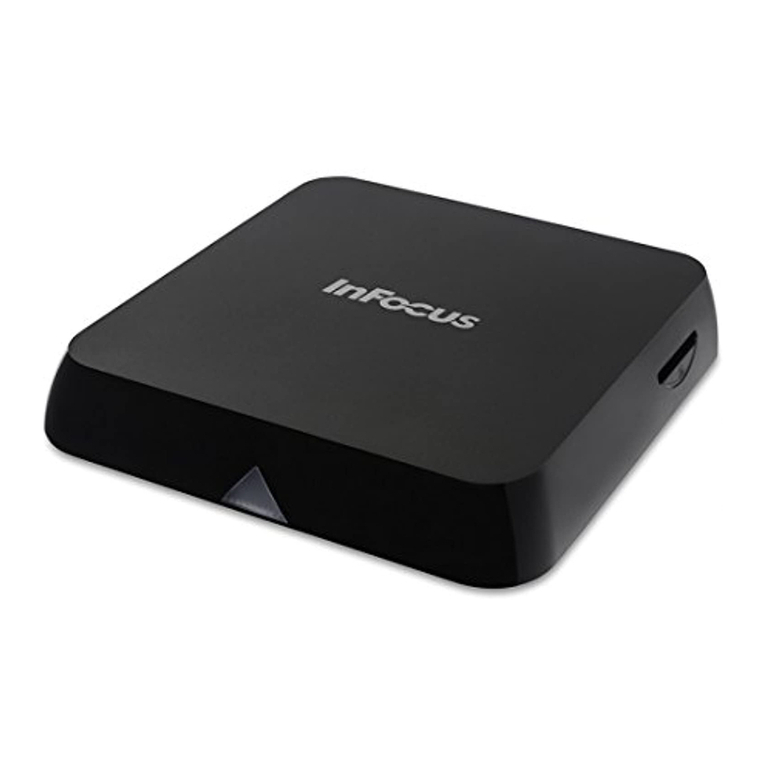
InFocus LightCast user guide

InFocus

InFocus LightCast user guide

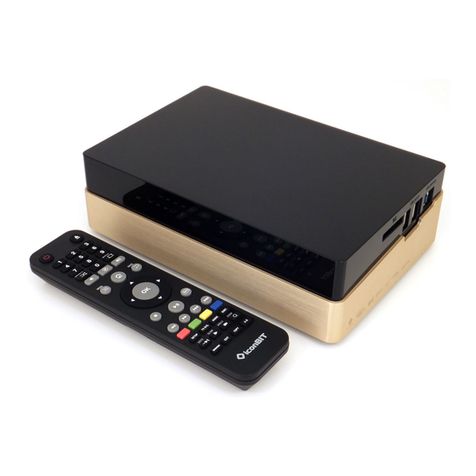
IconBiT XDS1003D user manual

IconBiT

IconBiT XDS1003D user manual

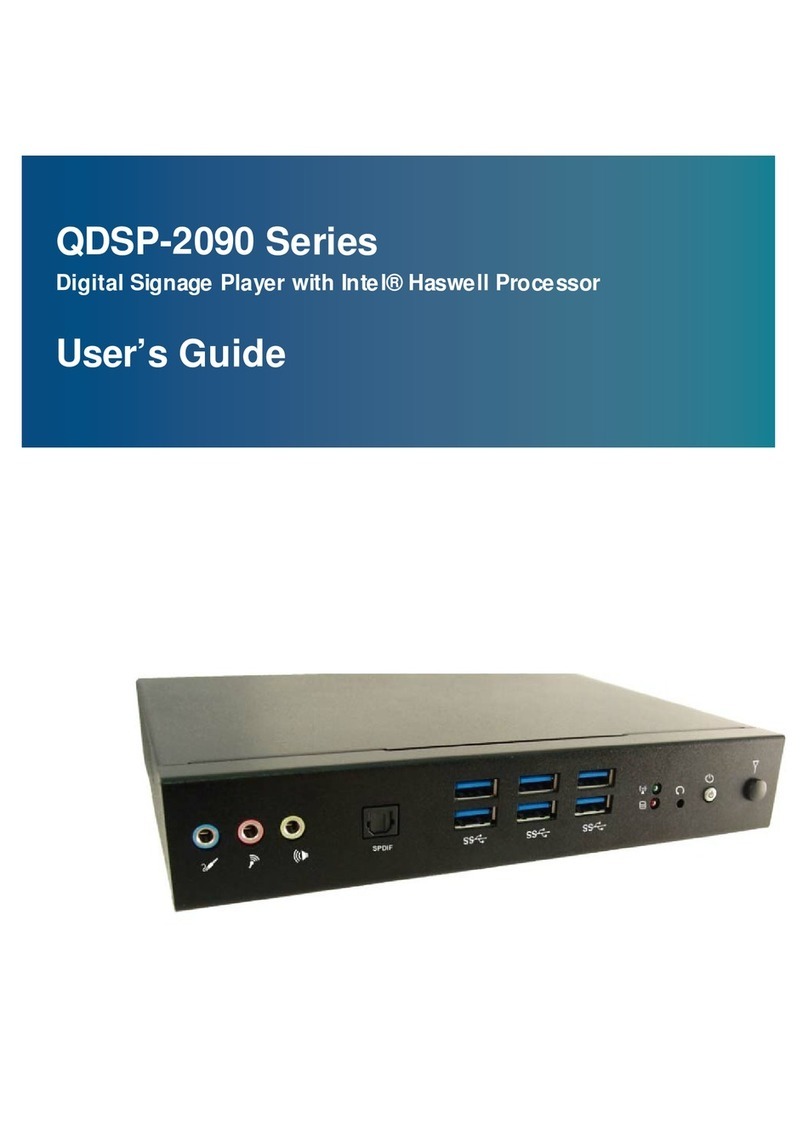
Quanmax QDSP-2090 Series user guide

Quanmax

Quanmax QDSP-2090 Series user guide

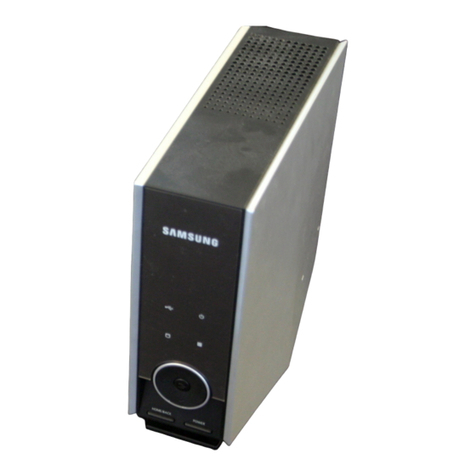
Samsung MP-80S Owner's instructions

Samsung

Samsung MP-80S Owner's instructions

Trigon Elektronik CHRONOLOG operating manual

Trigon Elektronik

Trigon Elektronik CHRONOLOG operating manual

https://manuals.online logo
https://manuals.online logoBrands
  • About & Mission
  • Contact us
  • Privacy Policy
  • Terms and Conditions

Copyright 2025 Manuals.Online. All Rights Reserved.

SMPK4065
Your Pocket Guide
Portable Media Player
Install Software
Get Connected
Transfer Media
Plug Your Ears & Enjoy
1
What’s in the blister?
Know Your Player Well
System Requirement
Software Installation
Connect & Charge
Transfer
Software Operation
Language Selection
Music Playback
Edit Lyrics
Repeat Mode
EQ Mode
Video Playback
Photo Browse
E-Book
Records
Game
Technical Data
Trouble Shooting
2
3
4
5
6
7 - 8
9 - 12
13
14
15
16
17
18
19
20
21
22
23
24
2
What’s in the blister?
Portable Media Player
Earphone USB Cable
What’s in the blister?
CD-ROM containing:
Media player driver for
Windows® 98/98SE
Software for converting
.act files into .wav files.
Software for formatting
internal memory.
Your Pocket Guide
Your Pocket Guide
Portable Media Player
Install Software
Get Connected
Transfer Media
Plug Your Ears & Enjoy
Windows® 98/98SE/ME/2000/XP/Vista
Pentium Class or faster Processor
CD-ROM Drive
64MB RAM
30MB free hard disk space
USB Port
You’ll need a computer with:
System Requirement
4
Insert the CD into the CD ROM drive of your PC.
Click to start driver installation.
Follow the on-screen-menu to complete the installation.
Setup.exe
Click once you reach the
screen.
Close Installation
Complete
For Windows® 98/98SE users, please install the driver in the CD-ROM before downloading any files to your player.
Software Utilities Installation
Software Installation
5
Connect & Charge
Connect
Your player will be charged while being connected to PC through the USB cable.
! You will see the charging animation in the bottom right hand corner of the display.
The player is fully charged when the charging animation stops.
Z
Z
Z
Z
Z
Z
Z
Z
6
Step 1:
Set the Online Device of the player as USB Disk
(Refer to Page 6), then connect it to your PC
by USB cable. Once the connection is successfully
made, the above screen display (1) would be
shown. Try re-connecting the player if the above
screen doesn't appear.
Step 2:
The above screen (2a) would appear.
(Apply only to Windows® XP)
Choose and click
to close the window.
Take no action OK
Double click on your
desktop and the above window (2b)
would appear. Look for the
icon.
My Computer
Removable Disk
Get Your Player Connected
Transfer
Z
Z
Z
Z
Z
Z
Z
Z
7
3
Step 3:
Double click the icon.
Note: Do not disconnect the USB cable
once you click into the removable disk
window. Such action may cause data loss
or problems to the player.
Removable Disk
Drag and drop your media files into the
removable disk.
You can create any folder or directory
in the removable disk.
Close the removable disk window and
disconnect the player from your PC
after the data transfer.
Transfer Music, lmage & Movie
8