manuals.online logo
Brands
  1. Home
  2. •
  3. Brands
  4. •
  5. teko
  6. •
  7. Keypad
  8. •
  9. teko Astra-8121 User manual

teko Astra-8121 User manual

Other teko Keypad manuals

teko ASTRA-Z-8145 Pro User manual

teko

teko ASTRA-Z-8145 Pro User manual

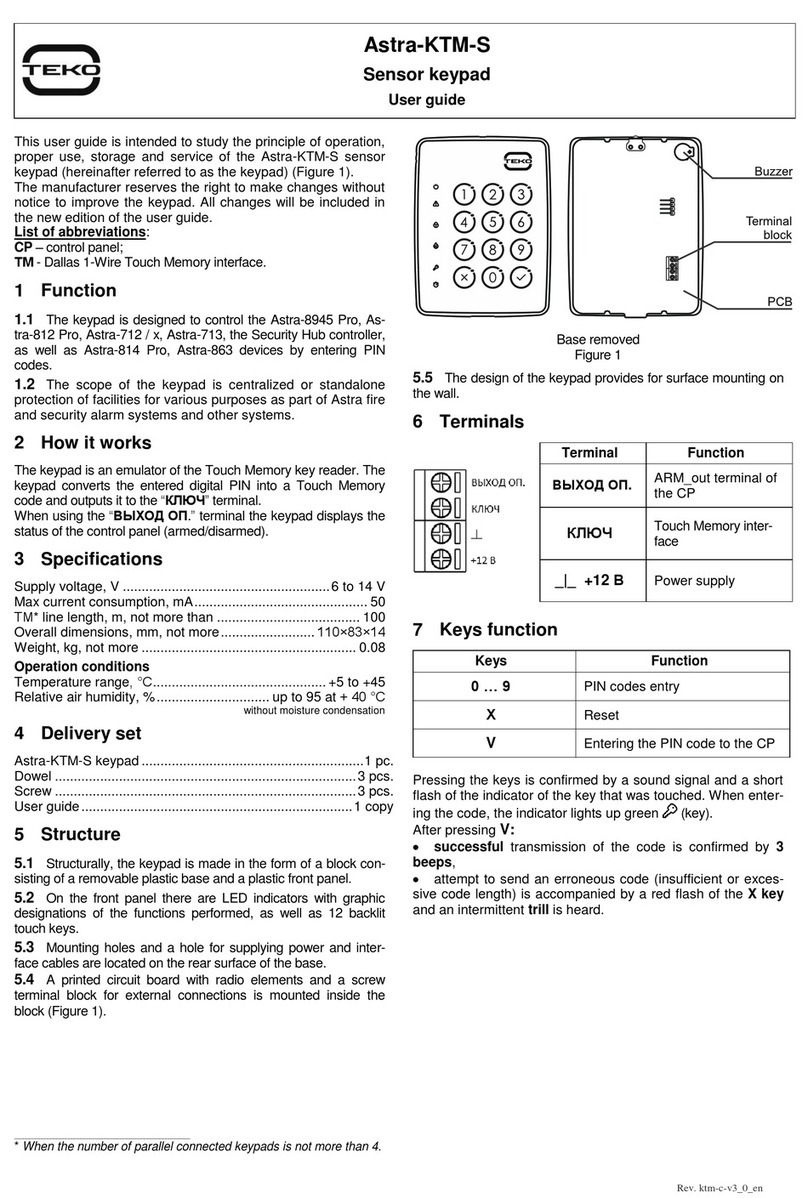
teko Astra-KTM-S User manual

teko

teko Astra-KTM-S User manual

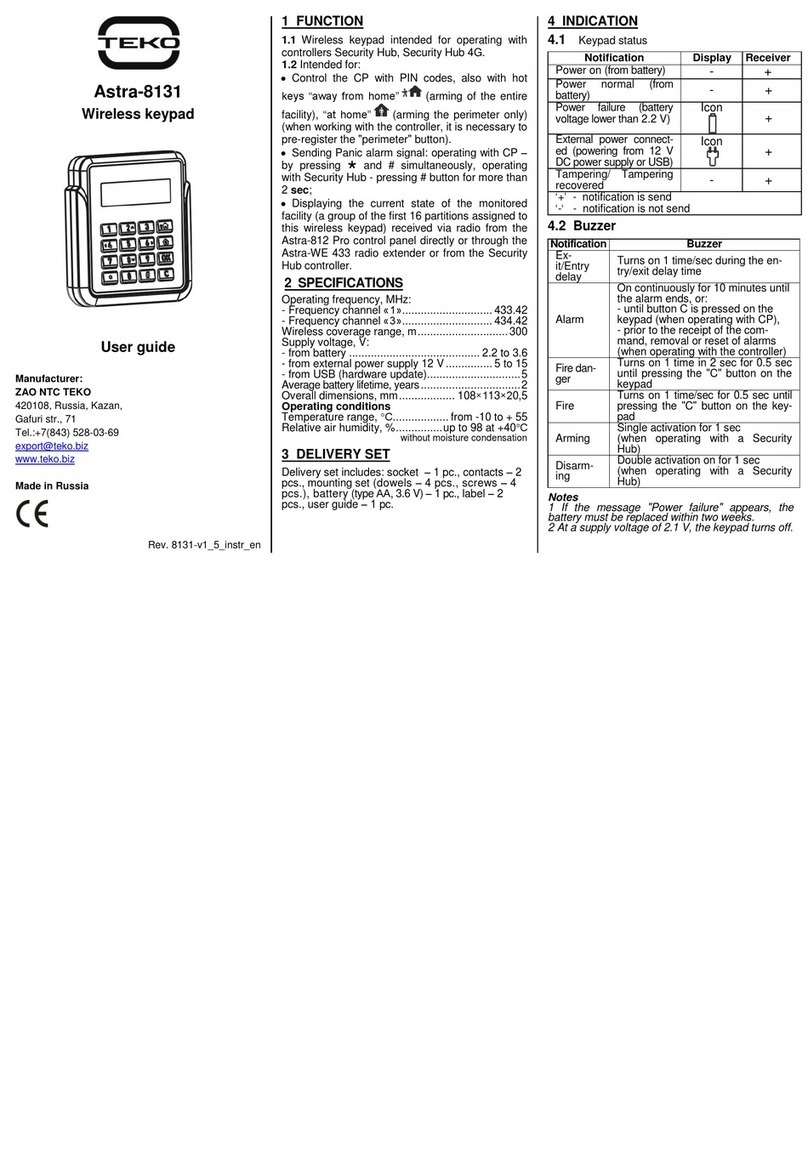
teko Astra-8131 User manual

teko

teko Astra-8131 User manual

teko Atra-814 Pro User manual

teko

teko Atra-814 Pro User manual

Popular Keypad manuals by other brands

AAA 6150RFAAA Installation and setup guide

AAA

AAA 6150RFAAA Installation and setup guide

Fermax MDS Installation and programming manual

Fermax

Fermax MDS Installation and programming manual

ACT ACT PRO 1030 manual

ACT

ACT ACT PRO 1030 manual

Cardin SSB Series manual

Cardin

Cardin SSB Series manual

Harman Kardon KP 1 Specifications

Harman Kardon

Harman Kardon KP 1 Specifications

CYP CR-KP1 Operation manual

CYP

CYP CR-KP1 Operation manual

Aeware k-35 Series Quick reference card

Aeware

Aeware k-35 Series Quick reference card

Aritech CS-175 Series user guide

Aritech

Aritech CS-175 Series user guide

Lenze AC Tech MC SERIES installation instructions

Lenze AC Tech

Lenze AC Tech MC SERIES installation instructions

Burg Wächter secuENTRY 7711 operating instructions

Burg Wächter

Burg Wächter secuENTRY 7711 operating instructions

Aeware in.k450 Tech book

Aeware

Aeware in.k450 Tech book

Lenze EPM-H410 operating instructions

Lenze

Lenze EPM-H410 operating instructions

Toshiba RKP007Z user manual

Toshiba

Toshiba RKP007Z user manual

Elmes Electronic KB1 quick start guide

Elmes Electronic

Elmes Electronic KB1 quick start guide

Clare Controls ClareOne CLR-C1-PNC Installation sheet

Clare Controls

Clare Controls ClareOne CLR-C1-PNC Installation sheet

FM Electronics 4180 quick start guide

FM Electronics

FM Electronics 4180 quick start guide

AMX MIO-PRESTIGE-S Dimensional drawing

AMX

AMX MIO-PRESTIGE-S Dimensional drawing

why pro WHY-KP user manual

why pro

why pro WHY-KP user manual

manuals.online logo
manuals.online logoBrands
  • About & Mission
  • Contact us
  • Privacy Policy
  • Terms and Conditions

Copyright 2025 Manuals.Online. All Rights Reserved.

Astra-8121
Wireless keypad
User Guide
Manufacturer:
ZAO NTC TEKO
420108 Kazan, Russia
Gafuri str. 71
Tel.:+7(843) 528-03-69
[email protected]
www.teko.biz
Made in Russia
Rev. 8121-v1_1_instr_en
1 FUNCTION
The wireless keypad is designed to work as
part of the Security Hub system.
Wireless keypad is intended for:
entering and transmitting to the Security Hub
controller commands for Arming/Disarming the
object by entering PIN code, as well as quick
buttons (all object), (a part of object,
for example perimeter);
transmitting the alarm signal by pressing the
#button for more than 2 sec.
2 TECHNICAL SPECIFICATION
Operating frequency range, MHz .................433
Wireless coverage range, m.........................100
Supply voltage, V:
- from battery cell........................from 2,6 to 3,0
- from external power supply...........from 5 to 12
- from USB...................................................... 5
Battery average lifetime, years........................ 1
Overall dimensions, mm..............108×113×20,5
Operation conditions
Temperature range, °С.............from -10 to + 50
Relative air humidity, %..........up to 93 at +40°С
without moisture condensation
3 DELIVERY SET
The delivery set includes:
Socket –1 pc., contacts - 2 pcs., mounting
parts (dowels - 4 pcs., screws - 4 pcs), batteries
(АА, 1,5 V) - 2 pcs., user guide –1 copy.
4 LED INDICATION
4.1 Keypad indication
Notification
LED
External power
White indicator is on
Power from battery
1x white flash with 1
min period
Code transfer
4x white flashes with
1 min period
Power failure (battery
discharge)
10x red flashes with
1 min period
Frequency
number
1
1x red flash1
3
3x red flash1
1When applying power or changing frequency
Note
1When notice of "Power failure" appears, it is
necessary to replace the battery within two
weeks.
2 With a supply voltage of 2.2 V, the keypad is
switched off.
4.2 Built-in sound
Beeps when briefly pressing any button on
the wireless keypad.
Continuous sound when you hold any but-
ton on the keypad for more than 2 sec until the
end of the hold.
5 OPERATING FREQUENCY SETTING
Frequency “1”:when the power is off, simul-
taneously press and hold buttons 1 and #,apply
power (install batteries), release the buttons
after 5-7 seconds.
Frequency “3”:when the power is off, simul-
taneously press and hold buttons 3and #, apply
power (install batteries), release the buttons
after 5-7 seconds.
6 ADDING TO THE SYSTEM
1) Open the keypad.
2) Start assigning on the Security Hub mobile
or desktop app. Assigning starts for 45-60
sec.
3) Insert battery into the keypad:
4) Detector’s led start flashing: 5x white flash
in 1 sec.
Make sure that the adding is successful on the
Security Hub mobile or desktop app. If assign-
ing is unsuccessful, repeat the procedure.
7 INSTALLATION PLACE
It is recommended to install the keypad on
the wall at the eye level of the operator.
It is not recommended to install the keypad:
-on massive metal structures or closer than 1
m from them;
-closer than 1 m from power lines and metal
water or gas pipes, radio interference
sources;
-inside metal structures.
8 INSTALLATION PROCEDURE
1) Push the cover
latches out of the
grooves of the
base, remove the
cover together with
the PCB installed in
it.
2) Make markup at the se-
lected installation location on
the enclosed base.
3) Connect the wires of the
external power supply
through the wire input holes
(if necessary).
4) Fix the base of the key-
pad to the wall.
5) Install a batteries and / or (if necessary)
connect external power supply wires:
- squeeze the wires with the contacts, insert the
contacts into the socket (the contacts and the
socket are supplied to delivery set);
- plug the socket into the corresponding socket
on the PCB.
6) Assemble the key-
pad by closing the cover
until it clicks.
7) Check keypad per-
formance:
- send an alarm by holding the button "#" for
more than 2 sec,
- check the alarm message in the mobile or
desktop Security Hub Apps.
9 WARRANTY
Operational warranty period: 5 years from the
date of commissioning, but no more than 5 years
6 months from the date of manufacture and sub-
ject to current user guide requirements.