Telrad Executive set with expanded display User manual

Executive set
with expanded display
User guide
79-100-0009/E Issue 1

79-100-0009/E, Issue 1
Executive set
with expanded display
User guide
Telrad Telecommunications Inc.,
Woodbury, New York

NOTICE
This publication refers to Telrad's Executive set
with expanded display connected to Telrad's DIG-
ITAL KEY BX system, Release SBU5, or Telrad's
DIGITAL 400 system, Release DBU5, as of Febru-
ary 1997.
Telrad reserves the right to modify the equipment
and the software described herein without prior
notice. However, changes made to the equipment
or to the software described herein do not neces-
sarily render this publication invalid.
© 1997 Telrad Telecommunications Inc.,
Woodbury, New York

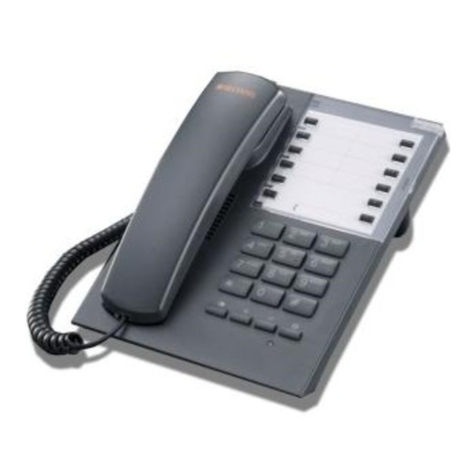
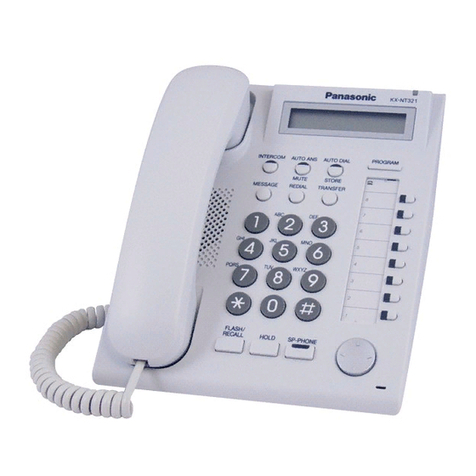
Figure 1 Executive set with expanded display faceplate

Executive set with expanded display 1
ABOUT YOUR DIGITAL TELEPHONE
The Executive set with expanded display is equipped with
onhook dialing, full speakerphone, and hot dialpad capabil-
ity which enables you to make a call or operate any feature
by pressing the dialpad buttons.
You may receive and disconnect calls, program features
and perform all operations without lifting the handset. You
may lift the handset or switch between handsfree and
handset operation at any time.
NOTE
This guide describes the regular operation of the
telephone. The configuration of your particular sys-
tem and telephone may introduce differences in
operation. For example, some of the features and
buttons described in this guide may not be avail-
able on your telephone set. For more information,
see your System Administrator.

2Executive set with expanded display
TELEPHONE SET BUTTONS
Your telephone set has twelve softkeys, and an array of
programmable and fixed feature buttons (see Figure 1 on
the inside front cover). NOTE
In this guide, fixed feature buttons and program-
mable buttons appear in bold type, in capital letters
within square brackets, e.g., [HOLD].
Softkeys appear in bold and italicized type, in capi-
tal letters within curly brackets, e.g. {HOLD}.
User-programmable buttons appear in capital let-
ters, e.g., SPEED DIAL.
Most of the telephone buttons have dual-color light indica-
tors. The color and flash rate of the indicators show the sta-
tus of the programmed line, feature, or extension.
In general, red indicates non-availability (for example, a
busy line). Green indicates that you are using the feature
or line, or that it is available to you.
Softkeys
Softkeys have several functions, which change according
to the state of your telephone. A softkey's function, at any
particular moment, is indicated on the telephone display.
To operate a displayed function, press the adjacent soft-
key.
User-programmable buttons
Some of the buttons on your telephone may be user-pro-
grammable SPEED DIAL or MEMORY buttons. You may
program these to access extensions, features, or outside
lines.

Executive set with expanded display 3
Fixed feature buttons
The following fixed feature buttons appear on your tele-
phone set.
[HOLD]
This button places a call on hold.
[FEAT]
Press [FEAT] and then dial a feature code to activate fea-
tures (see the Feature Codes table at the end of this
guide).
[PICK UP/XFR/CNF]
Press this button to pick up or transfer calls, and when
establishing and exiting conference calls.
NOTE
The [PICKUP/XFR/CNF] button is referred to as
[PICK UP],[XFR] or [CNF], depending on the
operation being described.
[SPD/PROG]
This button is used for speed dialing and for programming
various features.
[REDIAL/PAUSE]
This button lets you automatically redial the last outside
number you dialed, after first accessing an outside line.
Pressing this button while dialing on an external line inserts
a pause in a dialing sequence.
[<LO HI>]
This button adjusts the volume of the speaker, handset,
headset, ringer and background music when any of these
is active.
Pressing this button when the telephone is idle changes
the display contrast.

4Executive set with expanded display
[FLASH]
Depending on system programming, this button is used to
disconnect or to send Flash Signal to the connected
remote exchange.
[SAVE/REPEAT]
This button is used to store one outside number for fre-
quent automatic dialing.
[ALL]
This button is used for Group pickup, cancel all Messages
and to cancel Call Forward to me from all extensions.
[CANCEL]
This button is used to cancel Call Forward programming,
Alarm programming and Messages.
Programmable buttons
The following buttons on your set have already been pro-
grammed to perform specific functions. The System
Administrator can program these buttons to perform other
functions. If the function of certain buttons does not match
those appearing in the figure at the beginning of this guide,
consult your System Administrator.
NOTE
When the following features are activated their but-
ton indicators light: [MSG], [DND], [MUTE],
[SPKR],[CFNA ALL],[CFBY ALL],[TIME] and
[CB/QUE].
[MSG]
This button is used to send messages to other extensions
and to reply to messages left at your extension.
[DND]
This button activates and deactivates Do Not Disturb.

Executive set with expanded display 5
[MUTE]
This button disables and enables your telephone micro-
phone.
[SPKR]
For handsfree operation, press [SPKR] instead of lifting or
replacing the handset.
Whenever this guide instructs you to lift or replace the
handset, you may press [SPKR] instead.
[CFNA ALL]
This button defines a destination to which calls are for-
warded when your telephone does not answer.
[CFBY ALL]
This button defines a destination to which calls are for-
warded when your telephone is busy.
[TIME]
This button programs an alarm time.
[CB/QUE]
This button activates extension callback and trunk queue.
DN buttons
DN buttons are buttons associated with specific Directory
Numbers.
The first DN button is your Primary DN button, which has
the same number as your extension. The Primary DN but-
ton is used for making and receiving most of your calls.
Whenever you pick up the handset, your Primary DN but-
ton, or - if it is not available - another DN button lights
green.

6Executive set with expanded display
If no DN buttons are available, no DN button lights, you do
not receive dial tone, and you cannot place or answer calls.
NOTE
Not all telephone sets are programmed with DN
buttons. The instructions in this manual often
contain references to DN indicators and dis-
plays of DN numbers. If your telephone set is
not programmed with DN buttons, disregard
these references.
Many of the instructions offer a number of
options, one of which is pressing a DN button. If
your telephone set is not programmed with DN
buttons, choose one of the other options, or skip
the step of pressing the DN button.
Some of the features operate slightly differently
on a telephone set that is not programmed with
DN buttons. These differences are pointed out
in a NOTE for each applicable feature. Consult
your System Administrator for further details
about the programming of your telephone set.
DN buttons may be programmed in three different modes:
•ringing mode - the telephone rings and the DN button
flashes green when a call is received.
•flashing mode - the DN button flashes green when a
call is received, but there is no ringing.
•delayed ringing mode - a call rings first at another sta-
tion or group of stations, for a programmed length of
time, before beginning to ring at your station.
Other manuals for Executive set with expanded display
1
Table of contents
Other Telrad Telephone manuals

Telrad
Telrad Digital Executive set User manual

Telrad
Telrad Avanti 3020 User manual

Telrad
Telrad Futuro Operating and maintenance manual

Telrad
Telrad Avanti Attendant Console User manual

Telrad
Telrad Speakerphone set User manual

Telrad
Telrad Futuro 28 User manual

Telrad
Telrad Avanti 3025 User manual

Telrad
Telrad Executive set with expanded display User manual

Telrad
Telrad Avanti 3015 User manual

Telrad
Telrad Avanti 3025 set User manual