manuals.online logo
Brands
  1. Home
  2. •
  3. Brands
  4. •
  5. TP-Link
  6. •
  7. Network Router
  8. •
  9. TP-Link SafeStream TL-R605 User manual

TP-Link SafeStream TL-R605 User manual

Other TP-Link Network Router manuals

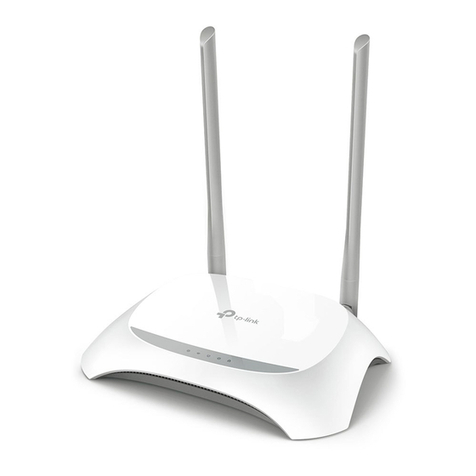
TP-Link TL-ER604W User manual

TP-Link

TP-Link TL-ER604W User manual

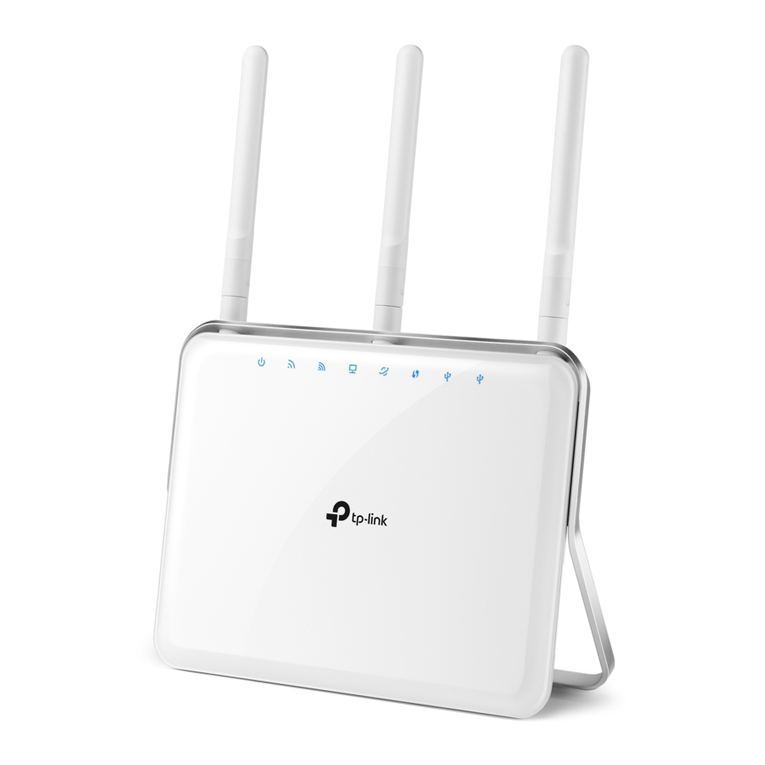
TP-Link Archer C7 User manual

TP-Link

TP-Link Archer C7 User manual

TP-Link Archer A20 User manual

TP-Link

TP-Link Archer A20 User manual

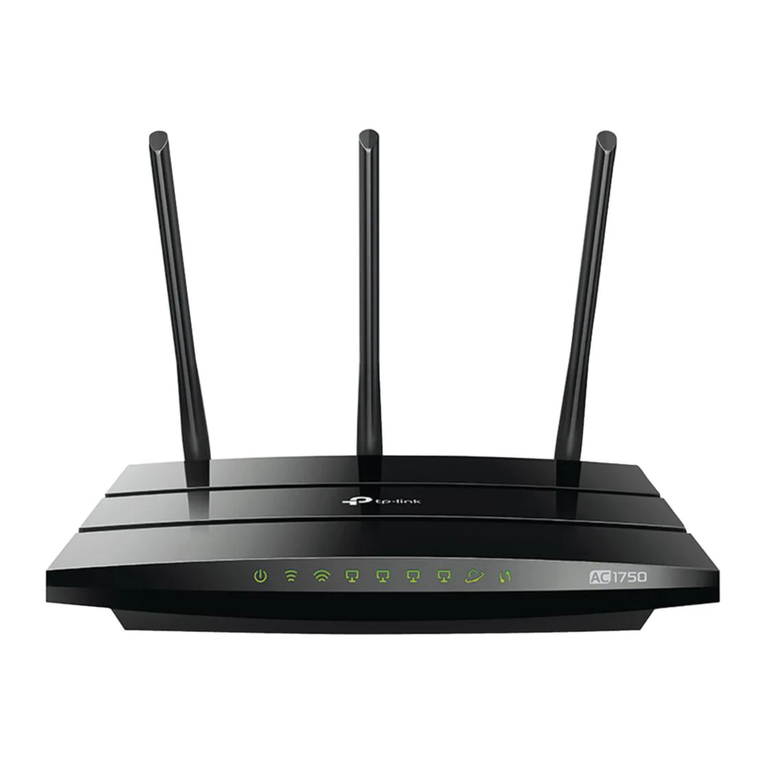
TP-Link Archer AC1200 User manual

TP-Link

TP-Link Archer AC1200 User manual

TP-Link TD-W9980B User manual

TP-Link

TP-Link TD-W9980B User manual

TP-Link TL-WR841HP User manual

TP-Link

TP-Link TL-WR841HP User manual

TP-Link TL-MR6400 User manual

TP-Link

TP-Link TL-MR6400 User manual

TP-Link TL-WR802N User manual

TP-Link

TP-Link TL-WR802N User manual

TP-Link TD-W8101G User manual

TP-Link

TP-Link TD-W8101G User manual

TP-Link Deco BE16000 User manual

TP-Link

TP-Link Deco BE16000 User manual

TP-Link SafeStream TL-ER6020 User manual

TP-Link

TP-Link SafeStream TL-ER6020 User manual

TP-Link Archer C59 User manual

TP-Link

TP-Link Archer C59 User manual

TP-Link Archer AX80 User manual

TP-Link

TP-Link Archer AX80 User manual

TP-Link Archer C24 User manual

TP-Link

TP-Link Archer C24 User manual

TP-Link Archer AX20 User manual

TP-Link

TP-Link Archer AX20 User manual

TP-Link Archer AXE75 User manual

TP-Link

TP-Link Archer AXE75 User manual

TP-Link Archer VR900 User manual

TP-Link

TP-Link Archer VR900 User manual

TP-Link TL-ER604W User manual

TP-Link

TP-Link TL-ER604W User manual

TP-Link Deco X25 User manual

TP-Link

TP-Link Deco X25 User manual

TP-Link ARCHER C1200 User manual

TP-Link

TP-Link ARCHER C1200 User manual

TP-Link Archer VR2100 User manual

TP-Link

TP-Link Archer VR2100 User manual

TP-Link Deco Wi-Fi 6 User manual

TP-Link

TP-Link Deco Wi-Fi 6 User manual

TP-Link TD-9970B User manual

TP-Link

TP-Link TD-9970B User manual

TP-Link Archer BE9300 User manual

TP-Link

TP-Link Archer BE9300 User manual

Popular Network Router manuals by other brands

TRENDnet TEW-435BRM - 54MBPS 802.11G Adsl Firewall M Quick installation guide

TRENDnet

TRENDnet TEW-435BRM - 54MBPS 802.11G Adsl Firewall M Quick installation guide

Siemens SIMOTICS CONNECT 400 manual

Siemens

Siemens SIMOTICS CONNECT 400 manual

Alfa Network ADS-R02 Specifications

Alfa Network

Alfa Network ADS-R02 Specifications

Barracuda Networks Link Balancer quick start guide

Barracuda Networks

Barracuda Networks Link Balancer quick start guide

ZyXEL Communications ES-2024PWR Support notes

ZyXEL Communications

ZyXEL Communications ES-2024PWR Support notes

HPE FlexNetwork 5510 HI Series Openflow configuration guide

HPE

HPE FlexNetwork 5510 HI Series Openflow configuration guide

Allied Telesis AT-AR236E quick start guide

Allied Telesis

Allied Telesis AT-AR236E quick start guide

ADTRAN NetVanta 3458-PoE quick start

ADTRAN

ADTRAN NetVanta 3458-PoE quick start

C&H Technologies EM405-8 manual

C&H Technologies

C&H Technologies EM405-8 manual

Huawei WiFi Mesh 3 Product description

Huawei

Huawei WiFi Mesh 3 Product description

Addonics Technologies ISC8P2G-S Quick install guide

Addonics Technologies

Addonics Technologies ISC8P2G-S Quick install guide

Atel W02 Arch+ Faqs

Atel

Atel W02 Arch+ Faqs

Allnet ALL0333AU user guide

Allnet

Allnet ALL0333AU user guide

Sercomm Genesis OC3505D Quick installation guide

Sercomm

Sercomm Genesis OC3505D Quick installation guide

Billion BIPAC 5102 Series user manual

Billion

Billion BIPAC 5102 Series user manual

Motorola MR1900 user guide

Motorola

Motorola MR1900 user guide

Cisco SOHO Series Regulatory compliance and safety information

Cisco

Cisco SOHO Series Regulatory compliance and safety information

NETGEAR WGE101 Reference manual

NETGEAR

NETGEAR WGE101 Reference manual

manuals.online logo
manuals.online logoBrands
  • About & Mission
  • Contact us
  • Privacy Policy
  • Terms and Conditions

Copyright 2025 Manuals.Online. All Rights Reserved.

Installation Guide
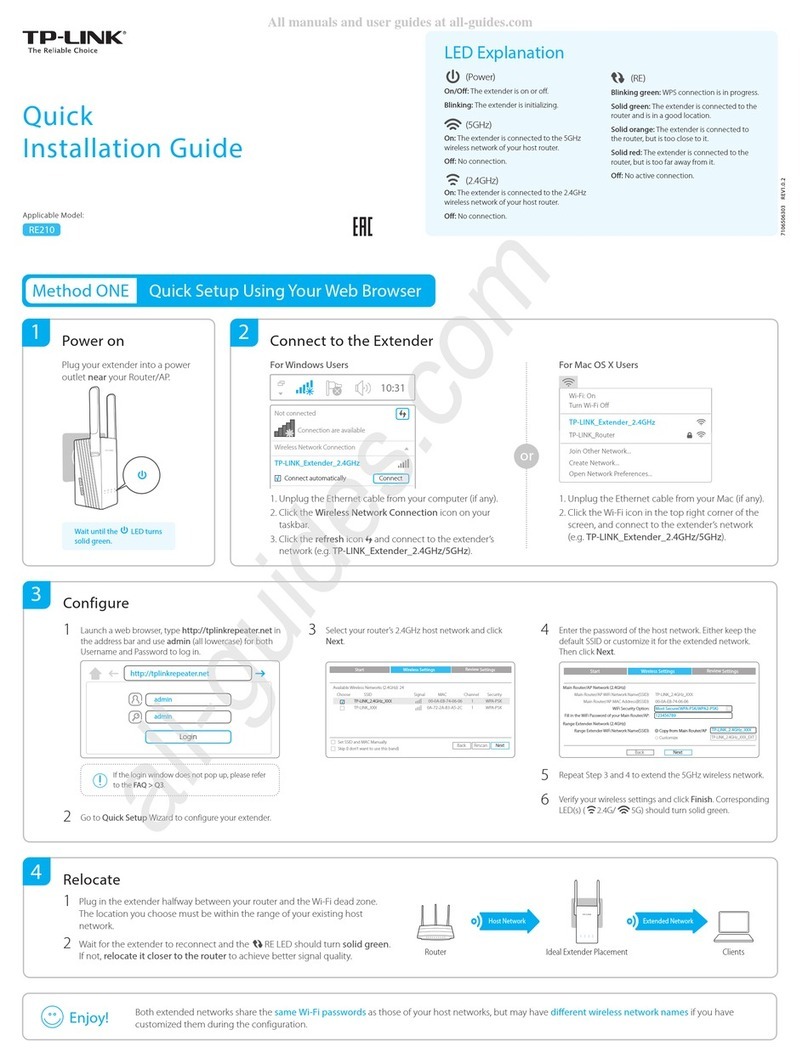
LED Explanation
Connection
Conguration
TL-R605
Modem
Internet
On: Power on
O: Power o
Power
Flashing: System running normally
On/O: System running abnormally
System
Note: For simplicity, we take TL-R605 as an example throughout this Guide.
© 2020 TP-Link 7106508730 REV1.0.0
SafeStream Gigabit Multi-WAN VPN Router
Option 1: Standalone Mode
Open a web browser and type the default management address
192.168.0.1 in the address eld of the browser, then press the Enter key.
2.
Connect a computer to a LAN port of the router with an RJ45 cable
properly. If your computer is congured with a xed IP, change it to Obtain
an IP address automatically.
1. For detailed congurations, refer to the User Guide of the router. The guide

can be found on the download center of our ocial website:
https://www.tp-link.com/support/download/.
Create a username and a password for subsequent login attempts and
for security.
3.
Use the username and password set above to log in to the webpage.4.
After a successful login, you can congure the function by clicking the
setup menu on the left side of the screen.
5.
Link/Act and 1000Mbps (for TL-ER7206)
The router supports two conguration options:
Standalone Mode: Congure and manage the router singly.
Controller Mode: Congure and manage the network devices centrally. It is recommended in the large-scale network, which consists of mass devices such as
access points, switches, and gateways.
Note: Use the charger provided in the
package to power on the router.
On: There is a device connected to the port and running at 1000 Mbps.
O: There is no device connected to the port or not running at 1000 Mbps.
On: There is a device connected to the port but not active.
O: There is no device connected to the corresponding port.
Flashing: Transmitting or receiving data.
Router PC
In Standalone Mode, use a computer to congure and manage the router.
Link/Act (for TL-R605) | SFP WAN (for TL-ER7206)
On: There is a device connected to the port but not active.
O: There is no device connected to the corresponding port.
Flashing: Transmitting or receiving data.
Note: When the router is managed by a controller, congurations of the router will be overriden by the controller.
Safety Information
Keep the device away from water, re, humidity or hot environments.
Do not attempt to disassemble, repair, or modify the device. If you need service, please
contact us.
Do not use damaged charger or USB cable to charge the device.
Do not use any other chargers than those recommended.
Adapter shall be installed near the equipment and shall be easily accessible.
Place the device with its bottom surface downward.
TP-Link hereby declares that the device is in compliance with the essential requirements
and other relevant provisions of directives 2014/30/EU, 2014/35/EU, 2009/125/EC,
2011/65/EU and (EU)2015/863.
The original EU declaration of conformity may be found at https://www.tp-link.com/en/ce.
EU Declaration of Conformity
For technical support and other information, please visit
https://www.tp-link.com/support, or simply scan the QR code.
If you have any suggestions or needs on the product guides, welcome
to email techwriter@tp-link.com.cn.
To ask questions, find answers, and communicate with TP-Link users or
engineers, please visit https://community.tp-link.com to join TP-Link
Community.
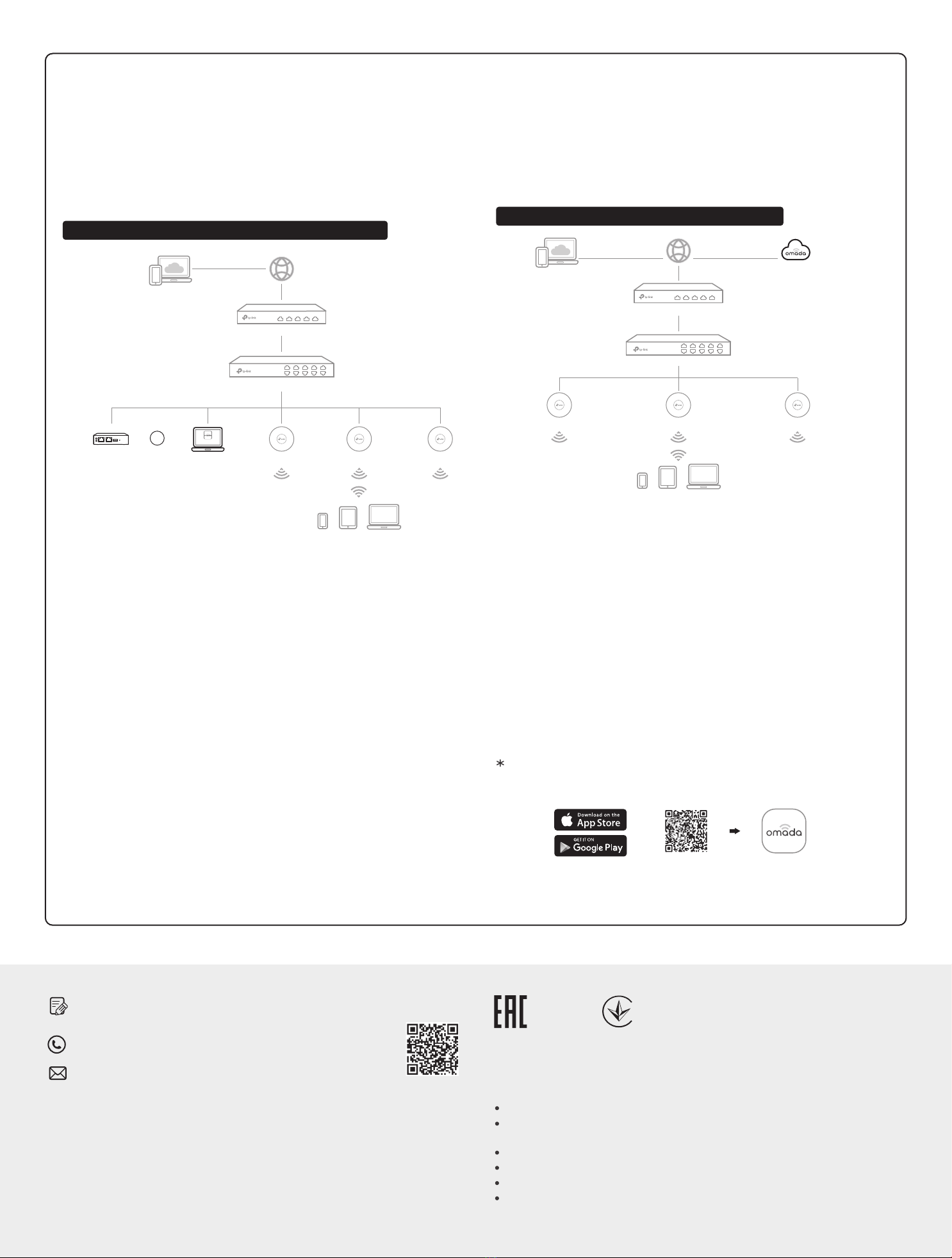
Option 2: Controller Mode
Switch
Router
EAP
Clients
Omada Hardware Controller
Controller
Omada Software Controller
Or
running on the Host PC
(OC200/OC300)
EAP EAP
Switch
Router
Omada Cloud-Based Controller
Clients
EAP EAP EAP
Via Omada Software Controller
Omada Cloud Service
1. On the PC with Windows OS or Linux OS, download the Omada Software

Controller installation file from
https://www.tp-link.com/support/download/omada-software-controller/.
2. Run the file and follow the wizard to install the Omada Software Controller.
3. Launch the Omada Software Controller and follow the step-by-step
instructions to complete the Quick Setup. After the wizard is finished, a
login screen will appear.
4. Enter the username and password you created and click Log in. Then you
can further configure the controller.
1. Enable Cloud Access on the setting page on the controller and bind a

TP-Link ID to your controller. If you have congured this in the setup

wizard, skip the step.
2. Launch a web browser and enter https://omada.tplinkcloud.com in the
address bar.
3. Enter your TP-Link ID and password to log in. A list of controllers that
have been bound with your TP-Link ID will appear. Then you can click
Launch to further congure the controller.
After installing Omada Software Controller, you can remotely access and
configure the controller through Omada Cloud Service. Follow the steps
below.
Omada Hardware Controller (OC200/OC300), which is pre-installed with
Omada Software Controller, is a good alternative if you have no spare PC to
keep running Omada Software Controller in the network. It needs to be
purchased additionally. For more details, refer to the Installation Guide of
Omada Hardware Controller.
Via Omada Hardware Controller (OC200/OC300)
Topology 2: Via Omada Cloud-Based Controller
For the detailed congurations, refer to the User Guide of the controller. The
guide can be found on the download center of our ocial website:
https://www.tp-link.com/support/download/.
Controller Mode applies to the large scale network with mass devices. All
devices can be centrally congured and monitored via Omada Software
Controller, Omada Hardware Controller or Omada Cloud-Based Controller.
Before managing the router centrally, refer to Standalone Mode to launch the
management page, go to Network > WAN, and congure the network to
access the internet. For further congurations, please use the controller to
manage the devices.
Topology 1: Via Omada Software/Hardware Controller
Via Omada Cloud-Based Controller
With Omada App, you can also manage your controller at a local site or a
remote site via your mobile device.
Scan for Omada App Download Omada App
or
Omada App
Click Add Controller and subscribe to Omada Cloud-Based Controller.
Follow the instructions to choose a plan and complete the payment. Then
wait until your controller is deployed.
3.
Launch a web browser and enter https://omada.tplinkcloud.com in the
address bar. Enter your TP-Link ID and password to log in.
2.
The controller will appear in the list once bound with your TP-Link ID. Click
Launch and follow the step-by-step instructions to complete the Quick
Setup. After the wizard is nished, log in via the created username and
password.
4.
Click Devices on the side bar and then click Add Devices. Then you can
add devices to the controller manually through the serial numbers at the
bottom of the product.
5.
Launch the management page of the router in Standalone Mode, go to
Controller Settings, and enable Cloud-Based Controller Management.
1.