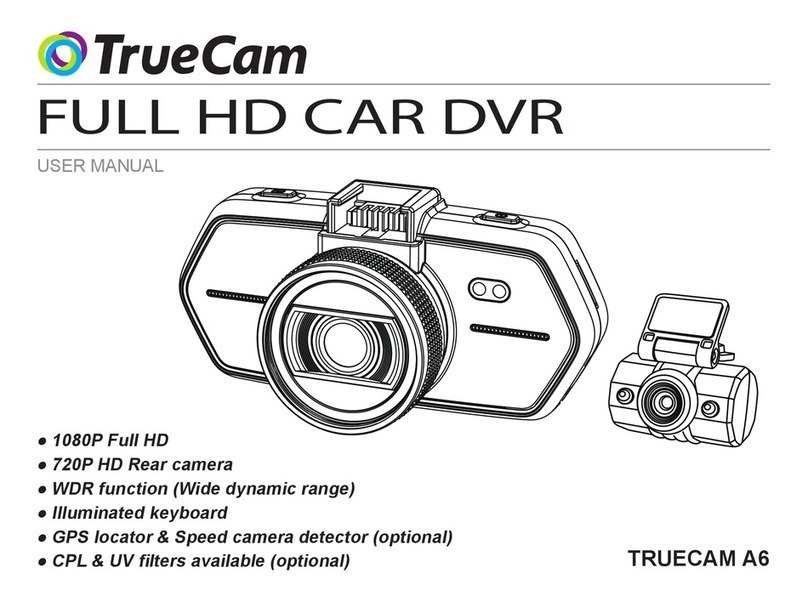
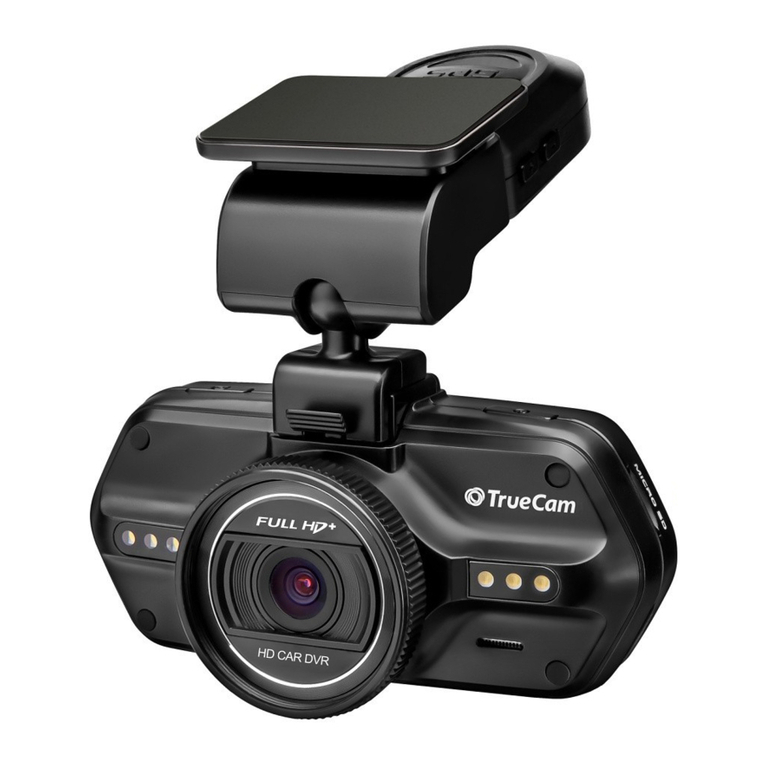
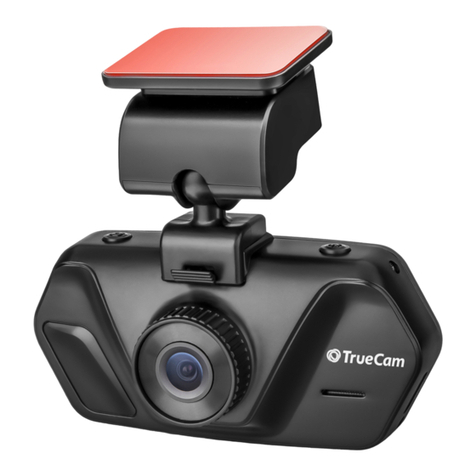
TrueCam A4 User manual

● 1080P Full HD
● WDR function (Wide dynamic range)
● Illuminated keyboard
WDR function (Wide dynamic range)
User manual
TRUECAM A4


3
Device introduction:
1. HDMI port 2. Lens 3. Speaker
4. Rec light (blue) 5. Charging light (red) 6. Menu button
7. Microphone 8. File protection button 9. Mode button
10. LCD display 11. Up button 12. OK button
13. Down button 14. Power button 15. Bracket hole
16. Camera button 17. USB port 18. Reset button
19. Micro SD card slot

4
Device installation:
1. Insert the micro SD card into the slot. Always turn off the device whenever inserting or removing the SD card.
2. Install the device on the windshield.
3. Connect the USB port and the cigarette lighter socket with the car charger, then start the engine, the device will
automatically power on and start recording.
Device operation:
*Automatic video-recording
1. Start the car engine.
2. The device will turn on and start recording automatically.
3. Press le protection button to lock or unlock the recording video le.
4. Press down button to start or stop audio recording.
5. Press up button to turn off the LCD display.
6. Press OK button to stop or start recording.
7. When you turn the car engine off, the device will save the le and will be automatically powered off.
*Taking picture
In recording mode, press camera button to take a photo in the current recording resolution.
In standby mode, press camera button to take a photo in the menu setting resolution.
20. Power input
21. Sticker holder
22. Camera holder

5
*Motion detection function
1. Press the menu button in the video mode to enter the settings options, then choose the motion detection.
2. If the device detects a moving object, red icon “ ” will start ashing slowly and the camera will start recording
automatically.
When the device no longer detects any moving object, it will automatically stop recording.
*G-sensor function
In case of an accident while the camera is recording, “ ” icon will be shown on the screen and the current video
will be stored and protected against deletion, caused by cycle recording.
*File protection function
1. Press the menu button while the device is recording “ ” icon will be shown on the screen and the device will
lock and protect the current video from deletion.
2. Press the menu button again to disable le protection function.
*Playback function
1. When device is in standby status, press the mode button to enter playback mode.
2. Press the up/down button to choose video le or image le.
3. Press the OK button to play or pause the video le.
4. Press the menu button to enter menu setting.
5. Press the mode button again to enter the menu settings.
*U-disk mode
1. Turn off the device and connect it via USB cable to a computer.
2. Menu will be shown on the screen. Choose “Mass Storage” option and the “USB connected” message will be
shown on the screen. Removable disc will appear on your computer.
3. Open the removable disc, the video and image les will be stored in “DCIM” folder.
6
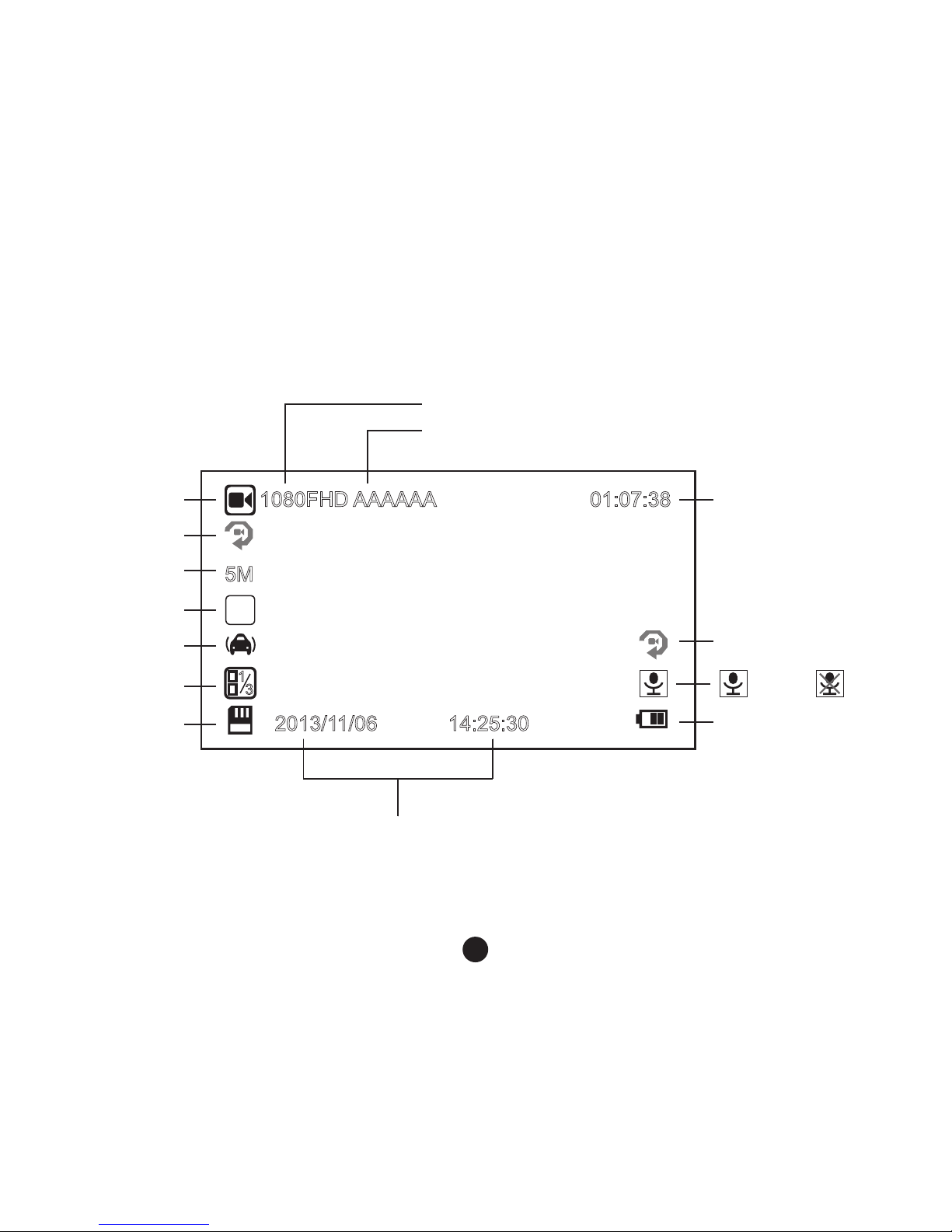
Icons on screen display:
In standby status
3
WDR
F
2013/11/06
5M
1080FHD AAAAAA 01:07:38
14:25:30
13
Motion detection
Remaining recording
time (estimated from
TF card available
data space).
Video mode
Power indicator
TF card indicator
G-sensor
Photo size
Loop setting
WDR
EV value Mic on Mic off
Video resolution
Driver´s number
Date and time

7
In recording status
3
WDR
F
2013/11/06
5M
1080FHD AAAAAA
14:25:30
13
Motion detection
Video resolution
Power indicator
TF card indicator
Driver´s number
Photo size
Loop setting
WDR
EV value Mic on Mic off
Date and time
00:03:38 Recording time
Recording status
G-sensor

8
Button functions in video mode
Button Function Action Remark
Power button Power on/off Short press Turn on/off device.
Menu button Menu setting Short press In standby mode, enter menu list.
File protection
button File protection Short press In recording mode, lock/unlock the video le.
Camera button Take picture Short press Take a photo
Mode button Switch mode Short press Switch video/playback mode.
Up button Up/close panel Short press Up button in menu settings.
Turn off LCD screen in recording mode.
OK button Video record Short press Start/stop video recording.
Down button Down/mute Short press Down button in menu settings.
Start/stop voice recording in recording mode.

9
Button functions in playback mode
Button Function Action Remark
Menu button Menu setting Short press Enter menu list.
Mode button Switch mode Short press Switch video/playback mode.
Up button
1) Previous le Short press Previous le
2) Rewind Short press When playing video, press this button to
rewind.
OK button Play/pause video le Short press Play/pause video le.
Down button
1) Next le Short press Next le
2) Fast forward Short press When playing video, press this button to
fast forward play.
LED light status list
LED light Status Description
Rec light (blue)
Flash Device is recording
On Device is in standby or playback mode.
Off Device is off.
Charging light (red) On Charging battery
Off Charging nished.

10
Product parameters
Chipset Novatek NT96650
LCD display 2.7 Inch 16:9
Camera Resolution 1/3" 3.0 mega CMOS sensor, AR0330
View angle 130° degree
Video Resolution 1920x1080@30fps / 1280x720@30fps / 640x480@30fps
Standard Mov le, H.264 compression
Micro SD card Supported up to 32GB
G-sensor function Supported
File protection function Supported
Motion detection function Supported
Uninterrupted cycle recording Supported
Interface USB2.0 / HDMI
Audio Built-in microphone
Power 12-24V car charger
Battery Built-in 250mAh battery
Menu language English / German / Czech / Polish / Hungarian / Russian /
Italiano / Japanese / Chinese / Korean
Unit size 99x49x37 mm
Accessories:
Car DVR Car charger Camera holder USB cable Manual
Other manuals for A4
2
Table of contents
Languages:
Other TrueCam DVR manuals