manuals.online logo
Brands
  1. Home
  2. •
  3. Brands
  4. •
  5. uAvionix
  6. •
  7. Transceiver
  8. •
  9. uAvionix ping2020i User manual

uAvionix ping2020i User manual

Other manuals for ping2020i

1

Other uAvionix Transceiver manuals

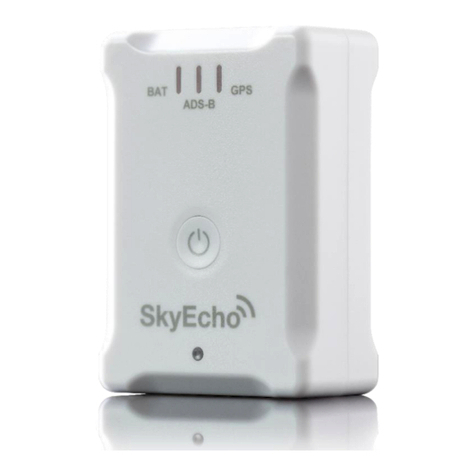
uAvionix SkyEcho 2 User manual

uAvionix

uAvionix SkyEcho 2 User manual

uAvionix ping2020i User manual

uAvionix

uAvionix ping2020i User manual

uAvionix echoUAT User manual

uAvionix

uAvionix echoUAT User manual

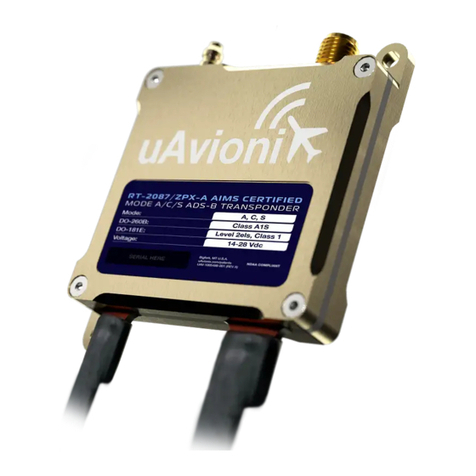
uAvionix RT-2087/ZPX-A Manual

uAvionix

uAvionix RT-2087/ZPX-A Manual

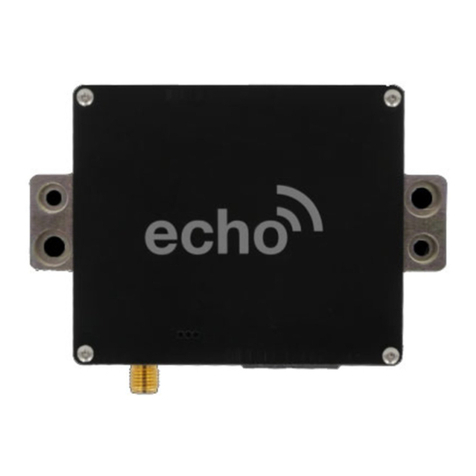
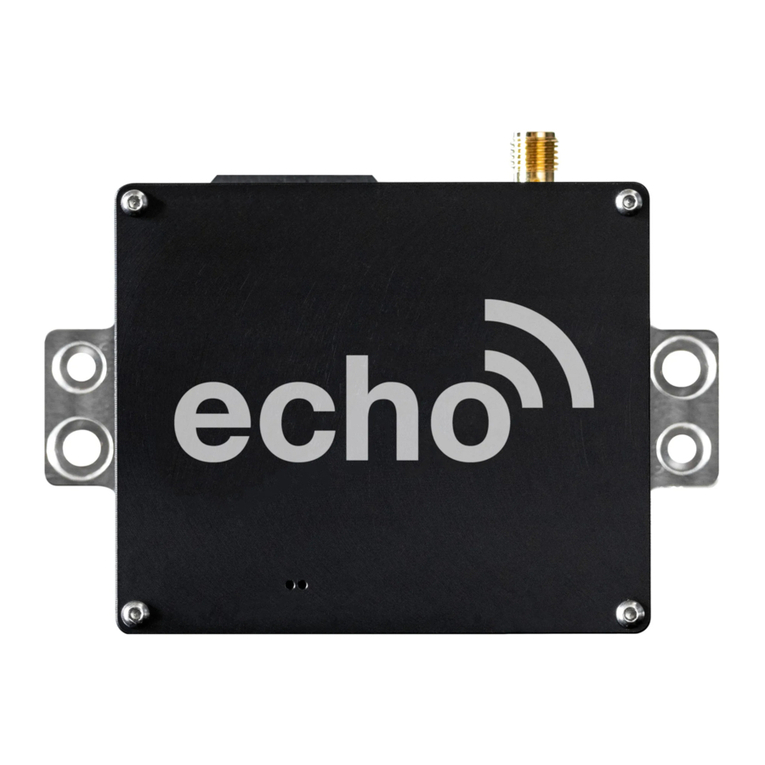
uAvionix echo User manual

uAvionix

uAvionix echo User manual

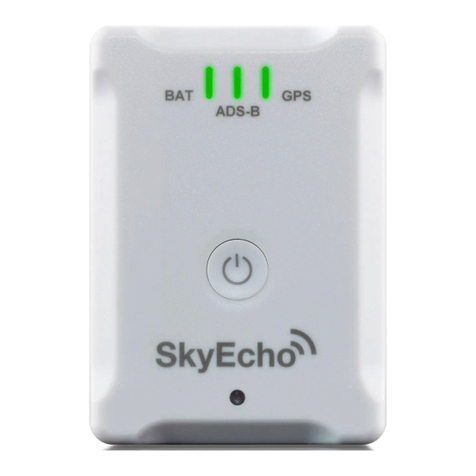
uAvionix SkyEcho User manual

uAvionix

uAvionix SkyEcho User manual

uAvionix PING2020 User manual

uAvionix

uAvionix PING2020 User manual

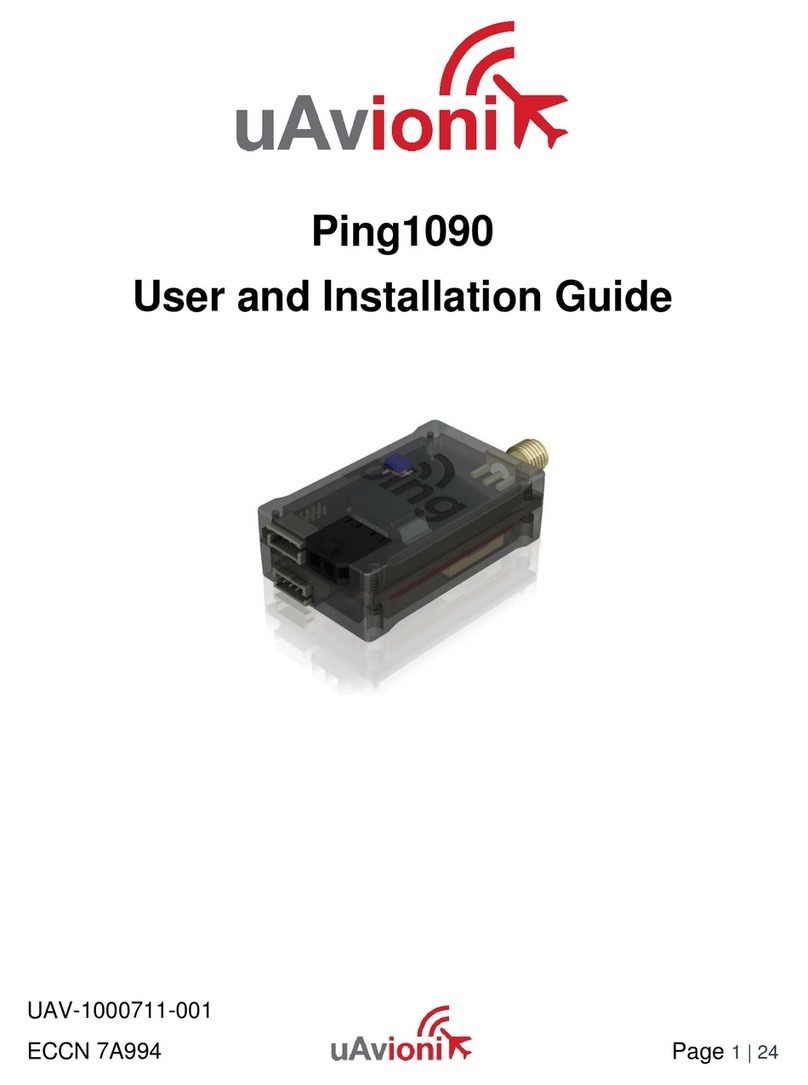
uAvionix Ping1090 Manual

uAvionix

uAvionix Ping1090 Manual

uAvionix SkyEcho 2 User manual

uAvionix

uAvionix SkyEcho 2 User manual

uAvionix Ping1090 User manual

uAvionix

uAvionix Ping1090 User manual

uAvionix Ping1090i User manual

uAvionix

uAvionix Ping1090i User manual

uAvionix SkyEcho ATT-20B User manual

uAvionix

uAvionix SkyEcho ATT-20B User manual

Popular Transceiver manuals by other brands

Kenwood ProTalk TK-3201 instruction manual

Kenwood

Kenwood ProTalk TK-3201 instruction manual

City Theatrical SHoW DMX SHoW Baby user manual

City Theatrical

City Theatrical SHoW DMX SHoW Baby user manual

Standart Horizont HX407 owner's manual

Standart Horizont

Standart Horizont HX407 owner's manual

B&G V90S quick start guide

B&G

B&G V90S quick start guide

VictelGlobal ALK300 series Operation manual

VictelGlobal

VictelGlobal ALK300 series Operation manual

Cactus Wireless Flash Transceiver V6 user manual

Cactus

Cactus Wireless Flash Transceiver V6 user manual

Yaesu FT-11R user guide

Yaesu

Yaesu FT-11R user guide

Skanti TRP 5000 instruction manual

Skanti

Skanti TRP 5000 instruction manual

ELECRAFT KX3 Installation and operation guide

ELECRAFT

ELECRAFT KX3 Installation and operation guide

American Lighting DMX512 quick start guide

American Lighting

American Lighting DMX512 quick start guide

Furuno FM-77 Operator's handbook

Furuno

Furuno FM-77 Operator's handbook

Yaesu FT-7B manual

Yaesu

Yaesu FT-7B manual

Mizuho MX-2 Operating & assembly instruction

Mizuho

Mizuho MX-2 Operating & assembly instruction

Kenwood TK-3180 Manuale di istruzioni

Kenwood

Kenwood TK-3180 Manuale di istruzioni

Blitz MJ-398U instruction manual

Blitz

Blitz MJ-398U instruction manual

Utilicom LongRanger 2050 Operator's manual

Utilicom

Utilicom LongRanger 2050 Operator's manual

Standart HX290UKA Service manual

Standart

Standart HX290UKA Service manual

Altronix Pace1PTM installation guide

Altronix

Altronix Pace1PTM installation guide

manuals.online logo
manuals.online logoBrands
  • About & Mission
  • Contact us
  • Privacy Policy
  • Terms and Conditions

Copyright 2025 Manuals.Online. All Rights Reserved.

Logo font: Helvetica Neue LT Std 75 Bold
uAvionix Brand Logo Specs (REV D) 20160329
= PANTONE P 48-16 C (OR EQUIVALENT)
= PANTONE P 179-11 C (OR EQUIVALENT)
uAvionix Ping2020i Transceiver
QUICK START GUIDE
1
Mount
Prior to mounting conrm all cable lengths will
be sucient to reach a power source.
Mount ping2020i to a suitable at surface
using the provided double-sided mounting
tape. Ax mounting tape to the ping logo
side of the transceiver and secure to the
aircraft.
The ping2020i GPS antenna requires a clear view of the sky for
proper operation. Avoid placing the device directly under props
or near features that could ‘shadow’ or block the GPS antenna
during ight. Avoid installing the ping2020i under any signal
blocking materials such as carbon ber.
GPS Antenna
Connect power harness to ping2020i. Connect the free end of
the harness to a 3S battery or appropriate aircraft power source.
2
Connect
Connect the antenna to ping2020i The antenna should be
mounted in a vertical orientation using the provided double
sided mounting foam.
Place the antenna in a location that will be least obstructed by
the aircraft during normal ight.
3
Install the uAvionix Ping App from the Apple App Store or Google
Play. Search for uAvionix Ping Installer or use the QR codes
below.
Install
Connect the ping Programmer to ping2020i using the provided
JST ZHR-5-4 pin cable. The 5 pin connector should be connected
to the transceiver. The 4 pin should be connected to the ping
Programmer.
Apply 11-28V DC to the ping2020i .
Go to Settings > Wi-Fi, and verify
Wi-Fi is turned on.
Tap the SSID Ping-XXXX, where
XXXX is a random string
i.e. Ping-5379.
Enter uavionix as the WPA password,
if required for the network, then tap
Join
Note: No Internet Connection message
is normal.
After device is connected
proceed to step 5.
4
Join
Join your mobile device to the wireless network named
Ping-XXXX using the procedure for your device. If a WPA
passphrase is required enter uavionix. The process for iOS
is shown below.
Congure 5
Selected Device Type: Choose Ping2020
Control: This setting controls device transmit
functions. The selections available will
depend on the device type selected.
Transceiver selections include:
TX enabled: Transmit ADS-B message
at one second intervals, receive is also
enabled.
Receive: Receive only, transmit disabled.
Standby: ADS-B in/out disabled.
ICAO: Enter your ICAO Number in
Hexadecimal format. If your identier is in
octal (eight digits) format you must convert it
prior to entry.
Call Sign: Enter the tail number of the
aircraft. (A-Z 0-9)
Emitter: This should be set to your aircraft
type. UAV is the selection for unmanned
vehicles.
VS0: Enter airspeed in knots that the aircraft
typically ies at after takeoff. Default value (1)
Aircraft Length: Select the length value in
meters that matches your aircraft.
Aircraft Width: Select the width value in
meters that matches your aircraft.
GPS Antenna Offsets: Choose the lateral
and longitudinal offset in meters from GPS to
the nose of your aircraft.
Launch the uAvionix Ping application and complete the elds as
required for your device/aircraft.

6
Update
After completing all data
elds tap the Update button.
You should receive the
Device Congured message,
tap OK.
Tap Monitor.
Verify all elds are correct
for your aircraft.
A GPS x is not necessary for
programming but is required
to monitor latitude longitude
and GPS altitude.
Disconnect power from
ping2020i
Disconnect ping
Programmer from
ping2020i.
ping2020i will not transmit
if the ping Programmer is
attached.
For additional support: uavionix.com/support
7
Connect Pixhawk
(optional)
The received ADS-B data can optionally be sent to an autopilot or
ground station. Conguration is autopilot dependent, minimal
setup for Pixhawk is shown below.
Connect the provided cable to the 4 pin JST port on the ping
transceiver. Plug remaining 6 pin DF13 serial cable connector into
TELEM2 port of Pixhawk.
Connect to your Pixhawk Autopilot using Mission Planner.
Set the ADSB_ENABLE parameter to 1.
When ADS-B trac is received the green LED will ash and the
trac should appear on the Mission Planner map.
For a full list of available Arudpilot parameters visit
http://ardupilot.org/
3
Install the uAvionix Ping App from the Apple App Store or Google
Play. Search for uAvionix Ping Installer or use the QR codes
below.
Install
Connect the ping Programmer to ping2020i using the provided
JST ZHR-5-4 pin cable. The 5 pin connector should be connected
to the transceiver. The 4 pin should be connected to the ping
Programmer.
Apply 11-28V DC to the ping2020i .