manuals.online logo
Brands
  1. Home
  2. •
  3. Brands
  4. •
  5. UBI
  6. •
  7. Conference System
  8. •
  9. UBI Ubi-02 User manual

UBI Ubi-02 User manual

Popular Conference System manuals by other brands
Jabbla Tellus 6 operating instructions

Jabbla

Jabbla Tellus 6 operating instructions

LY International Electronics H-9500 Series Installation and operating manual

LY International Electronics

LY International Electronics H-9500 Series Installation and operating manual

RADVision Scopia XT1000 user guide

RADVision

RADVision Scopia XT1000 user guide

AT&T MERLIN LEGEND Reference

AT&T

AT&T MERLIN LEGEND Reference

Polycom RealPresence Group Series setup sheet

Polycom

Polycom RealPresence Group Series setup sheet

ProSoft Technology AN-X4-AB-DHRIO user manual
ProSoft Technology

ProSoft Technology AN-X4-AB-DHRIO user manual

Sony PCS-I150 Operation guide

Sony

Sony PCS-I150 Operation guide

Middle Atlantic Products VTC Series instruction sheet
Middle Atlantic Products

Middle Atlantic Products VTC Series instruction sheet

AVT MAGIC AC1 Go Configuration guide

AVT

AVT MAGIC AC1 Go Configuration guide

Prentke Romich Company Vanguard Plus Setting up and using
Prentke Romich Company

Prentke Romich Company Vanguard Plus Setting up and using

Speakerbus iD 712 user guide

Speakerbus

Speakerbus iD 712 user guide

Trelleborg SafePilot CAT PRO user guide

Trelleborg

Trelleborg SafePilot CAT PRO user guide

Sennheiser ADN instruction manual

Sennheiser

Sennheiser ADN instruction manual

ADTRAN NetVanta 7100 Configuration guide

ADTRAN

ADTRAN NetVanta 7100 Configuration guide

AINA PTT Voice Responder quick guide

AINA

AINA PTT Voice Responder quick guide

Yamaha ProjectPhone PJP-100H owner's manual

Yamaha

Yamaha ProjectPhone PJP-100H owner's manual

vissonic VLI Series user manual

vissonic

vissonic VLI Series user manual

Panasonic KX-VC500 user manual

Panasonic

Panasonic KX-VC500 user manual

manuals.online logo
manuals.online logoBrands
  • About & Mission
  • Contact us
  • Privacy Policy
  • Terms and Conditions

Copyright 2025 Manuals.Online. All Rights Reserved.

Ubi
The Ubiquitous Computer
What is the Ubi?
The Ubi is a WiFi-connected, voice-operated
computer that makes the environment
around it Internet enabled.
Within range of the Ubi, you can search the
Internet, send messages, control devices, and even
make phone calls through your voice.
Remotely, you can check on the hďŝƐ surroundings
and setup triggers to alert you to different events.
In the box
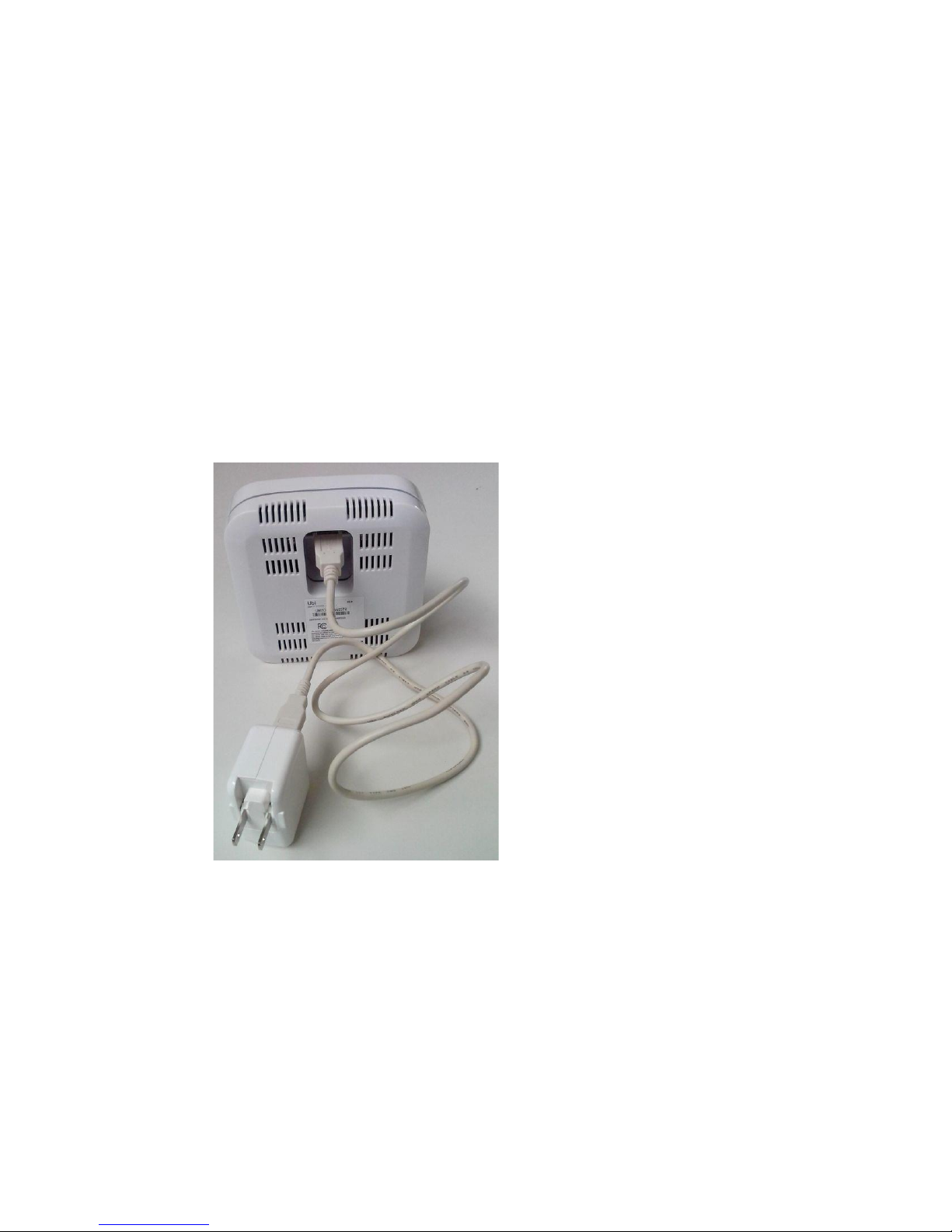
Use the USB extension
cable to connect the
power adapter and the
power supply port of the
Ubi. Plug the power
adapter into an wall
outlet. Also customer can
ƉůƵŐƉƉůĞƐŝWĂĚĐŚĂƌŐĞƌ
into this port as the
power supply without
using the USB extension
cable.
Alternative pins are
available for
power outlets outside
North America.
For more info, visit
theubi.com
Turn on The
Ubi
In and around the Ubi (1)
In and around the Ubi (2)


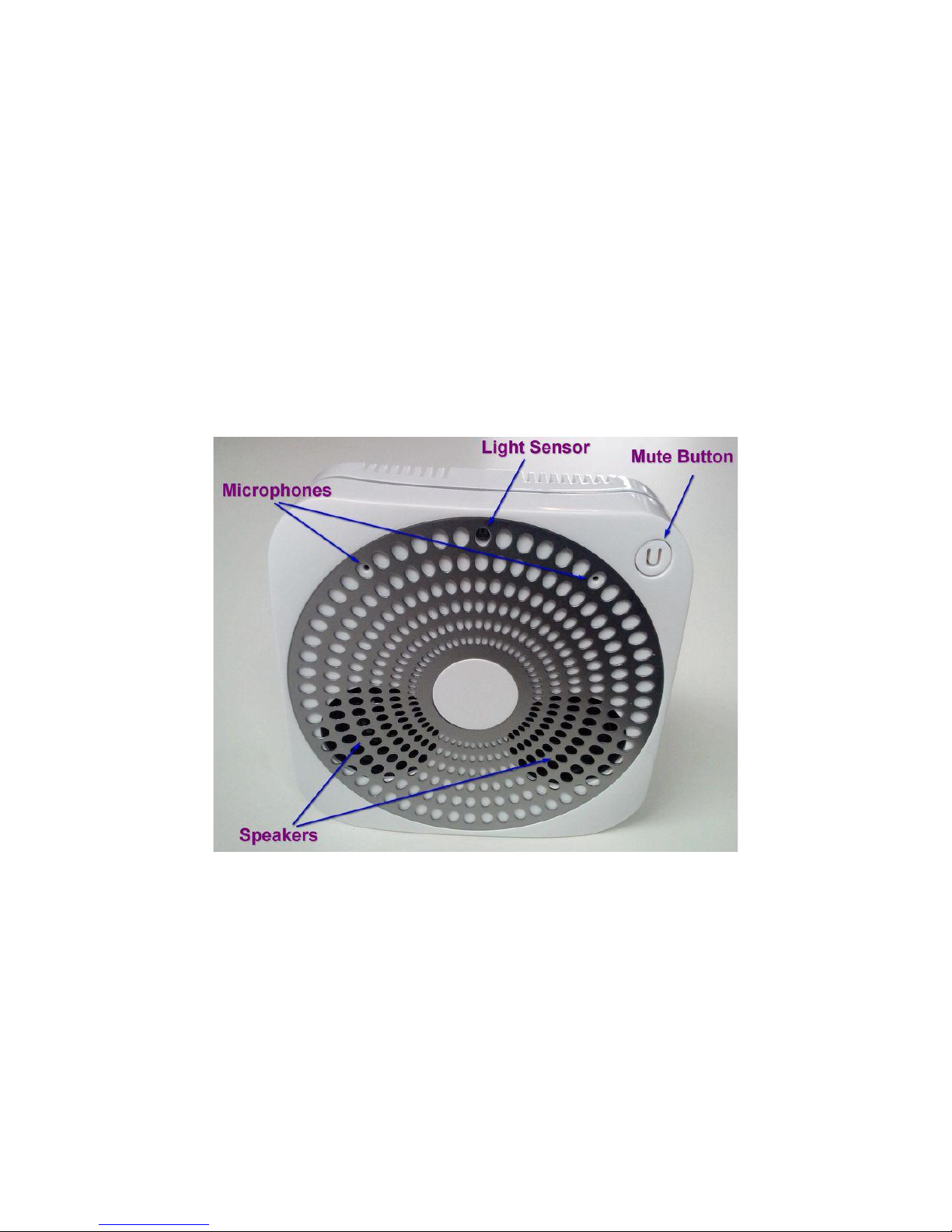
Mute button
Press once to mute or unmute the Ubi. Press and hold for at least
four seconds to turn on setup mode. Disconnect and reconnect to
power to return to regular mode.
Microphone
The Ubi can work up to 7 ft away from you (technology will be
pushed to the Ubi to increase this distance to 15 ft soon). There
are two microphones located towards the top end of the Ubi.
Light sensor
The light sensor is located along the top of the Ubi. There are
other sensors (temperature, humidity, barometer, etc.) located
inside the plastic enclosure.
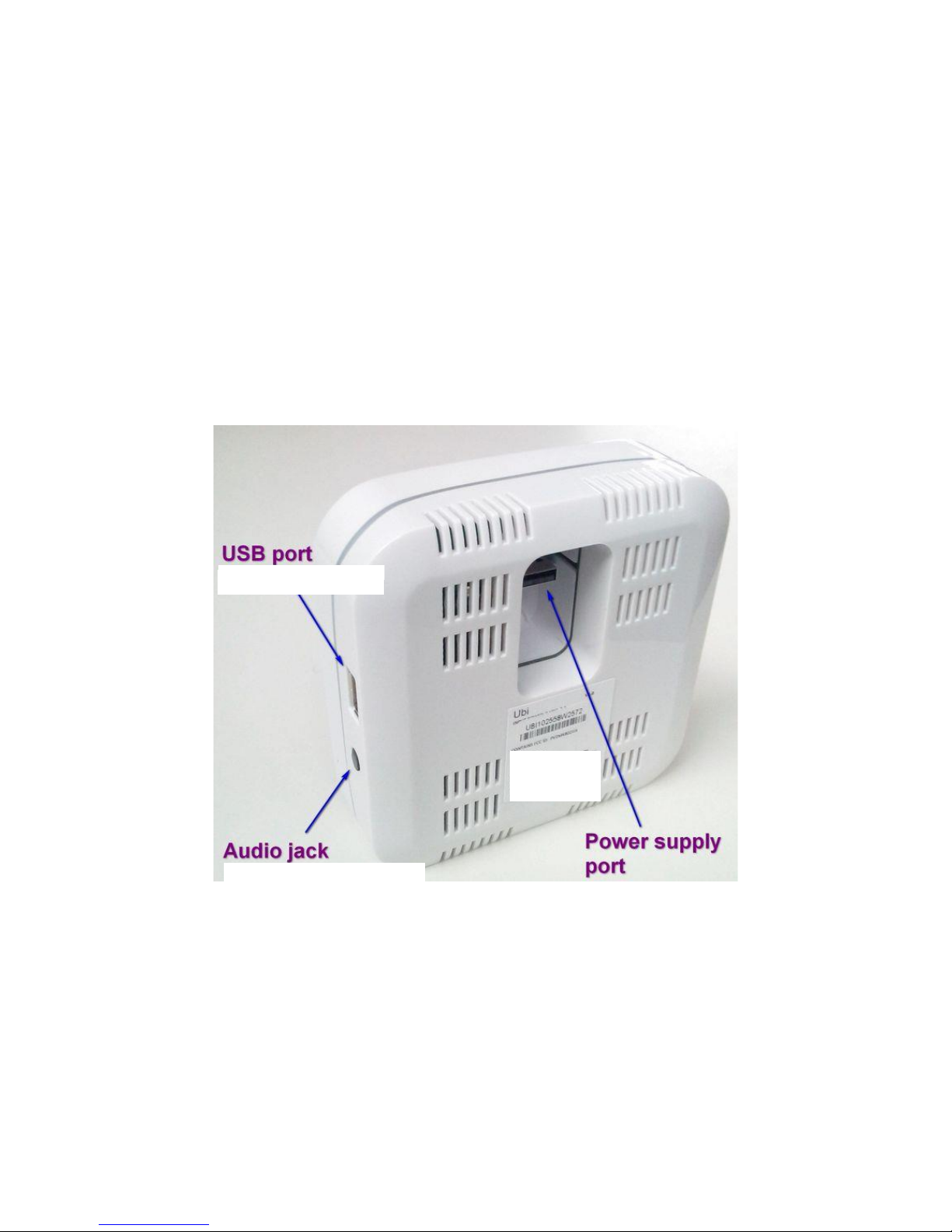
Audio jack & USB port
dŚĞLJĂƌĞŶŽƚŝŶƚĞŶĚĞĚĨŽƌĐƵƐƚŽŵĞƌƐƵƐĞ
Power supply port
This port is used to power the Ubi with a power adapter or a USB
extension cable connected to a power adapter.
In and around the Ubi (3)
The first step of setting up the Ubi will be to visit
setup.thubi.com
Setting up the Ubi may take up to 15 minutes. Here are a few
pointers:
You'll need to know your WiFi network's name and password
Some steps may take up to five minutes
Make sure to unplug any network cables connected to the
computer that you're using to do setup of the Ubi and only
connect to the Internet through WiFi
The setup page will guide you through the setup process.
If you get stuck, unplug the Ubi. Take a breath. Start over.
Setting up the Ubi
The Ubi Portal is where you can go to:
Add Devices
Change settings on the Ubi
The Ubi Portal
Add contacts
all
Create customized commands for the Ubi
The Ubi Portal