manuals.online logo
Brands
  1. Home
  2. •
  3. Brands
  4. •
  5. Ubiquiti
  6. •
  7. Radio
  8. •
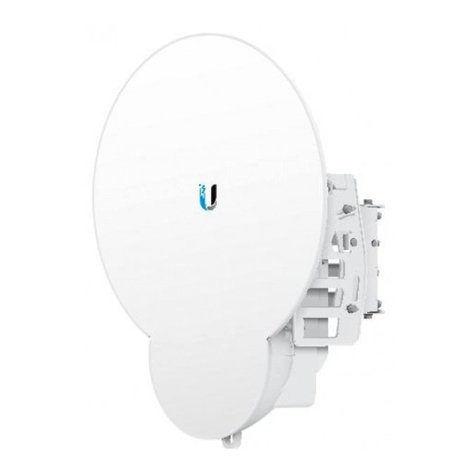
  9. Ubiquiti airFiber AF-11 User manual

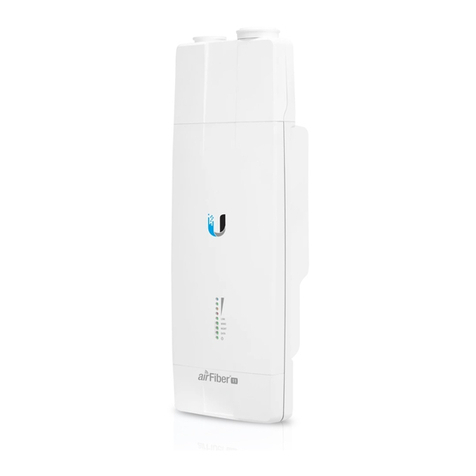
Ubiquiti airFiber AF-11 User manual

Other manuals for airFiber AF-11

6

Other Ubiquiti Radio manuals

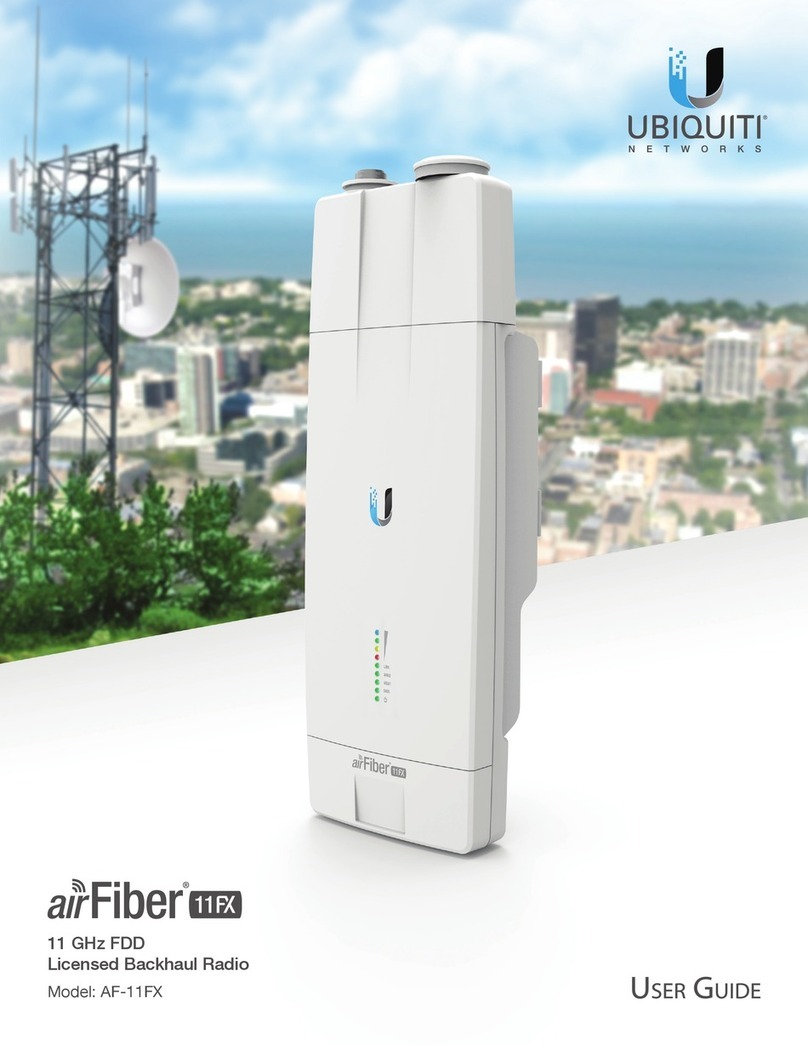
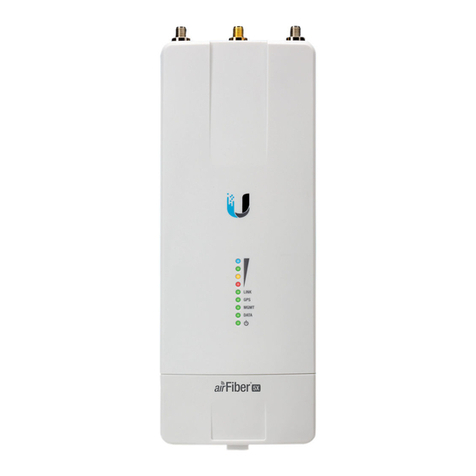
Ubiquiti airFiber AF-11FX User manual

Ubiquiti

Ubiquiti airFiber AF-11FX User manual

Ubiquiti NanoBeam 5AC Gen 2 User manual

Ubiquiti

Ubiquiti NanoBeam 5AC Gen 2 User manual

Ubiquiti NS-5ACL User manual

Ubiquiti

Ubiquiti NS-5ACL User manual

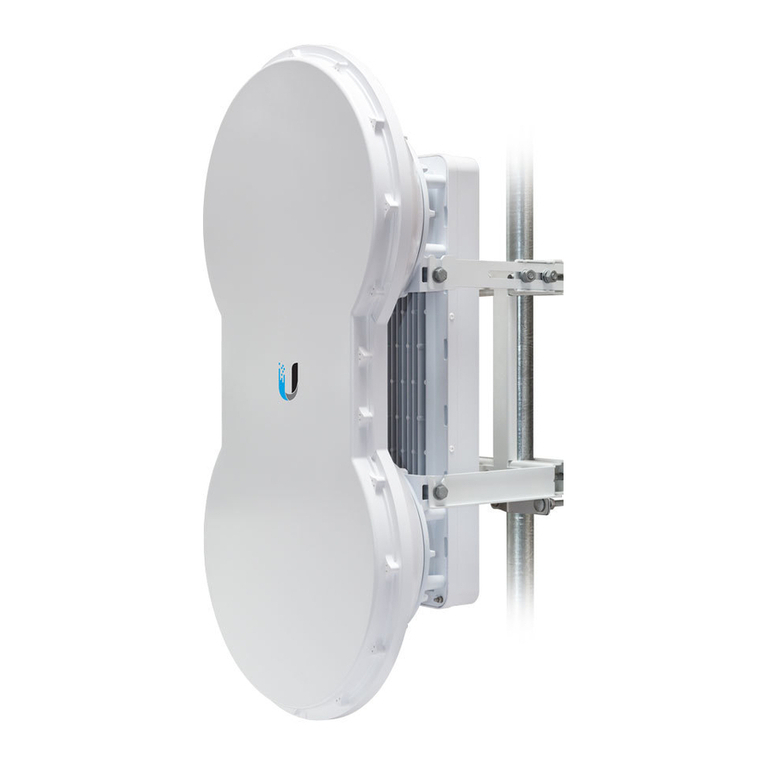
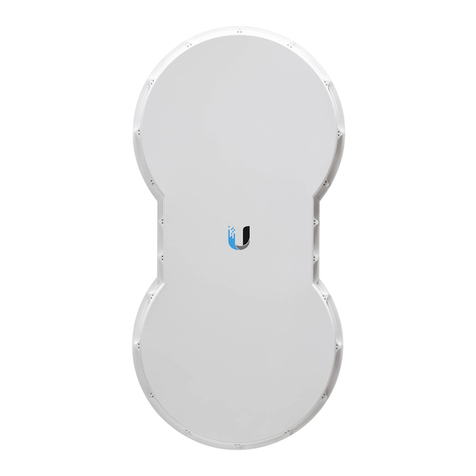
Ubiquiti airFiber 5 User manual

Ubiquiti

Ubiquiti airFiber 5 User manual

Ubiquiti B-DB-AC User manual

Ubiquiti

Ubiquiti B-DB-AC User manual

Ubiquiti airFiber 11FX User manual

Ubiquiti

Ubiquiti airFiber 11FX User manual

Ubiquiti airFiber AF-11 User manual

Ubiquiti

Ubiquiti airFiber AF-11 User manual

Ubiquiti airFiber AF-5XHD Operating and maintenance instructions

Ubiquiti

Ubiquiti airFiber AF-5XHD Operating and maintenance instructions

Ubiquiti UniFi UBB User manual

Ubiquiti

Ubiquiti UniFi UBB User manual

Ubiquiti GigaBeam GBE-LR User manual

Ubiquiti

Ubiquiti GigaBeam GBE-LR User manual

Ubiquiti airFiber AF-5X User manual

Ubiquiti

Ubiquiti airFiber AF-5X User manual

Ubiquiti airFiber X User manual

Ubiquiti

Ubiquiti airFiber X User manual

Ubiquiti airFiber AF-24 User manual

Ubiquiti

Ubiquiti airFiber AF-24 User manual

Ubiquiti airFiber AF-5X User manual

Ubiquiti

Ubiquiti airFiber AF-5X User manual

Ubiquiti LBE-5AC-Gen2 User manual

Ubiquiti

Ubiquiti LBE-5AC-Gen2 User manual

Ubiquiti airFiber 5 User manual

Ubiquiti

Ubiquiti airFiber 5 User manual

Ubiquiti airFiber AF-24 User manual

Ubiquiti

Ubiquiti airFiber AF-24 User manual

Ubiquiti airFiber AF-5XHD User manual

Ubiquiti

Ubiquiti airFiber AF-5XHD User manual

Ubiquiti airFiber 24 User manual

Ubiquiti

Ubiquiti airFiber 24 User manual

Ubiquiti airFiber AF-11 User manual

Ubiquiti

Ubiquiti airFiber AF-11 User manual

Ubiquiti PS-5AC User manual

Ubiquiti

Ubiquiti PS-5AC User manual

Ubiquiti NanoStation AC loco User manual

Ubiquiti

Ubiquiti NanoStation AC loco User manual

Ubiquiti airfiber 2x AF-2X User manual

Ubiquiti

Ubiquiti airfiber 2x AF-2X User manual

Ubiquiti AF-5U User manual

Ubiquiti

Ubiquiti AF-5U User manual

Popular Radio manuals by other brands

Grundig G6 AVIATOR owner's manual

Grundig

Grundig G6 AVIATOR owner's manual

Makita DMR114 instruction manual

Makita

Makita DMR114 instruction manual

PURE Move R3 manual

PURE

PURE Move R3 manual

Motorola CP040 Detailed service manual

Motorola

Motorola CP040 Detailed service manual

Bosch GPB18V-5C Operating/safety instructions

Bosch

Bosch GPB18V-5C Operating/safety instructions

Ocean Digital WR-230 user manual

Ocean Digital

Ocean Digital WR-230 user manual

Realistic TRC-457 owner's manual

Realistic

Realistic TRC-457 owner's manual

Uniden AX 144 owner's manual

Uniden

Uniden AX 144 owner's manual

SIGNIFY EA2173 instruction manual

SIGNIFY

SIGNIFY EA2173 instruction manual

auna multimedia 10026443 user manual

auna multimedia

auna multimedia 10026443 user manual

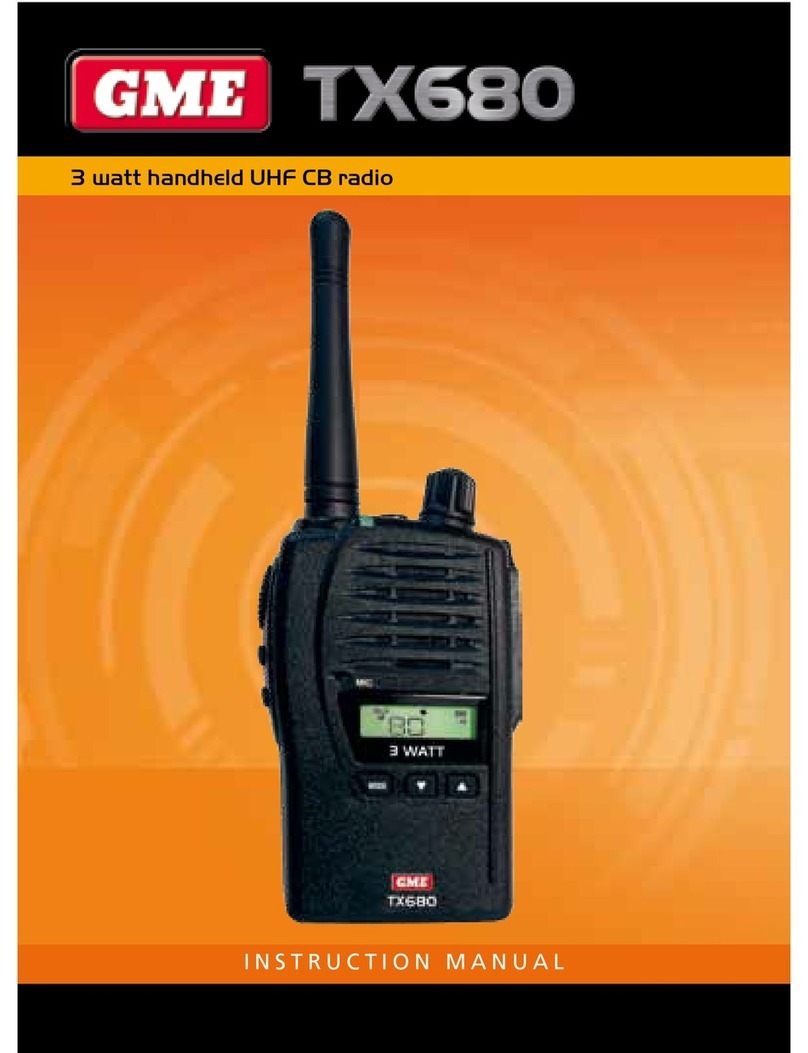
GME TX680 instruction manual

GME

GME TX680 instruction manual

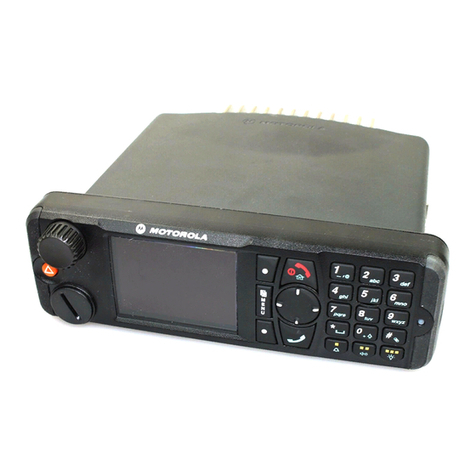
Motorola MTM5 00 Series Basic service manual

Motorola

Motorola MTM5 00 Series Basic service manual

Tivoli Audio ONE+ owner's manual

Tivoli Audio

Tivoli Audio ONE+ owner's manual

Sirius Satellite Radio SDVK1 installation guide

Sirius Satellite Radio

Sirius Satellite Radio SDVK1 installation guide

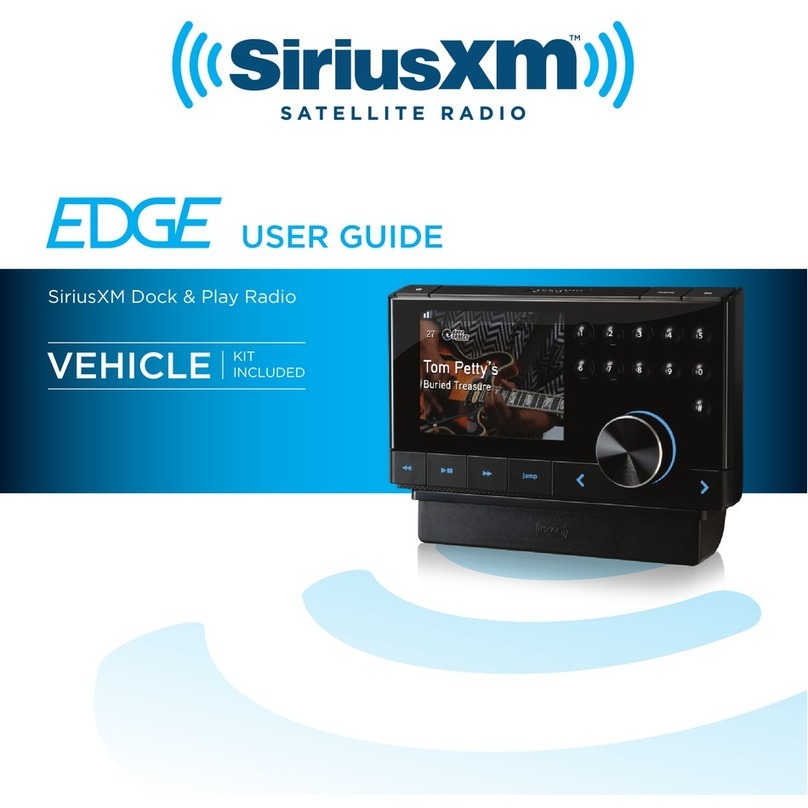
Sirius XM RAdio EDGE user guide

Sirius XM RAdio

Sirius XM RAdio EDGE user guide

Trevi XF 100 user guide

Trevi

Trevi XF 100 user guide

EisSound KBSound iSelect user manual

EisSound

EisSound KBSound iSelect user manual

Kirisun DM588-02 user manual

Kirisun

Kirisun DM588-02 user manual

manuals.online logo
manuals.online logoBrands
  • About & Mission
  • Contact us
  • Privacy Policy
  • Terms and Conditions

Copyright 2025 Manuals.Online. All Rights Reserved.

28/09/2020 AF-11 Quick Start Guide
https://dl.ubnt.com/qsg/AF-11/AF-11_EN.html 1/15
airFiber AF-11 Zip Ties (Qty. 2) airFiber Gigabit PoE (50V, 1.2A)
Power Cord
Package Contents
Antenna Compatibility
The airFiber AF-11 radio is designed for use with the airFiber X antenna model AF-11G35*.
* Check your local/regional regulations for the antenna gain allowed for your application
Installation Requirements
Clear line of sight between airFiber radios
Vertical mounting orientation
Mounting point:
At least 1 m below the highest point on the structure
For tower installations, at least 3 m below the top of the tower
Ground wires – min. 10 AWG (5 mm ) and max. length: 1 m. As a safety precaution,
ground the airFiber radio to grounded masts, poles, towers, or grounding bars.
WARNING:
Failure to properly ground your airFiber radio will void your
warranty.
(Recommended) 2 Outdoor Gigabit PoE surge protectors
2
AF-11 Quick Start Guide
All manuals and user guides at all-guides.com
28/09/2020 AF-11 Quick Start Guide
https://dl.ubnt.com/qsg/AF-11/AF-11_EN.html 2/15
Note:
For guidelines about grounding and lightning protection, follow your
local electrical regulatory codes.
High-Band Duplexer(s) (model AF-11-DUP-H) or Low-Band Duplexer(s) (model AF-11-
DUP-L) are required for proper operation:
SISO mode: One Duplexer of either band type
MIMO mode: Two Duplexers of the same band type
(Optional) If not using PoE: DC power source and 12/30 AWG power cable
Outdoor, shielded Category 6 (or above) cabling and shielded RJ-45 connectors are
required for all wired Ethernet connections.
Hardware Overview
Note:
Duplexers must be purchased separately. The Duplexer(s) must match
the terms of your license (frequency bands and polarities allowed).
AF-11 Quick Start Guide
All manuals and user guides at all-guides.com
28/09/2020 AF-11 Quick Start Guide
https://dl.ubnt.com/qsg/AF-11/AF-11_EN.html 3/15
Chain 0 / Chain 1
Signal LEDs
Low-Band Duplexer High-Band Duplexer
When the Chain 0 or Chain 1 duplexer is installed, its N-type connector is located here,
allowing connection to an RF cable (Chain 1 is covered by the removable duplexer cap).

Signal 4
LED will light blue when on.
Signal 3
LED will light green when on.
Signal 2
LED will light yellow when on.
Signal 1
LED will light red when on.
Bootup to airOS
When powering on, the Power, MIMO, LINK, and Signal 1-4 LEDs light
on. Once the CPU code takes over, the MIMO, LINK, and Signal 1-3 LEDs turn off. Signal 4
AF-11 Quick Start Guide
All manuals and user guides at all-guides.com
28/09/2020 AF-11 Quick Start Guide
https://dl.ubnt.com/qsg/AF-11/AF-11_EN.html 4/15
Link LED
MIMO LED
MGMT LED
LED remains lit to indicate the boot sequence is underway.
Initializing airFiber Software
When the airFiber application begins to boot under
airOS®, the Signal 4 LED goes from solidly on to a 2.5 Hz ash. This continues until the
AF
‐
11FX is fully booted.
Signal Level
Once fully booted, the Signal 1-4 LEDs act as a bar graph showing how
close the AF
‐
11FX is to ideal aiming. This is auto-scaled based on the link range, the
antenna gains, and the congured TX power of the remote AF
‐
11FX. Each Signal LED
has three possible states: On, Flashing, and Off. All Signal LEDs would be solidly on in an
ideal link. For example, if the link has a 1 dB loss, the Signal 4 LED will ash; a 2 dB loss
and the Signal 4 LED will turn off. The full bar graph LED states are shown below.
dB loss
0 -1 -2 -3 -4 -5 -6
-7 -8 -9 -10 -11 -12 -13
Off RF Off
Syncing
Beaconing
Registering
On Operational
Off Radio Congured in SISO Mode
On Radio Congured in MIMO Mode
Off No Ethernet Link
AF-11 Quick Start Guide
All manuals and user guides at all-guides.com
28/09/2020 AF-11 Quick Start Guide
https://dl.ubnt.com/qsg/AF-11/AF-11_EN.html 5/15
Data LED
Power LED
Management Port
Reset Button
Data Port
VDC IN
TX 0, RX 0
RX 1, TX 1
N Connector
On Ethernet Link Established
Random Flash Ethernet Activity
Off No Ethernet Link
On Ethernet Link Established
Random Flash Ethernet Activity
Off No Power
On Powered On
10/100 Mbps, secured Ethernet port for conguration. In-Band Management is enabled
by default in the airFiber Conguration Interface. When In-Band Management is
disabled, the MGMT port is the only port that can monitor, congure, and/or update
rmware.
To reset to factory defaults, press and hold the Reset button for more than 10 seconds
while the device is already powered on.
Gigabit PoE port for handling all user traffic and powering the device.
The terminal block can be used to power the AF-11 with +50VDC, 1.2A instead of PoE.
The TX and RX SMA ports for the Chain 0 Low-Band Duplexer or High-Band Duplexer
(SISO and MIMO modes).
The RX and TX SMA ports for the Chain 1 Low-Band Duplexer or High-Band Duplexer
(MIMO mode only). In SISO mode, these unused ports are protected by the duplexer
cap.
AF-11 Quick Start Guide
All manuals and user guides at all-guides.com
28/09/2020 AF-11 Quick Start Guide
https://dl.ubnt.com/qsg/AF-11/AF-11_EN.html 6/15
SMA Port
Female N-type connector into which the antenna cable is plugged.
High-band and low-band channel SMA ports.
Note:
Duplexers are not included with the AF-11. SISO mode requires one Low-
Band Duplexer or one High-Band Duplexer. MIMO mode requires either two Low-
Band Duplexers or two High-Band Duplexers.
Installation Overview
We recommend that you congure your paired AF-11 radios before site installation. The
overview below summarizes the installation procedure, and the subsequent sections
provide detailed installation information.
Install the Duplexer(s) in the AF-11 radio.
Connect the airFiber Gigabit PoE adapter to the DATA port, and connect your computer
to the MGMT port.
Congure the AF-11.
Install a ground wire and mount the AF-11 on the airFiber AF-11G35 antenna (or a
compatible antenna).
At the installation site, install the antenna with the mounted AF-11 radio (see the
antenna’s Quick Start Guide for installation instructions).
Connect the DATA port to your LAN, and connect power (PoE or DC power) to the AF-11.
Establish and optimize the RF link.
Installing the Duplexers
Installing the Duplexer for SISO Mode
1.
2.
Note:
Position the low channel and high channel ports to yield the required
transmit and receive frequencies.
3.
WARNING:
Tighten the collars alternately, a half turn at a time, until both are
fully tightened. Failure to do so may result in damage to the Duplexer.
4.
5. Repeat steps 1-4 for the radio to be used on the other end of the link, ensuring that the
numbers on the second radio’s Duplexer are in the reverse order of the numbers on rst
radio’s Duplexer.
Note:
For example, if the numbers on the rst radio’s Duplexer are (left to right)
AF-11 Quick Start Guide
All manuals and user guides at all-guides.com
28/09/2020 AF-11 Quick Start Guide
https://dl.ubnt.com/qsg/AF-11/AF-11_EN.html 7/15
1/3, then the numbers on the second radio’s Duplexer should be 3/1.
Installing the Duplexers for MIMO Mode
Note:
MIMO operation requires two licenses, one per polarization and two
Duplexers of the same band type.
1.
2.
Note:
Position the low channel and high channel ports to yield the required
transmit and receive frequencies. Also, ensure that the numbers on the right-
side Duplexer are in the reverse order of the numbers on the left-side Duplexer.
3.
WARNING:
Tighten the collars alternately, a half turn at a time, until both are
fully tightened. Failure to do so may result in damage to the Duplexer.
4.
5.
6. Repeat steps 1-5 for the other radio to be used in the link, ensuring that the numbers on
the second radio’s Duplexers are in the reverse order of the numbers on the rst radio’s
Duplexers.
Note:
For example, if the numbers on the rst radio’s Duplexers are (left to right)
2/4 and 4/2, the numbers on the second radio’s Duplexers should be 4/2 and 2/4.
Connecting Power over Ethernet
1.
2.
3.
WARNING:
Use only the included adapter, model POE-50-60W. Failure to do so can
damage the unit and void the product warranty.
airFiber Conguration
Access the airFiber Conguration Interface and congure the following settings:
Wireless Mode
Congure one AF-11 as the Master and the other as the Slave.
Frequency Setting
The TX Frequency and RX Frequency settings must be the reverse of
each other on both the Master and the Slave.
1.
AF-11 Quick Start Guide
All manuals and user guides at all-guides.com
28/09/2020 AF-11 Quick Start Guide
https://dl.ubnt.com/qsg/AF-11/AF-11_EN.html 8/15
2. Congure the Ethernet adapter on your computer with a static IP address on the
192.168.1.x subnet.
3. Launch your web browser. Type https://192.168.1.20 in the address eld and press
enter (PC) or return (Mac).
4. The login screen will appear. Enter ubnt in the Username and Password elds. Select
your Country and Language. You must agree to the Terms of Use to use the product.
Click Login.
5. Click Settings, and then click the Wireless tab.
6. Congure the Basic Wireless Settings:
a. For one AF-11, select Master as the Wireless Mode. For the other AF-11, keep the
default, Slave.
b. Enter a name in the Link Name eld. This should be the same on both the Master
and the Slave.
c. If needed, change the Channel Bandwidth, Output Power and/or Maximum
Modulation Rate settings.
7. Congure the TX Frequency and RX Frequency.
8. Congure the Wireless Security:
a. Select the Key Type, HEX or ASCII.
b. For the Key eld:
HEX
Enter 16 bytes (eight, 16-bit hexadecimal digits: 0-9, A-F, or a-f). You can
omit zeroes and use colons, similar to the IPv6 format.
ASCII
Enter a combination of alphanumeric characters (0-9, A-Z, or a-z).
9. Click Save Changes.
10. In-Band Management is enabled by default, so each airFiber radio must have a
unique IP Address. (If the airFiber radios use the same IP Address, you may lose access
to the airFiber radios via the DATA ports.) Click the Network tab.
a. For the Management IP Address option:
DHCP
Keep the default, DHCP, to use DHCP reservation on your router to
assign a unique IP Address.
Static
Change the IP Address, Netmask, and other settings to make them
compatible with your network.
b. Click Save Changes.
11. Disconnect the Ethernet cables from the MGMT and DATA ports on the AF-11.
Conguration of the AF-11 radio is complete.
Note:
One airFiber radio’s TX Frequency is the other radio’s RX Frequency,
and vice versa.
Note:
The airFiber Conguration Interface supports IPv6 formats
excluding dotted quad and “::” (double-colon) notation.
AF-11 Quick Start Guide

All manuals and user guides at all-guides.com
28/09/2020 AF-11 Quick Start Guide
https://dl.ubnt.com/qsg/AF-11/AF-11_EN.html 9/15
Repeat the instructions in the airFiber Conguration section on the other AF-11 radio.
For details on the airFiber Conguration Interface, refer to the airFiber AF-11FX User Guide,
available at:
ui.com/download/airber
Hardware Installation
Install a Ground Wire
1.
2.
3. At the installation site, secure the other end of the ground wire to a grounded mast,
pole, tower, or grounding bar.
WARNING:
Failure to properly ground your airFiber radio will void your
warranty.
Note:
The ground wire should be as short as possible and no longer than one
meter in length.
Mount to the airFiber AF-11G35 Antenna
1. Attach an RF Cable to an RF connector labeled H or V. Then slide the silicone boot over
the RF connector to protect it.
If using MIMO mode, remove the cap over the second RF connector (V or H) and attach
an RF Cable. Then slide the silicone boot over the RF connector to protect it.
2.
3.
4.

Note:
Align the dot on the side of the shroud with the arrowhead on the dish
antenna.
Connecting Data
1.
2.
3. If you are using DC power, connect the other end of the Ethernet cable to your LAN.
Connecting Power
Note:
For SISO mode, use the RF connector (H or V) as determined by your
licensing. Keep the other RF connector covered with the included Metal Cap.
AF-11 Quick Start Guide
All manuals and user guides at all-guides.com
28/09/2020 AF-11 Quick Start Guide
https://dl.ubnt.com/qsg/AF-11/AF-11_EN.html 10/15
Follow the instructions for the source of power that you are using: Power over Ethernet or
DC Power.
Power Over Ethernet
WARNING:
Use only the included adapter, model POE-50-60W. Failure to do so can
damage the unit and void the product warranty.
DC Power
1. Connect a DC power cable to the Terminal Block. (The +VDC and GND can be
connected to either terminal.)
2. Connect the other end of the DC power cable to a DC power supply that supplies
+50VDC.
WARNING:
Applying a negative voltage such as -48VDC will damage the radio.
3. Connect the DC power supply to its source.
Surge Protection
For added protection, install two surge suppressors, such as the Ubiquiti Ethernet Surge
Protector, model ETH-SP-G2, at the end of each link. Install the rst surge protector within
one meter of the airFiber DATA port, and install the second surge protector at the ingress
point of the location housing the wired network equipment.
Alignment
Tips
To accurately align the airFiber radios for best performance, you MUST align only one
end of the link at a time.
You may need to use additional hardware to compensate for issues such as the
improper orientation of a mounting pole or signicant elevation differences between
airFiber radios.
Establishing a Link
Adjust the positions of the Master and the Slave to establish a link. The following section
features the airFiber X antenna, AF-11G35:
Note:
The Master must be aimed rst at the Slave because the Slave does not
transmit any RF signal until it detects transmissions from the Master.
AF-11 Quick Start Guide
All manuals and user guides at all-guides.com