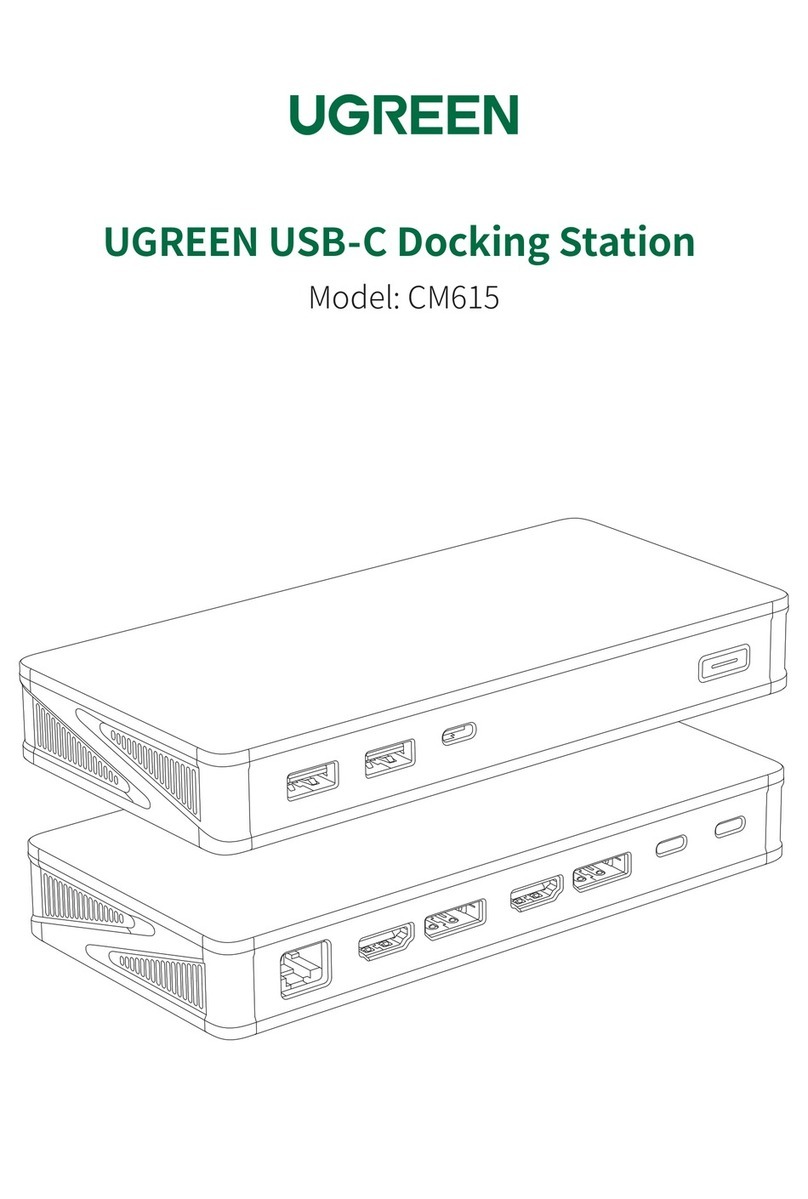
UGREEN CM615 User manual

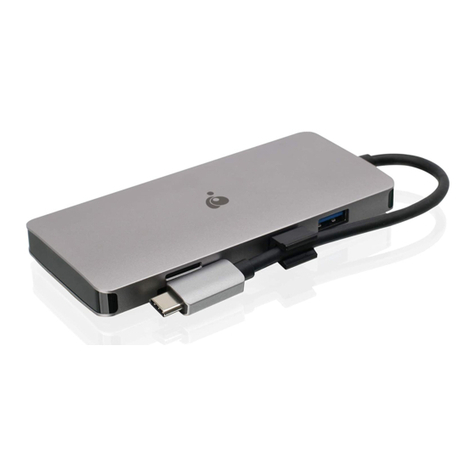
USB-C Docking Station
Model: CM615 P/N: 90912
|

Connection
Keyboard
Mouse
Flash Drive
HDD/SSD
Enclosure
Internet
TV ProjectorMonitor TV ProjectorMonitor
×2
USB-A
×1
USB-C
Laptop
×1
USB-C
×1
USB-C(PD)
Power Button
LED Indicator: On/Off
×1
RJ45
Power

Specifications
Input 1×USB-C
Video HDMI Up to 4K@60Hz
DP Up to 4K@60Hz
USB USB-A/USB-C Up to 10Gbps
Ethernet RJ45 1000Mbps
Compatible Systems Windows 11/10/8.1/8/7/XP, macOS
Note: Please refer to the [OS Compatibility] or confirm it with our customer service representatives.
Unsupported Operating Systems Windows 2000 (SP1 to SP4) or earlier Windows OSes/Windows Server 2003
Output 2×USB-A, 1×USB-C, 2×DP, 2×HDMI, 1×RJ45
Power Supply USB-C Supports PD 3.0, 100W Max (does not support data/video streaming)

For a successful dual display, you need to choose one port from "DISPLAY 1" and another port from "DISPLAY 2" to connect.
Choose one only from each area
Setup
Before Projecting
Note:
Short press the power button to turn off the dock, at this point, other ports will stop working, however, the PD port will still provide power to your laptop.
3. Connect your peripherals to your laptop.
When connecting to high-power devices (such as printers, hard drives), please connect the charger of your laptop to the PD port to ensure
stable data transmission.
1. Use the included USB-C cable to connect the USB-C port to your laptop, then the indicator will turn solid white after the connection.
2. Please install the DisplayLink driver first before using the dock. There are several ways to download it:
(1)Double click "This PC" > click "Driver Install" , then select the corresponding driver for your laptop.
(2)Check your system edition, then install or update the corresponding driver from: https://www.mediafire.com/file/fr83tkdnbx9akif/90912.zip/file
Note:
If you have any problem, please feel free to contact us.

Resolution Setting for Windows 10 & macOS
Right Click Desktop> "Display Setting". Apple Icon " " > "System Preferences" > "Displays".
PC screen only
PROJECT
Duplicate
Extend
Second screen only
10:29 AM
② Extend Mode
B
A
C
Source Device
HDMI Display DP Display
① Duplicate Mode
A
A
B
Source Device
HDMI Display DP Display
HDMI Display DP Display
Option 1
BB
Option 2
Note:
The above examples are for reference only. You can enter the
"Display Settings" for more display modes.
Click the " " + "P" simultaneously to select the display mode.
Display Settings for Windows 10

Mirror Mode
Click the Apple Icon " " > "System Preferences">"Displays" >
check the "Mirror Displays" option
Extend Mode
Click the Apple Icon " " > "System Preferences" > "Displays" >
cancel the "Mirror Displays" option
A
A
A
Source Device
HDMI Display DP Display
B
A
C
Source Device
HDMI Display DP Display
Note:
The above examples are for
reference only. You can enter
the "Displays" for more
display modes.
Display Settings for macOS

1. Why does my laptop fail to charge when attached to the dock?
1)Make sure the external power supply is connected properly to the PD port and the laptop is connected correctly to the USB-C port .
2) Make sure the notebook's USB-C port accepts power charging.
3)Disconnect and re-connect the dock cable to your computer.
2. Can I charge my device via the USB-A port?
The USB-A port is mainly used for data transmission, and the charging speed will be very slow. Please connect to the PD power supply first if you
want to charge your devices.
*The data are measured by UGREEN Lab and may vary based on specific circumstances.
Display Issues
Charging Issues
FAQ
EN
1. Why do I have no display when connecting to the HDMI/DP port?
1) Please check whether your laptop's USB-C port supports video output and whether the driver has been installed.
2) Please make sure the HDMI or DP cable meets the requirements and the connection between the devices is solid.
3) Adjust the display resolution, as the monitor may support lower resolutions than what the dock can support.
4) Ensure the correct input signal source on your monitor is selected (if your device requires manual selection).
5) Restart your computers.
6) Please connect the PD port to an external power supply or connect the charger to the laptop if the battery is low.
2. Unable to set resolution to 4K@60Hz?
Please check the specifications of your display devices and HDMI/DP Cable. If both of these are capable of 4K@60Hz, then you can set the
resolution to 4K@60Hz.
3. How to deal with a black screen and display flickering when connecting to an external monitor?
1) Please try to lower the resolution and refresh rate.
2) Update the driver to the latest versions.
3) Try another HDMI/DP cable.
4) Restart the laptop.

Please feel free to contact us on Amazon if you need any support, you can follow the steps below:
1. Sign in to your Amazon account and navigate to "Your Orders".
2. Next to the relevant order, select "Problem with order".
3. Send your messages to us via "Contact seller".
After-sales
· For the safety of data, please do not directly disconnect the storage device from this product. Before disconnecting, please safely remove the
programme.
· Do not throw or drop the product or subject it to strong physical shock.
· Do not dismantle or fix the product by yourself, please contact UGREEN after-sales service if necessary.
· When not in use for a long time, please carefully store the product to avoid dust and humidity.
· Please keep out of reach of children and pets.
Notices
1×User Manual
USER MANUAL
1×USB-C to USB-C Cable 1m1×USB-C Docking Station
Package Contents
Other manuals for CM615
1
This manual suits for next models
1
Table of contents
Other UGREEN Docking Station manuals