10 I DriverScanner 2010 Help Manual www.uniblue.com
6. PurchasingandregisteringDriverScanner
Unregistered, DriverScanner can scan your system for outdated drivers. Once you register, you will also be
able to download and install new drivers, and make use of the automatic DriverScanner restore points to
roll back drivers on demand.
RegistrationalsograntsyouActiveProtectionforoneyear.
To register, you first need to purchase the product.You can purchase DriverScanner through the Uniblue
website www.uniblue.com.
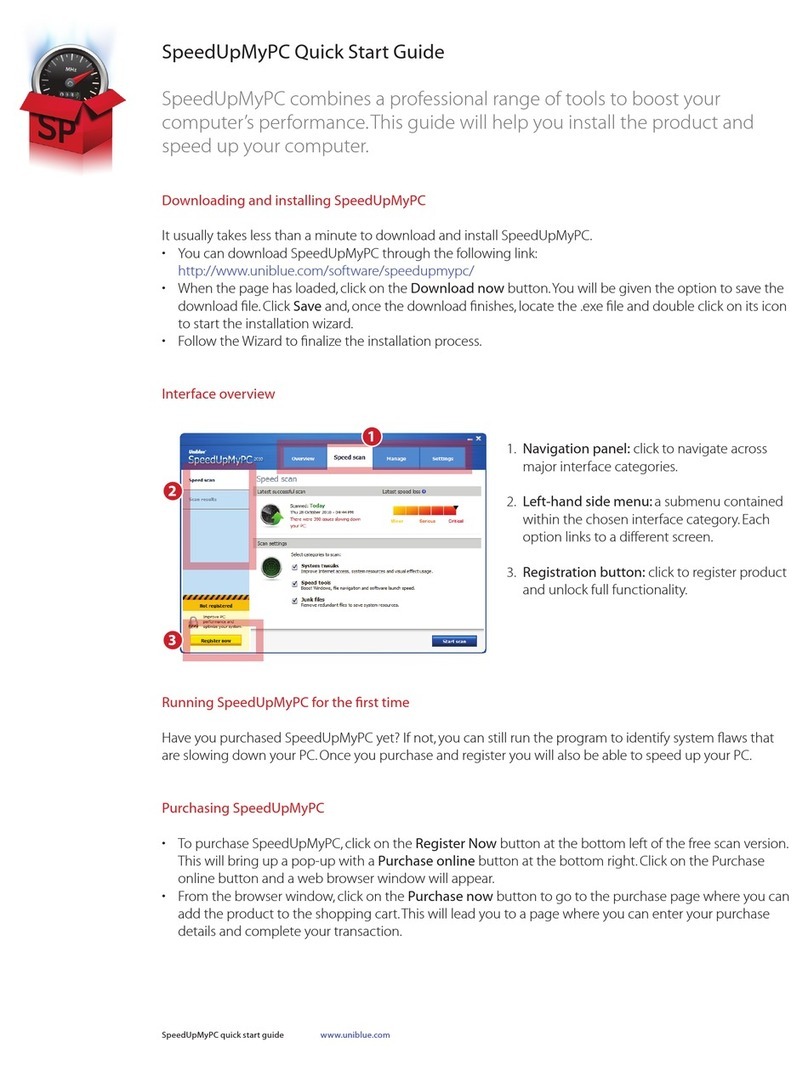
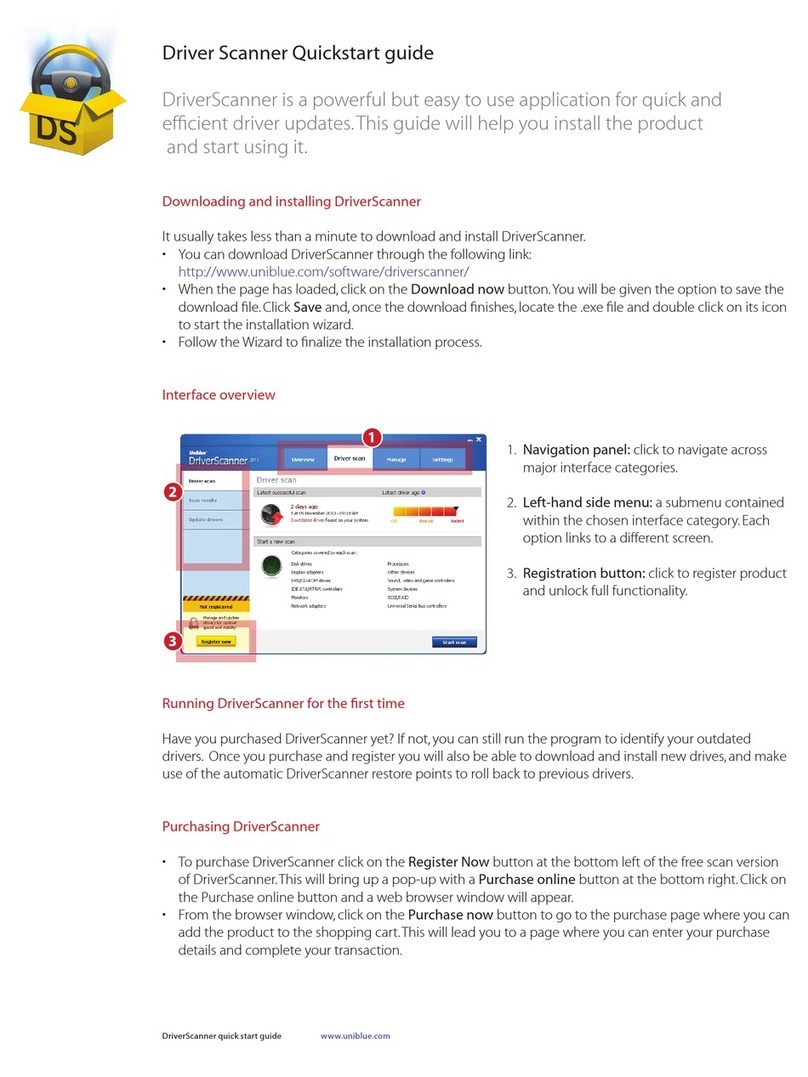
Alternatively, click on the Register Now button at the bottom left of the free scan version of DriverScanner.
This will bring up a pop-up with a Purchase online button at the bottom right. Click on this button and a
web browser window will appear. From the browser window, click on the Purchase now button to go to
the purchase page where you can add the product to the shopping cart.This will lead you to a page where
you can enter your purchase details and complete your transaction.
After purchase you will receive by email a serial number that needs to be entered into the product for reg-
istration.The serial number entry window can be accessed by clicking on the Register now button at the
bottom left of all screens.
InserttheserialnumberintheEnterSerialNumbereldandclickonActivate now. The serial number
shouldstartwiththelettersDSandbeinthefollowingformat,whereXrepresentsacharacter:
DS-XXXXX-XXXXX-XXXXX-XXXXX-XXXXX-XXXXX.
Alternative registration
For registration to take place, DriverScanner needs to connect to the Uniblue server. If it cannot establish
aconnection,apopupshouldpromptyoutocheckyourInternetconnection,rewallandproxysettings,
then provide you with an option to activate the program manually through the Uniblue website. If, after
checking your settings, you are still unable to activate your product, click on the ‘activate manually on the
Unibluewebsite’text.Thislaunchesabrowserwindowlinkedtoaspecialalternativeactivationpage.Fol-
low the instructions on this page carefully to complete registration.