Installing the Camera
This section covers:
nSelecting the location for the camera
nPre-installation functional check
nInformation on cables and (if applicable)RS-232 communication
nConnection diagram
nSettings for physical switches (if any)
nInstalling the camera mount
nMounting the camera
And a required safety note here:
Note
PoE type networks connected to this equipment are for intra-building use only and should not be connected
to lines that run outside of the building in which this product is located.
Don’t Void Your Warranty!
Caution
Always support the camera's base when picking it up. Lifting the camera by its head or mounting
arm will damage it.
Caution
This product is for indoor use only. Use an appropriate protective enclosure if installing it outdoors or in a
humid environment. Do not install or operate this product if it has been dropped, damaged, or exposed to
liquids. If any of these things happen, return it to Vaddio for safety and functional testing.
Before You Start
Things to keep in mind when deciding where to install the camera:
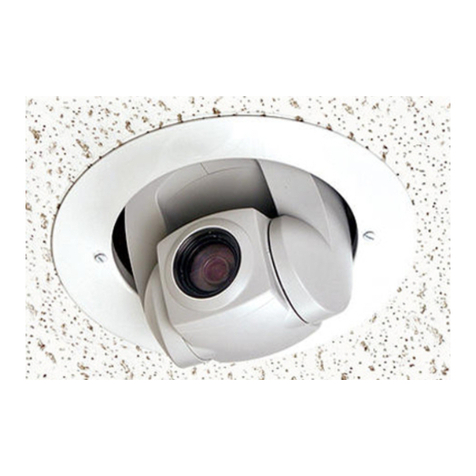
nConsider camera viewing angles, lighting conditions, line-of-sight obstructions, and in-wall
obstructions.
nIf the IR Remote Commander will be used, ensure that nothing blocks the IRlens in the camera's base.
nEnsure that the camera body can move freely and will normally point away from the ceiling and lights.
The video image may appear off-level in any of these situations:
nThe mount is not level
nThe mount is not installed on the centerline of the room
nThe back wall of the room is not perpendicular to the centerline of the room
Prepare for a successful installation:
nBe sure you can identify all cables correctly.
nCheck Cat-5 cables for continuity.
nEnsure that the video resolution rotary switch is set appropriately.
nTalk to the network administrator. If installing the camera in a non-DHCPnetwork (one that does not
automatically assign IP addresses), you may need to configure the camera with a static IP address as
directed by the network administrator before connecting it to the network. Work with the network
administrator to determine how to configure the equipment.
5
Installation Guide for RoboSHOT 12E NDI and RoboSHOT30E NDI High-Performance PTZ Cameras