Step 1: Connecting the Hardware
This procedure describes the various hardware connections that must be performed in order to operate the
system.
To connect the VN-VIEWER-64PC hardware:
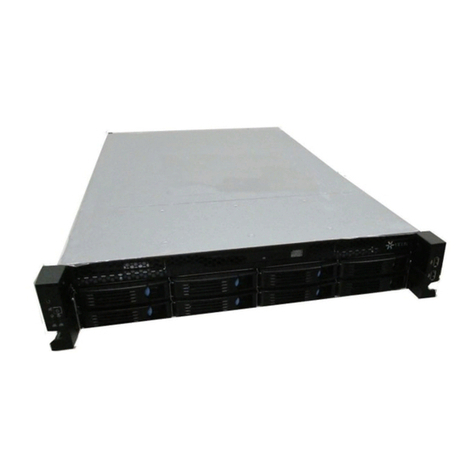
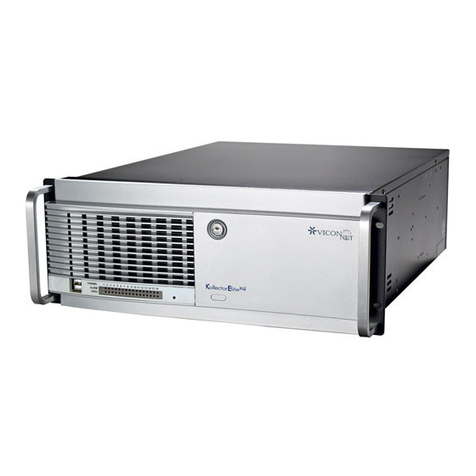
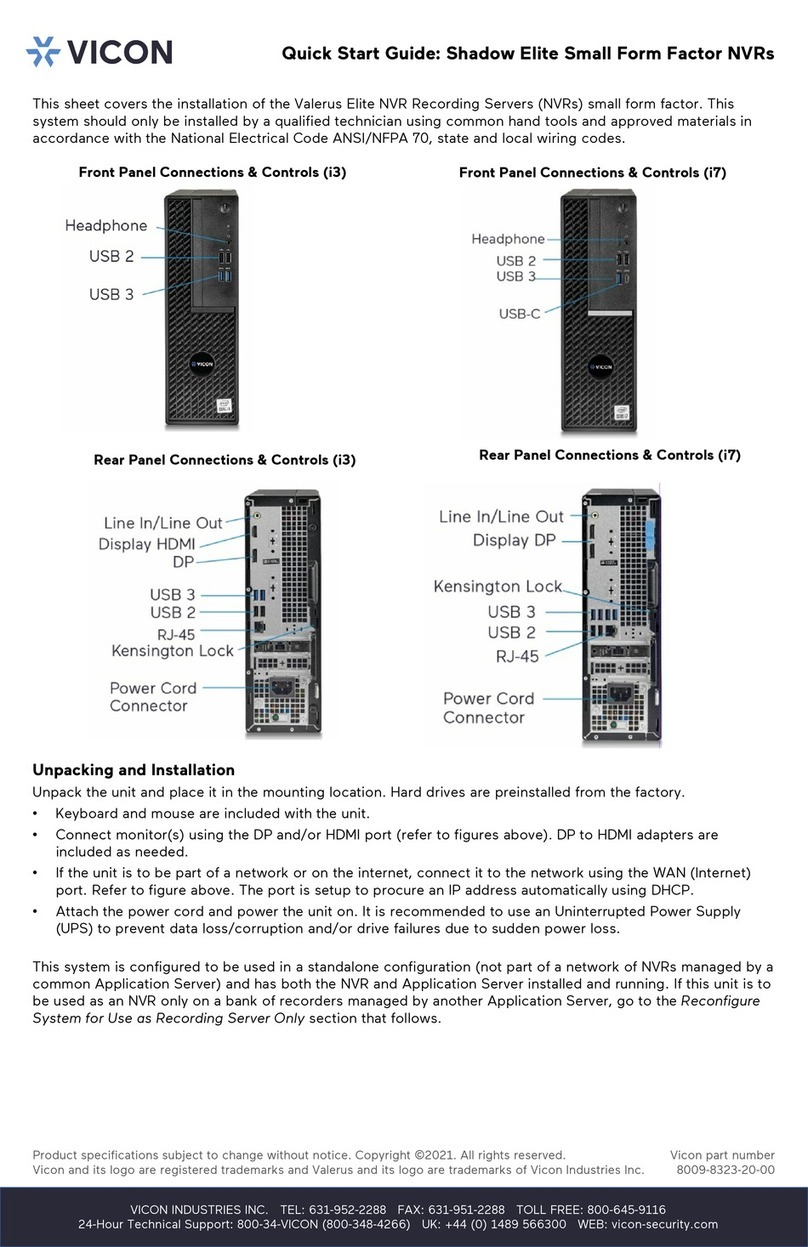
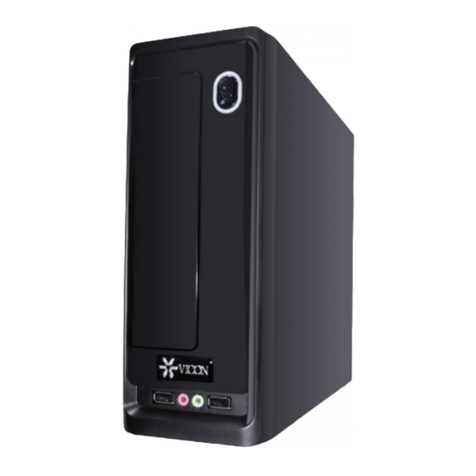
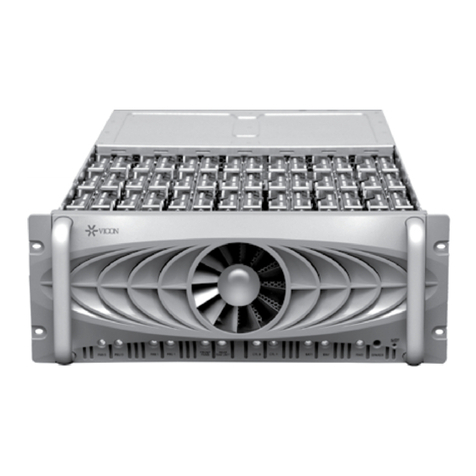
Perform the following connections: (refer to the pictures of the front panel and the rear panel as needed).
•Locate the keyboard on a flat surface near the VN-VIEWER-64PC. Connect the keyboard by inserting
its connector into the correct port.
•Locate the mouse on a flat surface near the VN-VIEWER-64PC. Connect the mouse by inserting its
connector into the correct port.
•Position the monitor(s) in a permanent fixed location near the VN-VIEWER-64PC. Connect the
monitor(s) by inserting its VGA connector into one of the VGA connectors from the Display Card port.
•Insert one side of a standard LAN cable to the Network Port’s RJ-45 connector. Insert the other RJ-45
connector into the LAN side of the network.
•Locate and connect all USB, serial and parallel devices to the VN-VIEWER-64PC.
•Insert the female end of the provided 120 VAC power cable into the VN-VIEWER-64PC’s power
receptacle. Do not connect the remaining end to a power receptacle until instructed. If using 230 VAC
power, it is necessary to obtain a suitable power cord for use. This cable is a standard computer
230 VAC power cord.
•Turn ON the power switch.
Connect the monitor to the power source and switch on.
Step 2: Connecting the Uninterruptible Power Supply
To ensure that the VN-VIEWER-64PC is protected during a power failure and that no important data is lost, it
must be connected to an uninterruptible power source (UPS) before use.
To connect the UPS:
Connect the VN-VIEWER-64PC's power cord to the UPS power receptacle.
Connect the UPS power cord to the wall outlet.
Power on the UPS and ensure that it is working properly.
Power on the VN-VIEWER-64PC.
NOTE: Refer to your UPS device’s User Manual for a more detailed explanation of how to connect it properly.
XX193-20 Rev 1108 VN-VIEWER-64 Monitor Configuration •5