manuals.online logo
Brands
  1. Home
  2. •
  3. Brands
  4. •
  5. WOO
  6. •
  7. Cell Phone
  8. •
  9. WOO SP5540 User manual

WOO SP5540 User manual

Other WOO Cell Phone manuals

WOO SP6020 User manual

WOO

WOO SP6020 User manual

WOO SP5049G ARES XL User manual

WOO

WOO SP5049G ARES XL User manual

WOO SP5026i SCORPIO User manual

WOO

WOO SP5026i SCORPIO User manual

Popular Cell Phone manuals by other brands

Nokia 6700 classic user guide

Nokia

Nokia 6700 classic user guide

LG L34C user guide

LG

LG L34C user guide

Ericsson T60d manual

Ericsson

Ericsson T60d manual

Zte Score M user manual

Zte

Zte Score M user manual

Sony Xperia Z1 Compact Startup guide

Sony

Sony Xperia Z1 Compact Startup guide

AT AT-Q5 user manual

AT

AT AT-Q5 user manual

Vingtor ACM-M-A-V2 Installation/configuration

Vingtor

Vingtor ACM-M-A-V2 Installation/configuration

Olitech EasyFlip 2 Quick setup guide

Olitech

Olitech EasyFlip 2 Quick setup guide

Zte Atrium Z793C user manual

Zte

Zte Atrium Z793C user manual

Alcatel IDEAL manual

Alcatel

Alcatel IDEAL manual

Zte BLADE A520 quick start guide

Zte

Zte BLADE A520 quick start guide

switel M222 user manual

switel

switel M222 user manual

LG LG-P503 user guide

LG

LG LG-P503 user guide

LG F2410 user guide

LG

LG F2410 user guide

Argom E500 manual

Argom

Argom E500 manual

Hisense U30 user manual

Hisense

Hisense U30 user manual

Argom Tech E401 user manual

Argom Tech

Argom Tech E401 user manual

Nokia 3595 - Cell Phone - GSM Manual Del Usuario

Nokia

Nokia 3595 - Cell Phone - GSM Manual Del Usuario

manuals.online logo
manuals.online logoBrands
  • About & Mission
  • Contact us
  • Privacy Policy
  • Terms and Conditions

Copyright 2025 Manuals.Online. All Rights Reserved.

Before you begin
--1--
Thank you for choosing Smartphone SP5540.We wish you many satisfaction from its use.
Smartphone 501B is a multi-functional device,which can be used for work and education and fro
entertainment as well.Thanks to the smartphone you have the Internet always in your
reach,without need of bulky personal computer of previous generation.Android 5.1 and Google
Play enable access to plenty of the useful applications,for both business and entertainment
purposes.Clear and intuitive interface gives you the pleasure of daily use of the smartphone.
Please read the user guide and keep it for further reference.The user guide contains important
information regarding safe and effective use of the device.
Before you begin
--2--
Safety and handling
Prevent your device and accessories from getting wet.Getting electrical equipment wet
not only causes serious damage,but it is also a threat to the user(risk of electric
shock).
Protect your device against shocks,falls and vibrations.
Protect the device from high and low temperatures.
Do not drop,bend,puncture,insert foreign object,or place heavy objects on your device.
Do not use unauthorized accessories,as this may damage the device and void
manufacturer’s warranty
Important safety instructions
Be sure to follow instructions bellow.Make sure that they are known to all users of your
device,including children.
Never use your device while driving.
Hospitals and other medical facilities may be prohibited from using electronic
devices,including smartphone.Always follow these restrictions.

Before you begin
--3--
Turn off the device in the plane for the whole flight or during take-off and
landing,according to the instructions given by the aircraft personnel.
Switch off the device near important electronic devices,which could be disrupted by
possible interference.
Do not attempt to disassemble,modify or repair the devices.Always entrust these tasks
to authorized specialist.
Protect your devices from strong magnetic fields.These fields can damage magnetic
storage media.
Do not use the device in very high temperatures or in areas at high risk of fire or
explosion,such as petrol stations.
Supervise the use of the device by children,do not let them play with the device
unattended.
Prevent the device from getting wet,for instance do not use or store it in the bathroom.
Product Overview
--4--
Parts and buttons of the device
1.Front camera
2.Speaker
3.Touch Screen
4.Power Button
5.Volume Button
6.Back Button
7.Home Button
8.Menu Button
Product Overview
--5--
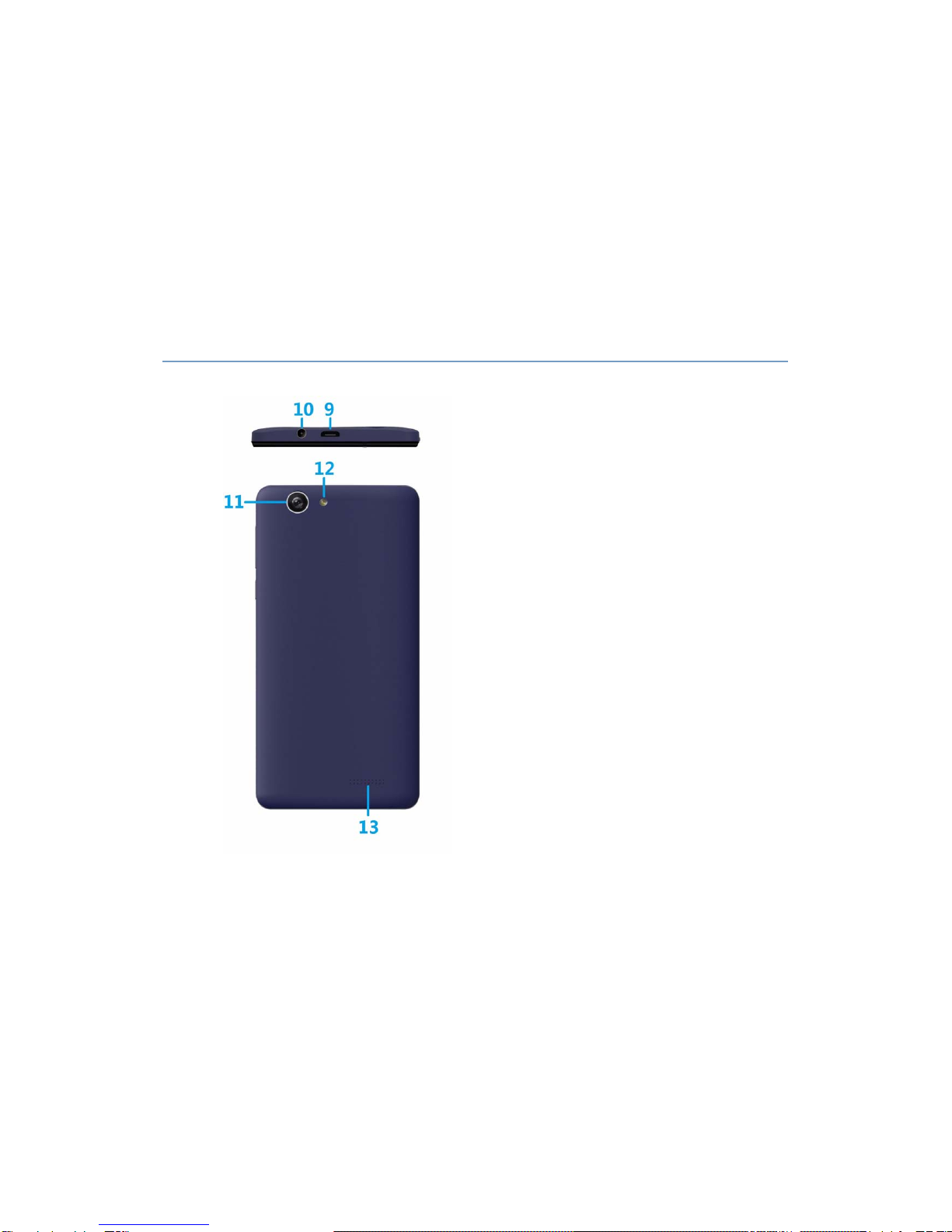
Parts and buttons of the device
9.Micro USB Port
10.Earphone Jack
11.Rear Camera
12.Flash
13.Speaker
Product Overview
--6--
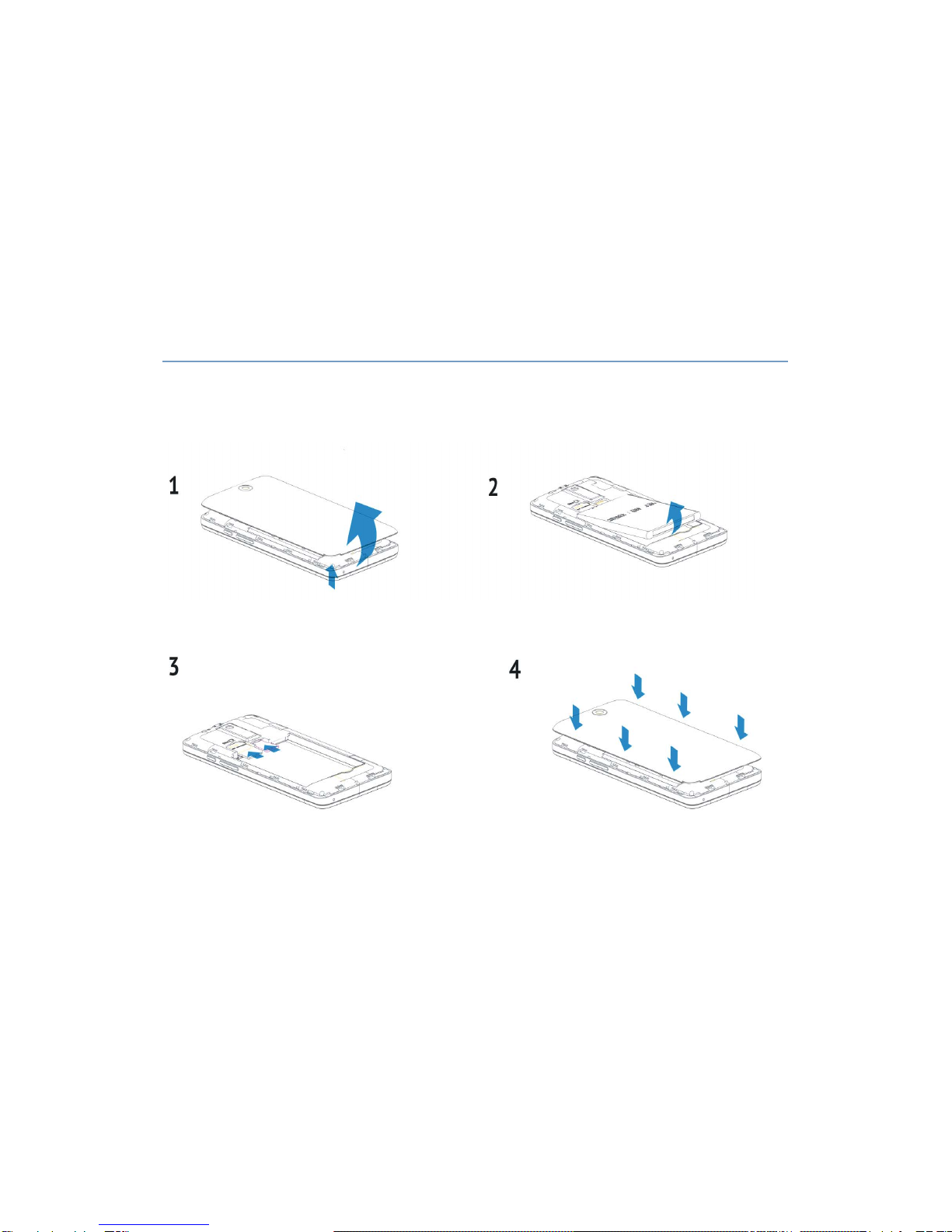
How to remove the back cover and insert SIM card and microSD card?
Using Your Smartphone
--7--
Battery charging
Please charge the battery before first use.
1. Connect Smartphone to the AC charger,and the charger to AC power outlet.
2. When you charge the battery while the device is off,on the display you see the current
battery charging status.
ATTENTION!
The battery will fully charge in around 4 hours
Using the device during charging will make charging process longer.Disconnect the ac
charger from your device when the battery power is full or when you wish to stop the
charging.
Physical damages to the battery may cause a fire or electric shock
Using Your Smartphone
--8--
Button functions
Power button-press and hold for a few seconds to turn on the device
Volume UP-Press and hold Volume Up button to increase the volume
Volume Down-Press and hold volume Down button to decrease the volume
MENU Button-Press to enter menu
HOME Button-Return to the main screen
Back button-return to the previous screen
Power on the device
After pressing and holding the POWER button for 2 seconds the start screen will appear.
Unable to connect to the wireless network
Make sure,that you are within the network’s service range and the signal strength is good.
Check if the name of the network and password are correct.
Using Your Smartphone
--9--
The device is getting slightly warm
This is normal during operation,while the display is turned on and during battery charging.
The operating system works unstable
Installing too many applications and applications from unknown sources can cause
system instability.
Reset the device and uninstall some applications.
Blank screen,Unable to turn the device on
Charge the battery.
Connect your device to an AC power outlet.
Restart the device.
No sound in headphones
Increase the volume.
Check the headphones cable connection
Check if headphone jack is not dirty
Using Your Smartphone
--10--
Check if the mp3 files are not corrupted (try different files)
Try using other headphones (maybe the headphones are damaged)
Media file cannot be played
Format the memory, download uncorrupted files