manuals.online logo
Brands
  1. Home
  2. •
  3. Brands
  4. •
  5. X10
  6. •
  7. Remote Control
  8. •
  9. X10 MK19A User manual

X10 MK19A User manual

Other manuals for MK19A

1

This manual suits for next models

2

Other X10 Remote Control manuals

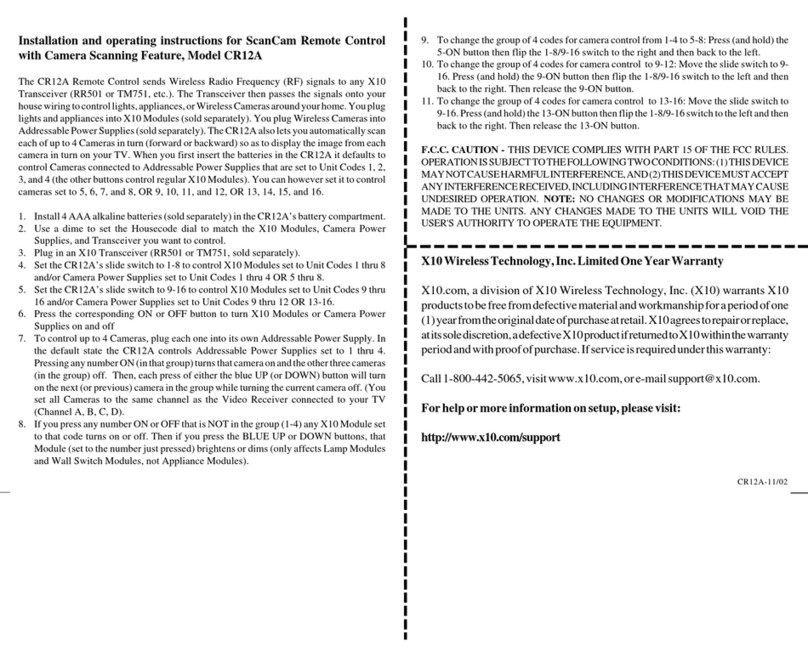
X10 ScanCam CR12A User manual

X10

X10 ScanCam CR12A User manual

X10 VK62A User manual

X10

X10 VK62A User manual

X10 KR21A DigiPad User manual

X10

X10 KR21A DigiPad User manual

X10 CR14A User manual

X10

X10 CR14A User manual

X10 ShowTime UR85A User manual

X10

X10 ShowTime UR85A User manual

X10 CM19A User manual

X10

X10 CM19A User manual

X10 VK62A User manual

X10

X10 VK62A User manual

X10 PLATINUM UR73A User manual

X10

X10 PLATINUM UR73A User manual

X10 CK11A Administrator guide

X10

X10 CK11A Administrator guide

X10 IconRemote IR27A User manual

X10

X10 IconRemote IR27A User manual

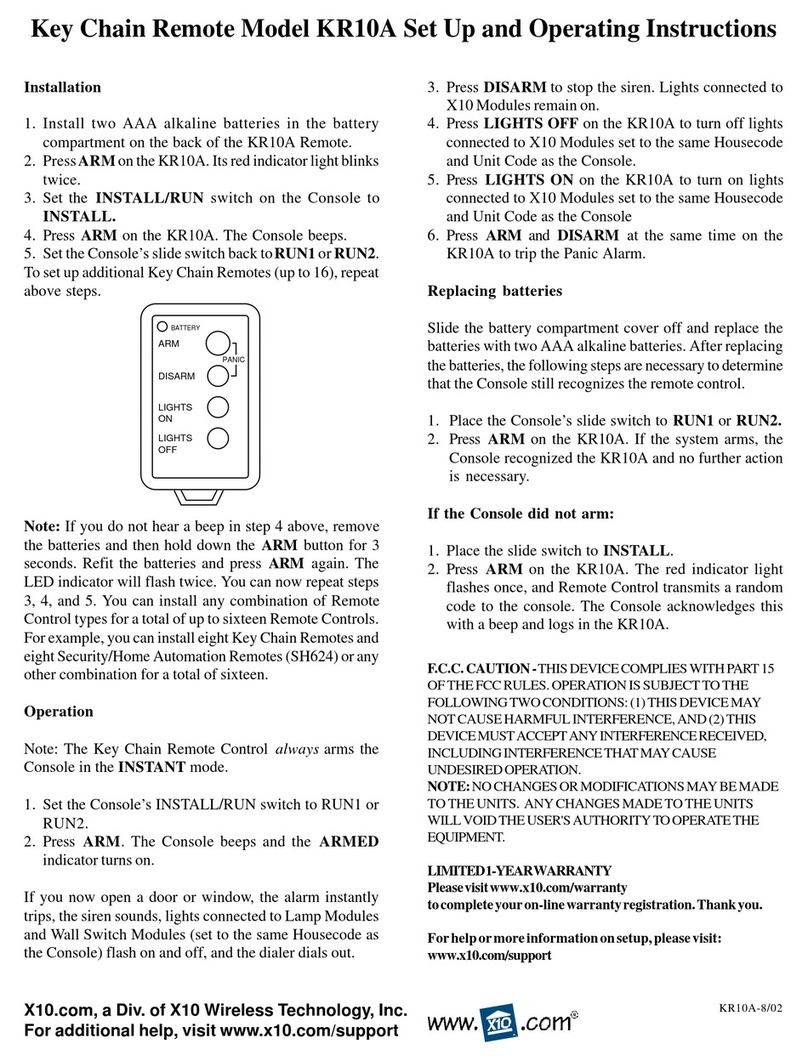
X10 KR10A User manual

X10

X10 KR10A User manual

X10 RT504 User manual

X10

X10 RT504 User manual

X10 SUPERREMOTE UR24A User manual

X10

X10 SUPERREMOTE UR24A User manual

X10 CR13A User manual

X10

X10 CR13A User manual

X10 IconRemote IR10A User manual

X10

X10 IconRemote IR10A User manual

X10 PUR08 User manual

X10

X10 PUR08 User manual

X10 KC674 User manual

X10

X10 KC674 User manual

X10 SENTINEL CR15A User manual

X10

X10 SENTINEL CR15A User manual

X10 SUPERREMOTE UR19A User manual

X10

X10 SUPERREMOTE UR19A User manual

X10 MK19A User manual

X10

X10 MK19A User manual

X10 SuperRemote UR47A User manual

X10

X10 SuperRemote UR47A User manual

X10 RC6500 User manual

X10

X10 RC6500 User manual

X10 KR19A SlimFire User manual

X10

X10 KR19A SlimFire User manual

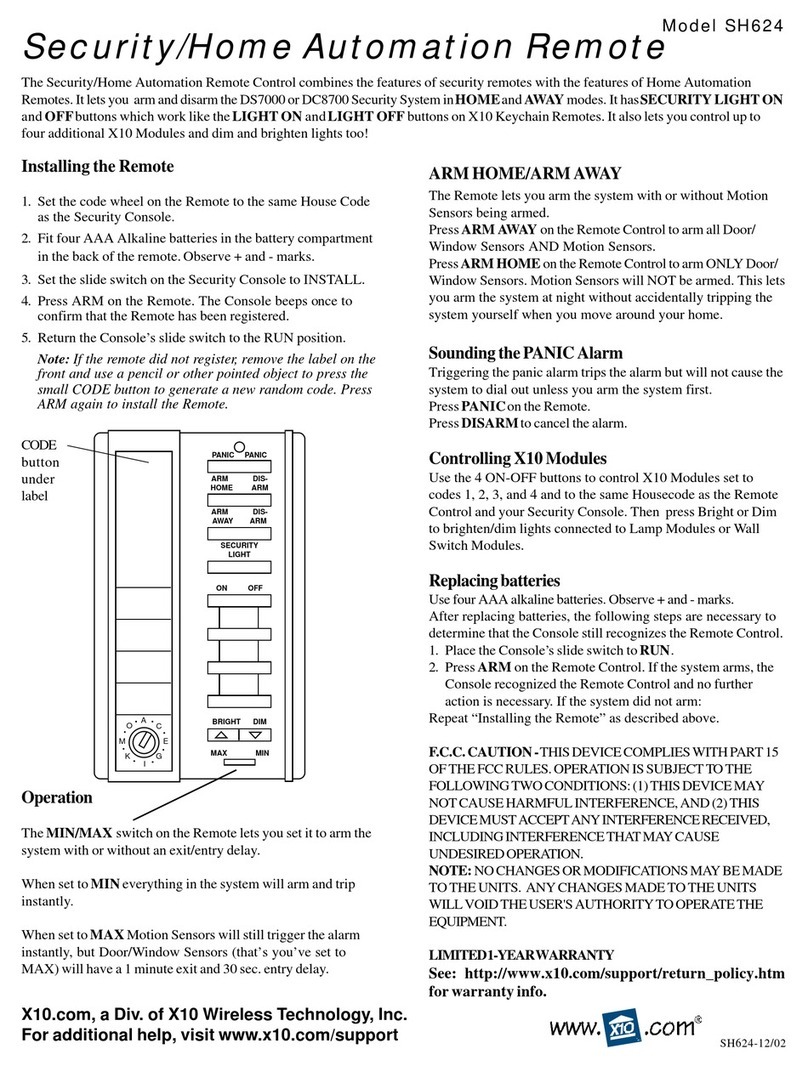
X10 SH624 User manual

X10

X10 SH624 User manual

Popular Remote Control manuals by other brands

Bircher Reglomat RC Duo 2 user guide

Bircher Reglomat

Bircher Reglomat RC Duo 2 user guide

Emerson RCBT100 owner's manual

Emerson

Emerson RCBT100 owner's manual

BILDA Element-6 user manual

BILDA

BILDA Element-6 user manual

Absima CR7P manual

Absima

Absima CR7P manual

Mitsubishi Electric PAR-32MAAG Instruction book

Mitsubishi Electric

Mitsubishi Electric PAR-32MAAG Instruction book

RCA RCRTBL08BE1 quick start guide

RCA

RCA RCRTBL08BE1 quick start guide

US Electronics NOVARI user guide

US Electronics

US Electronics NOVARI user guide

Panasonic EUR7622KB0 Operation guide

Panasonic

Panasonic EUR7622KB0 Operation guide

Bang & Olufsen Beo4 user manual

Bang & Olufsen

Bang & Olufsen Beo4 user manual

Marantz RC101 user guide

Marantz

Marantz RC101 user guide

FUTABA 9ZAP - PART2 manual

FUTABA

FUTABA 9ZAP - PART2 manual

HR Matic HR MULTI 3 quick start guide

HR Matic

HR Matic HR MULTI 3 quick start guide

Anritsu MP1777A Operation manual

Anritsu

Anritsu MP1777A Operation manual

Niles WVC100 Installation & operating guide

Niles

Niles WVC100 Installation & operating guide

Bang & Olufsen BEO6 Getting started

Bang & Olufsen

Bang & Olufsen BEO6 Getting started

GE 94901 instruction manual

GE

GE 94901 instruction manual

FUTABA R7108SB Full manual

FUTABA

FUTABA R7108SB Full manual

Invacare G91S user manual

Invacare

Invacare G91S user manual

manuals.online logo
manuals.online logoBrands
  • About & Mission
  • Contact us
  • Privacy Policy
  • Terms and Conditions

Copyright 2025 Manuals.Online. All Rights Reserved.

M
ODEL
MK19A
W
IRELESS
M
OUSE
R
EMOTE
S
YSTEM
I
NCLUDES
JR20A M
OUSE
R
EMOTE
AND
JR21A W
IRELESS
R
ECEIVER
OWNERSMANUAL
32
FCC C
AUTION
THIS DEVICE COMPLIES WITH PART 15
OF THE FCC RULES.
OPERATION IS SUBJECT TO THE
FOLLOWING TWO CONDITIONS:
(1) THIS DEVICE MAY NOT CAUSE
HARMFUL INTERFERENCE, AND
(2) THIS DEVICE MUST ACCEPT ANY
INTERFERENCE RECEIVED,
INCLUDING INTERFERENCE THAT
MAY CAUSE UNDESIRED
OPERATION.
This equipment generates and uses radio
frequency energy, and if not installed
and used properly, that is, in strict
accordance with the manufacturers
instructions, it may cause interference to
radio and television reception. It has
been type tested and found to comply
with the limits for remote control devices
in accordance with the specifications in
Sub-Parts B and C of Part 15 of FCC
Rules, which are designed to provide
reasonable protection against such
interference in a residential installation.
However, there is no guarantee that
interference will not occur in a particular
installation. If this equipment does cause
interference to radio or television
reception, which can be determined by
unplugging the equipment, try to correct
the interference by one or more of the
following measures.
 Reorient the antenna of the radio/TV
experiencing the interference.
 Relocate the interface with respect to
the radio/TV.
 Move the interface away from the
radio/TV.
 Plug the interface into an outlet on a
different electrical circuit from the
radio/TV experiencing the
interference.
 If necessary, consult your local
Dealer for additional suggestions.
NOTE: Modifications to any of the
components in this kit will void the users
authority to operate this equipment.
READ THIS FIRST!
S
AFETY
C
ONSIDERATIONS
Remember to exercise good common
sense when using your X-10 Mouse
Remote for home automation
applications - especially when
scheduling unattended devices. There
can be some unexpected consequences
if not used with care. For example, an
empty coffee pot can be remotely
turned on. If that should happen, your
coffee pot could be damaged from
overheating. If an electric heater is
turned on by remote control while
clothing is draped over it, a fire could
result. DO NOT USE the system for the
control of high power heating
appliances such as portable heaters.
Caution: To reduce the risk of electric
shock, do not disassemble any part of
the Home Automation System. No user-
serviceable parts are inside. If you spill
liquid on any accessory unit (Modules,
etc.) disconnect the unit from the AC
outlet to prevent possible fire or shock
hazard and consult authorized service
personnel.
Powerline operated equipment or
accessories connected to any of these
units should bear the UL listing or CSA
certification mark and should not have
been modified in any way that might
defeat their safety features.
Warning: To prevent electric shock
hazard, do not expose any part of the
Home Automation System to rain or
moisture.
54
INTRODUCTION
Congratulations on your purchase of the
X-10 Mouse Remote and Wireless
Receiver.
Wireless Mouse....
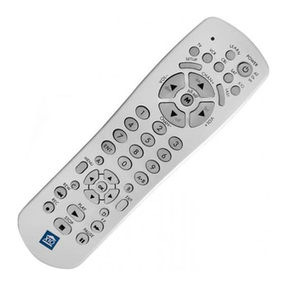
The MK19A kit consists of a remote
control (JR20A) and a wireless receiver
(JR21A). The remote control sends
wireless RF signals to the receiver which
is connected to your PC. You plug the
receiver into the serial port or PS/2 port
on your PC and plug your regular mouse
into the socket on the receiver. This lets
you use the remote as a wireless mouse.
You use the mouse pad on the front of the
remote to move the cursor around the PC
screen, and use the buttons on the back
of the remote as the left and right mouse
buttons. Its that simple! However, to take
advantage of the advanced features of
the Mouse Remote, you can install the
software that came with it. This lets you
configure the remotes special function
buttons (WEB, DVD, CD, and Phone).
You can configure these buttons to
perform special functions such as
launching your WEB Browser, for
example.
Universal Remote....
You can use the Mouse Remote as a
Universal Remote, to control most audio/
video products. Control your TV, VCR,
Cable Box, Satellite Receiver, etc. all
from the same convenient and easy to
use remote.
Make your lights and appliances go to
work for you....
The X-10 Mouse Remote will control most
or all of your video and audio
equipment. But what really sets it apart
from other universal remotes is that you
can also control almost any light or
appliance in your home - even in another
room! And its easy to install. Within
minutes, you can be using your X-10
Mouse Remote to dim the lights, start
brewing a fresh pot of coffee and play
your favorite movie! (Requires X-10
Transceiver and Modules, sold
separately).
CONTENTS
INTRODUCTION.................................. 5
BATTERY INSTALLATION ......................... 6
SETTING UPYOURMOUSE REMOTE .......... 7
BUTTON DESCRIPTIONS ...................... 7
BUTTON DEFAULTS ............................ 9
MOUSE OPERATION ........................ 14
MOUSE SOFTWARE INSTALLATION ......... 16
MOUSE SOFTWARE CONFIGURATION .... 16
TYPICAL APPLICATION SCENARIO .......... 21
SETTING UP FOR TV, VCR, CD,
CABLE BOX AND SATELLITE RECEIVER ..... 22
CODE LISTINGS ............................. 23
USING AUX TO CONTROL ASECOND
TV, VCR, CABLE BOX OR SATELLITE
RECEIVER .................................... 32
SEARCHING FOR CODES .................. 34
IDENTIFYING CODES FOUND USING
THE SEARCH PROCEDURE ................... 35
SETTING THE SLEEP TIMER .................. 36
HOME AUTOMATION ........................... 37
CONTROLLERS AND MODULES ............. 37
HOUSE CODES AND UNIT CODES ....... 38
INSTALLING HOME AUTOMATION
COMPONENTS .............................. 39
TRANSCEIVER MODULE ..................... 39
LAMP MODULE .............................. 40
CONTROLLINGX-10 MODULES ............. 41
TOSET THE X-10 SLEEP TIMER ............ 42
CHANGING THE X-10 HOUSE CODE:... 43
CONTROLLING AN
IR MINI CONTROLLER ...................... 44
EXPANDINGYOURSYSTEM ................ 45
TROUBLESHOOTING ........................... 47
MOUSE RELATED PROBLEMS ................. 48
SYSTEM REQUIREMENTS ...................... 50
WARRANTY ................................... 51
76
SETTING UP
YOURMOUSE REMOTE
B
UTTON
D
ESCRIPTIONS
INDICATOR LIGHT
The indicator light flashes when a key is
pressed (if the key is available in the
selected mode).
POWER
Works in the same way as your original
remote. Turns All Lights On in X-10 mode.
SET UP
Used to set up the remote to control your
TV, VCR, Cable, etc.
PC
Press first to access WEB, DVD, PHONE,
or CD functions.
X-10
Lets you control X-10 Modules to operate
lamps and appliances around the home.
WEB
Can be configured with the enclosed
software to launch your browser, etc.
DVD
Can be configured with the enclosed
software to play disks in your DVD drive.
PHONE
Can be configured with the enclosed
software to launch telephony/fax
applications, etc.
CD
Can be configured with the enclosed
software to launch the PCs CD player.
AUX, TV, CBL, SAT, VCR
Used to select the device you want to
control. SAT includes DSS receivers.
0-9
Used as your original remote and to
enter device codes. Can also be
configured to perform PC functions.
UP ARROW
Used for shift when in PC mode.
ENTER
Used to confirm certain entries.
Here are just some of the things you
can do with your X-10 Mouse
Remote...
 Control your entire audio/video and
lighting setup for the ultimate Home
Theater experience.
 Turn on lights at night to scare away
intruders if you hear a noise.
 Start the coffee from your bedroom
when you wake up.
 Turn on your electric blanket before
the movie ends, so its nice and
warm when you go to bed.
Use this manual to become familiar
with your Mouse Remote....
This manual will explain how to set up
your Mouse Remote to use it with your
PC as a wireless mouse.
Next, it shows you how to set it up to
control your existing Audio/Video
equipment.
Next, it will show you how you can use
it with an X-10 Transceiver Module and
Lamp Module (sold separately) to
operate electrical devices in your home.
Finally, the manual will show how you
can expand your system with some of the
many additional X-10 products you can
purchase.
B
ATTERY
I
NSTALLATION
1. Push the tab and lift
off the battery
cover.
2. Fit four AAA
alkaline batteries,
taking care to
match the + and -
marks in the battery
compartment.
98
The Mouse Remote buttons can be
programmed to perform various functions
using the Mouse Remote software, but
they are pre-programmed with the
following defaults:
When PC mode is selected the keys
default to the following:
Key PC
Power Close Application
Enter Enter
Play Nudge mouse cursor up
Rew Nudge mouse cursor left
FF Nudge mouse cursor right
Stop Nudge mouse cursor down
Rec -
Pause -
00
11
22
33
44
55
66
77
88
99
Vol+ Line Up
Vol- Line Down
CH+ Page Up
CH- Page Down
Mute Minimize
A.B -
Display Maximize
Key below + Shift
0-
1Home
2Up Arrow
3Page Up
4Left Arrow
5-
6Right Arrow
7End
8Down Arrow
9Page Down
Vol+ Line Up
Vol- Line Down
CH+ Page Up
CH- Page Down
Mute Minimize
A.B -
Display Maximize
VOLUME +/- (UP/DOWN)
Works like your original remote. Also
brightens and dims lamps in X-10 mode.
Works as Line Up/Down in PC mode.
CHANNEL +/- (UP/DOWN)
Works like your original remote. Also
works as on and off in X-10 mode. Also
works as Page Up/Down in PC mode.
MOUSE PAD
Moves the cursor around the screen.
MOUSE BUTTONS (ON BACK)
Used as left and right (looking from front)
mouse buttons.
MUTE
Works the same as your original remote.
Also turns All Modules Off in X-10 mode.
Also works as Maximize in PC mode.
A-B
Used as a TV/VCR button.
DISP
Used to access on-screen information.
Also works as Minimize in PC mode.
PLAY, REW, FF, STOP
Work the same as on your original VCR
remote.
SELECT
Used for menu selections on DSS
receivers.
TIMER
Used to set the Sleep Timer to
automatically switch off the TV or X-10
Modules after a preset time.
GUIDE
Displays the main menu on DSS
receivers.
REC
Record button. Works the same as your
original VCR remote. You must press the
REC button twice to begin recording.
PAUSE
Works the same as your VCR remote.
LAST
Selects the last channel selected.
1110
When DVD mode is selected the keys
default to the following:
Key DVD
Power -
Enter -
Play -
Rew -
FF -
Stop -
Rec -
Pause -
00
11
22
33
44
55
66
77
88
99
Vol+ Line Up
Vol- Line Down
CH+ Page Up
CH- Page Down
Mute Minimize
A.B -
Display Maximize
Key below + Shift
0-
1Home
2Up Arrow
3Page Up
4Left Arrow
5-
6Right Arrow
7End
8Down Arrow
9Page Down
Vol+ Line Up
Vol- Line Down
CH+ Page Up
CH- Page Down
Mute Minimize
A.B -
Display Maximize
When WEB mode is selected the keys
default to the following:
Key WEB
WEB Default Browser
Power -
Enter -
Play -
Rew -
FF -
Stop -
Rec -
Pause -
0www.x10.com
1www.pc.orcaweb.com
2-
3-
4-
5-
6-
7-
8-
9-
Vol+ Line Up
Vol- Line Down
CH+ Page Up
CH- Page Down
Mute Minimize
A.B -
Display Maximize
Key below + Shift
0-
1Home
2Up Arrow
3Page Up
4Left Arrow
5-
6Right Arrow
7End
8Down Arrow
9Page Down
Vol+ Line Up
Vol- Line Down
CH+ Page Up
CH- Page Down
Mute Minimize
A.B -
Display Maximize
1312
When PHONE mode is selected the keys
default to the following:
Key PHONE
PHONE Default Dialer
Power -
Enter -
Play -
Rew -
FF -
Stop -
Rec -
Pause -
00
11
22
33
44
55
66
77
88
99
Vol+ Line Up
Vol- Line Down
CH+ Page Up
CH- Page Down
Mute Minimize
A.B -
Display Maximize
Key below + Shift
00
1Home
2Up Arrow
3Page Up
4Left Arrow
5-
6Right Arrow
7End
8Down Arrow
9Page Down
Vol+ Line Up
Vol- Line Down
CH+ Page Up
CH- Page Down
Mute Minimize
A.B -
Display Maximize
When CD mode is selected the keys
default to the following:
Key CD
Power -
Enter -
Play Play CD
Rew Previous Track
FF Next Track
Stop Stop CD
Rec -
Pause Pause CD
0CD Track 10
1CD Track 1
2CD Track 2
3CD Track 3
4CD Track 4
5CD Track 5
6CD Track 6
7CD Track 7
8CD Track 8
9CD Track 9
Vol+ Master Vol+
Vol- Master Vol-
CH+ Next Track
CH- Previous Track
Mute Master Mute
A.B -
Display Maximize
Key below + Shift
0CD Track 20
1CD Track 11
2CD Track 12
3CD Track 13
4CD Track 14
5CD Track 15
6CD Track 16
7CD Track 17
8CD Track 18
9CD Track 19
Vol+ Master Vol+
Vol- Master Vol-
CH+ Next Track
CH- Previous Track
Mute Master Mute
A.B F1
Display -
1514
To install the JR21A Mouse Receiver:
First shut down and turn off your PC.
Unplug your mouse and plug the mouse
Receiver into your PCs mouse port (use
the enclosed adapter if you have a PS/2
port). Plug your existing mouse into the
socket on the Receiver. Set the switch on
the Receiver to the front position. Turn on
your PC.
IMPORTANT: You cannot connect the
Mouse Receiver to a PS/2 port while the
PC is turned on. If you try this, your PC
will not recognize your mouse. You can
attach the Receiver to a serial port while
the PC is turned on but you will then
need to re-boot your computer.
Wait for about 10 seconds after re-
booting. Now you can use the JR20A
remote as a wireless mouse. You use the
mouse pad on the front of the remote to
move the cursor around the PC screen,
and use the buttons on the back of the
remote as the left and right mouse
buttons. Its that simple!
left mouse button
(on back)
right mouse button
(on back)
mouse pad
You can, at any time, still use your
existing mouse, which always overrides
the Mouse Remote. If you want to stop
the JR21A receiver from receiving signals
from the Mouse Remote for a period of
time, set the switch on the JR21A to the
back position. Remember to set it back to
the front position next time you want to
use the Mouse Remote.
Using the Mouse Remote to move the
cursor around the screen and open and
close applications is very easy to do and
allows you, for example, to give PC
presentations from across the room.
To serial port
on your PC
To your serial
mouse
To PS/2 port on
your PC (using
supplied adapter) To your PS/
2 mouse
If you have a PS/2 mouse....
MOUSE OPERATION
The MK19A kit consists of a remote
control (JR20A) and a wireless receiver
(JR21A). The remote control sends
wireless RF signals (from up to 40 ft.
away) to the receiver which is connected
to your PC. You plug the receiver into the
serial or PS/2 port on your PC and plug
your regular mouse into the socket on the
receiver.
If you have a serial mouse....
1716
When the Mouse Remote picture is
displayed, moving the cursor around
the screen causes programmable buttons
or buttons with additional help (setup/X-
10/TV/CBL/SAT/VCR) to illuminate.
Double-clicking on these buttons will
allow them to be programmed or show
additional help. Right-clicking on these
buttons will display a pop-up menu
offering additional options.
When you double-click on a button the
window shown below is displayed.
This window lets you configure the button
for what you want it to do. There are 6
different things that you can program a
button to do. These are:
Launch
WWW
Multimedia
Edit
System
Messages
Launch lets you launch any application
you choose from the button. For example:
To set up button number 1 to launch your
word processor:
Click on the Mouse Remote icon (on the
desktop for Win 3.x or in the taskbar for
Windows 95) and then click Configure.
When you see the picture of the Mouse
Remote, click on the PC key and then
double-click on the number 1 button.
When you see the picture above, click
on Launch.
However, to take advantage of the
advanced features of the Mouse Remote,
you can install the software that came
with it. This lets you configure the
remotes special function buttons such as
PC, WEB, DVD, PHONE, CD, etc. You
can configure these buttons to perform
special functions such as launching your
WEB Browser, for example. If you prefer
you can just use the defaults Listed on
pages 9 to 13.
M
OUSE
S
OFTWARE
I
NSTALLATION
Installation for Windows 3.x
Insert the Mouse Setup Disk or CD into
your Floppy or CD drive. Launch File
Manager and click on the drive letter for
your Floppy or CD drive and double-click
on Setup.exe. Follow the on-screen
prompts to install the Mouse Remote
software. After the installation is complete
you will be given the opportunity to read
the README file. Remember to re-boot
your computer after installing the
software.
Installation for Windows 95.
Insert Mouse Setup Floppy or CD into
your Floppy or CD drive. Use Explorer to
open your Floppy or CD drive and
double-click on Setup.exe. Follow the on-
screen prompts to install the mouse
software. After the installation is complete
you will be given the opportunity to read
the README file. Remember to re-boot
your computer after installing the
software.
Configuration
Windows 3.x: click on the RF Remote
Mouse icon in the control panel or click
on the minimized mouse icon on the
desktop and select the Configure option
from the menu, to bring up a picture of
the Remote.
Windows 95: click the remote mouse
tray icon and select the Configure
option from the menu, to bring up a
picture of the Mouse Remote. (See page
20 also).
1918
System lets you set up any button to
maximize, minimize, or resize windows,
close applications, shut down
Windows®select the Windows 95®
Start button, etc.
Messages This is an advanced feature
that will primarily be used by
programmers. It allows application
specific information to be directed to the
associated windows application. Refer
to the on-line help for more information.
Virtual Keyboard
You can set up any key to launch your
e-mail application, word processor,
notepad, etc. you can then launch a
virtual keyboard. This lets you move the
cursor around the screen and press
buttons on the virtual keyboard to type
text from the Mouse Remote.
To assign the virtual keyboard to the A-B
button for example:
Select Configure, click on PC, double-
click on A-B and select System. Then
select Virtual Keyboard for the function.
Then to use the Virtual keyboard: launch
your word processor, e-mail, etc. then
press PC followed by A-B on the Mouse
Remote.
The picture above will appear on top of
your word processor. Move the cursor
over each key and click the left mouse
button on the back of the Mouse Remote
(looking from the front) to press the virtual
key. When youve finished typing press
Enter on the Virtual Keyboard to enter the
text into your word processor (or what-
ever other application is on the screen
behind the Virtual Keyboard.
Clicking on the Launch button on the
screen shown on page 17 displays a
window similar to the one below.
The actual window you see depends on
what button you clicked and will be
different for Launch, WWW, Multime-
dia, Edit, System, and Messages. In this
case you clicked on Launch so you will
see the window above. Next click in the
File name box and then type in the path
and name for your word processor, or
browse to find its location. Click OK to
exit the above window and then again
to exit the window on page 17. Then
close the picture of the Mouse Remote.
Now any time you press PC followed by
1 on the Mouse Remote, you will launch
your word processor.
WWW lets you go straight to whatever
URL you designate (after launching your
browser). When you click on WWW
you will see a window with a dialog box
into which you type the WEB address
that you want the button to take you to.
Multimedia lets you control your PC's CD
or DVD player, etc. from the button. For
example to set up a DVD player: On the
Configuration picture for the Mouse
Remote, first click on PC, then click on
DVD then double click on Play. . When
you see the screen on page 17, click on
Multimedia. Select DVD Player for the
media device and Play for the function.
Repeat the above steps for Stop, FF,
REW, Pause, etc.
Edit lets you set up any key to perform
tasks such as Page Up, Page Down,
Tab, Home, Type etc. Type allows to you
assign text to a button so that it will be
typed into any box you place the
cursor over. For example you could
assign a password to any button and
then type it into a dialog box with the
press of a button when you launch
Compuserve®
or America Online,®
etc.