manuals.online logo
Brands
  1. Home
  2. •
  3. Brands
  4. •
  5. Xomax
  6. •
  7. Car Video System
  8. •
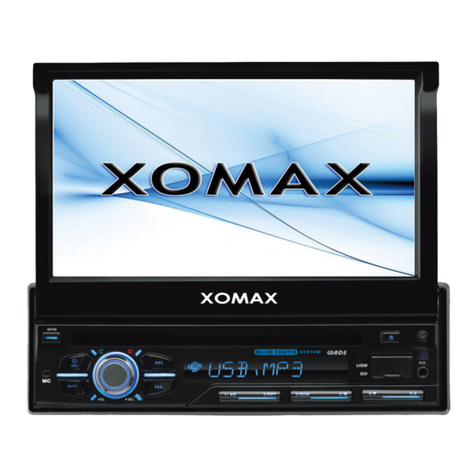
  9. Xomax XM-DTSB930 User manual

Xomax XM-DTSB930 User manual

Other Xomax Car Video System manuals

Xomax XM-VRSUN729 User manual

Xomax

Xomax XM-VRSUN729 User manual

Xomax XM-DTSBN929 User manual

Xomax

Xomax XM-DTSBN929 User manual

Xomax XM-DTSB914 Installation instructions

Xomax

Xomax XM-DTSB914 Installation instructions

Xomax XM-DTSBN932 User manual

Xomax

Xomax XM-DTSBN932 User manual

Xomax XM-2DTSBN6220BT User manual

Xomax

Xomax XM-2DTSBN6220BT User manual

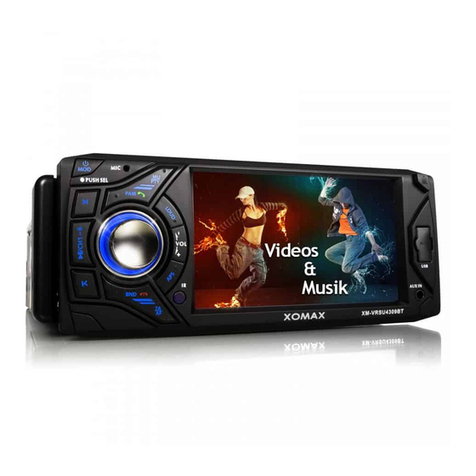
Xomax XM-VRSU4309BT User manual

Xomax

Xomax XM-VRSU4309BT User manual

Xomax XM-DTS8300 User manual

Xomax

Xomax XM-DTS8300 User manual

Xomax XM-2DTSB6219BT User manual

Xomax

Xomax XM-2DTSB6219BT User manual

Xomax XM-VRSU727BT User manual

Xomax

Xomax XM-VRSU727BT User manual

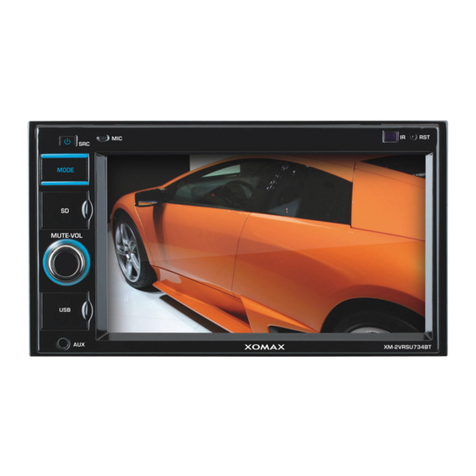
Xomax XM-2VRSU734BT User manual

Xomax

Xomax XM-2VRSU734BT User manual

Xomax XM-RSU255BT V2 User manual

Xomax

Xomax XM-RSU255BT V2 User manual

Xomax XM-VRSU414BT User manual

Xomax

Xomax XM-VRSU414BT User manual

Xomax XM-2RSU420 User manual

Xomax

Xomax XM-2RSU420 User manual

Xomax XM-D749 User manual

Xomax

Xomax XM-D749 User manual

Xomax XM-2VRSU736BT User manual

Xomax

Xomax XM-2VRSU736BT User manual

Xomax XM-2DTSBN6222 User manual

Xomax

Xomax XM-2DTSBN6222 User manual

Xomax XM-DTSB1010 User manual

Xomax

Xomax XM-DTSB1010 User manual

Xomax XM-2DTSB6217 User manual

Xomax

Xomax XM-2DTSB6217 User manual

Xomax XM-02Z User manual

Xomax

Xomax XM-02Z User manual

Xomax XM-2CDB625 User manual

Xomax

Xomax XM-2CDB625 User manual

Xomax xm-dtsb925 User manual

Xomax

Xomax xm-dtsb925 User manual

Xomax XM-DTSB928 User manual

Xomax

Xomax XM-DTSB928 User manual

Xomax XM-2VRSUN730 User manual

Xomax

Xomax XM-2VRSUN730 User manual

Xomax XM-VRSU742BT User manual

Xomax

Xomax XM-VRSU742BT User manual

Popular Car Video System manuals by other brands

Farenheit MD-1510CM instruction manual

Farenheit

Farenheit MD-1510CM instruction manual

Mazda Connect manual

Mazda

Mazda Connect manual

RCA DRC97983 Manual de usuario

RCA

RCA DRC97983 Manual de usuario

Panasonic CY-VHD9401U Service manual

Panasonic

Panasonic CY-VHD9401U Service manual

Stinger HEIGH10 RB10RAM13B installation manual

Stinger

Stinger HEIGH10 RB10RAM13B installation manual

Alpine IVA-W203 - 6.5" Touch Screen 2-DIN DVD In-Dash... owner's manual

Alpine

Alpine IVA-W203 - 6.5" Touch Screen 2-DIN DVD In-Dash... owner's manual

Eonon E1057 instructions

Eonon

Eonon E1057 instructions

Milion D2223 user manual

Milion

Milion D2223 user manual

Metra Electronics 99-8153 installation instructions

Metra Electronics

Metra Electronics 99-8153 installation instructions

Voxx Electronics HR8MA1 owner's manual

Voxx Electronics

Voxx Electronics HR8MA1 owner's manual

Axxera AV604Bi quick start guide

Axxera

Axxera AV604Bi quick start guide

Clarion NX706E owner's manual

Clarion

Clarion NX706E owner's manual

Pyle view PLDN74BTi owner's manual

Pyle view

Pyle view PLDN74BTi owner's manual

Clarion NX602 quick start guide

Clarion

Clarion NX602 quick start guide

RCA DRC6296 - Twin 9" Mobile DVD System Manual Del Usuario

RCA

RCA DRC6296 - Twin 9" Mobile DVD System Manual Del Usuario

Fiat Uconnect 5.0 manual

Fiat

Fiat Uconnect 5.0 manual

Lanzar SVDVD5 owner's manual

Lanzar

Lanzar SVDVD5 owner's manual

Eonon E1060 instructions

Eonon

Eonon E1060 instructions

manuals.online logo
manuals.online logoBrands
  • About & Mission
  • Contact us
  • Privacy Policy
  • Terms and Conditions

Copyright 2025 Manuals.Online. All Rights Reserved.

XM-DTSB930
-1-
Content
Precaution......................................
Safety Information.........................
Disc Note.......................................
Installation ....................................
Electric Connection ......................
Remote Control ............................
Basic Operation ............................
Main Menu Operation......................
Setting OSD language.....................
Setting animation............................
Setting buzzer.................................
Setting camera................................
Setting time.................... ................
Setting brightness...........................
Setting contrast..... .........................
Setting HUE....................................
Setting saturation...........................
Setting sharpness...........................
Setting panel adjust........................
Setting audio language....................
Setting subtitle language.................
Setting menu language....................
Setting aspect ratio........................
Setting password............................
Setting rating..................................
Setting dual....................................
Setting local...................................
Setting area...................................
Setting RDS...................................
Setting bluetooth............................
12
13
13
13
13
14
15
15
18
18
18
19
19
21
21
24
27
28
29
29
30
31
32
33
2
3
4
5
7
8
10
11
11
11
11
11
11
11
11
11
11
11
12
12
12
12
12
12
12
12
12
12
12
12
Setting sheering wheel....................
Setting illumination color.................
Setting wallpaper............ ................
Version about..................................
Audio setup.....................................
Reset Factory Settings ...................
Control Panel ................................
Unit keys ........................................
Radio Operation............................
Listening to the radio ......................
Storing and Listening to a memory
station ........................................
Automatic Memory Storing &
Program Scanning.......................
RDS function..................................
Media Operation.............................
Video Operation ..............................
BT Operation................................
AUX Operation ...............................
AV Operation..................................
USB Operation ...............................
Card Operation ..............................
Parental Control............................
Region Code..................................
Specification .................................
Troubleshooting.............................

-2-
Precaution
THANK YOU FOR PURCHASING PLAYER .
Before operating the unit, read this manual thoroughly and keep it handy
for future reference .
To avoid injury or accident , read the following precautions before
installing and operating the unit .
A SOUNDSTORM MULTIMEDIA
ABOUT THE LIQUID CRYSTAL DISPLAY (LCD) PANEL
Do not press on the LCD panel on the unit as doing so can distort the
picture or cause a malfunction . The picture may become unclear , or the
LCD panel may be damaged .
NOTES ON CLEANING
-Clean the LCD panel with a slightly damp soft cloth.
-Do not use solvents such as benzine, thinner, commercially available
cleaners or antistatic spray .
-Do not use alcohol to clean the screen .
If your car was parked in a cold or hot place, the picture may not be clear .
The monitor is not damaged . The picture will become clear the temper-
ature in your car becomes normal .
DO NOT install any receiver in locations where;
- it may obstruct the steering wheel and gearshift lever operations, as this
may result in a traffic accident.
- it may obstruct the operation of safety devices such as air bags, as this
may result in a fatal accident.
- it may obstruct visibility.
DO NOT operate any receiver while manipulating the steering wheel, as
this may result in a traffic accident.
The driver must not watch the monitor while driving.
IF THE DRIVER watches the monitor while driving, it may lead to
carelessness and cause an accident.
IF YOU NEED to operate the receive while driving, be sure to look ahead
carefully or you may be involved in a traffic accident.
IF THE PARKING BRAKE is not engaged.“ ParkingBrake” flashes on the
monitor, and no playback picture will be shown.
- This warning appears only when the parking brake wire is connected to
the parking brake system built in the car ( refer to the electric connection)
ON INSTALLATION
-3-
Safety Information
CAUTION:
THIS DIGITAL VIDEO PLAYER IS A CLASS I LASER PRODUCT. HOWEVER
THIS DIGITAL VIDEO PLAYER USES A VISIBLE/INVISIBLE LASER BEAM
WHICH COULD CAUSE .
HAZARDOUS RADIATION EXPOSURE IF DIRECTED. BE SURE TO OPERATE
THE DIGITAL VIDEO PLAYER CORRECTLY AS INSTRUCTED.
USE OF CONTROLS OR ADJUSTMENTS OR PERFORMANCE OF
PROCEDURES OTHER THAN THOSE SPECIFIED HEREIN MAY RESULT IN
HAZARDOUS RADIATION EXPOSURE.DO NOT OPEN COVERS AND DO NOT
REPAIR YOURSELF. REFER SERVICING TO QUALIFIED PERSONNEL.
WARNING:
TO REDUCE THE RISK OF FIRE OR ELECTRIC SHOCK, DO NOT EXPOSE THIS
EQUIPMENT TO RAIN OR MOISTURE.
TO REDUCE THE RISK OF FIRE OR ELECTRIC SHOCK, AND ANNOYING
INTERFERENCE, USE ONLY THE RECOMMENDED ACCESSORIES.
THIS DEVICE IS INTENDED FOR CONTINUOUS OPERATION.
This product incorporates copyright protection technology that is protected
by method claims of certain U.S. Patents and other intellectual property rights
owned by Macrovision Corporation and other rights owners.Use of this
copyright protection technology must be authorized by Macro vision Corporation,
and is intended for home and other limited viewing uses only unless
otherwise authorized by Macrovision Corporation. Reverse engineering or
disassembly is prohibited.
REGION MANAGEMENT INFORMATION:
This Digital Video Player is designed and manufactured to respond to the Region
Management Information that is recorded on a Digital Video disc. If the Region
number described on the Digital Video disc does not correspond to the Region
number of this Digital Video Player, this Digital Video Player cannot play this disc.
-4-
Disc Note
Preparing New Discs with Rough
Spots
A new disc may have rough edges on
its inside and outside edges. If a disc
with rough edges is used, the proper
setting will not be performed and the
player will not play the disc. Therefore,
remove the ro ugh edges in advance
by using a ball point pen or pencil as
shown on the right. To remove the
rough edges, press the si de o f t h e pen
or pencil against the inside and outside
edges of the disc.
Rough spots
on
outside edge
Ball point pen
or pencil
Rough spots
on inside
edge
Do not touch
the
underside
of the disc
Do not
bend
Wipe the disc from
center
toward the outside
edge
Label side
up
Disc Cleaning
Use a dry soft cloth to wipe the surface.
If the disc is quite dirty, use a soft cloth
slightly moistured with isopropyl (rubbing)
alcohol. Never use solvents such as
benzine, thinner or conventional record
cleaners as they may mar the surface of
the disc.
Handling and Cleaning
Dirt, dust, scratches and warping disc
will cause misoperation.
Do not place stickers or make
scratches on discs.
Do not warp discs.
A disc should always be kept in its
case when not in use to prevent from
damaging.
Do not place discs in the following
places:
1.Direct sunlight
2.Dirty, dusty and damp areas
3.Near car heaters
4.On the seats or dashboard
Discs which cannot be played
with this player
Digital Video-RAM
CDV
CDG
Note:
A disc may become somewhat scratched
(although not enough to make it
unusable) depending on your handle it
and conditions in the usage environment.
Note these scratches are not an
indication of any problem with the player.
Disc formats supported by this
player
Digital
Video
VCD
CD
MP3
Audio and Video
Disc size 12 cm
Audio and Video
Disc size 12 cm
Audio
Disc size 12 cm
Audio
Disc size 12 cm
Digital
Video
VCD
CD
MP3
Installation
-5-
NOTES:
Choose the mounting location where the unit will not interfere with the normal
driving function of the driver.
Before finally installing the unit, connect the wiring temporarily and make sure
it is all connected up properly and the unit and the system work properly.
Use only the parts included with the unit to ensure proper installation. The use
of unauthorized parts can cause malfunctions.
Consult with your nearest dealer if installation requires the drilling of holes or
other modifications of the vehicle.
Install the unit where it does not get in the driver s way and cannot injure the
passenger if there is a sudden stop, like an emergency stop.
If installation angle exceeds 30 from horizontal, the unit might not give its
optimum performance.
Avoid installing the unit where it would be subject to high temperature, such
as from direct sunlight, or from hot air, from the heater, or where it would be
subject to dust, dirt or excessive vibration.
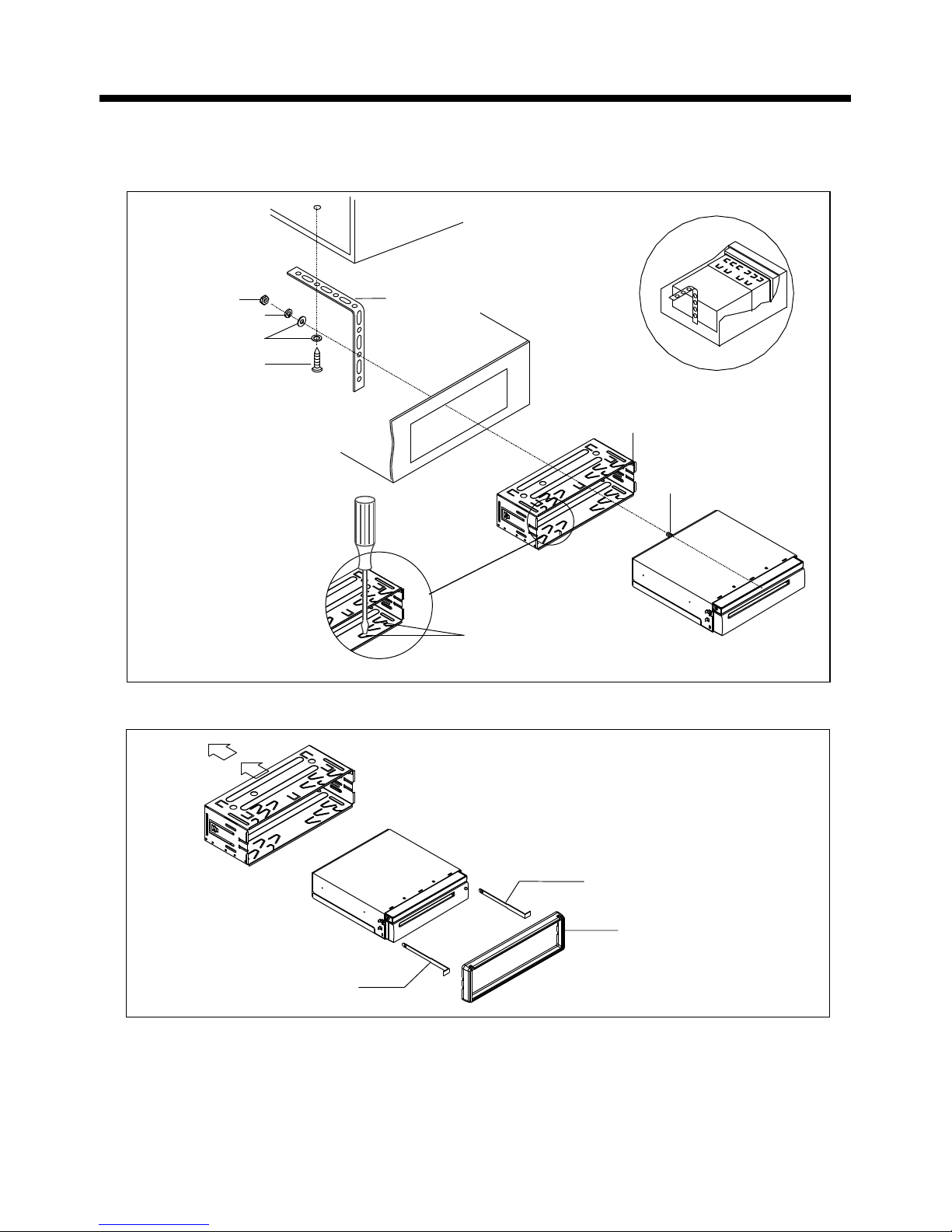
DIN FRONT/REAR-MOUNT
This unit can be properly installed either from "Front"(conventional DIN
Front-mount) or "Rear"(DIN Rear-mount installation, utilizing threaded
screw holes at the sides of the unit chassis). For details, refer to the following
illustrated installation methods.
'
30
Installation
-6-
If you want to take CHASSIS out of the SLIDE BRACKET HOUSING, first remove
the PLASTIC TRIM OUT of the both sides away, then insert the two KEY PLATE into
left and right side of chassis as above illustration.
Installating the unit
DASH BOARD
METAL MOUNTING
STRAP
HEX NUT
SPRING WASHER
PLAIN WASHER
TAPPING SCREW
CONSOLE
SLIDE BRACKET
HOUSING
HEX BOLT
SCREWDRIVER
TABS
KEY PLATE
PLASTIC TRIM OUT
KEY PLATE
Electric Connection
-7-
WIRING CONNECTION
Note:
the earth connection cable (parking brake B-) must be connected in order for
pictures to be played back to the monitor. If the cable has not been correctly
connected, the message “PARKING BRAKE” appears on the monitor.
Rear camera in
Front left rca output
Front right rca output
AV IN left ch in
AV IN right ch in
Rear left rca output
Rear right rca output
POWER CONNECTION
POWER CONNECTION
LIGHT GREEN
(B+)12V
REAR CAMERA SWITCH
(B-)PARKING BRAKE
GREY
GREY/BLACK
FRONT
RCH SPK.
VIOLET
VIOLET/BLACK
WHITE
WHITE/BLACK
GREEN
GREEN/BLACK
REAR
LCH SPK.
AUTO ANTENNA BLUE
GROUND(B-)
MEMORY BACK-UP(B+)
IGNITION SWITCH(B+) RED
YELLOW
BLACK
REAR
RCH SPK.
FRONT
LCH SPK.
PINK
KEY GROUND(BLACK)
KEY 1(BROWN)
KEY 2(WHITE/ORANGE)
FUSE
RADIO ANT JACK
Subwoofer 1
Subwoofer 2
AV IN video input
Video output
Video output
-8-
Remote Control
/
6&17
5
Button
Ref # Function
1
2
3&7
AS/
4AS function see as page radio Scan operation.
In BT mode, press to receive a call.
8
9
Press this button to Open/Close the operate monitor .Long press
it to adjust the angle of monitor Upward/Downward.
Press this button to turn the unit ON , press and hold to turn the unit OFF.
Press it briefly to select a desired work source .
/MOD
/OPEN
/In Disc Playback mode, press for fast forward or back forward playback.
In Radio mode, press to scan step by step.
PLAY/
PAUSE
In Disc Playback mode, press to pause playback. Press again to
start where playback stopped.
Press these buttons to skip ahead or back one track.
Repeat function for media playing;
In radio mode, press to select the store station 2.
TITLE
RPT/2
When playing a Digital Video, pressing this button will open the TITLE
menu which is recorded on the media. When playing a VCD disc,
press this button to create a PBC (Playback Control) menu for the
disc to assist in making playback selections.
10 DISP/1 In video playing mode, press to show OSD menu;
In radio mode, press to select the store station 1.
Remote Control
-9-
Button
Ref # Function
19
20
11
12
RDM/3
SUB-T/6
AUDIO/5
MENU/4
13&21 VOL+/- Use these controls to adjust the volume level.
Random function for media playing;
In radio mode, press to select the store station 3.
Same operation as audio in video operation.
In radio mode, press to select the store station 5.
In Digital Video Disc Playback mode, pressing this button will
allow you to change the subtitle language on discs which have
this as an option.
In radio mode, press to select the store station 6.
Press this button briefly to display the root level directory of a digital
video disc.
In radio mode, press to select the store station 4.
14
15
16 BAND/
In Radio mode, press this button repeatedly to switch between
the five radio bands: FM1 > FM2 > FM3 > AM1(MW1) > AM2 (MW2).
In BT mode, press to reject a call.
MUTE
EQ
Press this button to turn off the audio. Press again to restore the
sound to its prior volume level.
18
SEL Press to turn to EQ setting.
Press repeatedly to cycle through the different equalizer curve
presets you may wish to use for enhanced listening.
Preparing the Remote Control
1.First push to inside as the direction indicated by the arrow (See )And then
Remove the battery holder as the direction indicated by the arrow (See ).
2.Replace the battery Set a new battery property with (+)side up as illustrated
(See ).
3.Insert the battery holder. Push in the holder to the original position(See ).
1
2
3
4
Inserting the Battery
Using the Remote Control
Face the remote control towards the player front face IR mark (remote control signal
receiver).
Operation angle: About 30 degree in each the direction of the front of the IR mark.
Note :
The lithium cell in the battery compartment of remote control has been secured for
transport with a . Before initial use please remove this plastic so that the
remote control is ready for operation .
plastic