ZKaccess F18 User manual

201 Circle Drive N, Suite 116 Piscataway, NJ 08854 Tel: 732-412-6007 Fax: 732-412-6008
www.zkaccess.com
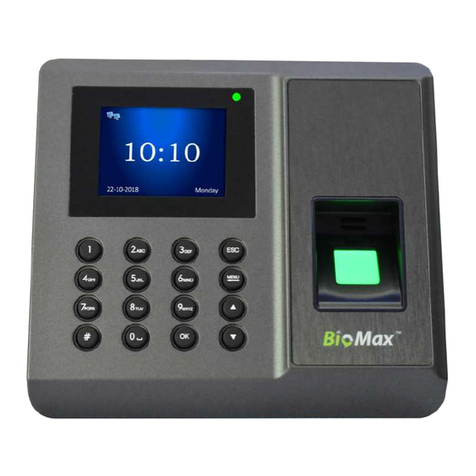
F18- Standalone Reader Controller
Features:
2.4” TFT-LCD color screen
Standard Wiegand Input and Output interfaces are compatible with most all 3rd party
26-bit Wiegand readers and access control panels.
USB HOST port makes offline data backup/management fast & easy.
Relay contacts for alarm, electric lock, exit button, and wired door bell.
Reads fingerprint, Password and card
Specifications:
Fingerprint capacity
3,000
Transaction capacity
100,000
Hardware Platform
ZEM720
CPU
ZK 6001, 400Mhz
Memory
64M Flash, 32MSDRAM
Fingerprint Sensor
ZK optical sensor
Display
2.4” TFT LCD color screen
LED Indicator
Red, Green
Communication
Ethernet(10/100M), RS485, USB-
HOST,
Weigand signal
Weigand Input and Weigand Output
Identification speed
≤2 sec
FAR
≤0.0001%
FRR
≤1%
Operating Temperature
0-45℃
Operating Humidity
20%-80%
Language
English and Spanish
Power Supply
12V DC, 3A
Access control interfaces
Electric lock, alarm, exit button, wired
door bell
Dimensions
3.15* 7.2* 1.65 inches
80*183*42 mm (L*W*D)

201 Circle Drive N, Suite 116 Piscataway, NJ 08854 Tel: 732-412-6007 Fax: 732-412-6008
www.zkaccess.com
Basic Contents:
F18 Fingerprint
Reader
Metallic Mounting Plate
Wall Mounting Screws and
Holders
Star-shape Screw for
Mounting Plate
Star-shape Screw Driver
Mini-USB Cable
Software CD
Installation Guide
Mounting Paper
Optional Accessories
FR1200 Fingerprint Slave
Reader
K1 Exit Button
12V3A Power Adaptor
Mifare
Integrated Module and Card
Front

201 Circle Drive N, Suite 116 Piscataway, NJ 08854 Tel: 732-412-6007 Fax: 732-412-6008
www.zkaccess.com
Side
Rear

201 Circle Drive N, Suite 116 Piscataway, NJ 08854 Tel: 732-412-6007 Fax: 732-412-6008
www.zkaccess.com
Installation Diagram
Product Dimensions (mm)

201 Circle Drive N, Suite 116 Piscataway, NJ 08854 Tel: 732-412-6007 Fax: 732-412-6008
www.zkaccess.com

201 Circle Drive N, Suite 116 Piscataway, NJ 08854 Tel: 732-412-6007 Fax: 732-412-6008
www.zkaccess.com
Cable Specifications

201 Circle Drive N, Suite 116 Piscataway, NJ 08854 Tel: 732-412-6007 Fax: 732-412-6008
www.zkaccess.com
Important Notes
Please do not install F18 in an area where it can come in contact with direct sunlight or any
other source of light
Use regulated 12V DC 3A power supply only
Mounting the Unit
Place the unit approximately 5 ½ feet above the ground level if permissible so that the
users are comfortable in using the reader with least chances of error
Pull the power and network cables from the back of the wall and connect them to the
appropriate pigtail wires supplied with the reader
Remove the screw at the bottom of the reader to detach the back plate.
Install the back plate of the unit on to the wall and connect the power, network and other
necessary cables on the back of the unit.
Secure the reader with the back plate by fixing the tamper proof screw at the bottom of the
reader.
Hardware Setup
Power on the reader by supplying 12V DC to the power and GND pins on the back of the
reader. The power supply is not supplied with the reader. Please make sure that the power
requirements are strictly met to avoid permanent damage to the reader.
After the reader is powered on, the display will show the date, day and time on the screen.
Date and Time Setup
To change the date and time, press the Menu key;
From the Main Menu, scroll with the ◄/►and ▲/▼keys until Date/Time is highlighted and press
OK.

201 Circle Drive N, Suite 116 Piscataway, NJ 08854 Tel: 732-412-6007 Fax: 732-412-6008
www.zkaccess.com
Date and Time settings
This screen allows you to manually set the date and time.
Use the scroll keys ▲/▼to position the cursor in the Date or Time fields.
Enter the correct Date and Time.
When finished, press OK or highlight OK (M/<-) and press OK to save.
Press ESC to cancel the operation and return to the previous menu.
User Enrollment
To start user enrollment, press the Menu key on the F18.
From the Main Menu, highlight and select User Mng to add/change/delete users’ fingerprint(s),
password or role (Admin or user).

201 Circle Drive N, Suite 116 Piscataway, NJ 08854 Tel: 732-412-6007 Fax: 732-412-6008
www.zkaccess.com
From the User Mng Menu, scroll with the ◄/►▲/▼keys until New User is highlighted:
Press OK to accept.
The following “New User” settings are available:
ID. NO (Account Number)
Unique identification number associated with each user.
Fingerprint (FP)
A user can enroll up to 10 fingerprints.
Password (PWD)
A user can enroll a password using 1 to 8 digits.
Security/Role (Purview)
Identifies a user as a normal user or an Administrator.

201 Circle Drive N, Suite 116 Piscataway, NJ 08854 Tel: 732-412-6007 Fax: 732-412-6008
www.zkaccess.com
a) Add New User
From the New User Menu, scroll with the ▲/▼keys until the cursor is in the ID. NO field:
Press OK to accept the default User ID, or manually enter a preferred User ID and press OK.
b) Enroll New User Fingerprint (FP)
Suggestions for proper finger placement;
c) The user’s finger should completely cover the sensor. The finger should be placed flat and in the
center of the sensor. The finger should cover at least 80% of the sensor as shown below:
d) The finger should NOT be placed in the following positions:
Not flat
Not centered
Not flat
Not centered
Other manuals for F18
1
Other ZKaccess IP Access Controllers manuals