manuals.online logo
Brands
  1. Home
  2. •
  3. Brands
  4. •
  5. Zonet
  6. •
  7. PCI Card
  8. •
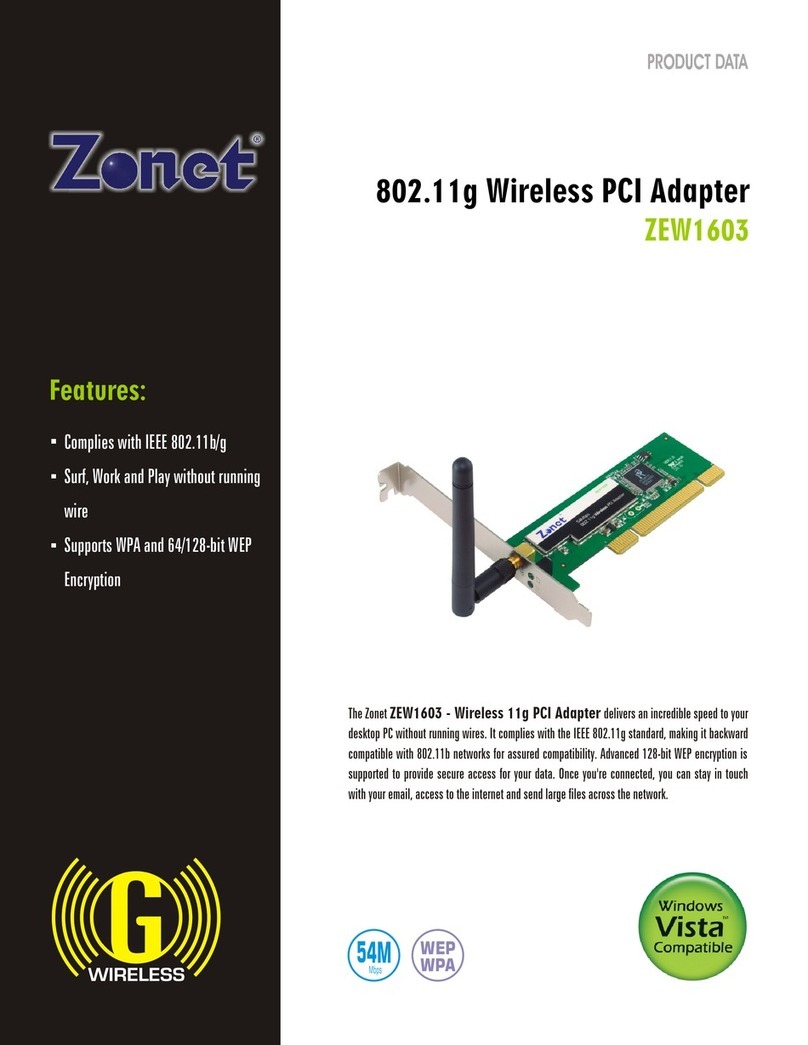
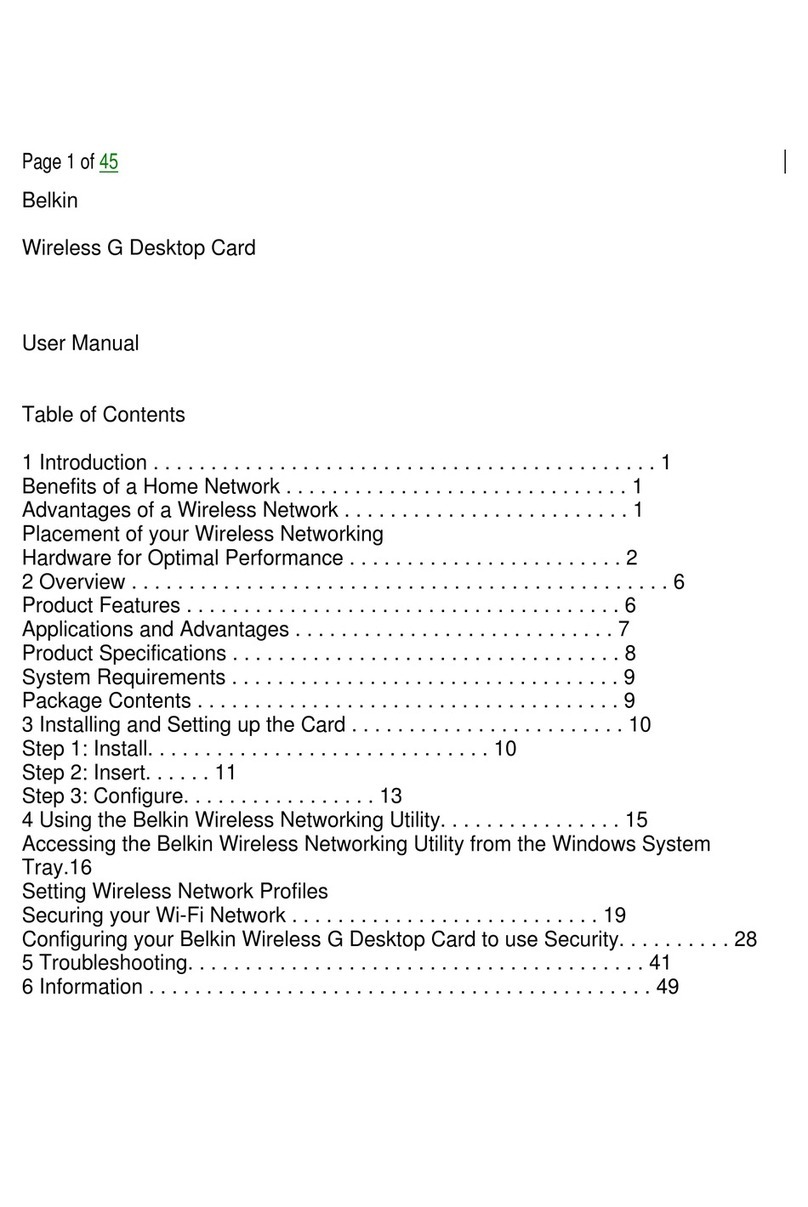
  9. Zonet ZEW1603 User manual

Zonet ZEW1603 User manual

Other manuals for ZEW1603

1

Other Zonet PCI Card manuals

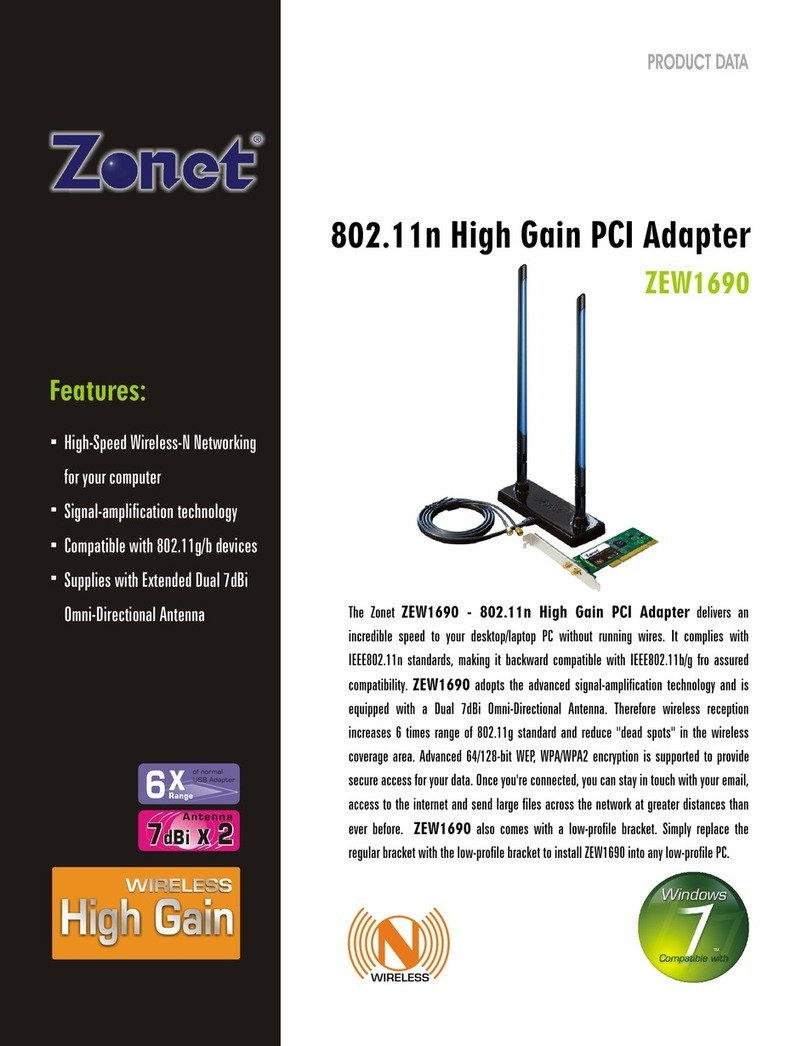
Zonet ZEW1690 User manual

Zonet

Zonet ZEW1690 User manual

Zonet ZEW1602A Operation manual

Zonet

Zonet ZEW1602A Operation manual

Zonet ZEW1530 User manual

Zonet

Zonet ZEW1530 User manual

Zonet ZEW1605S Operation manual

Zonet

Zonet ZEW1605S Operation manual

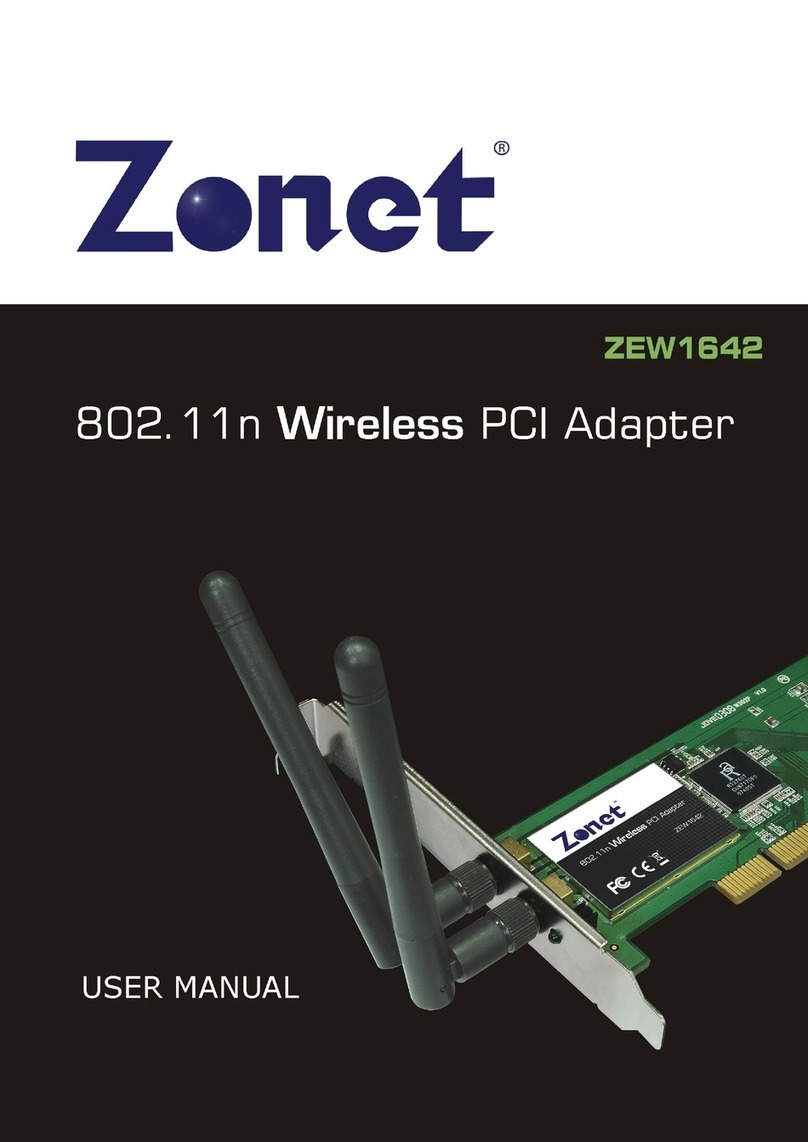
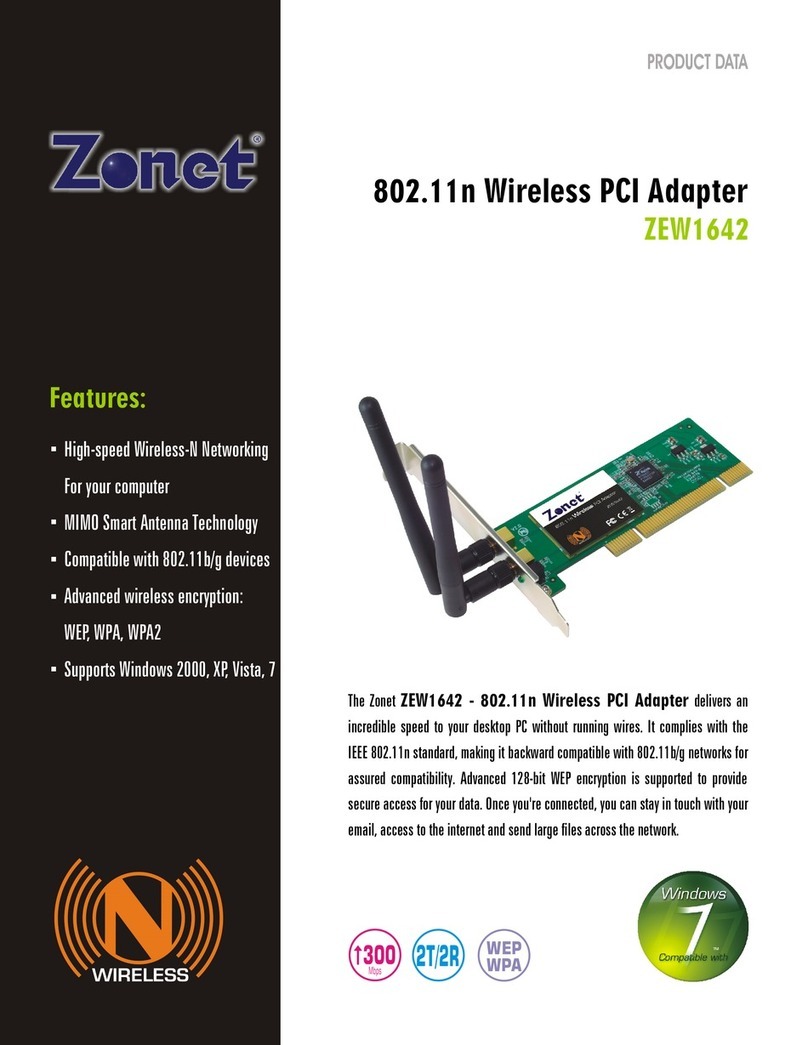
Zonet ZEW1642 User manual

Zonet

Zonet ZEW1642 User manual

Zonet ZEW1520 User manual

Zonet

Zonet ZEW1520 User manual

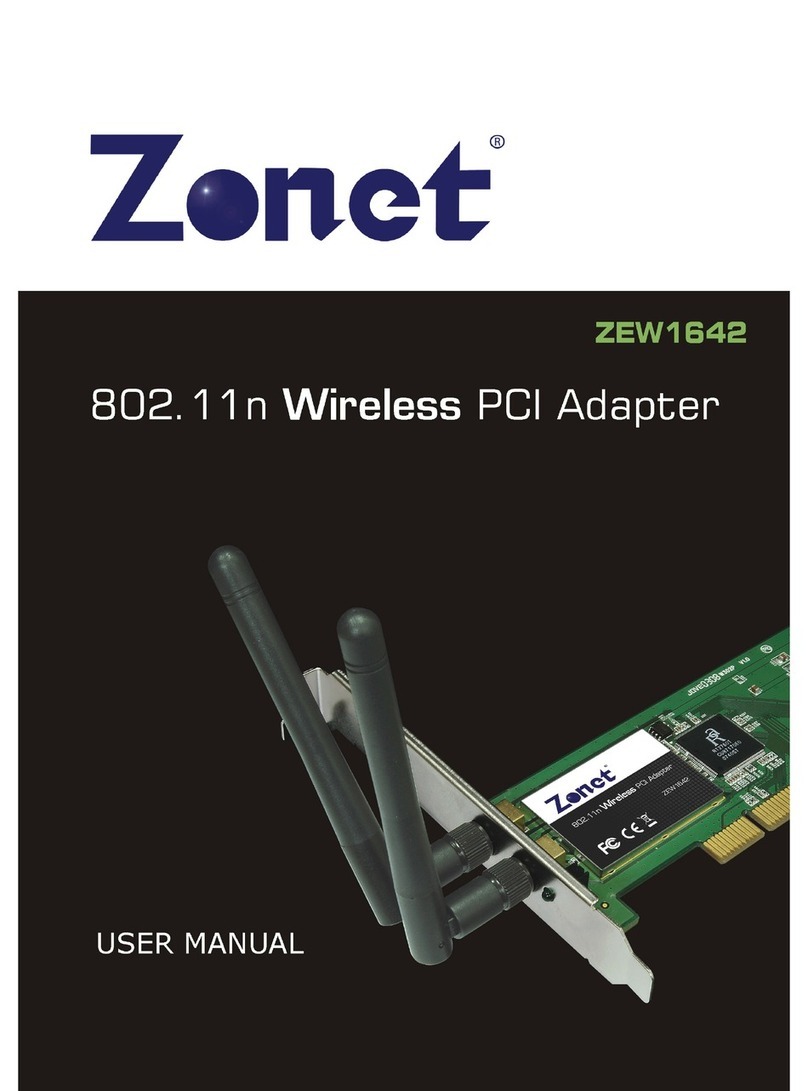
Zonet ZEW1642 User manual

Zonet

Zonet ZEW1642 User manual

Zonet ZEW1605S User manual

Zonet

Zonet ZEW1605S User manual

Zonet ZEW1642 Operation manual

Zonet

Zonet ZEW1642 Operation manual

Zonet ZEW1642 User manual

Zonet

Zonet ZEW1642 User manual

Zonet ZEW1603 Operation manual

Zonet

Zonet ZEW1603 Operation manual

Zonet ZEW1605 Operation manual

Zonet

Zonet ZEW1605 Operation manual

Zonet ZEW1642S Operation manual

Zonet

Zonet ZEW1642S Operation manual

Zonet ZEW1605A Operation manual

Zonet

Zonet ZEW1605A Operation manual

Zonet ZEN3301E - QUICK INSTALLATION GUIDE REV 01 User manual

Zonet

Zonet ZEN3301E - QUICK INSTALLATION GUIDE REV 01 User manual

Zonet ZEW1605S User manual

Zonet

Zonet ZEW1605S User manual

Popular PCI Card manuals by other brands

Avermedia ER330 Quick installation guide

Avermedia

Avermedia ER330 Quick installation guide

ERMA SSI 1417 instruction manual

ERMA

ERMA SSI 1417 instruction manual

SIIG CyberSerial Dual PCI Software installation

SIIG

SIIG CyberSerial Dual PCI Software installation

Airlink101 AWLH3028 user manual

Airlink101

Airlink101 AWLH3028 user manual

Dolphin MXH932 user guide

Dolphin

Dolphin MXH932 user guide

I-Bus IBC2602 user guide

I-Bus

I-Bus IBC2602 user guide

ICP DAS USA PCI-1002H user manual

ICP DAS USA

ICP DAS USA PCI-1002H user manual

Exsys EX-60102 manual

Exsys

Exsys EX-60102 manual

Chelsio Communications T5 Series Installation and user guide

Chelsio Communications

Chelsio Communications T5 Series Installation and user guide

Conrad Electronic 97 46 71 operating instructions

Conrad Electronic

Conrad Electronic 97 46 71 operating instructions

Micro Innovations USB650A Quick installation guide

Micro Innovations

Micro Innovations USB650A Quick installation guide

KTI Networks KF-310 user guide

KTI Networks

KTI Networks KF-310 user guide

Intellinet 500517 user manual

Intellinet

Intellinet 500517 user manual

Asus SpaceLink WL230 user manual

Asus

Asus SpaceLink WL230 user manual

SIIG SC2475 Quick installation guide

SIIG

SIIG SC2475 Quick installation guide

TRENDnet TEW-703PI Quick installation guide

TRENDnet

TRENDnet TEW-703PI Quick installation guide

Pericom PI7C7100 manual

Pericom

Pericom PI7C7100 manual

ADLINK Technology cPCI-3548 user manual

ADLINK Technology

ADLINK Technology cPCI-3548 user manual

manuals.online logo
manuals.online logoBrands
  • About & Mission
  • Contact us
  • Privacy Policy
  • Terms and Conditions

Copyright 2025 Manuals.Online. All Rights Reserved.

1
Table of Contents
Chapter 1. Introduction................................................................2
1.1 System requirement................................................................2
1.2 Package Contents……...............................................................2
Chapter 2. Install Your ZEW1603..................................................3
2.1 Software Installation….............................................................3
2.2 Hardware Installation…….........................................................5
Chapter 3. Configuration ...............................................7
3.1 Profile …………………...................................................................
3.2 Link Status………......................................................................8
3.3 Site Survey……........................................................................9
3.3.1 ADD/EDIT Profile……………………............................................10
3.4 Statistics..............................................................................13
3.5 Advanced……………………...........................................................14
Chapter 4. Zero configuration.....................................................15
Chapter 5. SOFT AP.....................................................................19
5.1 Start Soft AP………………...........................................................19
5.2 Configuration …………..............................................................20
5.3 Access Control......................................................................20
5.4 MAC Table............................................................................21
5.5 Switch to Working Station mode..............................................21
Chapter 6. Specifications............................................................22
Chapter 7. Troubleshooting.........................................................23

2
Chapter 1. Introduction
1.1 System requirement
A desktop PC with an available 32-bit PCI slot
At least a 300MHz processor and 32MB of memory
Windows 2000, XP, Vista 32-bit,
Linux,
MAC
OSX
A CD-ROM Drive
1.2 Package Contents
One ZEW1603
One Wireless Antenna
One Installation CD w/ User Manual
One Quick Installation Guide
Contact your local authorized reseller or the store purchased from for any
items damaged and/or missing.
3
Chapter 2. Install Your ZEW1603
2.1 Software Installation
NOTE:
Snap-shot screens of the following installation procedure are based on Windows
XP. For other windows operating systems, same procedure but different screen.
1.
Power-ON computer, Insert Installation CD to your CD-ROM drive.
Browse CD and double-click
setup.exe
in ZEW1603 folder to execute
it. The wizard will run and install all necessary files to your computer
automatically.
2.
Click
Yes
to accept the Agreement. Or click
No
to cancel the
installation
.
Figure 2-1
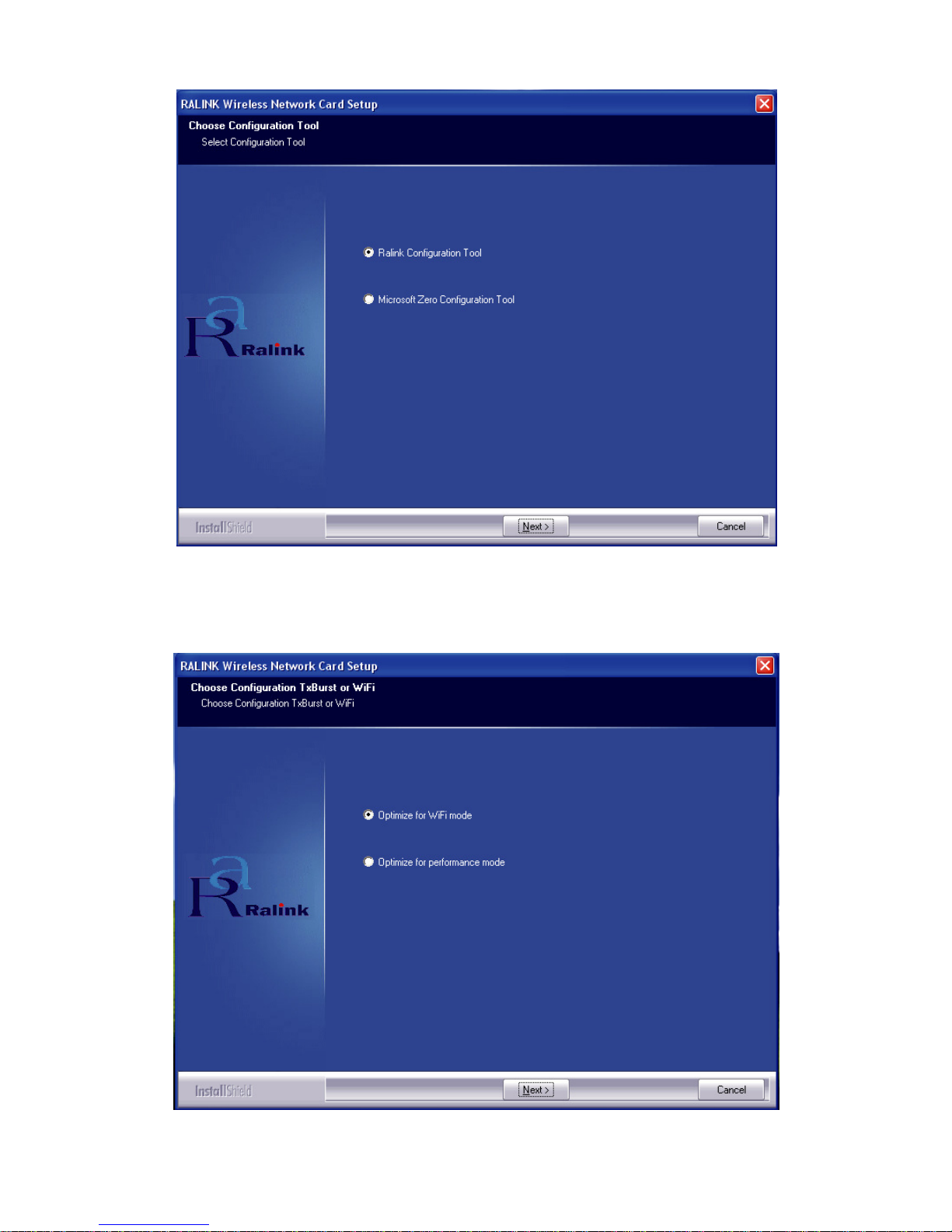
3.
(Only for Win XP Select
Ralink
Configuration Tool
or
Microsoft
Zero Configuration Tool
then click
Next
.
a.
If you select
Ralink Configuration Tool
,
please go to
Chapter 3 – Configuration
for details.
b.
If you select
Microsoft Zero Configuration Tool
, please go
to
Chapter 4 – Zero Configuration
for details.
4
Figure 2-2
4.
Select
Optimize for WiFi mode
or
Optimize for performance
mode
then click
Next
.
Figure 2-3
5
5.
Click Finish to complete the software installation.
Figure 2-4
2.2 Hardware Installation
1.
Power-OFF your desktop PC. Open your PC case and locate an
available PCI Slot.
2.
Insert your ZEW1603 into the PCI slot.
3.
Attach the external antenna to the ZEW1603’s SMA plug.
4.
Power-ON your desktop PC.
Figure 2-5
6
After Installing ZEW1603, the tray icon will appear in your system tray
at the bottom of the screen.
You have now completed the software and hardware installation for
ZEW1603. Your ZEW1603 is now ready to use.
Chapter 3. Configuration
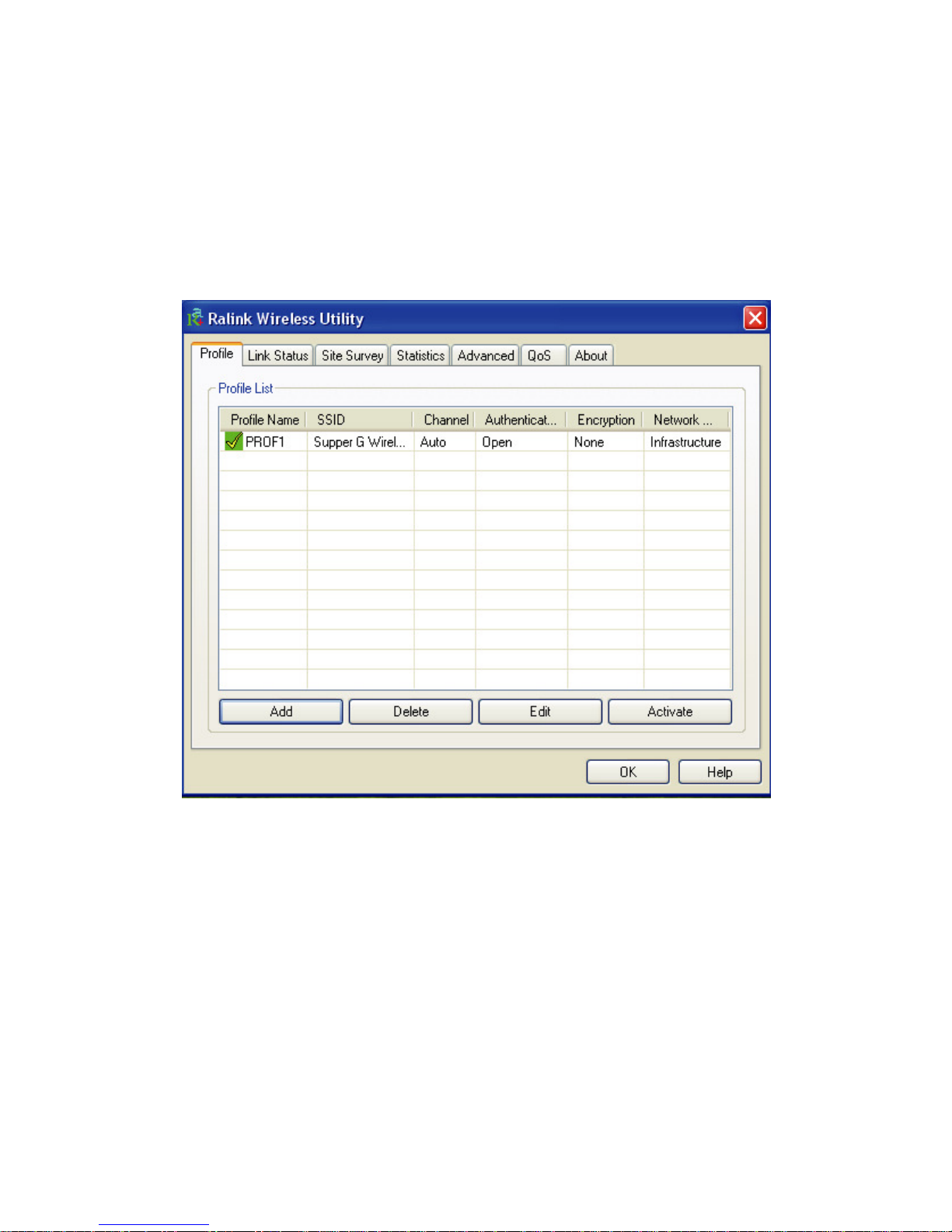
3.1 Profile
Profile can keep your favorite wireless setting among your home, office,
and other public hotspot. You may save multiple profiles and activate the
one at your preference.
Figure 3-1
1. Definitions:
a.
Profile Name:
Name of the profile, preset to PROF* (* indicate
1, 2, 3,)
b.
SSID:
The public name of a wireless network, Service Set
Identifier
c.
Channel:
Channel of the connected wireless network
d.
Authentication:
Open, Shared, (Leap), WPA-PSK, WPA2-PSK,
WPA and WPA2
e.
Encryption:
WEP, TKIP, AES, and None
f.
Network Type:
Infrastructure and/or Ad-Hoc
2. Add:
to create a new profile
3. Delete:
to delete an existing profile
3. Edit:
to edit/modify/change parameter of an existing profile
4. Activate:
to make an existing profile become active and to connect
8
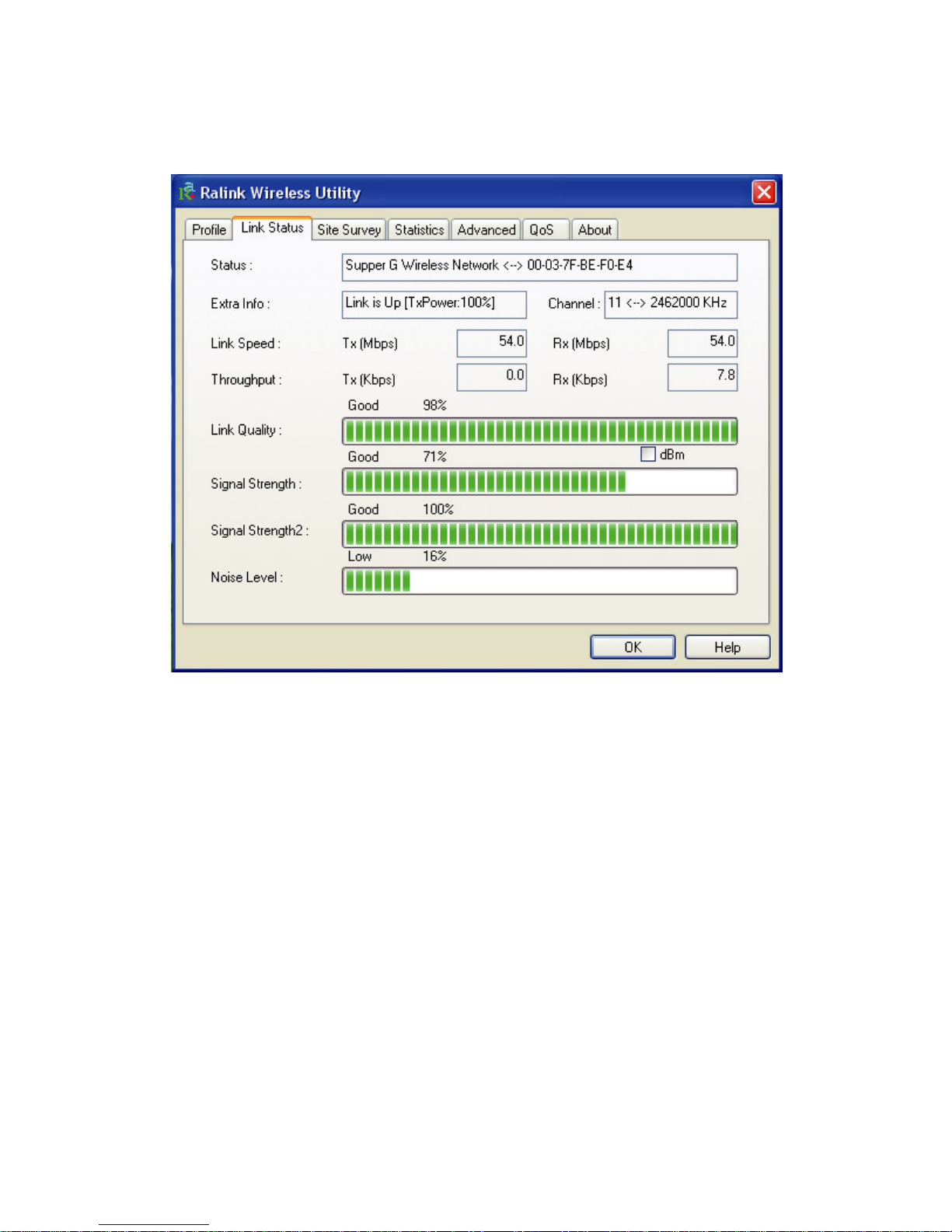
3.2 Link Status
Link status page shows detail information about the current connection.
Figure 3-2
1.
Status:
Shows the current connected SSID / BSSID. You will see
“Disconnected” if it has no connection.
2.
Extra Info:
Shows link status and its transmit power
3.
Channel:
Shows the current connected channel
4.
Link Quality:
Based on signal strength and TX/RX packet error rate
(%)
5.
Signal Strength:
Shows in percentage (%) or dBm
6.
Noise Level:
Shows noise and signal strength ratio (%)
7.
Transmit:
a.
Link Speed:
Shows current transmitting rate (Mbps)
b.
Throughput:
Shows current transmitting throughput (Kbps)
8.
Receive:
a.
Link Speed:
Shows current receiving rate (Mbps)
b.
Throughput:
Shows current receiving throughput (Kbps)
9
3.3 Site Survey
Under Site Survey tab, you will know information of all surrounding
wireless networks from the last scan. Click Rescan to update and refresh.
Or Select a SSID to add to your profile.
Figure 3-3
Indicates your current connected network.