manuals.online logo
Brands
  1. Home
  2. •
  3. Brands
  4. •
  5. ABB
  6. •
  7. Home Automation
  8. •
  9. ABB ABB-free home User manual

ABB ABB-free home User manual

Other manuals for ABB-free home

2

Other ABB Home Automation manuals

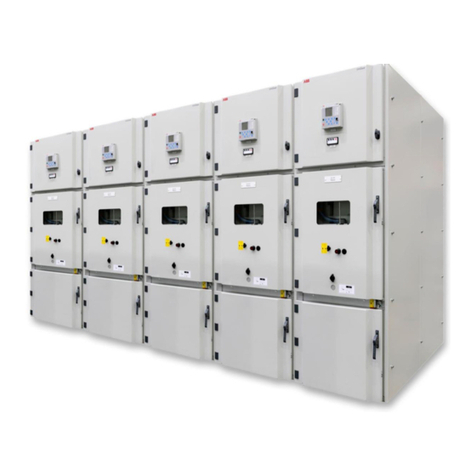
ABB UniGear Digital User manual

ABB

ABB UniGear Digital User manual

ABB Video kit User manual

ABB

ABB Video kit User manual

ABB AccessControl User guide

ABB

ABB AccessControl User guide

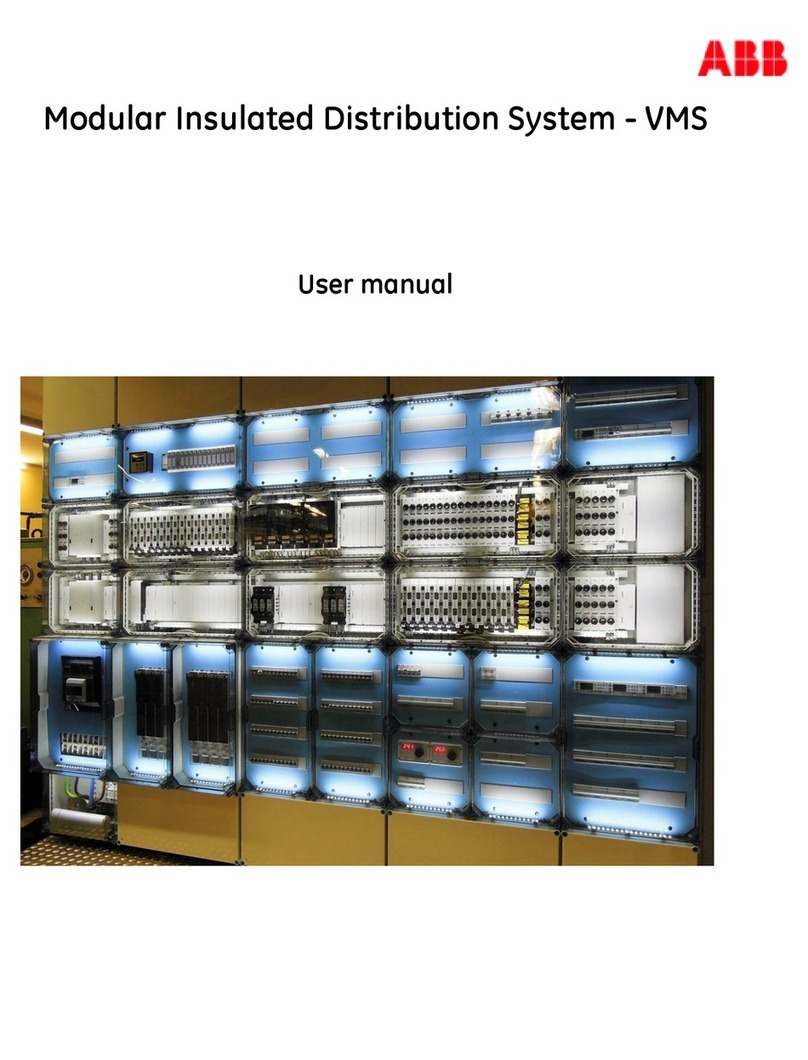
ABB VMS User manual

ABB

ABB VMS User manual

ABB free@home BI-F-2.0.x2 User manual

ABB

ABB free@home BI-F-2.0.x2 User manual

ABB ABB-free home User manual

ABB

ABB ABB-free home User manual

Popular Home Automation manuals by other brands

Elko RF KEY manual

Elko

Elko RF KEY manual

Truth Hardware Sentry II installation instructions

Truth Hardware

Truth Hardware Sentry II installation instructions

FIBARO FGWPA-111 user manual

FIBARO

FIBARO FGWPA-111 user manual

Hezborg BGR8016B product manual

Hezborg

Hezborg BGR8016B product manual

MYDLINK Pro Series Quick installation guide

MYDLINK

MYDLINK Pro Series Quick installation guide

EVERSPRING AN180 manual

EVERSPRING

EVERSPRING AN180 manual

Panasonic KX-HNA101FX installation guide

Panasonic

Panasonic KX-HNA101FX installation guide

Coltech 18-1339 Original instructions

Coltech

Coltech 18-1339 Original instructions

nedis WIFILRF10C37 quick start guide

nedis

nedis WIFILRF10C37 quick start guide

Veho TA45 manual

Veho

Veho TA45 manual

Nexa ZPR-111 manual

Nexa

Nexa ZPR-111 manual

Leviton 47604-F6 installation instructions

Leviton

Leviton 47604-F6 installation instructions

IDS NXT vegas Hardware description

IDS

IDS NXT vegas Hardware description

Vimar 03975 user manual

Vimar

Vimar 03975 user manual

iNels RFIM-20B manual

iNels

iNels RFIM-20B manual

EVA Logik ZW30 manual

EVA Logik

EVA Logik ZW30 manual

Leviton ODCØP-S0W installation instructions

Leviton

Leviton ODCØP-S0W installation instructions

Vertilux VTi CELTIC DC Programming instructions

Vertilux

Vertilux VTi CELTIC DC Programming instructions

manuals.online logo
manuals.online logoBrands
  • About & Mission
  • Contact us
  • Privacy Policy
  • Terms and Conditions

Copyright 2025 Manuals.Online. All Rights Reserved.

ABB-free@home®
Quick Start Guide – DE, EN, PL, RU
NOW ALSO
WIRELESS
1. Voraussetzungen
1. Requirements
1. Warunki
1. Требования
Przykład systemu przełącznika
schodowego
Na przykładzie systemu przełącznika
schodowego krótko objaśnimy, jak należy
uruchomić system. Minimalne wymogi dla
systemu przełącznika schodowego - patrz
powyższa grafika. Wskazówka: przed do-
konaniem niżej opisanego programowania
należy zainstalować i podłączyć urządzenia!
Пример схемы включения/выключения
На примере схемы включения/вы-
ключения с нескольких мест дается
краткое пояснение по вводу систе-
мы в эксплуатацию. Минимальные
требования для организации схемы
включения/выключения приведены
на изображении сверху. Примечание:
перед программированием необходи-
мо полностью установить и подклю-
чить устройства.
Beispiel Wechselschaltung
Anhand einer Wechselschaltung wird
kurz aufgezeigt, wie das System in
Betrieb zu nehmen ist. Mindestvor-
aussetzung für eine Wechselschaltung
siehe obige Grafik. Hinweis: Die Geräte
müssen für die nachfolgende Program-
mierung installiert, angeschlossen und
mit Bussspannung versorgt sein!
Example of 2-way circuit
How the system is to be made opera-
tional will be demonstrated briefly by
means of a 2-way circuit. For the mini-
mum requirement of a 2-way circuit see
the above graphics. Note: The devices
must have been installed and con-
nected for the subsequent programming
process!
Wired communication
Sensor
Sensor
PS
System
Access
Point
Two-wire bus cable
230 V cable
Power
supply
ABB-
free@home-
Touch
SmartphoneTablet
Valve drive
with battery
Window
contact
Sensor/actuator unit
Actuator
Sensor/actuator unit
Wireless communication
02 | free@home
Wskazówka
W przypadku urządzeń bezprzewodowych
układ schodowy można zrealizować także
za pośrednictwem wejścia urządzenia do-
datkowego przy użyciu konwencjonalnego
przełącznika.
Примечание
На беспроводных устройствах схема
двустороннего включения может быть
реализована с помощью входа для
вспомогательных устройств и обычно-
го выключателя.
Hinweis
Bei den Wireless-Geräten kann die
Wechselschaltung auch über den Ne-
benstelleneingang mit einem konventio-
nellen Schalter realisiert werden.
Note
For the wireless devices the two-way
circuit can also be implemented via the
extension unit input with a conventional
switch.
free@home | 03
2. Spannung aufschalten
2. Intrusion voltage
2. Włączenie napięcia
2. Подключение напряжения
1. Bestromen Sie den System Access
Point. Accesspoint Modus muss
aktiviert sein (linke LED leuchtet ->
ansonsten linke Taste drücken).
1. Energize the System Access Point.
The access point mode must be
activated (left LED lights up ->
otherwise press the left button).
1. Włączyć zasilanie System Access
Point. Tryb punktu dostępu musi być
aktywowany (świeci się lewa LED ->
w przeciwnym wypadku nacisnąć
lewy klawisz).
1. Подайте электропитание на System
Access Point. Режим Accesspoint
должен быть активирован (левый
светодиод горит -> если нет, на-
жмите левую кнопку).
04 | free@home
2. Connect the terminal device with the
WLAN of the System Access Point
(SSID: SysAPXXXX). Enter the pass-
word -> see text on the interior side
of the System Access Point (open the
cover).
2. Endgerät mit WLAN des System
Access Point verbinden (SSID:
SysAPXXXX). Passwort eingeben ->
siehe Bedruckung auf der Innenseite
des Netzteils im System Access Point
(dazu Deckel öffnen).
2. Połączyć urządzenie końcowe z
WLAN System Access Point (SSID:
SysAPXXXX). Wpisać hasło -> patrz
nadruk na wewnętrznej stronie Sys-
tem Access Point (w tym celu otwo-
rzyć pokrywę).
2. Соедините оконечное устройство
по беспроводной сети с System
Access Point (SSID: SysAPXXXX).
Введите пароль -> см. надпись с
внутренней стороны System
Access Point (для этого откройте
крышку).
free@home | 05
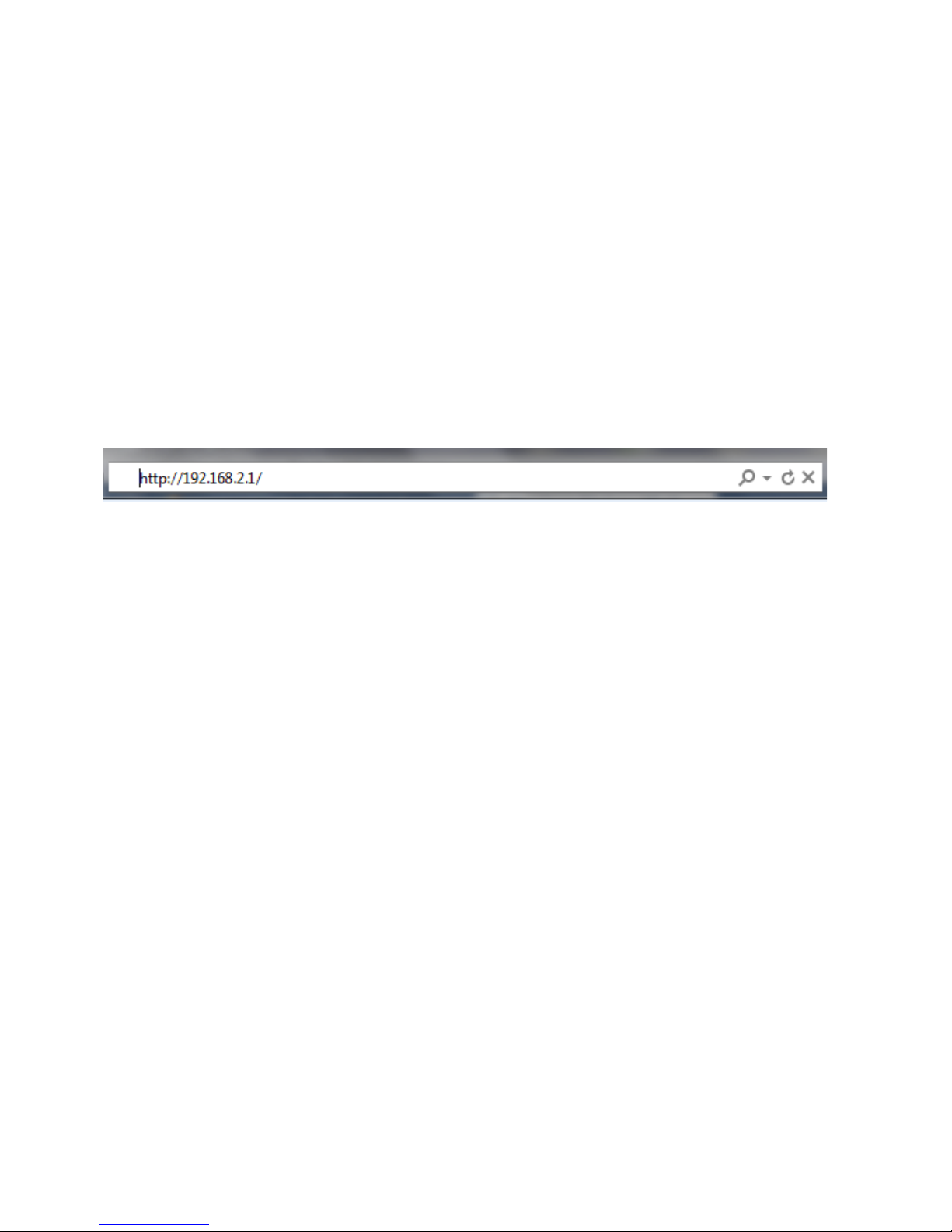
3. Internet-Browser öffnen.
„IP 192.168.2.1“ in Adresszeile
des Browsers eingeben.
3. Open the Internet browser. Enter
„IP 192.168.2.1“ in the address line
of the browser.
3. Otworzyć przeglądarkę internetową.
W pasku adresu przeglądarki wpisać
„IP 192.168.2.1“.
3. Запустите интернет-браузер.
В адресной строке браузера введи-
те «192.168.2.1».
2. Spannung aufschalten
2. Intrusion voltage
2. Włączenie napięcia
2. Подключение напряжения
06 | free@home
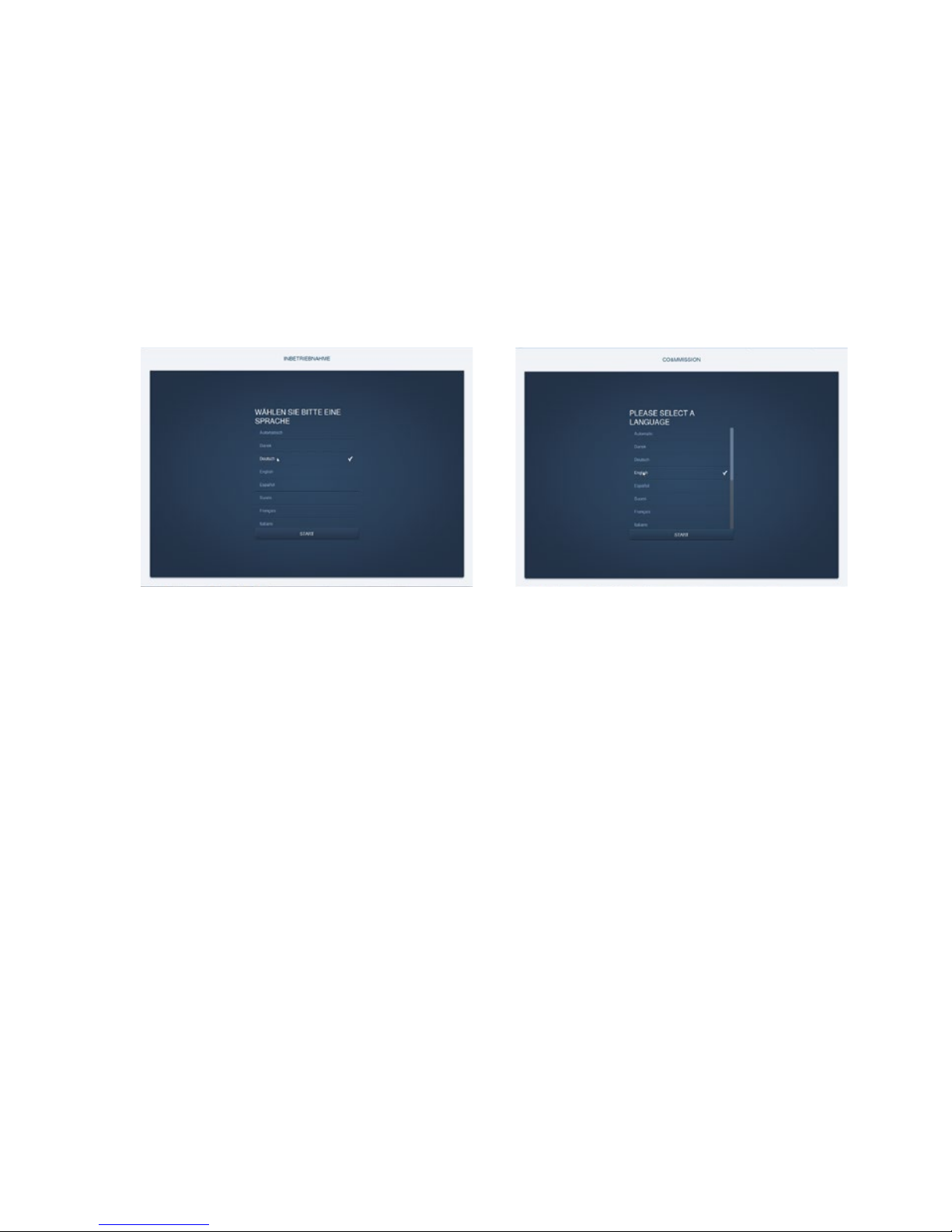
4. Verbindung zum System Access Point
ist hergestellt.
Hinweis: Wenn der System Access
Point in der Anlage des Kunden
verbleibt, sollte dieser nachträglich
in das Kundennetzwerk eingebunden
werden!
4. The connection to the System Access
Point has been established.
Note: If the System Access Point re-
mains in the system of the customer,
it should be integrated into t
he customer‘s network!
4. Połączenie z System Access Point
zostało utworzone.
Wskazówka: Jeśli System Access
Point pozostaje w instalacji klienta,
należy go włączyć w sieć klienta!
4. Соединение с System Access Point
установлено.
Примечание: если System Access
Point остается в системе клиента,
её необходимо интегрировать в
сетевое окружение клиента!
free@home | 07
3. Wireless-Geräte einbinden
3. Integrating wireless devices
3. Integracja urządzeń bezprzewodowych
3. Добавление беспроводных устройств
1. Schalten Sie die Netzspannung der
free@home Wireless Geräte ein
àDie Geräte befinden sich jetzt für
30 min im Einlernmodus
2. Wählen Sie in der Benutzerober-
fläche des System Access Point
„Systemeinstellungen
-> free@home Wireless -> Geräte
suchen“
àDer System Access Point scannt nun
nacheinander alle free@home Wireless
Kanäle. Geräte, die sich im Einlern-
modus befinden, werden automatisch
in das System eingebunden. 10 min
nachdem das letzte Gerät gefunden
wurde, wird der Scanvorgang beendet.
3. Eingebundene Geräte werden in der
Benutzeroberfläche in der „Geräteliste“
aufgelistet. Kontrollieren Sie anhand
der Seriennummer, ob alle installierten
Geräte gefunden wurden.
4. Wenn ein Gerät nicht gefunden wurde,
befand es sich möglicherweise nicht im
Einlernmodus. Der Grund dafür könnte
sein, dass
a. die Einlernzeit abgelaufen ist oder
b. das Gerät bereits mit einem anderen
System gekoppelt wurde.
Setzen Sie das Gerät auf Werkseinstel-
lungen zurück und starten Sie einen
neuen Scanvorgang.
Zurücksetzen auf Werkseinstellungen
1. Trennen Sie das free@home Wireless
Gerät vom Strom
2. Halten Sie die Taste unten links ge-
drückt
3. Schließen Sie das Gerät wieder an den
Strom an
àDie LED blinkt langsam für 10 s,
danach 5 s schnell und geht dann aus
àDie Werkseinstellungen wurden wieder
hergestellt und das Gerät kann erneut
eingelernt werden
Anmerkung: Geräte, die sich bereits im
Werkszustand befinden, werden nicht
erneut zurückgesetzt. Die LED bleibt in
Schritt 3 aus.
Hinweis: free@home wird kontinuierlich
weiterentwickelt, um Ihnen neue Funktio-
nen zu bieten oder um Fehler zu beheben.
Besuchen Sie uns auf www.busch-
jaeger.com, um sich über aktuelle Updates
zu informieren, oder registrieren Sie Ihr
System unter my.abb-livingspace.com,
um stets automatisch über neue Soft-
wareupdates informiert zu werden und um
den free@home Fernzugriff einen Monat
kostenlos zu testen.
08 | free@home

1. Switch on the mains power supply of
the free@home wireless devices
àThe devices are now in programming
mode for 30 minutes
2. In the user interface of the System
Access Point select „System settings
-> Search for free@home wireless ->
devices“
àThe System Access Point now consec-
utively scans all free@home wireless
channels. Devices that are in program-
ming mode are integrated automati-
cally into the system. The scanning
process ends 10 minutes after the last
device has been found.
3. Integrated devices are listed in the
„Device list“ of the user interface. Use
the serial numbers to check whether
all installed devices have been found.
4. If a device has not been found, it may
not have been in programming mode.
The reason for this could be that
a. the programming time has expired
b. the device has already been coupled
with a different system
Reset the device to the factory settings
and start a new scanning process
Resetting to factory setting
1. De-energize the free@home wireless
device
2. Keep the button at the bottom left
pressed
3. Re-energize the device
àThe LED flashes slowly for 10 sec-
onds, then fast for 5 seconds and
then goes out
àThe factory settings have been
restored and the device can now be
programmed again
Note: Devices which are already in fac-
tory settings are not reset again. The
LED remains out in step 3.
Note: The development of free@home
is continuous in order to offer you new
functions or to rectify errors.
Pay us a visit at www.busch-jaeger.com
to inform yourself about current up-
dates, or register your system at
my.abb-livingspace.com to be automati-
cally informed about new software up-
dates and to test the free@home remote
control for one month at no charge.
free@home | 09
1. Włączyć napięcie sieciowe bezprzewo-
dowych urządzeń free@home.
àTeraz urządzenia znajdują się w trybie
uczenia przez 30 minut.
2. Na interfejsie użytkownika System
Access Point wybrać „Ustawienia
systemowe -> free@home
bezprzewodowo -> Szukaj urządzeń“.
àSystem Access Point skanuje teraz po
kolei wszystkie bezprzewodowe kanały
free@home. Urządzenia znajdujące
się w trybie uczenia są automatycznie
integrowane w system. 10 min po zna-
lezieniu ostatniego urządzenia kończy
się skanowanie.
3. Zintegrowane urządzenia wyświetla-
ne są na „liście urządzeń“ interfejsu
użytkownika. Na podstawie numerów
seryjnych sprawdzić, czy wszystkie
zainstalowane urządzenia zostały zna-
lezione.
4. Jeśli nie znaleziono jakiegoś urządze-
nia, to być może nie znajdowało się
ono w trybie uczenia. Powodem tego
mogło być to, że
a. upłynął czas uczenia
b. urządzenie zostało już połączone z
innym systemem
Zresetować urządzenie do ustawień
fabrycznych i ponownie uruchomić
skanowanie.
Reset do ustawień fabrycznych
1. Odłączyć od prądu bezprzewodowe
urządzenie free@home.
2. Przytrzymać przyciśnięty lewy dolny
klawisz.
3. Ponownie podłączyć urządzenia do
zasilania.
àLED miga powoli przez 10 s, następ-
nie szybko przez 5 s, a potem gaśnie.
àNastąpiło przywrócenie ustawień
fabrycznych i urządzenie może się
ponownie wyuczyć.
Uwaga: urządzeń znajdujących się już
w stanie fabrycznym nie resetuje się
ponownie. W kroku 3 dioda pozostaje
wyłączona.
Wskazówka: System free@home jest
stale ulepszany, aby udostępnić klien-
tom nowe funkcje lub usunąć błędy.
Proszę odwiedzić nas na stronie
www.busch-jaeger.com, aby zasięgnąć
informacji o obecnych aktualizacjach,
lub zarejestrować swój system na stronie
my.abb-livingspace.com, aby automa-
tycznie otrzymywać informacje o nowych
aktualizacjach oprogramowania i przez
miesiąc bezpłatnie przetestować zdalny
dostęp do free@home.
3. Wireless-Geräte einbinden
3. Integrating wireless devices
3. Integracja urządzeń bezprzewodowych
3. Добавление беспроводных устройств
10 | free@home