To delete a call record from system memory
♦ With a call record displayed, press the [USD]key
To make a call by automatically dialing the Caller ID number
♦ Display a call record
♦ Press the [USAS]key,[USAT]+trunk group number or [USATn] key a second time, or
♦ Press [FLT], [OPT], or [COL]
To add digits to the displayed number before calling out
♦ Display a call record
♦ Dial the additional digits to be added to the outgoing number (the added digits do not
appear on the display when entered)
♦ Press the [USAS]key,[USAT]+trunk group number or [USATn] key a second time
or
♦ Press [FLT], [OPT], or [OPT]
Answering Machine Emulation (Voice Mail
Monitor)
Station users may monitor voice mail messages as they are recorded. During recording
monitor, the station user may select to initiate a conversation with the caller. You may acti-
vate or deactivate this feature from your extension.
To begin Voice Mail Monitor
When a call is answered by voice mail at an idle station, you will hear a monitor tone.
♦ The [Voice Mail Monitor] key red LED will begin to flash
♦ Press the [Voice Mail Monitor]key
♦ When the [Voice Mail Monitor] key green LED lights, you will hear the caller's message
as it is recorded.
♦ Press the [Voice Mail Monitor] key a second time to begin talking to the caller.
or
♦ Press [SPKR] or hang up to end voice mail monitoring. The caller's message will be
savedtoyourvoicemailbox.
To Activate / Deactivate or Change the Voice Mail Monitor Mode:
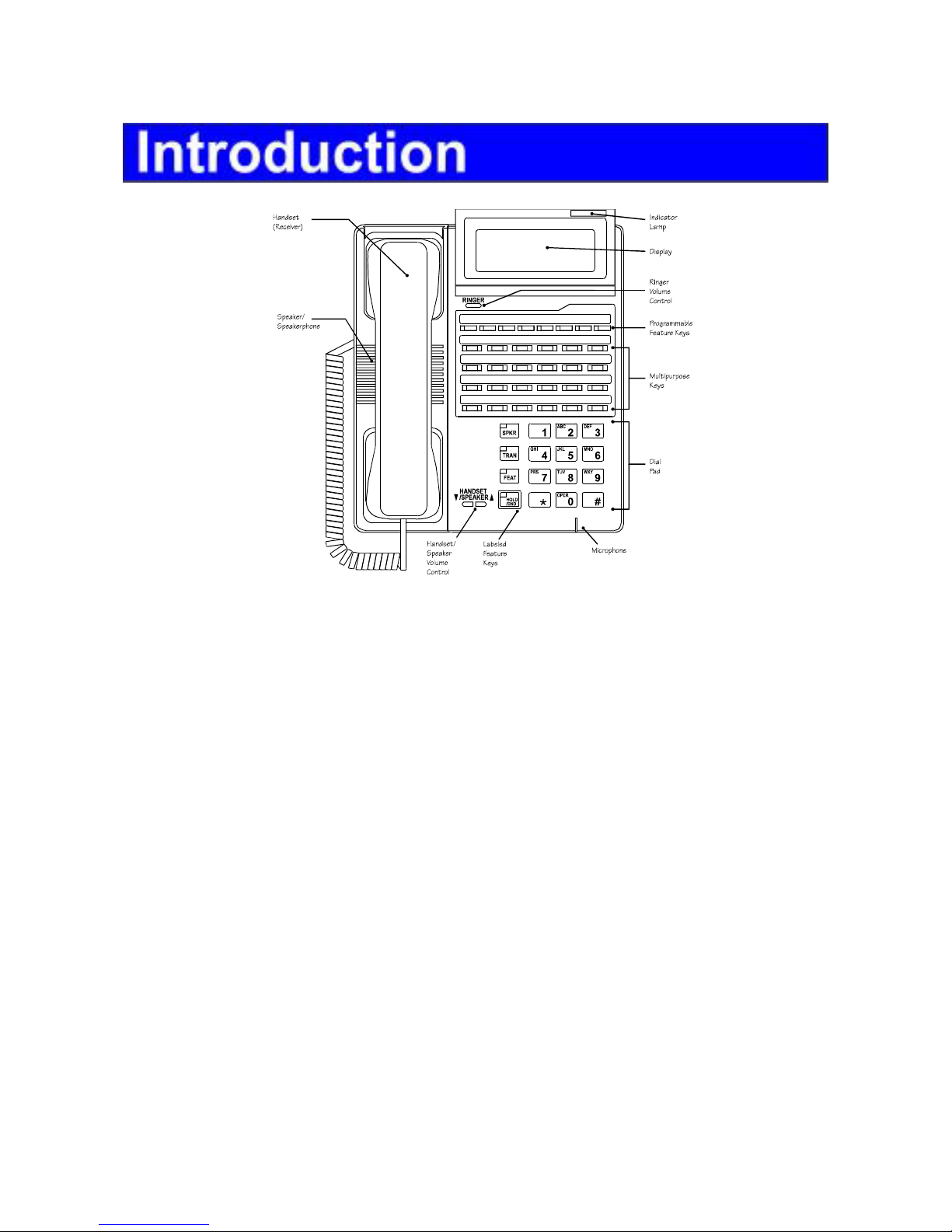
♦ While your station is idle, press [SPKR]
♦ Press [FEAT]
♦ Press the [Voice Mail Monitor]key
♦ Press to deactivate / activate Voice Mail Monitoring.