manuals.online logo
Brands
  1. Home
  2. •
  3. Brands
  4. •
  5. AMGOO
  6. •
  7. Cell Phone
  8. •
  9. AMGOO AM355 User manual

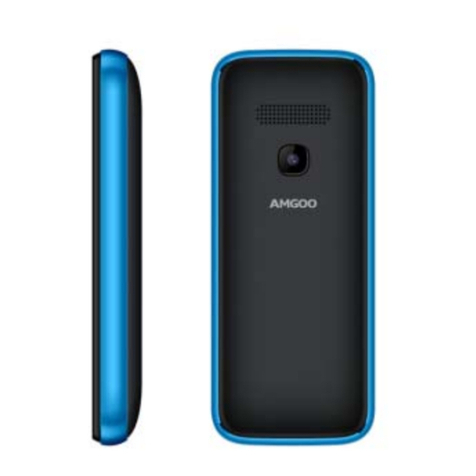
AMGOO AM355 User manual

Other AMGOO Cell Phone manuals

AMGOO AM527 User manual

AMGOO

AMGOO AM527 User manual

AMGOO AM66 User manual

AMGOO

AMGOO AM66 User manual

AMGOO AM242 User manual

AMGOO

AMGOO AM242 User manual

AMGOO am213 User manual

AMGOO

AMGOO am213 User manual

AMGOO Am535 User manual

AMGOO

AMGOO Am535 User manual

AMGOO AM217 User manual

AMGOO

AMGOO AM217 User manual

AMGOO AM102 Instruction Manual

AMGOO

AMGOO AM102 Instruction Manual

AMGOO AM503 User manual

AMGOO

AMGOO AM503 User manual

AMGOO AM509B User manual

AMGOO

AMGOO AM509B User manual

AMGOO am83 User manual

AMGOO

AMGOO am83 User manual

AMGOO AM509 User manual

AMGOO

AMGOO AM509 User manual

AMGOO AM89 User manual

AMGOO

AMGOO AM89 User manual

AMGOO AM62 User manual

AMGOO

AMGOO AM62 User manual

AMGOO AM513 User manual

AMGOO

AMGOO AM513 User manual

AMGOO AM517 User manual

AMGOO

AMGOO AM517 User manual

AMGOO AM313 User manual

AMGOO

AMGOO AM313 User manual

AMGOO AM402 User manual

AMGOO

AMGOO AM402 User manual

AMGOO AM412 User manual

AMGOO

AMGOO AM412 User manual

AMGOO AM520 User manual

AMGOO

AMGOO AM520 User manual

AMGOO AM88 User manual

AMGOO

AMGOO AM88 User manual

AMGOO AM241F Instruction Manual

AMGOO

AMGOO AM241F Instruction Manual

AMGOO AM508 User manual

AMGOO

AMGOO AM508 User manual

AMGOO AM206 User manual

AMGOO

AMGOO AM206 User manual

AMGOO AM403 Instruction Manual

AMGOO

AMGOO AM403 Instruction Manual

Popular Cell Phone manuals by other brands

Nokia 6700 classic user guide

Nokia

Nokia 6700 classic user guide

LG L34C user guide

LG

LG L34C user guide

Ericsson T60d manual

Ericsson

Ericsson T60d manual

Zte Score M user manual

Zte

Zte Score M user manual

Sony Xperia Z1 Compact Startup guide

Sony

Sony Xperia Z1 Compact Startup guide

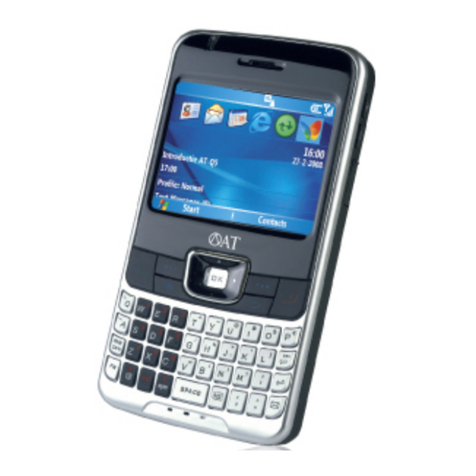
AT AT-Q5 user manual

AT

AT AT-Q5 user manual

Vingtor ACM-M-A-V2 Installation/configuration

Vingtor

Vingtor ACM-M-A-V2 Installation/configuration

Olitech EasyFlip 2 Quick setup guide

Olitech

Olitech EasyFlip 2 Quick setup guide

Zte Atrium Z793C user manual

Zte

Zte Atrium Z793C user manual

Alcatel IDEAL manual

Alcatel

Alcatel IDEAL manual

Zte BLADE A520 quick start guide

Zte

Zte BLADE A520 quick start guide

switel M222 user manual

switel

switel M222 user manual

LG LG-P503 user guide

LG

LG LG-P503 user guide

LG F2410 user guide

LG

LG F2410 user guide

Argom E500 manual

Argom

Argom E500 manual

Hisense U30 user manual

Hisense

Hisense U30 user manual

Argom Tech E401 user manual

Argom Tech

Argom Tech E401 user manual

Nokia 3595 - Cell Phone - GSM Manual Del Usuario

Nokia

Nokia 3595 - Cell Phone - GSM Manual Del Usuario

manuals.online logo
manuals.online logoBrands
  • About & Mission
  • Contact us
  • Privacy Policy
  • Terms and Conditions

Copyright 2025 Manuals.Online. All Rights Reserved.



1 Phone Overview
1.1 Insert the SIM card
Insert the SIM card when you need a cellular service. Do not insert a
memory card into the SIM card slot.
1.2 Charge the battery
Before using the device for the first time or when the battery has
been unused for an extended period, you must fully charge the
battery.
●Use only our approved chargers and cables. Unapproved chargers
or cables may cause batteries to explode or damage your device.


1.3Insert a memory card
Your device accepts microSD. Memory cards with maximum
capacities of 32 GB When you insert a memory card into your device,
the memory card’s file directory will appear in the SD card folder.
2. Communication
2.1 Calling
Make a call
1 In the application list, select Phone →Keypad, and then enter an
area code and a phone number.
2 Select to make a voice call.
3 Select to end the call.
Answer a call
1 During an incoming call, Select drag your finger to outside of
the large circle then select
To mute the ringtone, press the side key.
2 Select to end the call.
Reject a call
During an incoming call, Select drag your finger to outside of the


large circle then select
To send a message to the caller when you reject a call, drag the reject
message bar at the top of the screen upwards.
Use a headset
Always connect a headset to your device to answer and end calls
View and dial a missed call
Your device will show missed calls. To return the call, tap the
indicator icons area and drag it downwards to open the notifications
panel, and then select the missed call notification.
2.2 Messages
Learn to create and send text (SMS) or multimedia (MMS) messages,
and view or manage messages that you have sent or received.
Touch once to capitalize
the next letter you type.
Touch and hold for caps.
Tap this icon to attach
various types of files


Send a text message
1 In the application list, select Messages →
2 Add recipients:
●Enter phone numbers manually and separate them with a semicolon
or a comma.
●Select phone numbers from ALL CONTACTS
3 Select the text field and enter your message text.
4 To send the message, select
Send a multimedia message
1 In the application list, select Messages→
2 Add recipients:
●Enter phone numbers or email addresses manually and separate
them with a semicolon or a comma.
●Select phone numbers from ALL CONTACTS
When you add attachment, the device will
Convert the message to a multimedia message.


3 Select the text field and enter your message text.
4 Select and attach a file.
5 Select , You can Folder view,Archived,Settings and Wireless
alerts.
6 To send the message, select
View a text or multimedia message
1 In the application list, select Messages.
Your messages are grouped by contact as a message thread.
2 Select a contact.
3Select a multimedia message to view more details.
3. Entertainment
3.1 Camera
Learn how to take and view photos and videos. You can take photos
and record videos.


Take a photo
1 In the application list, select Camera.
2 Aim the camera lens at the subject and make
3 Select to take a photo.
The photo is saved automatically.
Record a video
1 In the application list, select Camera, switch to video.
2 Aim the lens at the subject and make any necessary adjustments.
Tap this icon to switch
to video record
Tap this icon to open
setting menu


3 Select to start recording.
3.2 Gallery
Learn to view images.
1 In the application list, select Gallery.
2 Select a folder →an image.
While viewing an image, use the following options:
●To view more images, scroll left or right.
●To zoom in or out, place two fingers on the screen and slowly
spread them apart or pinch them together. To return to the original
size, double-tap the screen.
●To send the image to others or share it, select
●To delete the image, select , then select Delete.
●select to select more settings
3.3 Music player
Learn to listen to your favorite music while on the go.
Add music files to your device
Start by transferring files to your device or memory card:
●Download from the Internet.
●Download from a computer with Windows Media Player.
●Receive via BT.
●Copy to your memory card.
Play music



1 In the application list, select Music.
2 Select music.
3.4 FM Radio
Learn to listen to music and news on the FM radio. To listen to the
FM radio, you must connect a headset, which serves as the radio
antenna.
3.4 Sound recorder
Learn to operate your device’s voice recorder.
1 In the application list, select Sound Recorder.
2 Select to start recording.
To pause recording, select
3 Speak into the microphone.
4 When you are finished, select
5 Select Save
4. Personal information
4.1 Contacts
You can create and manage a list of your personal or business
contacts. You can save names, phone numbers, email addresses, and
more fields.
5. Web
5.1 Browser
You can use Browser to view web pages and search for information


on the internet.
When you open Browser, Site navigation opens. The web address
(URL) of the current page is displayed at the top of the window.
6. Tools
6.1 Calculator
Learn to perform calculations with your device.
Perform a calculation
1 In the application list, select Calculator.
2 Use the keys on the screen to perform basic calculations.
6.2 Clock
Set an alarm
1 In the application list, select Clock →Alarm.
2 Select Add alarm.
3 Set the details of the alarm.
4 When you are finished, select OK.
Stop an alarm
When the alarm sounds,
●To stop the alarm, select Dismiss
●To silence the alarm for the snooze period, select Snooze.
6.3 Calendar
You can open Calendar to view and manage the events you have
created. Touch Menu icon do the following operations: New event,


Refresh, Select Date,Search, Calendars to display and Settings.
6.4 Downloads
Learn to manage logs of files you have downloaded from the web or
email.
1 In the application list, select Downloads.
2 Select a download category.
3 To open a downloaded file, select the log.
To delete a log, select the tick box and select
6.5 File Explorer
You can manage various types of files saved in your device.
●Some file formats are not supported depending on the device’s
software.
●If a file size exceeds the memory available, an error may occur
when you try to open the file.
View a file
1 In the application list, select File Explorer.
2 Select a folder.
3 Select a file.