Operating the Telephone
8
4 Operating the Telephone
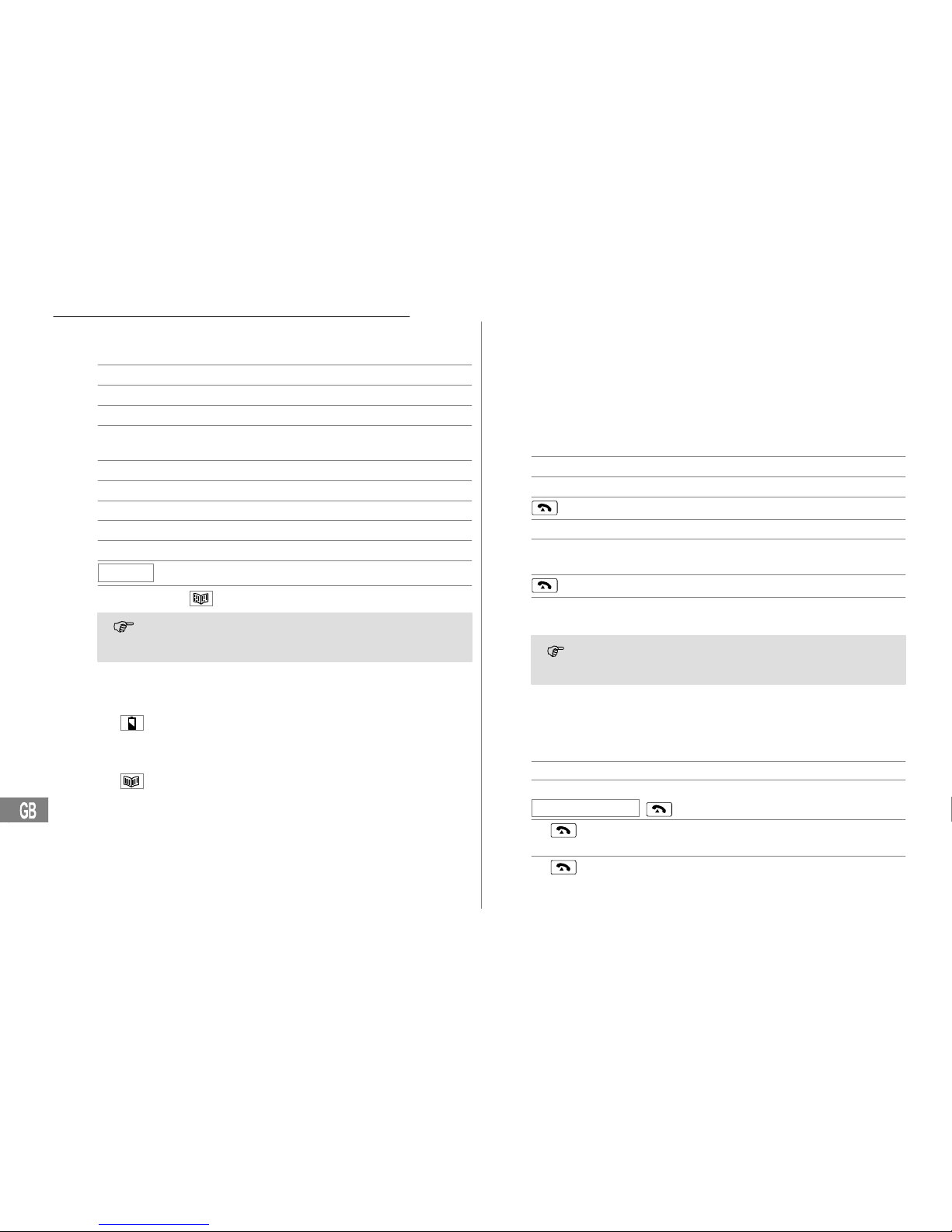
Display and explanation of operation sequences
ëEnter digits or letters
*Press the button depicted briefly
2 x *Press the button depicted twice, briefly
2 sec *Press the button depicted for
2 seconds
Press and hold *Press and hold the button depicted
Release *Release the button depicted
{ì} Telephone rings
èLift the receiver
éReplace the receiver on−hook
[Text]Text flashes in the display
GERMAN or Text or icon in the display
The translucent digit key block is illuminated from inside as soon
as you lift the receiver, press a button or an incoming call is recei-
ved.
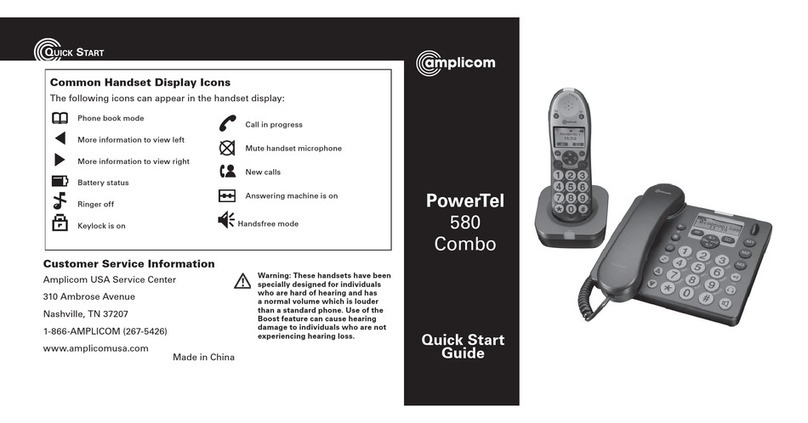
Icons in the display
Icon Description
On: Replace the batteries.
14:45 Display of the time Page 12.
19/09 Display of the date Page 12.
The phone book is open Page 13.
REPEAT The caller in the calls list has called several times
Page 15.
VOICE Flashing: Recording mode is active Pages 12 and 16.
On: A name has been recorded for this phone book entry.
+An emergency call number (M1, M2 or M3) has been dial-
led Page 16.
CLIP The calls list is open Page 15.
NEW The entry in the calls list is new Page 15.
Navigating in the menu
All the functions can be accessed via the various menus. Refer to Menu
Structure Page 12 for information on how to access each respective
function.
JOpen the main menu
+or ,Select the submenu required
Open the submenu
+or ,Select the setting required
ëEnter digits or letters using the relevant
digit keys
Confirm the entries
Cancel programming and saving
processes and return to Standby mode
Every process is automatically cancelled if there is no input
within 15 seconds.
Creating phone book entries − example
The example in Creating phone book entries explains how to navigate
and make entries in the phone book. Proceed as in this example for all the
settings.
JOpen the main menu
+or ,Select the submenu required and
STORE NUMBER , confirm it
ë, Enter the phone number (max. 22
digits) and confirm it
ë, Enter the name (max. 16 letters) and
confirm it
Service−Hotline: Tel. 0844 800 6503