manuals.online logo
Brands
  1. Home
  2. •
  3. Brands
  4. •
  5. Antelope
  6. •
  7. Recording Equipment
  8. •
  9. Antelope Orion 32+ User manual

Antelope Orion 32+ User manual

Other Antelope Recording Equipment manuals

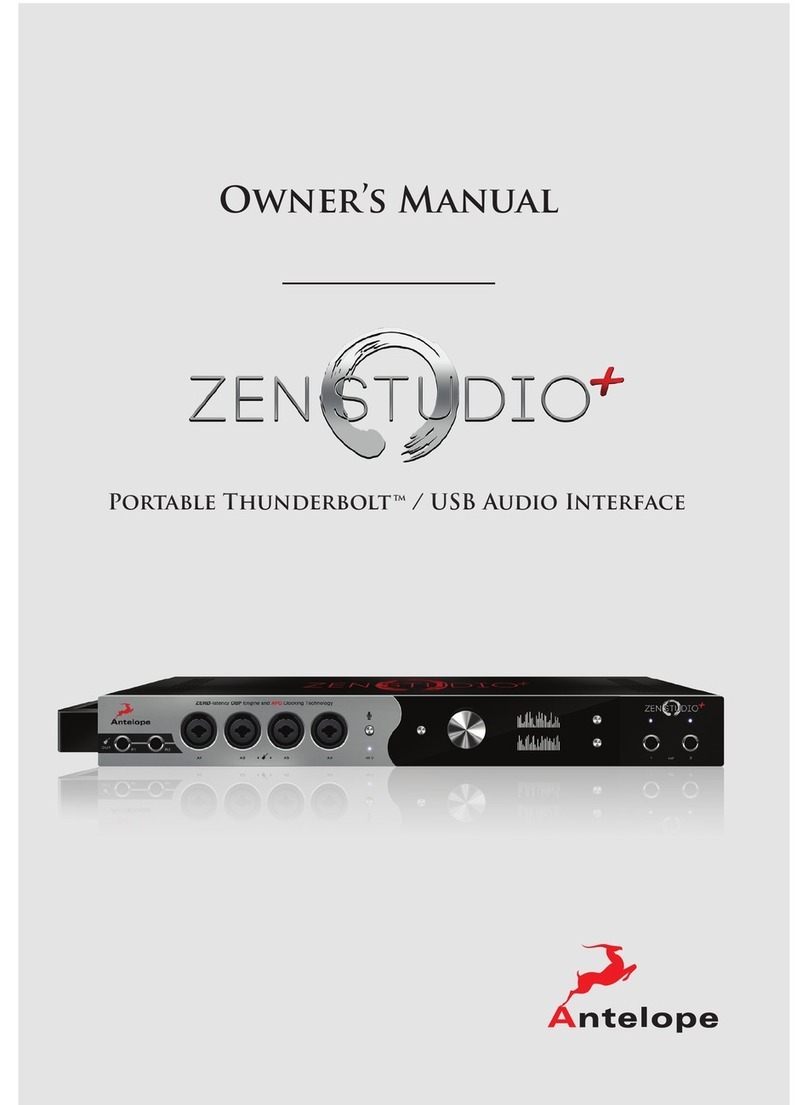
Antelope zenstudio+ User manual

Antelope

Antelope zenstudio+ User manual

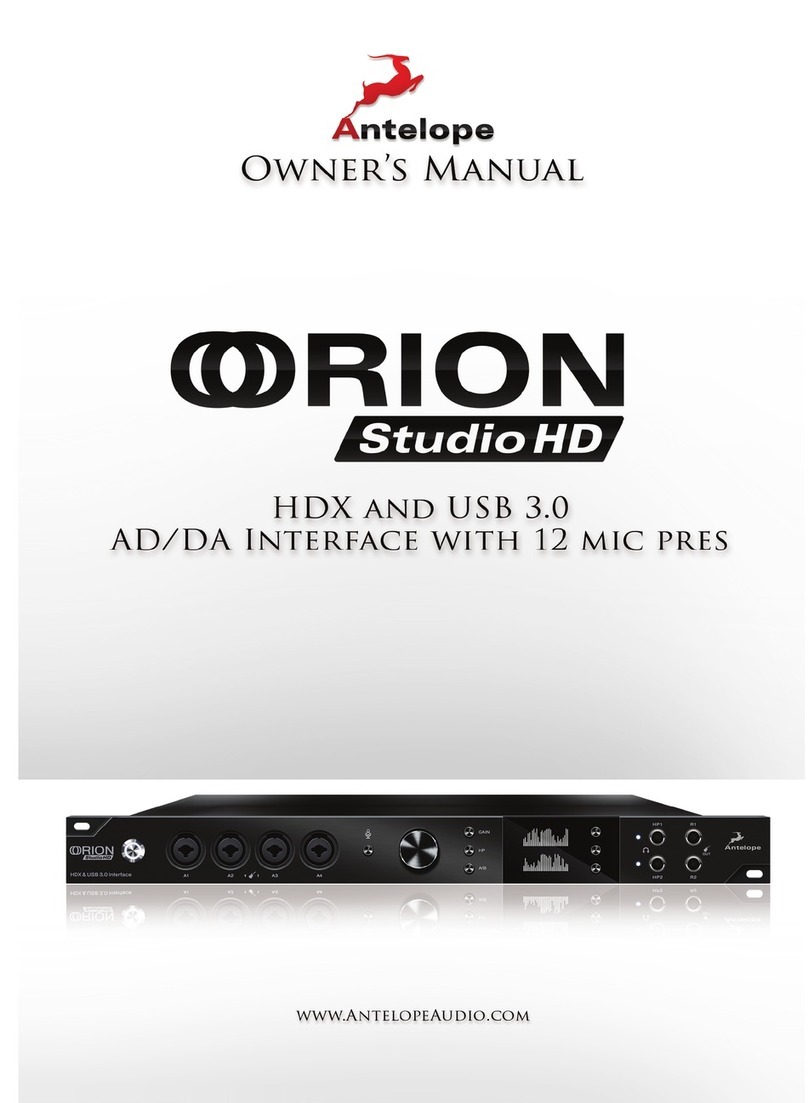
Antelope Orion Studio HD User manual

Antelope

Antelope Orion Studio HD User manual

Antelope Goliath HD Gen. 3 User manual

Antelope

Antelope Goliath HD Gen. 3 User manual

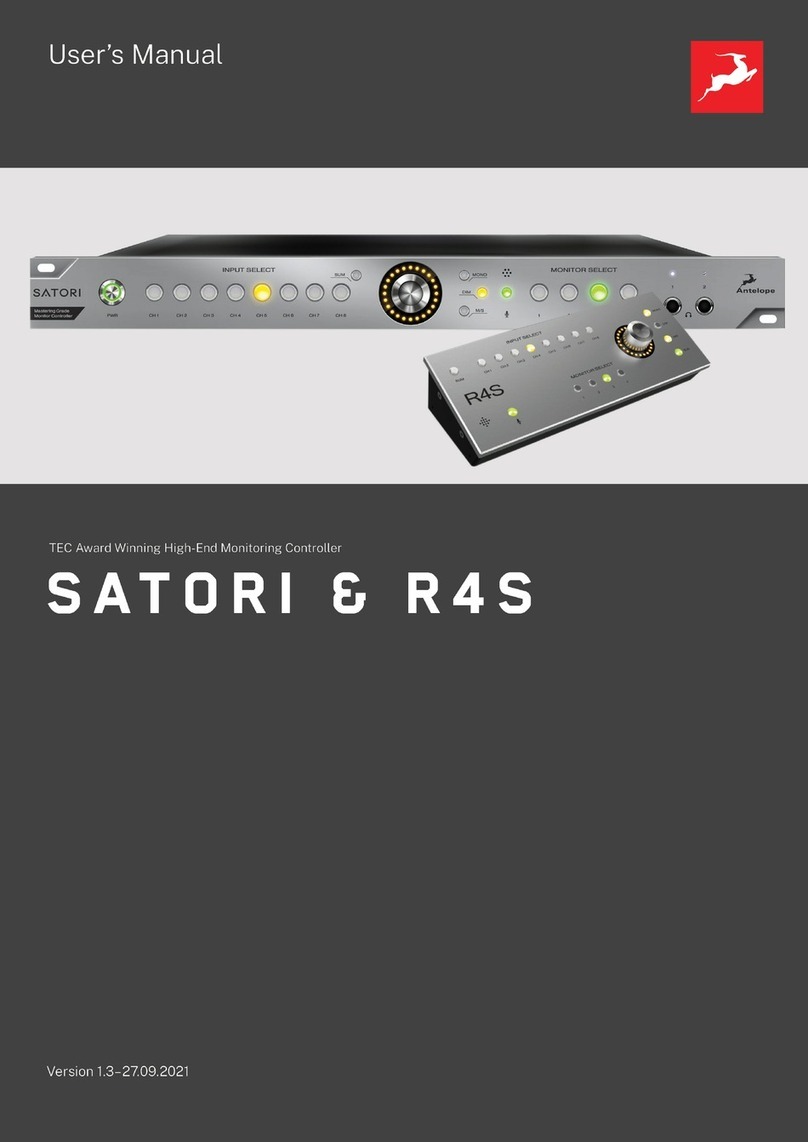
Antelope R4S User manual

Antelope

Antelope R4S User manual

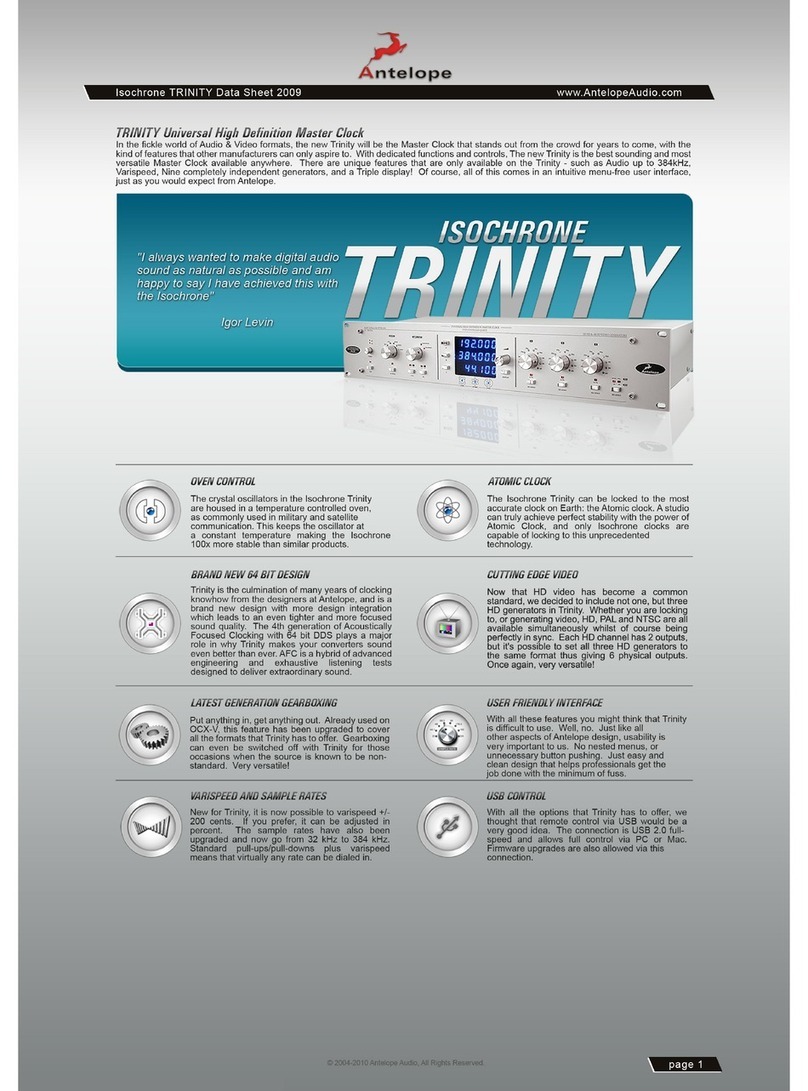
Antelope Isochrone Trinity User manual

Antelope

Antelope Isochrone Trinity User manual

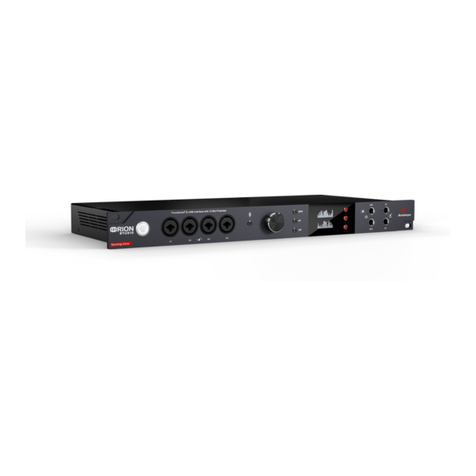
Antelope ORION STUDIO Synergy Core User manual

Antelope

Antelope ORION STUDIO Synergy Core User manual

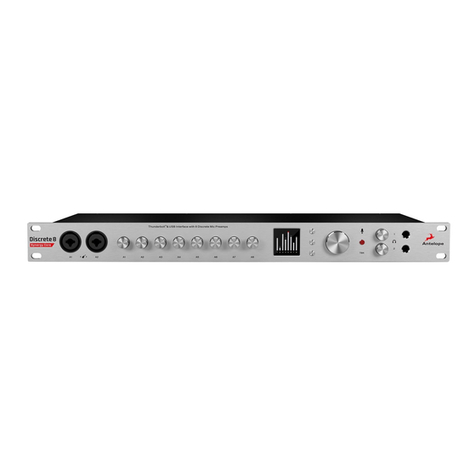
Antelope Discrete 8 User manual

Antelope

Antelope Discrete 8 User manual

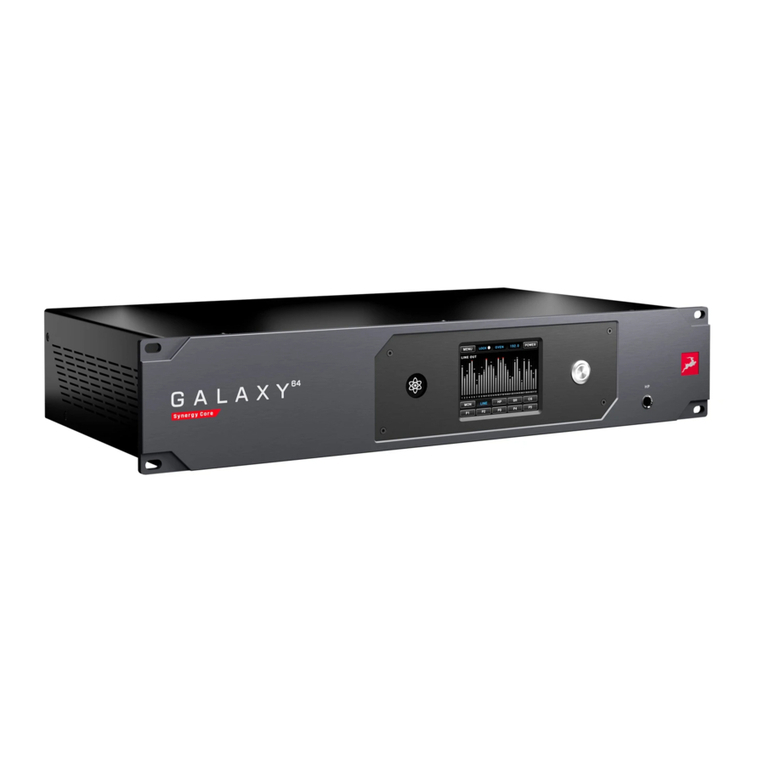
Antelope Galaxy 64 Synergy Core User manual

Antelope

Antelope Galaxy 64 Synergy Core User manual

Antelope Zen Tour User manual

Antelope

Antelope Zen Tour User manual

Antelope Galaxy 32 Synergy Core User manual

Antelope

Antelope Galaxy 32 Synergy Core User manual

Antelope Isochrone Trinity User manual

Antelope

Antelope Isochrone Trinity User manual

Antelope ORION 32+ GEN4 User manual

Antelope

Antelope ORION 32+ GEN4 User manual

Antelope DISCRETE 8 PRO User manual

Antelope

Antelope DISCRETE 8 PRO User manual

Antelope ORION STUDIO Synergy Core User manual

Antelope

Antelope ORION STUDIO Synergy Core User manual

Popular Recording Equipment manuals by other brands

ThermoFisher Scientific Dionex DRS 600 Installation checklist

ThermoFisher Scientific

ThermoFisher Scientific Dionex DRS 600 Installation checklist

Shure ANIUSB-Matrix user guide

Shure

Shure ANIUSB-Matrix user guide

Nady Audio HE-1 user guide

Nady Audio

Nady Audio HE-1 user guide

AUDAC APM 01 User manual & installation guide

AUDAC

AUDAC APM 01 User manual & installation guide

Teac GF-350 owner's manual

Teac

Teac GF-350 owner's manual

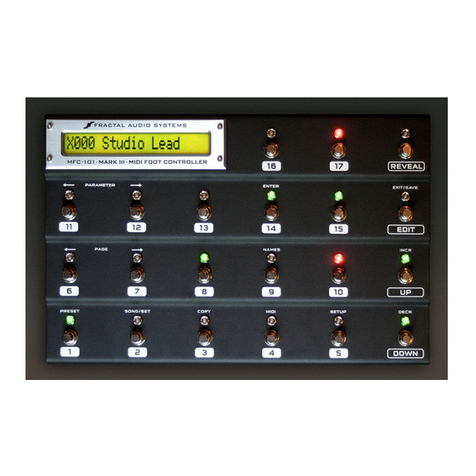
Fractal Audio MFC-101 MARK III owner's manual

Fractal Audio

Fractal Audio MFC-101 MARK III owner's manual

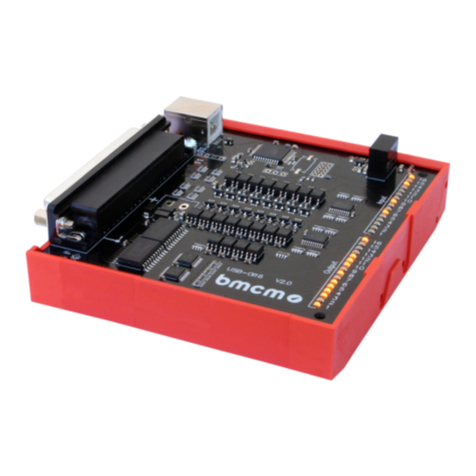
bmcm USB-OI16 manual

bmcm

bmcm USB-OI16 manual

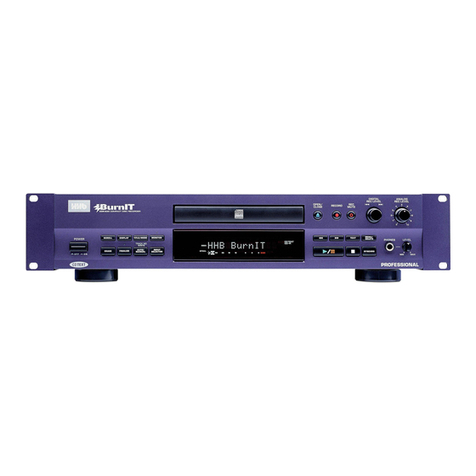
HHB BurnIT CDR-830 Service manual

HHB

HHB BurnIT CDR-830 Service manual

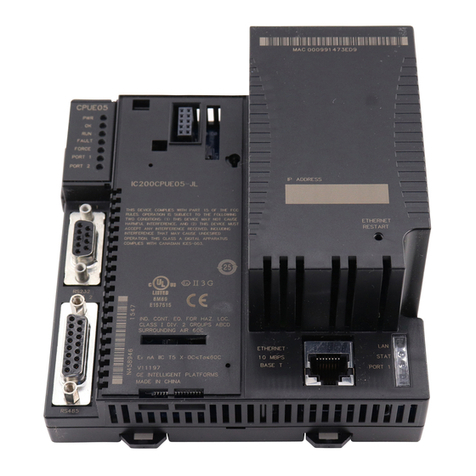
GE VersaMax IC200CPUE05 manual

GE

GE VersaMax IC200CPUE05 manual

IntesisBox MH-RC-MBS-1 user manual

IntesisBox

IntesisBox MH-RC-MBS-1 user manual

Attero Tech unD4l user manual

Attero Tech

Attero Tech unD4l user manual

Sennheiser UI 765 instruction manual

Sennheiser

Sennheiser UI 765 instruction manual

Sony RCD-W1 Operating Instructions  (primary... Service manual

Sony

Sony RCD-W1 Operating Instructions (primary... Service manual

Roland Planet-P  MKS-10 owner's manual

Roland

Roland Planet-P MKS-10 owner's manual

Roland BOSS GT-PRO Turbostart

Roland

Roland BOSS GT-PRO Turbostart

8x8 Inc Valcom V-2001A manual

8x8 Inc

8x8 Inc Valcom V-2001A manual

Waves SUB Align user guide

Waves

Waves SUB Align user guide

Mitsubishi Electric MAC-334IF-E installation manual

Mitsubishi Electric

Mitsubishi Electric MAC-334IF-E installation manual

manuals.online logo
manuals.online logoBrands
  • About & Mission
  • Contact us
  • Privacy Policy
  • Terms and Conditions

Copyright 2025 Manuals.Online. All Rights Reserved.

26.09.18, 10*53Antelope Audio : Customer Support
Seite 1 von 23https://support.antelopeaudio.com/support/solutions/articles/42000017686-orion32-user-manual
UK Phone number +44 1925933423 / US Phone Number (916) 238-1643
US time: 7:00 a.m. – 6:30 p.m. (EDT), Monday – Friday / European time: 08:00 a.m. – 08:00 p.m. (GMT), Monday –
Friday
What can we help you with?
Enter your search term here...
Search
Orion32+ - User Manual
Modified on: Tue, 4 Sep, 2018 at 7:48 AM
26.09.18, 10*53Antelope Audio : Customer Support
Seite 2 von 23https://support.antelopeaudio.com/support/solutions/articles/42000017686-orion32-user-manual
1. Safety Notes
To reduce the risk of electrical shocks, fire, and related hazards:
●● Do not remove screws, cover, or cabinet. There are no user serviceable parts inside.
Refer servicing to qualified service personnel.
●● Do not expose this device to rain, moisture or spillover of liquid of any kind.
●● Should any form of liquid or a foreign object enter the device, do not use it. Switch off
the device and then unplug it from the power source. Do not operate the device again
26.09.18, 10*53Antelope Audio : Customer Support
Seite 3 von 23https://support.antelopeaudio.com/support/solutions/articles/42000017686-orion32-user-manual
until the foreign object is removed or the liquid has completely dried and its residues fully
cleaned up. If in doubt, please consult the manufacturer.
●● Do not handle the power cables with wet hands!
●● Make sure the device is switched offwhen plugging/unplugging it to/from the power
source.
●● Avoid placing things on the cabinet or using the device in a narrow and poorly
ventilated place which could affect its operation or the operation of other closely located
components.
●● If anything goes wrong, turn offthe device first and then unplug the power. Do not
attempt to repair the device yourself: consult authorized service personnel or your dealer.
●● Do not install near any heat sources such as radiators, stoves, or other apparatus
(including amplifiers) that produce heat.
●● Do not use harsh chemicals to clean your unit. Clean only with specialized cleaners for
electronics equipment.
●● Connect all your devices before powering your unit.
●● This unit is connected via its power cord to the mains safety earth.
●● Never operate the unit without this earth connection.
●● AC power supply cable should be routed so that it is not likely to be walked on or
squeezed by items placed upon or against it.
●● To completely turn offthe device, unplug the power cable first from the outlet and then
from the rear panel of the unit.
●● Both, occasional and continued exposure to high sound pressure levels can cause
permanent ear damage via headphones and monitors.
●● Your unit should always be un-racked when traveling or in a flight case.
●● The device is designed to operate in a temperate environment, with a correct Operating
Temperature of:
0-50 °C, 32-122 °F
2. Introduction
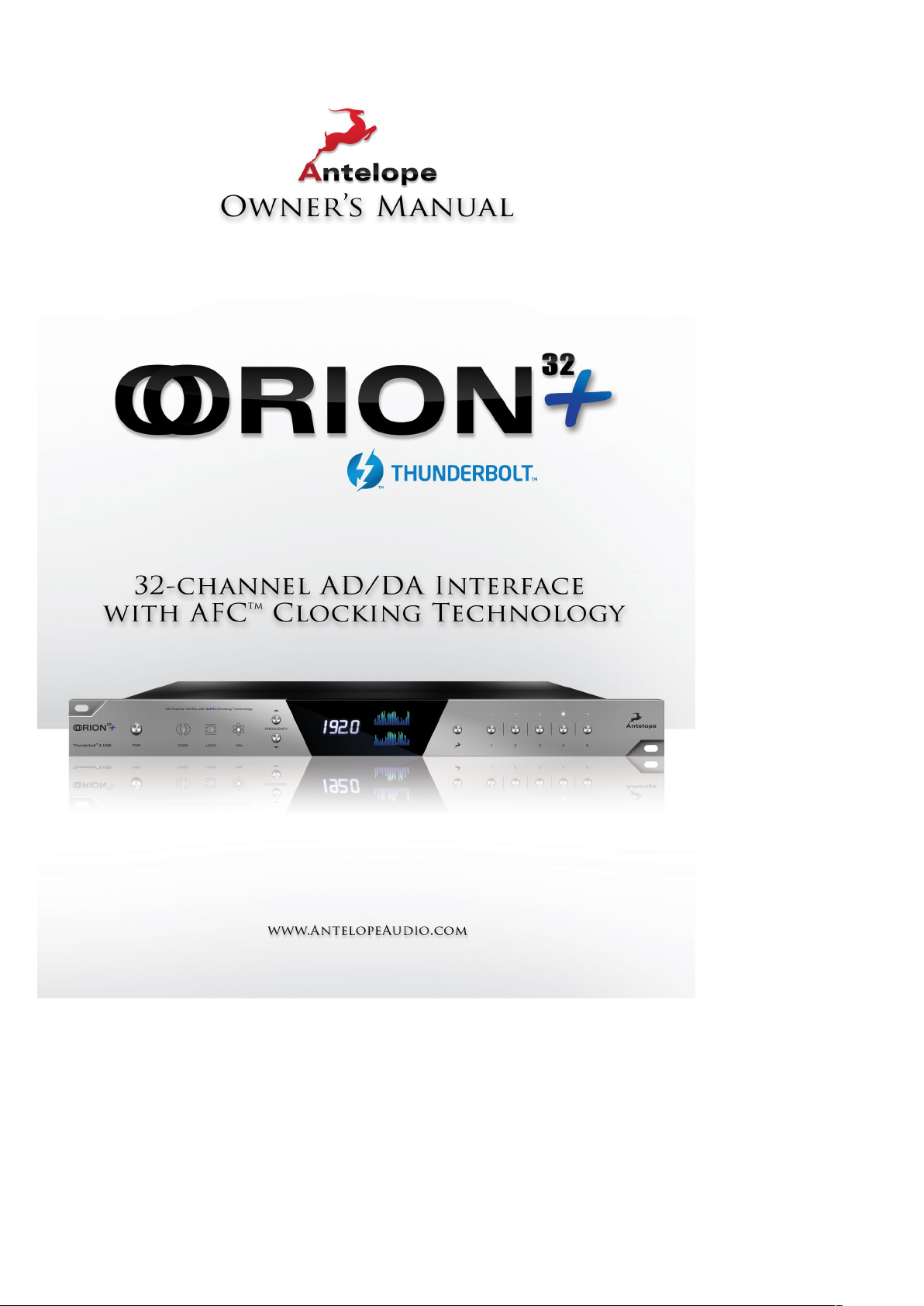
Thank you for purchasing the Orion32+ from Antelope Audio.
Orion32+ is a 32-channel AD/DA converter and audio master clock, supporting ThunderboltTM,
MADI and USB interfaces, clocked by Antelope’s renowned 64-bit Acoustically Focused Clocking
(AFC) technology.
Orion32+ allows up to 192 kHz I/O streaming of up to 32-channels of I/O digital audio through
ThunderboltTM or its custom-built USB chip. The converter also provides up to 64 channels through
its Fiber Optic MADI I/O connections.
Orion32+ supports ADAT protocol as well, offering up to 16 I/O channels. The multi-channel
converter inputs and outputs pass the analog signal through 8 D-SUB 25 I/O connectors.
In addition to being an extremely high quality audio converter, Orion32+ is also an audio master
clock. The two word clock outs, together with the 10 MHz input, make Orion32+ ideally suited to be
in the center of any project or high-end studio.
With its seamless digital routing options, the Orion32+ offers extended flexibility. The device is
managed through a desktop application available for both Windows and OS X. Moreover, it is
equipped with multiple monitor mixers with on-board DSP effects such as EQ, compressor and
reverb.
Connected with MP32, a 32-channel console-grade microphone preamp, Orion32+ ensures a full
transparency of the sound and complete integrity of the signal via the whole chain, from the mic
pres through the conversion, recording and playback, all of them characterized by the signature

26.09.18, 10*53Antelope Audio : Customer Support
Seite 4 von 23https://support.antelopeaudio.com/support/solutions/articles/42000017686-orion32-user-manual
Antelope sound.
For further information, you can also visit our support area online for the FAQ, Help Desk and to
register your product at: www.antelopeaudio.com (http://www.antelopeaudio.com).
Enjoy working with the new Orion32+!
All the best,
The Antelope Team
3. Features
●● Antelope Audio precise AD/DA conversion technology
●● 64 channels I/O Fiber Optic MADI
●● 32 channels at 192 kHz I/O via ThunderboltTM or custom-built USB chip
●● 32 channels AD/DA
●● 16 channels I/O via Fiber Optic ADAT
●● 2 channels I/O via S/PDIF
●● 1 x Monitor Out on TRS (2 channels)
●● Antelope’s renowned 64-bit Acoustically Focused Clocking Technology
●● Antelope’s proprietary Oven Controlled Oscillator for supreme clocking stability
●● 2 Word Clock Outputs, 1 Word Clock Input and 1 Atomic Clock Input
●● Five presets for fast and easy recall of favorite setups
●● 1U rack size device consuming only 20 Watts keeping the heat low
●● A user friendly desktop application available for both Windows ans OS X
●● Ergonomic software control panel
●● Extremely flexible routing and mixing capabilities
●● Massive parallel DSP and effects processing
4. Installation Guide
Windows:
1. Connect the USB cable to the USB port on your computer.
2. Download and install the Orion32+ software control panel and drivers from www (http://www).
antelopeaudio.com/en/support/downloads This will enable you to control your device
from your computer and select all necessary settings.
3. Open your control panel by double clicking and follow the device activation procedure.
4. Connect your choice of inputs and outputs to Orion32+.
5. The guest operating system will recognize the new output audio device (Orion32+).
6. If you want to use Orion32+ through USB for playback and recording, open your
preferred DAW and make sure the device is selected as an input and output.
Note: Make sure your device has the most recent firmware installed.
Mac OS:
Important Note
A Mac is compatible with Orion32+ only if it has the ThunderboltTM logo.
Mini DisplayPort
Thunderbolt Port
26.09.18, 10*53Antelope Audio : Customer Support
Seite 5 von 23https://support.antelopeaudio.com/support/solutions/articles/42000017686-orion32-user-manual
1. Connect the ThunderboltTM cable to the ThunderboltTM port on your computer.
2. Download and install the Orion32+ software control panel and ThunderboltTM driver
from www.antelopeaudio.com/en/support/downloads (http://www.antelopeaudio.com/en/support/downloads) This
will enable you to control your
device from your computer and select all necessary settings.
3. Open your control panel by double clicking and follow the device activation procedure.
4. Connect your choice of inputs and outputs to Orion32+.
5. The guest operating system will recognize the new output audio device (Orion32+).
6. If you want to use Orion32+ through ThunderboltTM for playback and recording, open
your preferred DAW and make sure the device is selected as an input and output.
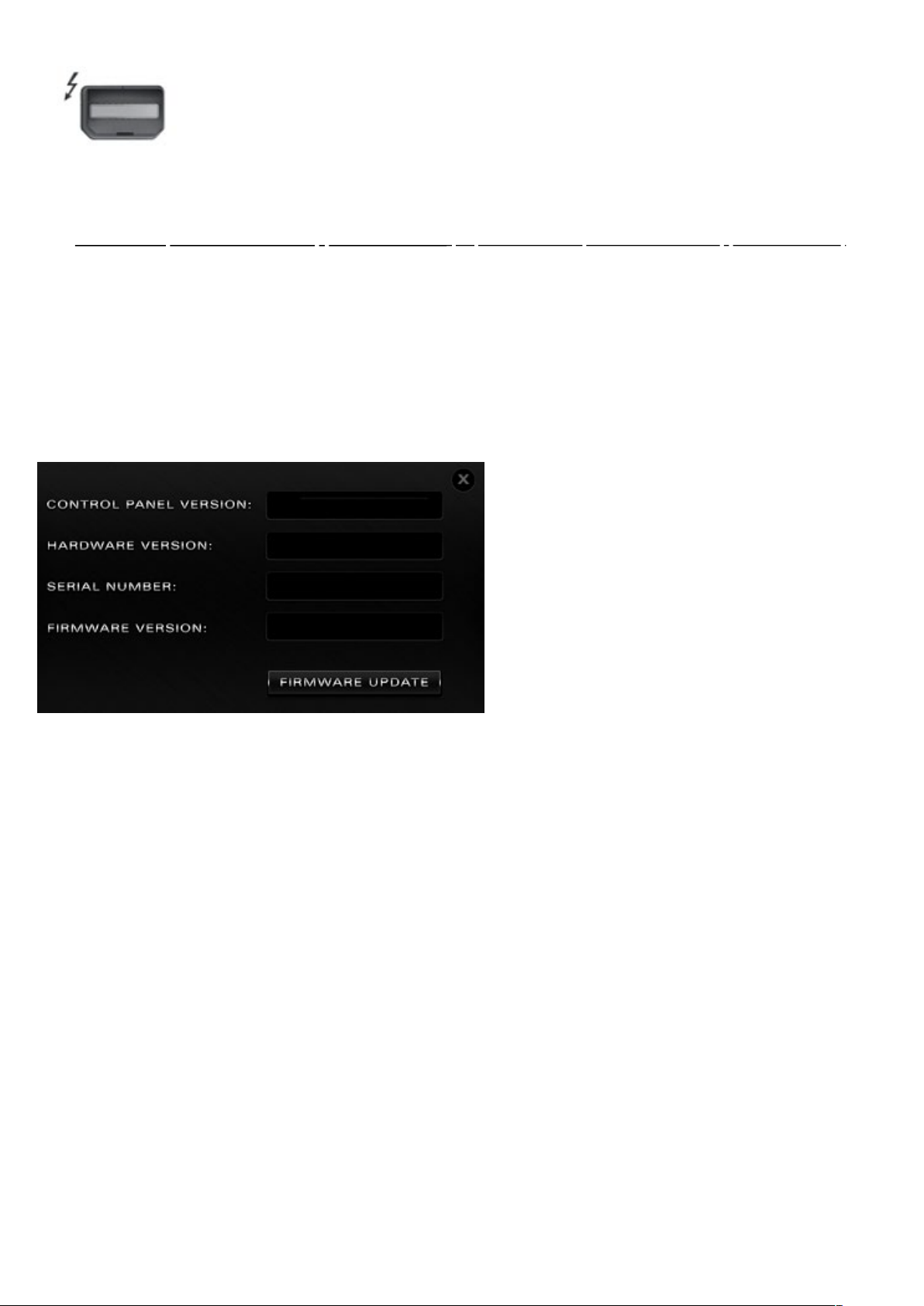
Note: Make sure your device has the most recent firmware installed. Check this by
selecting the Options panel and clicking on the Firmware Update button. See picture:
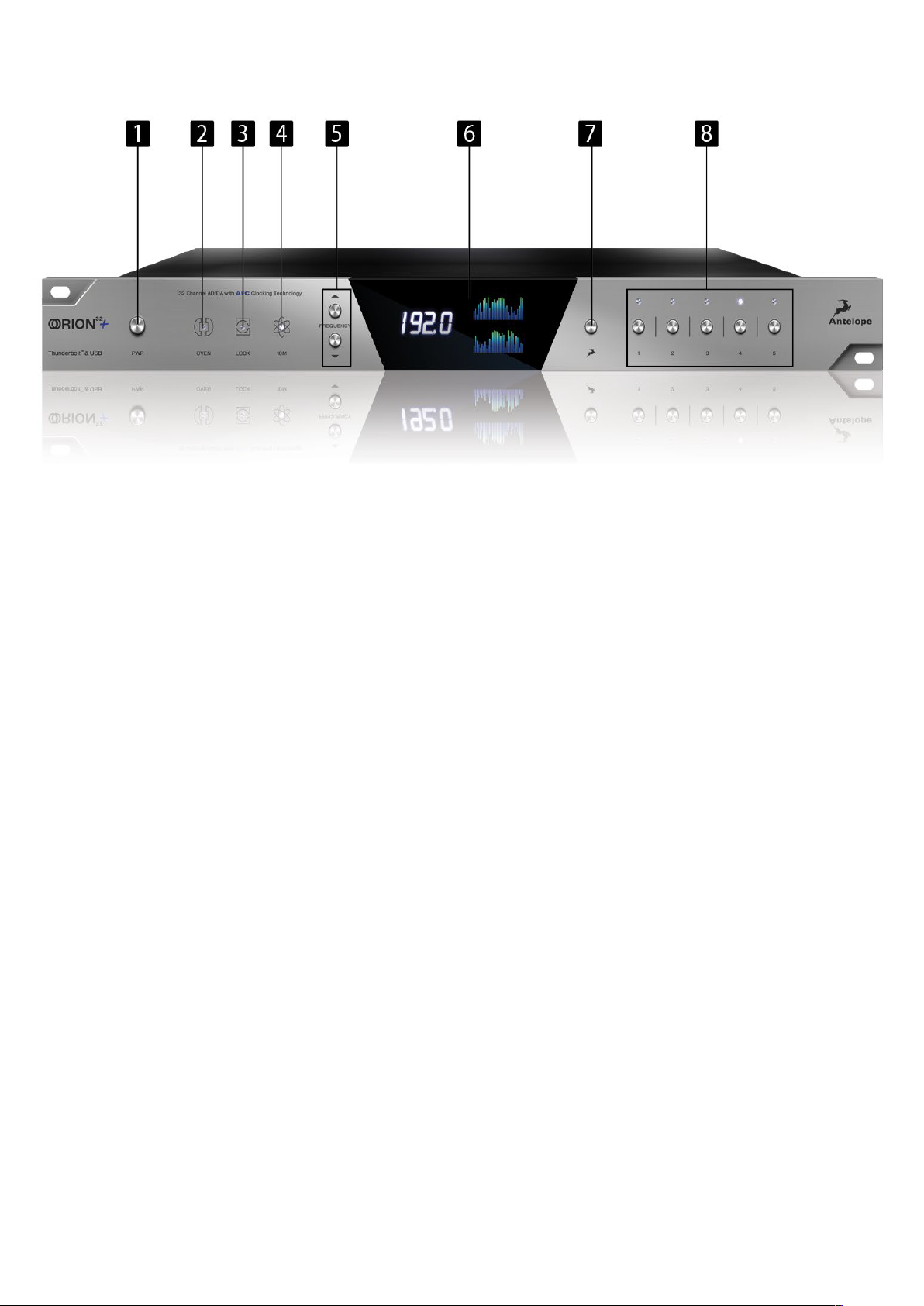
5. Front Panel Explained
26.09.18, 10*53Antelope Audio : Customer Support
Seite 6 von 23https://support.antelopeaudio.com/support/solutions/articles/42000017686-orion32-user-manual
1. Power button
Toggles standby/operation state
Hold down the Power button to access the System Menu of the device, which allows you
to access the following sub-menus:
1. Comm. Interface (allows you to choose between, ThunderboltTM, USB connectivity)
2. Device Info
3. Brightness
4. Scr Save Time
5. Scr Save Style
6. Factory Reset
7. 10M Calibration
To scroll up and down, use the Frequency up/down buttons.
To enter each one of the sub-menus, press the Frequency down button.
To confirm a chosen setting, press and hold the Frequency down button.
2. Oven Clock light
When lit, this indicates Orion32+ is clocked by its own internal clock.
3. Lock light
When lit, this indicates Orion32+ is locked to the signal that enters through the digital
inputs on the rear panel (except ThunderboltTM and USB).
4. Atomic Clock Lock light
When lit, this indicates Orion32+ is locked to an atomic signal that enters through the
10M input on the rear panel. This overrides the Oven Clock lock light as soon as it is
plugged in and the Oven Clock lock light will automatically go off.
5. Frequency buttons
These two arrow buttons allow you to increase and decrease the sample rate, selecting
from:
32kHz, 44.1kHz, 48kHz, 88.2kHz, 96kHz, 176.4kHz, 192kHz. The current frequency is
indicated on the display (6) when adjusting.
6. Display
Multi-function display that shows Sample Rate on the left and volume levels for each
26.09.18, 10*53Antelope Audio : Customer Support
Seite 7 von 23https://support.antelopeaudio.com/support/solutions/articles/42000017686-orion32-user-manual
individual input levels on top meter, and output levels on lower meter. It displays 64
channels at a time that are software adjustable from the software control panel.
Note: Be aware that there might be a protective film over the display, which dims the
illumination – feel free to remove it.
7. Antelope button
Hold down the Antelope button to access the Control Menu of the device, which allows
you to adjust:
1. Clock Source
2. Peak Meter
3. Monitor Trim
4. Line Out Trim
5. Line In Trim
6. SR Conversion
7. S-MUX In
8. S-MUX Out
To scroll up and down, use the Frequency up/down buttons.
To enter each one of the sub-menus, press the Frequency down button.
To confirm a chosen setting, press and hold the Frequency down button.
Note: To Restore Factory Defaults:
1. Unplug the power cable,
2. Hold down the Frequency Up and Down buttons, and plug the power cable back in.
8. Preset buttons (1-5)
Five Preset buttons store and recall your ‘favorite’ set-ups. For more information see
page 14, section 8 (Reference to Software Control Panel).
1. Save Preset
- 1. From Control Panel
- 1. Ctrl(Win) / Cmd(Mac) + Click on Preset Button
2. Ctrl + Number 1 to 5 from Keyboard
- 2. Recall Preset
1. Simply click on your choice of preset.
6. Rear Panel Explained
26.09.18, 10*53Antelope Audio : Customer Support
Seite 8 von 23https://support.antelopeaudio.com/support/solutions/articles/42000017686-orion32-user-manual
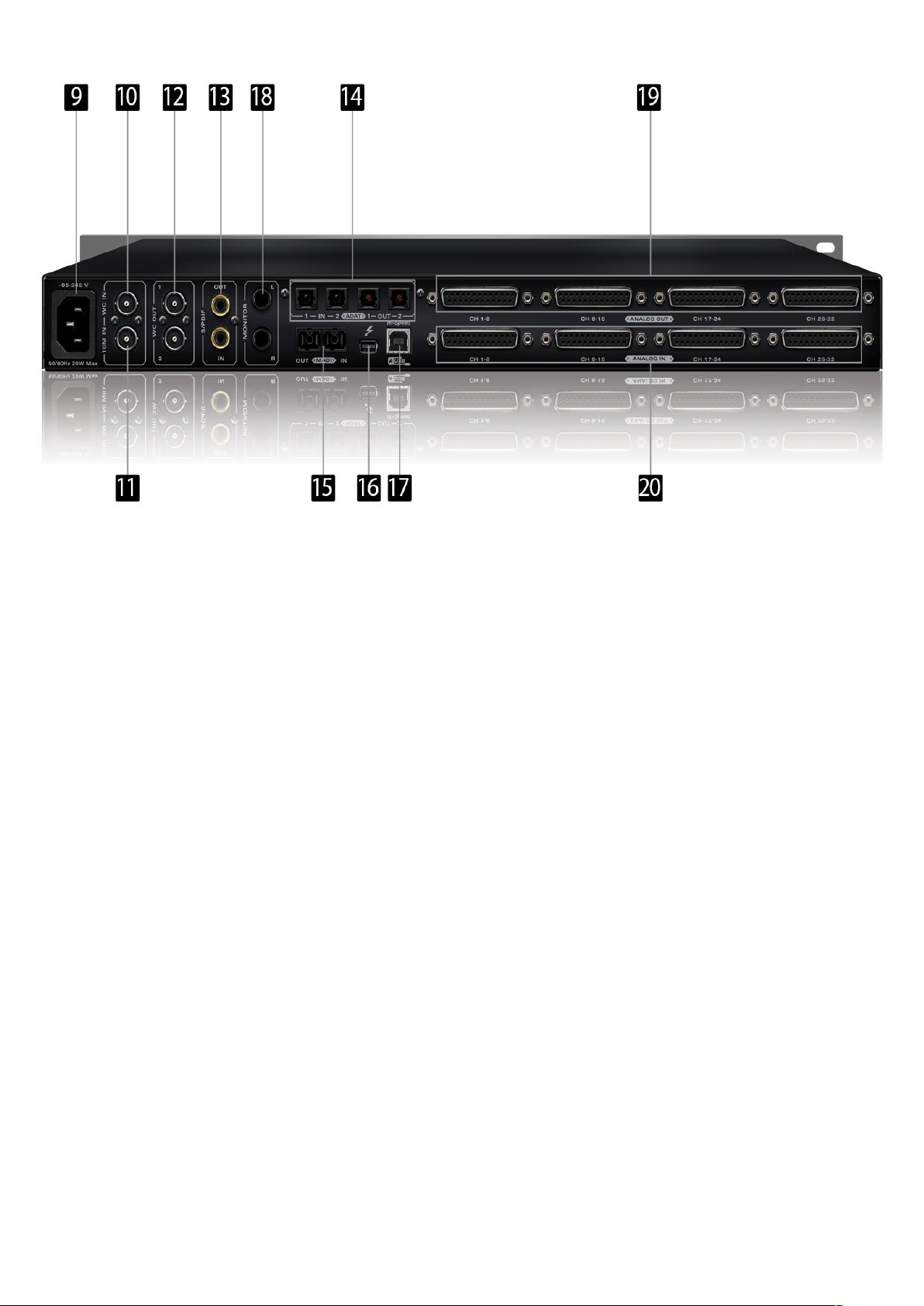
9. Mains Power Connection
The IEC connector supports a range from ~95-245 V. This enables the device to
automatically accommodate mains voltage in every country.
10. Word Clock Input
BNC connector used to accept Word Clock reference.
11. 10M Input
This BNC Input Connector allows the Orion32+ to receive timing reference from an
Atomic Clock such as the Antelope 10M and 10MX, to increase the Oscillator accuracy.
If the device is in Oven mode, plugging in the atomic clock causes the “Atomic LED” light
to illuminate on the device front panel and the atomic device becomes the primary timing
reference, thus providing better sample accuracy, more detailed sound and greater
stability.
12. Word Clock Outputs
Two Word Clock Outputs with BNC connector.
13. S/PDIF Input/Output
75 ΩS/PDIF connectors for use with compatible equipment.
14. ADAT Connectors
2 Inputs & 2 Outputs (up to 8 channels per line).
15. MADI Input/Output
1 x MADI I/O Connector providing 64 tracks input and 64 tracks output.
16. ThunderboltTM port
Enables you to connect your Orion32+ to a ThunderboltTM port on a Mac computer using
a ThunderboltTM cable (not included).
17. USB High-Speed
Orion32+ uses USB connector Type B and operates up to 192kHz sample rate with
7. Software Control Panel
7.1. Routing Tab and Main View options
26.09.18, 10*53Antelope Audio : Customer Support
Seite 9 von 23https://support.antelopeaudio.com/support/solutions/articles/42000017686-orion32-user-manual
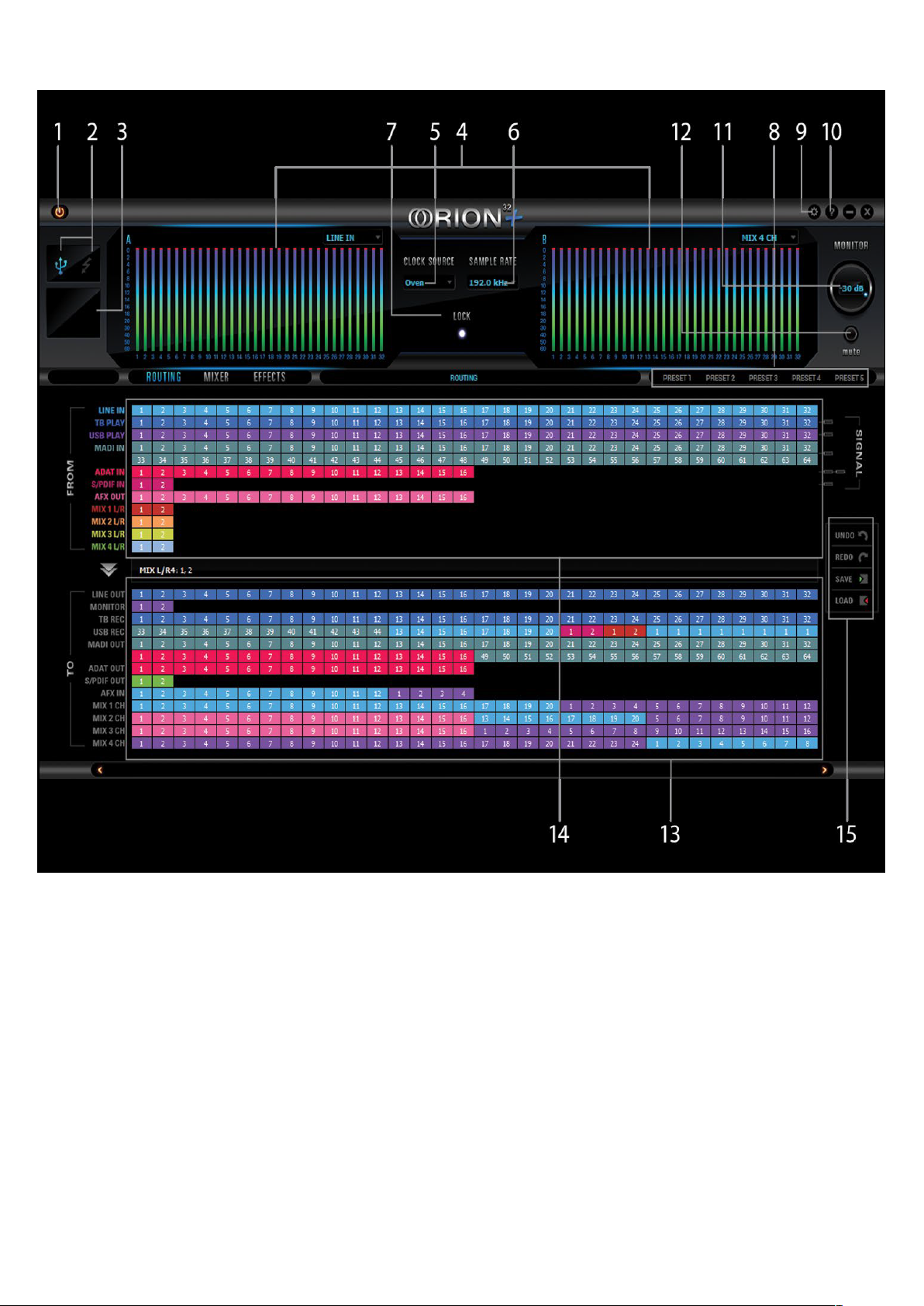
The universal panel view sits constantly on the upper half of the control panel, allowing for quick
access to the most important features.
Main view:
1. Power/Standby button
2. Connectivity display (indicates how your Orion32+ is connected to your computer -
via ThunderboltTM or USB)
Antelope ASIO on Windows & Mac OS X.
18. Monitor Outputs
A stereo pair (2 x TRS) of balanced outputs to connect a pairs of monitors.
19. D-SUB 25pin Analog Outputs (on top)
Four connectors enable you to attach breakout cables, each with 8 lines.
20. D-SUB 25pin Analog Inputs (on bottom)
Four connectors enable you to attach breakout cables, each with 8 lines.
7. Software Control Panel
26.09.18, 10*53Antelope Audio : Customer Support
Seite 10 von 23https://support.antelopeaudio.com/support/solutions/articles/42000017686-orion32-user-manual
7.1. Routing Tab and Main View options
The universal panel view sits constantly on the upper half of the control panel, allowing for quick
access to the most important features.
Main view:
1. Power/Standby button
2. Connectivity display (indicates how your Orion32+ is connected to your computer -
via ThunderboltTM or USB)
Antelope ASIO on Windows & Mac OS X.
18. Monitor Outputs
A stereo pair (2 x TRS) of balanced outputs to connect a pairs of monitors.
19. D-SUB 25pin Analog Outputs (on top)
Four connectors enable you to attach breakout cables, each with 8 lines.