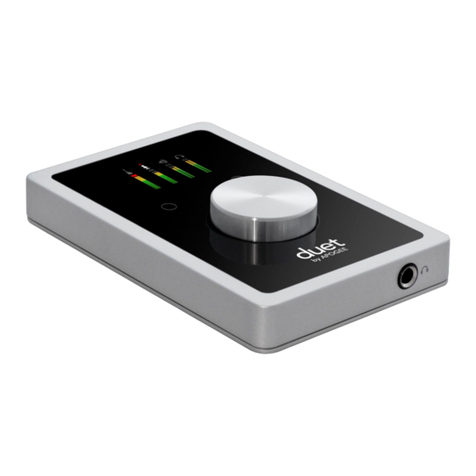
Apogee ONE User manual
Apogee ONE
User’s Guide
V1, May, 2013

Contents
.........................................................................................................Overview!3
Introduction!3
Package contents!4
ONE panel tour!5
...............................................................................................Getting Started!7
Connecting to your Mac!7
Connecting to your iPad!9
Adjusting Input & Output Levels!11
.........................................................................................Maestro Software !12
Input!13
Output!15
Mixer!17
Device Settings!19
System Setup - Tool Bar (Mac only)!21
Menu Bar Menus (Mac only)!22
iOS Main Menu!24
.......................................................................................................Operation!25
Using ONE’s built-in mic!25
What sample rate should I record at?!25
Can I record my session on my Mac’s (startup) hard drive?!25
How do I set a recording level?!26
What is phantom power?!26
How do I set the input control of my powered speakers?!27
How do I set my software’s I/O buffer?!27
Maestro Low Latency Mixing!28
Software Setup!30
.......................................................................................Additional Support!38
...............................................................................................Specifications!39
.............................................................................Warranty & Notifications!40
Registration and Warranty Information!40
Table of Contents - Apogee ONE User’s Guide
2

Overview
Introduction
Thank you for purchasing ONE. This User’s Guide describes how to set up ONE with your Mac and iPad,
connect headphones to play back music and record your own creations with the built-in mic, an external
mic or an electric instrument.
ONE for iPad/Mac
The first studio-quality audio interface and microphone for iPad, iPhone and Mac
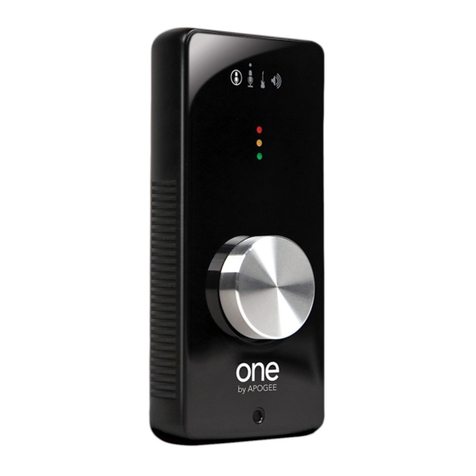
The Apogee ONE is the first studio quality microphone and USB audio interface for iPad, iPhone and Mac. ONE is
designed for easily creating professional and amazing sounding recordings on your iPod touch, iPhone, iPad or Mac.
Using Apogee’s premium AD/DA conversion, ONE produces pristine music, podcast, and voice-over recordings while
also delivering audiophile quality sound to your headphones.
Legendary Sound Quality
Why Apogee ONE is the best choice for your studio
Apogee is an award-winning industry leader in digital recording technology with over 25 years of experience. Preferred
by recording pros around the world, Apogee products like Duet, Ensemble and Symphony I/O have been instrumental in
creating countless GRAMMY® and OSCAR® winning recordings and have set the industry standard in professional
recording for over two decades. ONE is built solidly on this reputation.
Overview - Apogee ONE User’s Guide
3
Package contents
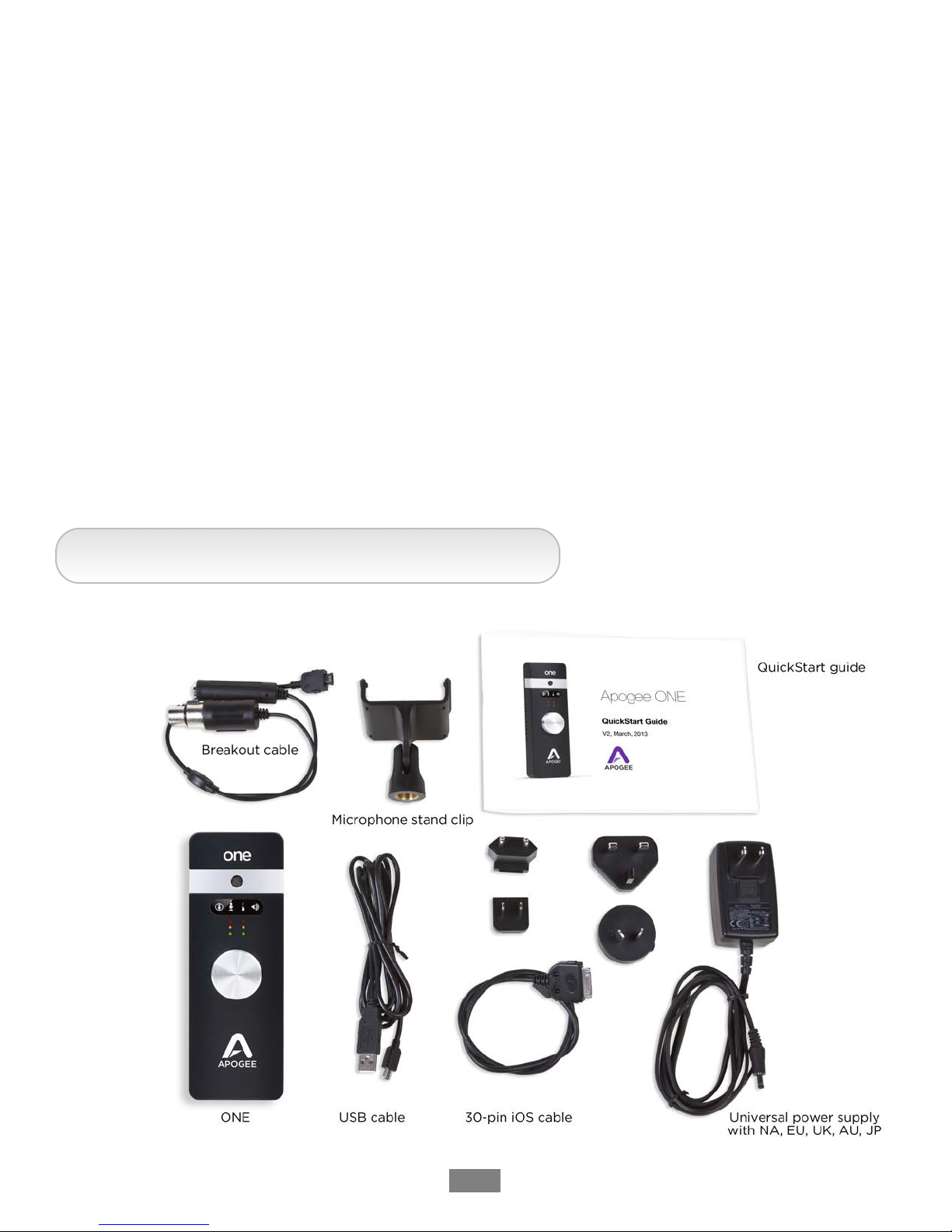
The following items are included in the ONE box:
•ONE
•Breakout cable with:
•1 XLR Mic input
•1 1/4” Instrument input
•Microphone stand clip
•USB cable
•30-pin iOS cable
•Universal power supply with NA, EU, UK, AU, JP adaptors
•QuickStart guide
Software, firmware and the ONE User’s Guide are available online only.
Please register your product and download the latest installer here:
http://www.apogeedigital.com/downloads
Overview - Apogee ONE User’s Guide
4
ONE panel tour
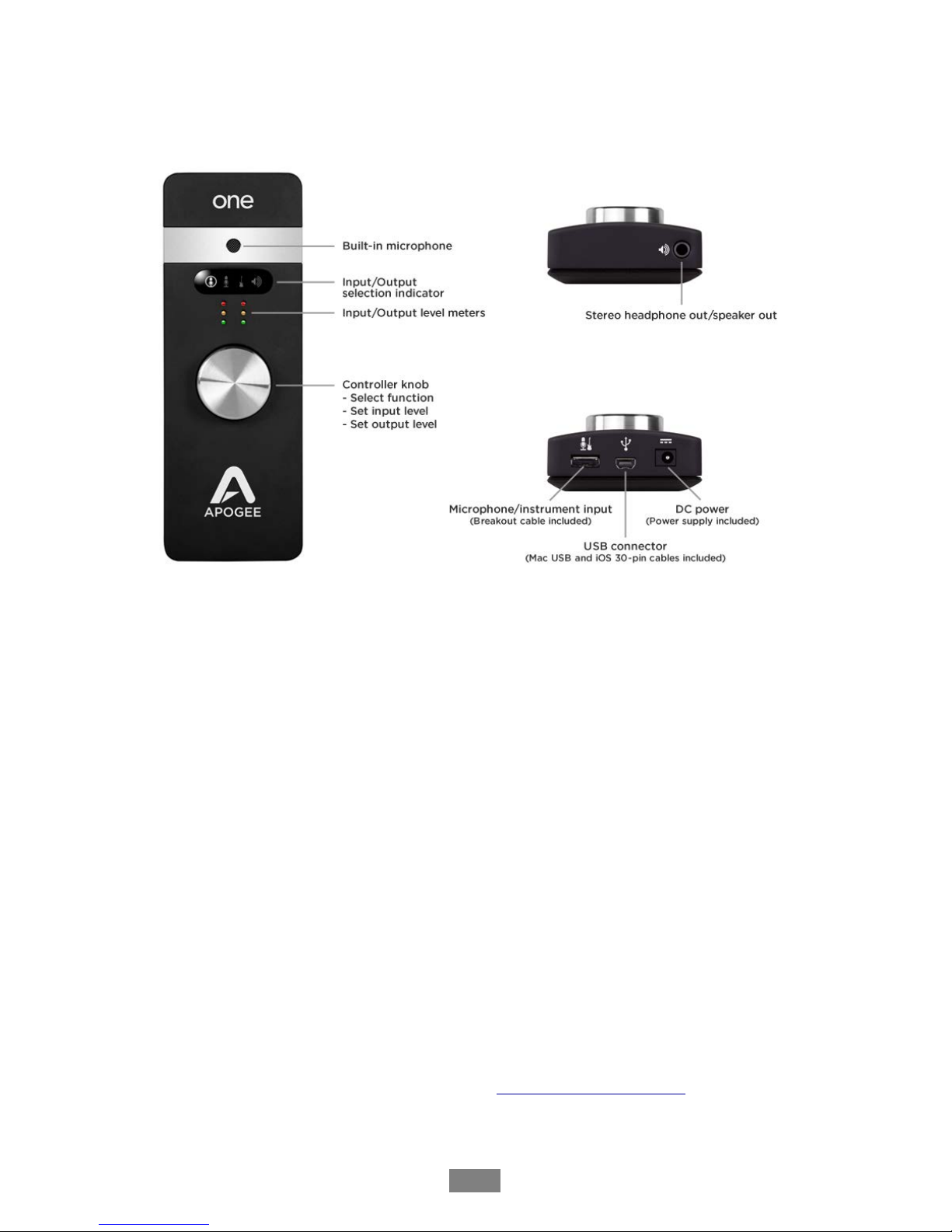
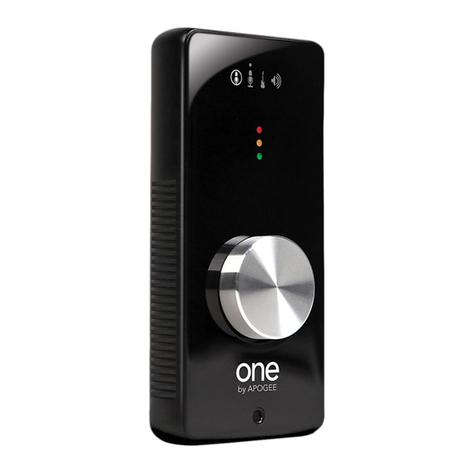
Built-in Microphone
ONE’s built-in microphone capsule is located at the top
of the front panel. When using the built-in microphone,
orient the capsule towards the sound source
being recorded.
Input/Output Selection Indicator
These indicators show the input or output selected
for level adjustment using the multi-function
Controller Knob.
Input/Output Level Meters
These meters display the input level when any input is
selected or the output level when the output is selected
for level adjustment using the Controller Knob.
Multi-function Controller Knob
ONE’s multi-function controller knob allows you to easily
switch between Inputs and Outputs as well as adjust
their levels.
1/8” Stereo Headphone/Speaker Output
ONE’s 1/8” stereo output may be connected to
headphones or powered speakers. To connect to
powered speakers, use an adaptor cable with a stereo
1/8” connector on one end and the appropriate mating
connector for the powered speakers on the other end.
Mic/Instrument Input
This port is for connecting ONE’s breakout cable, which
includes one female XLR connector and one female
1/4” connector.
USB
ONE utilizes a single USB connector to interface with
Mac and iOS devices. To connect to Mac, use the
provided cable that terminates in a USB “A” type
connector; to connect to an iOS device, use the provided
cable that terminates in a 30-pin connector. To connect
to iOS devices with Apple’s Lightning connector, Apple’s
Lightning to 30-pin adapter (sold separately) is required.
Overview - Apogee ONE User’s Guide
5
DC Power
When connecting to a Mac, ONE is easily powered by
any available USB port; there’s no need to connect the
included DC power supply.
When connected to iPad, iPod Touch, or iPhone, there
are two options for DC power:
1. Connect ONE’s power supply to power ONE and
charge the iOS device.
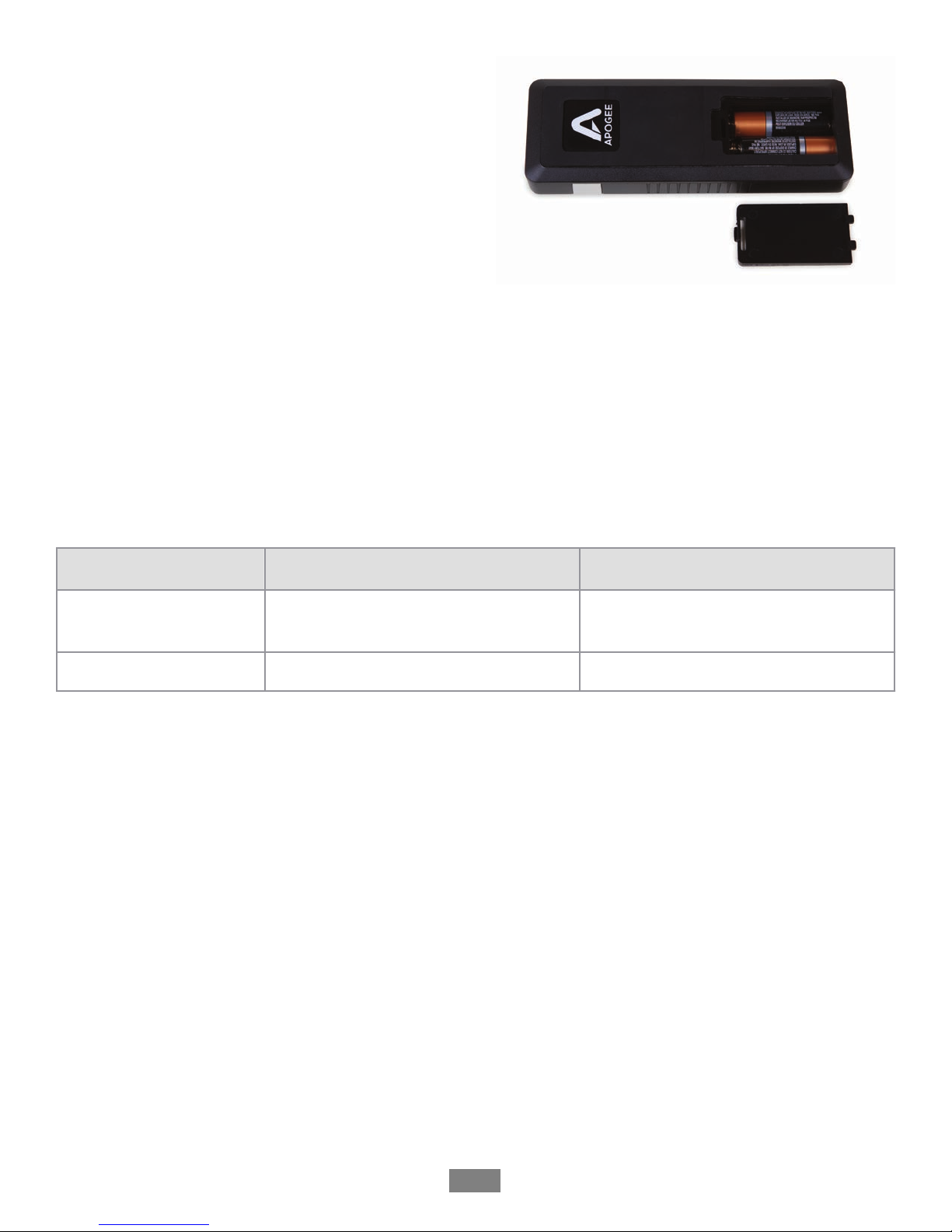
2. Install two AA batteries (not included) in ONE’s
battery compartment as shown to the right. The
iOS device runs from its internal battery while ONE
runs from the AA batteries. This allows the entire
system to be completely mobile.
To install 2 AA batteries, use a coin or screwdriver to
remove ONE’s battery compartment door. Orient the 2
batteries as shown below so that the batteries’ minus (-)
terminals are installed against the compartment’s
springs. Once batteries are installed, replace the
compartment door.
When powering ONE from two AA batteries, it is highly
recommended to use NiMH rechargeable batteries for
the best battery life when recording and playing back
audio. Approximate battery life is shown below for
minimal and maximum load conditions when using
standard and rechargeable NiMH batteries.
Standard AA
Rechargeable NiMH AA
Playback from iTunes
(minimal load)
2 hours, 40 minutes (See Note Below)
3 hours, 40 minutes
Recording - max load
30 minutes
2 hours, 10 minutes
About 5-10 minutes before ONE shuts down, the level meters’ red LEDs will flash to warn of the approaching loss of
power under most conditions. (see Note 1 below).
After changing batteries, it is necessary to power cycle ONE by removing and then re-inserting the USB connector.
Note - !Max load condition is as follows: Input 1 set to Ext 48v Mic with a 10mA phantom power load, Input 2
accepts a 1kHz tone at -1 dBfs, output set to maximum. Unit is set to 96kHz sample rate.
Overview - Apogee ONE User’s Guide
6
Getting Started
Connecting to your Mac
System Requirements
•Computer: Intel Mac 1.5GHz or faster
•Memory: 2 GB RAM minimum, 4 GB recommended
•OS: 10.6.8 or greater
•Connection and power: Any available USB port on a Mac
•USB bus powered; DC power optional (DC power supply included)
Install ONE Software
3. Connect ONE’s USB port to a USB port on your Mac using the supplied USB 2 cable.
4. Go to http://www.apogeedigital.com/downloads.php.
5. Download the latest ONE for iPad and Mac software installer.
6. Once you have downloaded the package, double-click the Apogee icon to run the firmware updater.
7. After the firmware update has completed, double-click the open-box icon to run the software installer.
8. You will be required to restart your computer after the install is complete.
Choosing ONE for Mac Sound I/O
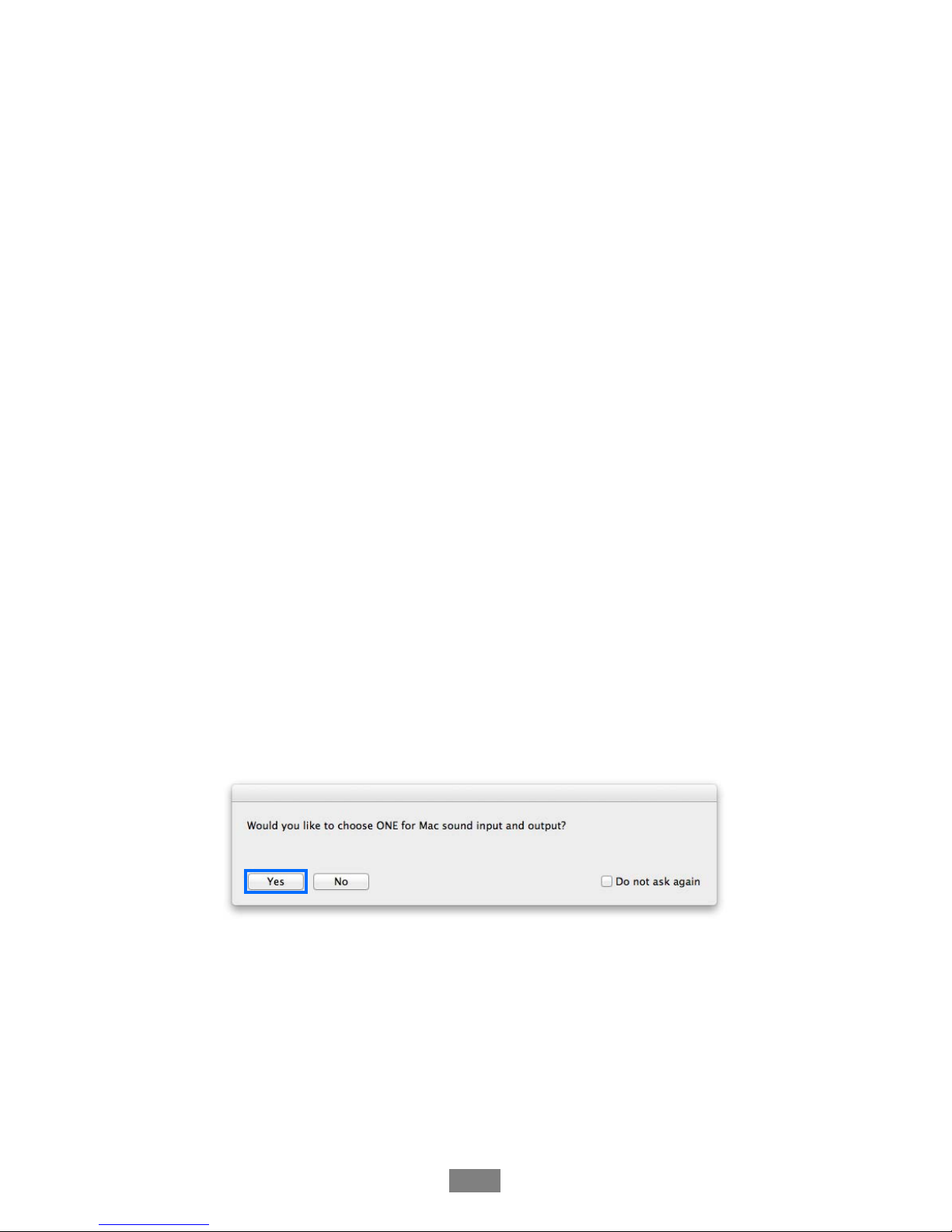
After connecting ONE, installing the software and restarting your Mac, a dialog box will prompt you to choose ONE for
Mac sound input and output. Click Yes.
Connect to Headphones or Speakers
Connect headphones to the 1/8” output jack on ONE’s front panel.
Alternatively, you can connect ONE’s output to speakers by using an adapter cable. The cable should go from a stereo
1/8” connection (from ONE) to two separate connectors suitable for your speakers (1/4”, RCA, etc.).
Getting Started - Apogee ONE User’s Guide
7
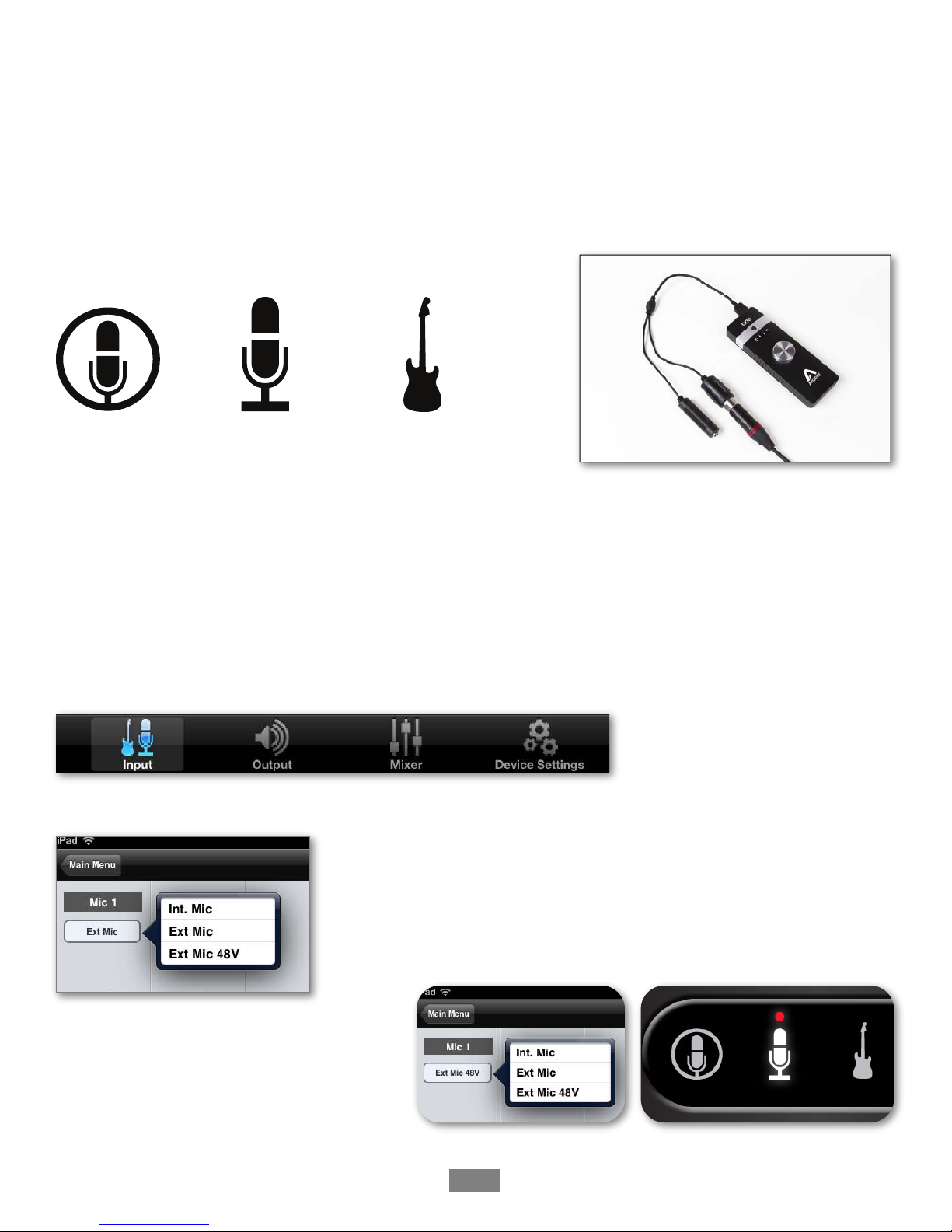
Configuring ONE’s Inputs on Mac
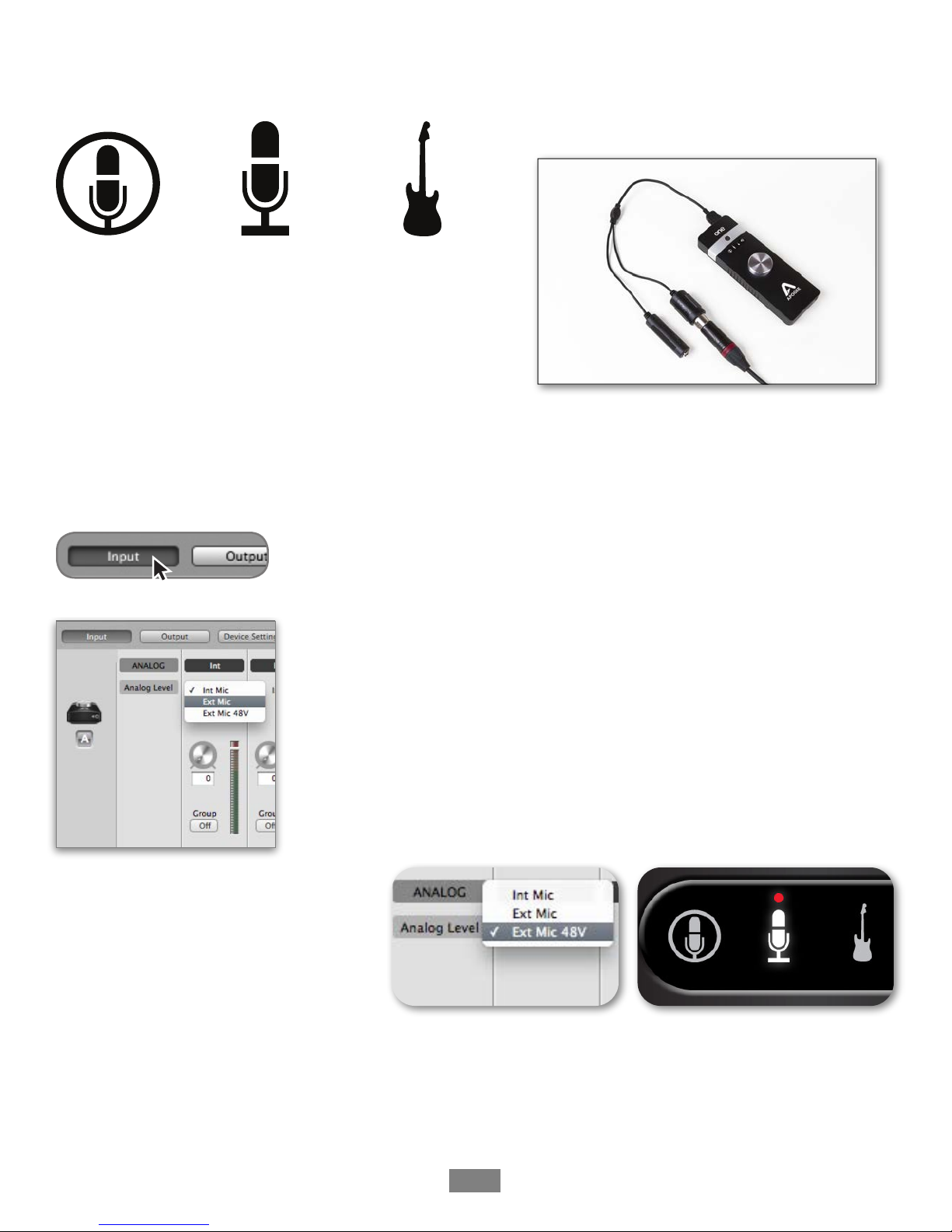
ONE’s two inputs may be configured in the following manner:
•Internal (built-in) microphone + 1/4” instrument
•External (XLR) microphone + 1/4” instrument
•External 48V (XLR) microphone + 1/4” instrument
When using an XLR microphone or 1/4” instrument, connect to ONE’s breakout cable.
"
Open Apogee Maestro software (found in your Mac’s Applications folder),
and select the Input tab.
Select the Analog Level setting that corresponds to the microphone source you’d like
to record. For example, if you have a microphone connected to the XLR connection on
the breakout cable, select Ext Mic from the Analog Level menu on channel 1. If you
would like to utilize ONE’s built-in microphone, select Int Mic. Channel 2’s source is
always the 1/4” Instrument input.
Note: If you are using a condenser
microphone that requires phantom power,
select Ext Mic 48V. Phantom power is
indicated on ONE’s display by
a red dot above the microphone icon.
Getting Started - Apogee ONE User’s Guide
8
Connecting to your iPad
System Requirements
•iPhone 4, iPhone 4S, iPad, iPad 2, iPad (3rd gen.)
•Connection: 30-pin dock connector
•iPod Touch (5th gen.), iPhone 5, iPad (4th gen.), iPad Mini
•Connection: Apple’s Lighting to 30-pin adapter (sold separately)
•iOS version: 5.1.1 or greater
•Power supply or two AA batteries required
Install Maestro from App Store
1. Connect the provided external power supply to ONE or insert 2 AA batteries.
Note: The iPad will not charge when using ONE’s battery power.
2. Connect ONE to your iPad/iPhone using the provided 30-pin iOS cable.
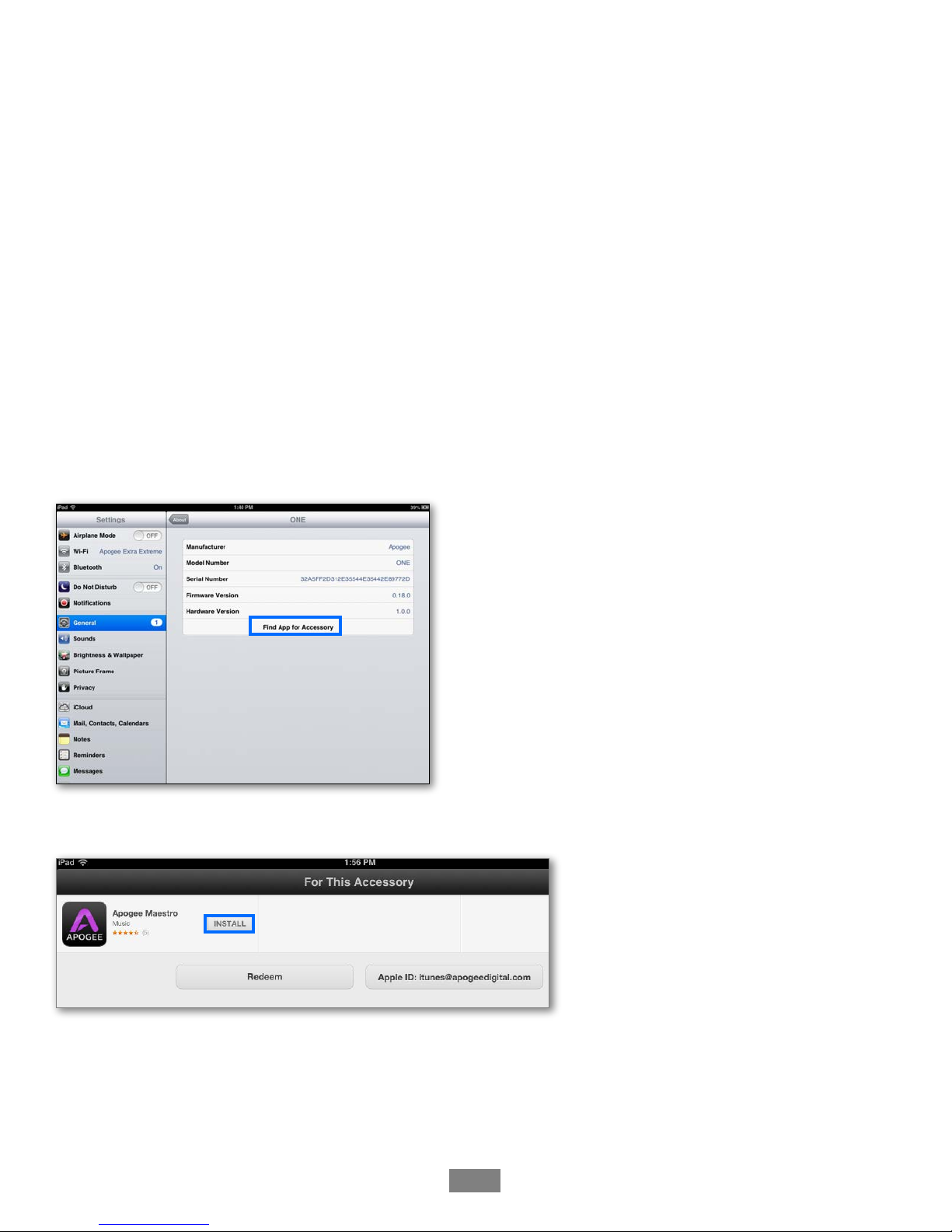
3. On the iPad/iPhone, open Settings and choose General > About > ONE, then choose "Find App for Accessory".
The App Store will open and navigate automatically to the Apogee Maestro app.
4. Once you've signed in to the App Store, click INSTALL to download Apogee Maestro.
Note: it's possible to record through the built-in microphone and play back audio without installing Maestro.
Getting Started - Apogee ONE User’s Guide
9
Connect to Headphones or Speakers
Connect headphones to the 1/8” output jack on ONE’s front panel.
Alternatively, you can connect ONE’s output to speakers by using an adapter cable. The cable should go from a stereo
1/8” connection (from ONE) to two separate connectors suitable for your speakers (1/4”, RCA, etc.).
Configuring ONE’s Inputs on iPad
ONE’s inputs may be configured in the following manner:
•Internal (built-in) microphone + 1/4” instrument
•External (XLR) microphone + 1/4” instrument
•External 48V (XLR) microphone + 1/4” instrument
When using an XLR microphone or 1/4” instrument, connect to ONE’s breakout cable.
Open Apogee Maestro app, choose ONE from the main menu and select the Input tab.
Select the Analog Level setting that corresponds to the input source you’d like to
record. For example, if you have a microphone connected to the XLR connection
on the breakout cable, select Ext Mic from the Analog Level menu on channel 1.
If you would like to utilize ONE’s built-in microphone, select Int Mic. By default,
the 1/4” instrument input is the selected source for Channel 2.
Note: If you are using a condenser microphone
that requires phantom power, select Ext Mic
48V. Phantom power is indicated on ONE’s
display by a red dot above the microphone icon.
Getting Started - Apogee ONE User’s Guide
10
Other manuals for ONE
5
Table of contents
Other Apogee Accessories manuals
Apogee
Apogee SQ-627 User manual
Apogee
Apogee ensemble User manual
Apogee
Apogee ensemble User manual
Apogee
Apogee SQ-514 User manual

Apogee
Apogee TS-100 User manual

Apogee
Apogee symphony i/o mk II User manual

Apogee
Apogee Symphony Mk II User manual

Apogee
Apogee SU-221 User manual

Apogee
Apogee SQ-520 User manual
Apogee
Apogee ONE User manual
Apogee
Apogee ensemble User manual

Apogee
Apogee SU-202 User manual
Apogee
Apogee SQ-500 Series User manual
Apogee
Apogee SQX Series User manual

Apogee
Apogee SP-214 User manual
Apogee
Apogee Apogee Duet User manual

Apogee
Apogee Element 24 User manual
Apogee
Apogee SP-522 User manual
Apogee
Apogee SQ-100 Series User manual
Apogee
Apogee ONE User manual