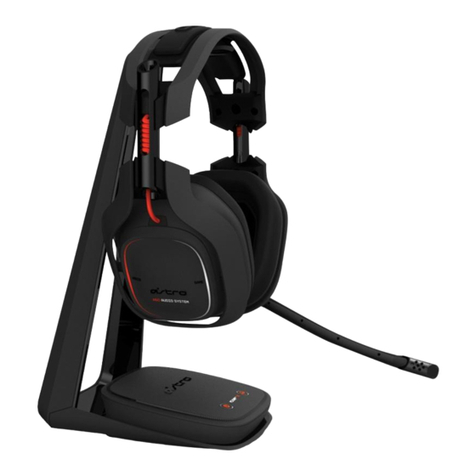
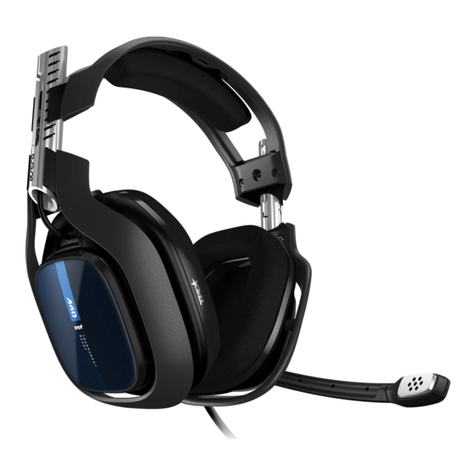
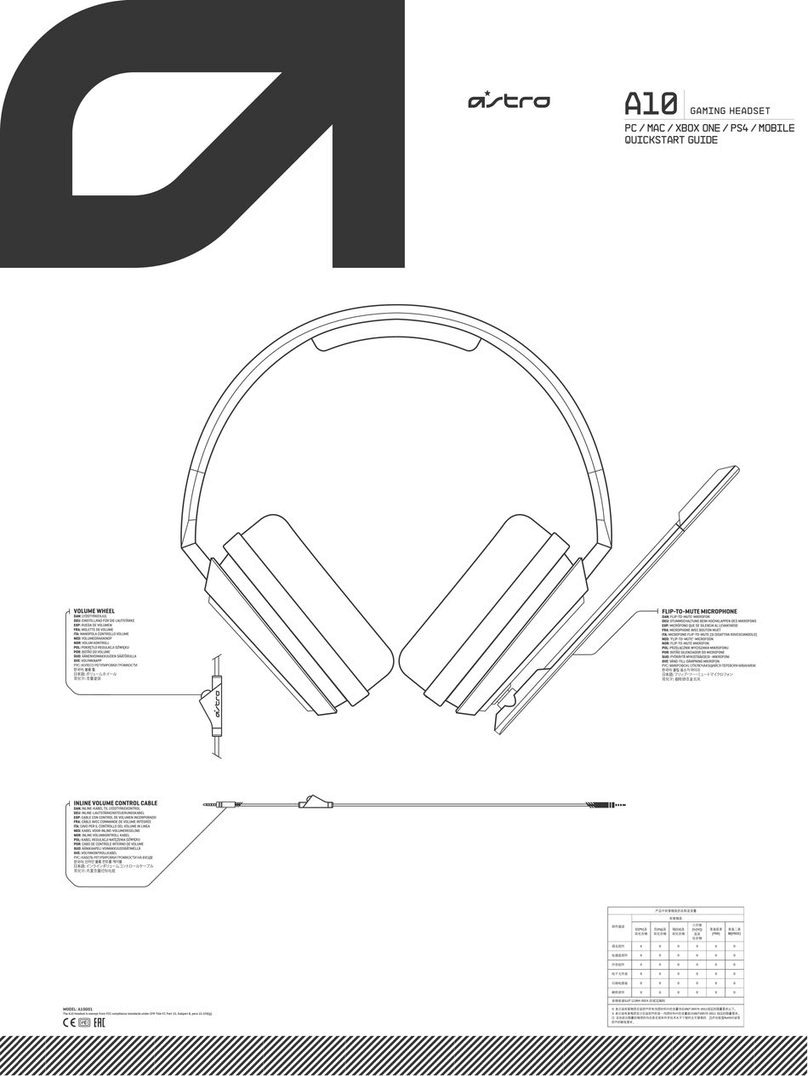
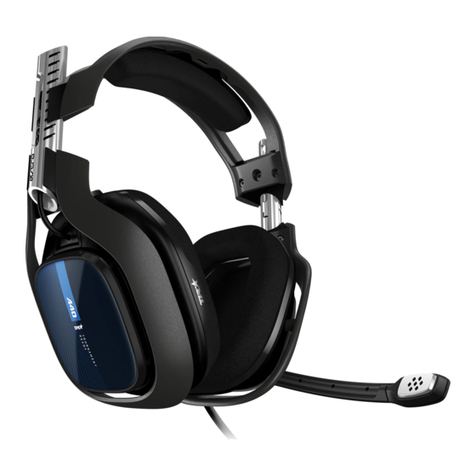
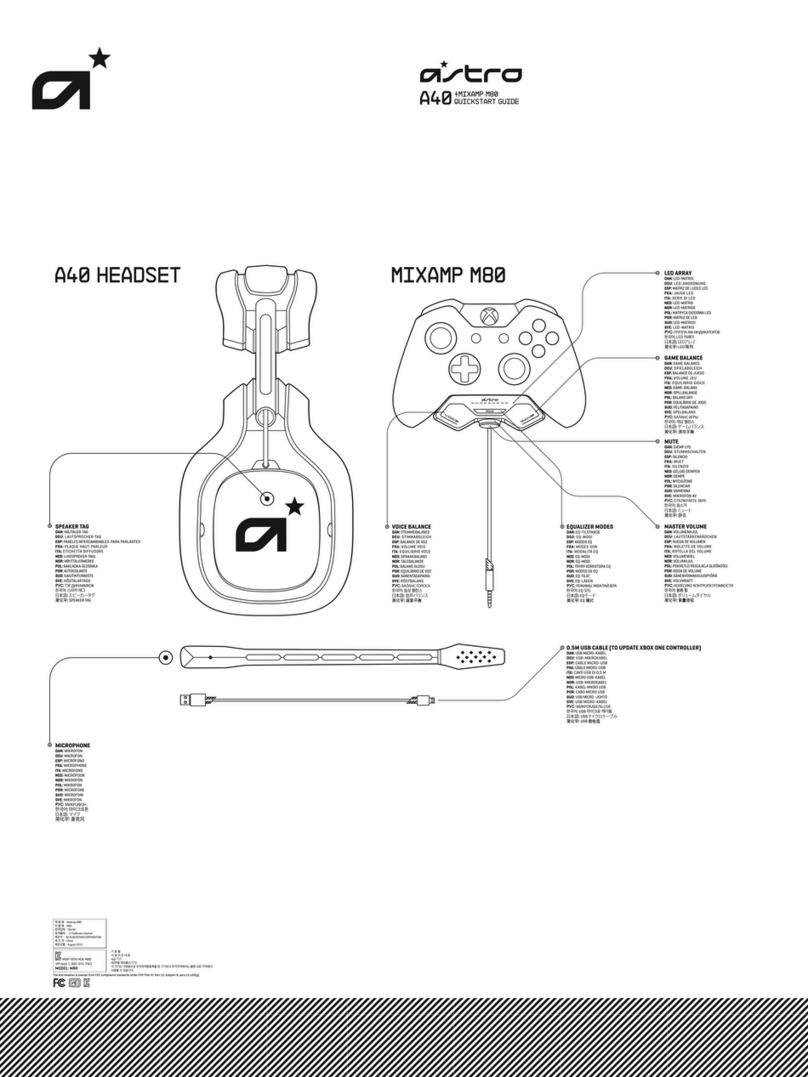
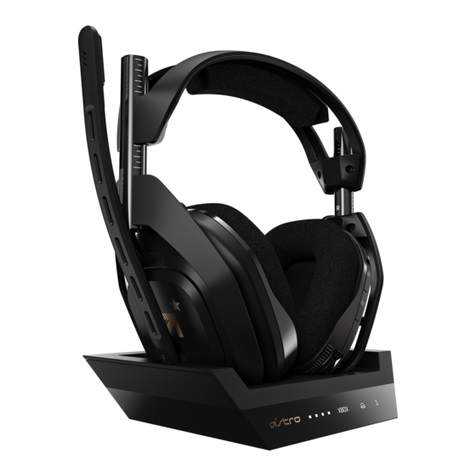
ASTRO A50 User manual

INSTRUCTION MANUAL
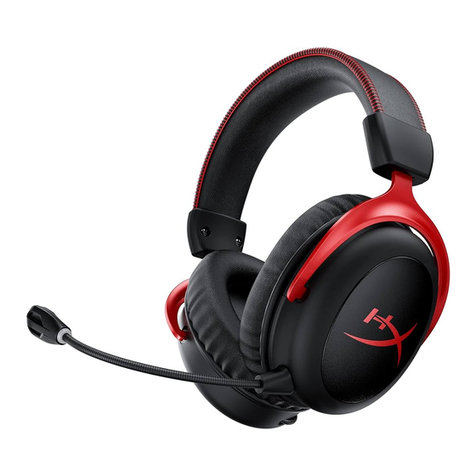
WIRELESS HEADSET
A50
QUICK
START
INSTRUCTIONS

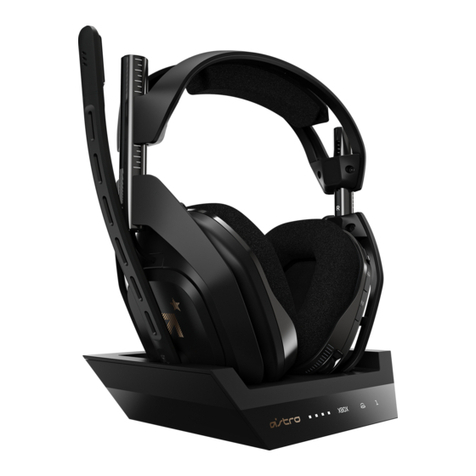
ASTRO Gaming’s A50 Wireless headset is the perfect
gaming asset for the audio-savvy citizen who equally
appreciates business and pleasure. Professionally-tuned
ASTRO Audio paired with Dolby® Digital 7.1 Surround
Sound keep you fully immersed in the experience.
Whether you’re gaming, enjoying a feature film, or
listening to your favorite album on repeat—control over
the sound settings is just a touch away.
Congratulations on your
sound investment.
The A50s are equipped with KleerNet’s 5.8 GHz wireless
technology, designed for unimpaired performance
amongst the array of other RF traffic. ASTRO Gaming’s
integrated MixAmp™ technology allows for precise
control of game to voice balance, all fitting neatly into
the contoured design of the A50. This guide will point to
the various ways in which your A50’s can be adjusted to
a setup that’s all your own.
A50 WIRELESS SYSTEM
5.8 GHZ
EQ PRESETS

OPTICAL CABLE
Provides clear Dolby® Digital surround
sound across all platforms.
USB POWER CABLE
Powers your MixAmp™ Transmitter (Tx)
as well as voice chat for the PlayStation
Network and PC gaming.
USB CHARGING CABLE
Charges your A50 Wireless Headset from
the MixAmp™ Transmitter.
DISPLAY STAND
Holds the MixAmp™ Transmitter and
A50 Wireless Headset for storage and
charging.
Package Contents
Contents
So... you've breached the boxy exterior, and you're working
your way along the inside. You'll find that your A50 comes
bundled with some cables, each has a purpose that's suited
to your method of gameplay.
ASTRO GAMING
CONFIDENTIAL 2013
EYES ONLY
010185
ASTRO AUDIO
SUPERIOR
TOURNAMENT
COMPETITIVE

ASTRO GAMING
CONFIDENTIAL 2013
EYES ONLY
010185
ASTRO AUDIO
SUPERIOR
TOURNAMENT
COMPETITIVE
System Configuration // PS4
2
Plug the optical cable into the MixAmp™
Transmitter and back optical port of the
PS4 for Dolby® Digital 7.1 Surround Sound
(Be sure to remove the caps on the cable tips).
Back of MixAmpTM Transmitter Back of PS4
3
Power on the PS4, then the MixAmp™
Transmitter. The headset and transmitter
should already be paired (see page 10 for
pairing instructions).
MixAmpTM Pro Power Button
*STAND BY *POWER ON
8
The A50 headset and PS4 are set up and
ready to go. Game on!
5
Go to settings and select “Sound and
Screen,” then select “Primary Output Port”
and choose “Digital Out (Optical).”
PS4 SOUND SETTINGS
6
Go back to “Audio Output Settings” and
select “Audio Format (Priority),” then select
“Bit Stream (Dolby).”
PS4 SOUND SETTINGS
4
The PS4 will automatically detect the
headset; sign into a user profile when
prompted.
SIGN IN
7
Under the "Audio Output Settings" menu,
select "Output to Headphones" and make
sure "Chat Audio" is selected and not
"All Audio.”
PS4 SOUND SETTINGS
1
Plug Micro-USB Cable into MixAmpTM
Transmitter and PS4 for power.
Front of PS4 Back of MixAmpTM Transmitter

23
8
56
4
7
1
ASTRO GAMING
CONFIDENTIAL 2013
EYES ONLY
010185
ASTRO AUDIO
SUPERIOR
TOURNAMENT
COMPETITIVE
System Configuration // PS3
Power on your PS3 first, then your
MixAmp™ Transmitter and A50 Headset.
*Your headset and transmitter should
already be paired.
MixAmpTM Pro Power Button
*STAND BY *POWER ON
That’s it! Your A50 Wireless Headset and PS3
are set up and ready to game.
Choose ‘Optical Digital’ and only activate
‘Dolby Digital 5.1 Ch’
*Make sure that ‘DTS 5.1 Ch’ is NOT Selected
PS3 SOUND SETTINGS
To enable Voice Chat, go to ‘Settings,’ select
‘Accessory Settings,’ and then ‘Audio Device
Settings.’
PS3 SOUND SETTINGS
Under both ‘Input Device’ and ‘Output Device,’
select ‘ASTRO Wireless Transmitter.’
PS3 SOUND SETTINGS
To enable Game Audio, go to ‘Settings,’ then
‘Sound Settings,’ and select ‘Audio Output
Settings.’
PS3 SOUND SETTINGS
Plug Micro-USB cable into MixAmpTM
Transmitter and PS3 for power.
Back of MixAmpTM Transmitter Front of PS3
Plug Optical cable into MixAmpTM Transmitter
& PS3 for Dolby® 7.1 Surround Sound.
*Be sure to remove caps on the cable tips
Back of MixAmpTM Transmitter
Back of PS3

ASTRO GAMING
CONFIDENTIAL 2013
EYES ONLY
010185
ASTRO AUDIO
SUPERIOR
TOURNAMENT
COMPETITIVE
System Configuration // x360
23
56
4
1
That’s it! Your A50 Wireless Headset and Xbox
360 are set up and ready to game.
Plug the micro-USB cable into the MixAmp™
Transmitter and the USB port of the Xbox
360 for power.
To use Xbox LIVE® Chat: Connect the Xbox
LIVE® Cable from your Xbox 360 controller
to the port located on the left earpiece of
the A50. **Cable not included
Plug the optical cable into the MixAmp™
Transmitter and optical port of the Xbox 360
for Dolby® Digital 7.1 Surround Sound (Be
sure to remove the caps on the cable tips).
Power on your Xbox 360 first, then your
MixAmp™ Transmitter and A50 Headset.
The headset and transmitter should
already be paired.
Sign into a user profile when prompted.
MixAmpTM Pro Power Button
*STAND BY *POWER ON
SIGN IN
**If you have a non-slim Xbox 360 and you use
HDMI to connect to the TV, you will need an Xbox
360 Audio Dongle (not included). You may be able
to pull audio from your TV’s optical pass-through.
See Home Theater System Configuration page.

ASTRO GAMING
CONFIDENTIAL 2013
EYES ONLY
010185
ASTRO AUDIO
SUPERIOR
TOURNAMENT
COMPETITIVE
System Configuration // PC
23
8
56
4
7
1
Power on your PS3 first, then your MixAmp™
Transmitter and A50 Headset.
*Your headset and transmitter should already be paired, see
front page for pairing instructions. (page 2)
MixAmpTM Pro Power Button
*STAND BY *POWER ON
That’s it! Your A50 Wireless Headset and PC
are set up and ready to game.
Select ‘SPDIF Out’ or your digital output, then
‘Set as Default Device.’
CONTROL PANEL
To enable Voice Chat; go to ‘Control Panel,’
select ‘Sound,’ then ‘Recording.’
CONTROL PANEL
Select ‘ASTRO WIRELESS TRANSMITTER,’ then
‘Set as Default Device.’
*To guarantee full functionality, be sure your sound card
supports ‘Dolby Digital’ Technology.
CONTROL PANEL
To enable Game Audio on PC using Windows 7
Pro; go to ‘Control Panel,’ select ‘Sound,’ then
‘Playback.’
CONTROL PANEL
Back of MixAmpTM Transmitter
Plug Micro-USB Cable into MixAmpTM
Transmitter and PC for power.
USB Port on PC Back of MixAmpTM Transmitter
Plug the optical cable into the MixAmp™
Transmitter and PC for Dolby® Digital 7.1
Surround Sound (Be sure to remove the
caps on the cable tip
Optical Port on PC

ASTRO GAMING
CONFIDENTIAL 2013
EYES ONLY
010185
ASTRO AUDIO
SUPERIOR
TOURNAMENT
COMPETITIVE
System Configuration // MAC
23
56
4
1
Power on the Mac, then turn on the MixAmp™
Transmitter and A50 headset. The headset and
transmitter should already be paired
MixAmpTM Pro Power Button
*STAND BY *POWER ON
That’s it! Your A50 Wireless Headset and MAC
are set up and ready to game.
To enable Voice Chat; go to “Settings,” select
“Sound,” then “Input.” Select “ASTRO WIRELESS
TRANSMITTER.”
CONTROL PANEL
To enable Game Audio, go to “Settings,” select
“Sound,” then “Output” and choose “Digital Out.”
CONTROL PANEL
Back of MixAmpTM Transmitter
Plug micro-USB cable into the MixAmp™
Transmitter and USB port on the Mac
for power.
USB Port on MAC Back of MixAmpTM Transmitter
Attach a 3.5mm optical adapter* to the mini-
optical cable provided, then plug into MixAmp™
Transmitter and Mac 3.5mm optical port.
3.5mm on MAC

ASTRO GAMING
CONFIDENTIAL 2013
EYES ONLY
010185
ASTRO AUDIO
SUPERIOR
TOURNAMENT
COMPETITIVE
System Configuration // HOME
Optical pass-through gives you the ability to output the same optical signal your MixAmp™
Transmitter is receiving, allowing you to add an additional peripheral device without having to
adjust any cables.
To Connect:
OPT-OUT to AV Receiver: Connect optical cable from the OPT-OUT port on the MixAmp™ Transmit-
ter to the input on your AV Receiver.
Television Setup:
If your television comes equipped with optical pass-through functionality, simply connect the
optical output on your television to the OPT-IN port on your MixAmp™ Transmitter, bypassing the
optical port on your Xbox 360.
OPT-INOPT-IN
AV Receiver TV
OR

ASTRO GAMING
CONFIDENTIAL 2013
EYES ONLY
010185
LED Indicator on A50 Headset:
Solid Red, USB connected: Charging finished.
Solid Red, USB disconnected: Powered on.
Blinking Red + Audible Beep: Low Power,
Charge Immediately.
Solid Orange: Charging Lithium-Ion Battery.
Blinking White: Pairing mode.
A50 LED BEHAVIOR
LED Indicators on MixAmp™ Tx:
Power LED
Off: Powered off.
Solid Red: Powered on.
Blinking White: Pairing mode.
Dolby® LED
Off: Dolby® Headphone disabled.
Solid Red: Dolby® Headphone enabled.
Other manuals for A50
7
Table of contents
Other ASTRO Headset manuals