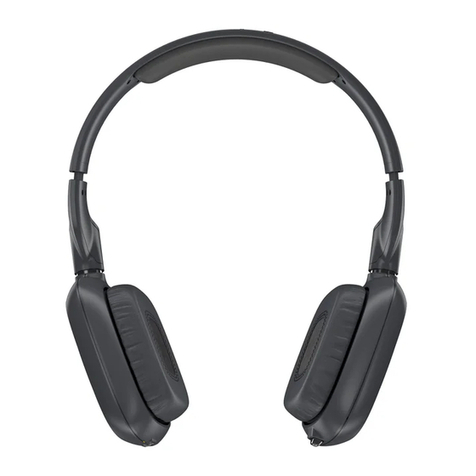
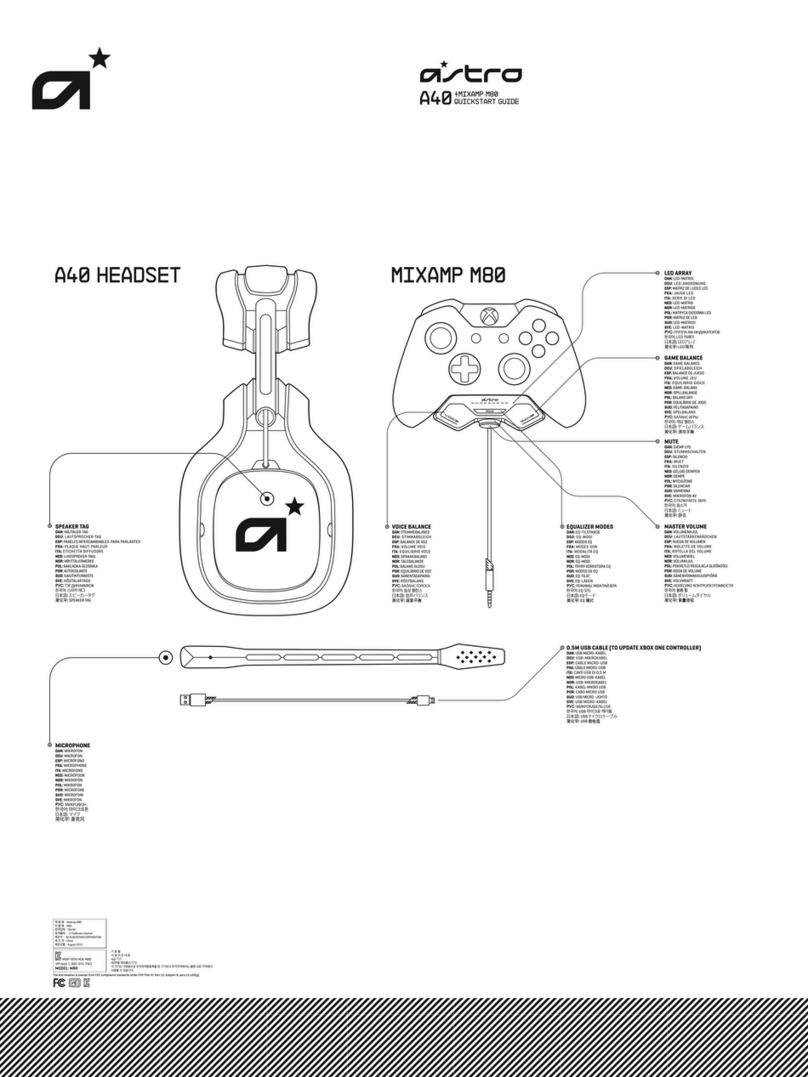
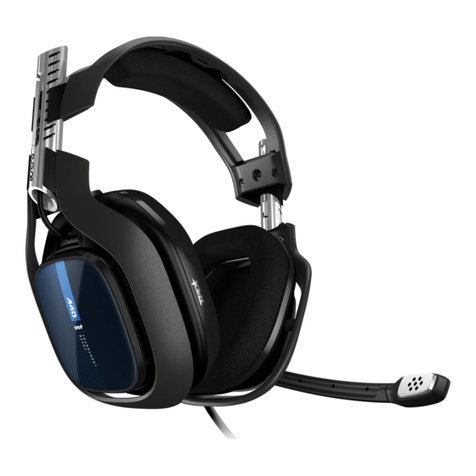
ASTRO A50 User manual

INSTRUCTION MANUAL
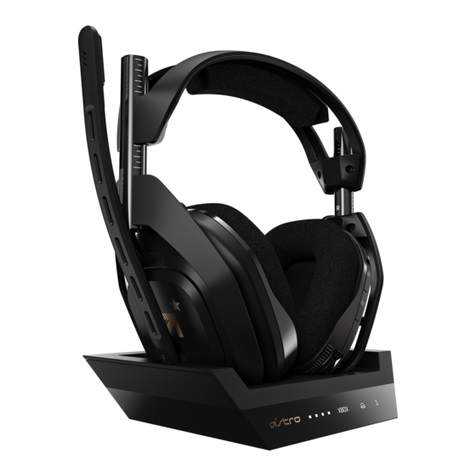
WIRELESS HEADSET
A50

ASTRO Gaming's A50 Wireless Headset offers a solution
for the audio-savvy citizen who equally measures
business and pleasure. Professionally-tuned Astro Audio
paired with Dolby® 7.1 surround sound to pack aural
one-two punch, while three unique EQ modes provide
fully customizable transitions between media and
gaming. Whether you're gaming, enjoying a feature film,
or have tunes in need of heavy rotation-- control over
bass and ambient noise is all just a touch away.
Congratulations on your
sound investment.
The A50's are equipped with KleerNet's 5.8 GHz wireless
technology, designed for unimpaired performance
amongst the array of other RF traffic. ASTRO
Gaming's integrated MixAmp™ technology allows for
precise control of game to voice balance, all fitting
neatly into the contoured design of the A50. This
guide will point to the various ways in which your
A50's can be adjusted to a setup that's all your own.
A50 WIRELESS SYSTEM
5.8 GHZ
EQ PRESETS

OPTICAL CABLE
Provides clear Dolby® Digital surround
sound across all platforms.
USB POWER CABLE
Powers your MixAmp™ Transmitter (Tx)
as well as voice chat for the PlayStation
Network and PC gaming.
USB CHARGING CABLE
Charges your A50 Wireless Headset from
the TxD unit.
XBOX LIVE® CABLE
Connects to the Xbox controller enabling Xbox
LIVE® chat.
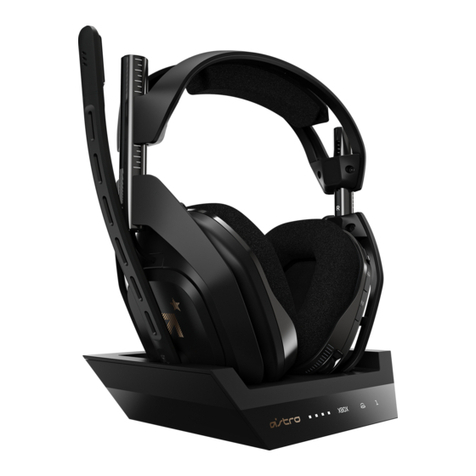
DISPLAY STAND
Holds Transmitter and headset for
storage and charging.
Package Contents
Contents
So... you've breached the boxy exterior, and you're working
your way along the inside. You'll find that your A50 comes
bundled with some cables, each has a purpose that's suited
to your method of gameplay.
ASTRO GAMING
CONFIDENTIAL 2013
EYES ONLY
010185
ASTRO AUDIO
SUPERIOR
TOURNAMENT
COMPETITIVE

1.
2.
Xbox LIVE® Cable
Optical Cable
USB Power Cable
ASTRO GAMING
CONFIDENTIAL 2013
EYES ONLY
010185
ASTRO AUDIO
SUPERIOR
TOURNAMENT
COMPETITIVE
System Configuration // xbox 360
Xbox 360 Setup:
Xbox 360 ∂ OPT-IN: Connect the Optical Cable from the digital output on your console to the digital input on the
MixAmp™ Transmitter.
Xbox 360 ∂ PWR: Connect the USB Power Cable from a port on your console to the PWR port
on your MixAmp™ Transmitter (Tx).
To use Xbox LIVE® Chat: Connect the Xbox LIVE® Cable from your Xbox 360 controller to the port located on the left earpiece
of the A50.
*If you have a non-slim Xbox 360 and you use HDMI to connect to the TV, you will need an Xbox 360
Audio Dongle (not included). You may be able to pull audio from your TV’s optical passthrough. See
Home Theater System Configuration page.

Game Audio
In the PS3 Settings, select:
Settings ∂ Sound Settings ∂ Audio Output Settings ∂ Optical
Digital ∂ Dolby Digital 5.1 Ch
Ensure that the DTS 5.1 Ch has NOT been selected
Voice Chat
In the PS3 Settings, select:
Settings ∂ Accessory Settings ∂ Audio Device Settings
Set “Input Device” to “ASTRO Wireless Transmitter”
Set “Output Device” to “ASTRO Wireless Transmitter”
You can hear how you’ll sound to other players if you go back
to the Accessory Settings menu and select the Voice Changer
option.
1.
2.
Optical Cable
USB Power Cable
System Configuration // Ps3
PS3 Setup:
PS3 ∂ OPT-IN: Connect the Optical Cable from the optical digital output on your console to the digital input on
MixAmp™ Transmitter (Tx).
PS3 ∂ PWR: Connect the USB Power Cable from a port on your console to the PWR port on your MixAmp™
Transmitter (Tx).
ASTRO GAMING
CONFIDENTIAL 2013
EYES ONLY
010185

Game Audio (using Windows 7 Pro)
In the Control Panel, select:
Sound ∂ Playback
Under digital output, select “SPDIF Out” then “Set as Default Device.”
If you do not have an optical output, select “Headphone /
Speaker out,” “Line Out” or “Digital Output” on the USB to SPDIF
converter.
Voice Chat
In the Control Panel, select:
Sound ∂ Recording
Select “ASTRO Wireless Transmitter” then “Set as Default Device”
*To guarantee full functionality, ensure that your sound card
supports Dolby® Digital technology.
1.
2.
Optical Cable
USB Power Cable
System Configuration // PC
PC Setup:
PC port ∂ OPT-IN: Connect the Optical Cable from the optical digital output on your PC to the digital input on the MixAmp™
Transmitter (Tx). If your PC does not have an optical connection, use your headphone or line out jack and connect to the
AUX input on the Tx. You may need to acquire a USB to optical digital out converter*.
PC ∂ PWR: Connect the USB Power Cable from a port on your PC to the PWR port on your MixAmp™ Transmitter (Tx).
ASTRO GAMING
CONFIDENTIAL 2013
EYES ONLY
010185

Console
Optical CableHDMI*
ASTRO GAMING
CONFIDENTIAL 2013
EYES ONLY
010185
ASTRO AUDIO
SUPERIOR
TOURNAMENT
COMPETITIVE
Home Theater
Sick of dealing with a multitude of cables? You're not alone.
That's why the MixAmp™ Tx comes with a port that gives you
the power of Optical Passthrough.
Sweet! Wait. What is Optical Passthrough? Optical Passthrough
gives you the ability to output the same optical signal your
MixAmp™ Tx is receiving, allowing you to add an additional
peripheral device without having to adjust any cables.
Always make sure your MixAmp™ Tx has USB power in order for
Optical Passthrough to work.
To Connect:
OPT-OUT ∂ AV Receiver: Connect Optical Cable from the OPT-OUT
(Optical Passthrough) port on the MixAmp™ Tx to the input on
your AV Receiver.
Television Setup
If your television comes equipped with Optical Passthrough
functionality, simply connect the optical output on your
television to the optical in terminal on your MixAmp™ Tx,
bypassing the optical port on your Xbox 360.
To connect:
(TV) OPT-OUT ∂ OPT-IN (MixAmp™ Tx)
Opt Out
(TV)
System Configuration // HOME THEATER
*HDMI not included
HDMI
In
Opt.
Out
Optical Cable
Console
Optical Cable
Opt. In
(Receiver)

ASTRO GAMING
CONFIDENTIAL 2013
EYES ONLY
010185
LED Indicator on A50 Headset:
Solid Red, USB connected: Charging finished.
Solid Red, USB disconnected: Powered on.
Blinking Red + Audible Beep: Low Power,
Charge Immediately.
Solid Orange: Charging Lithium-Ion Battery.
Blinking White: Pairing mode.
A50 LED BEHAVIOR
LED Indicators on MixAmp™ Tx:
Power LED
Off: Powered off.
Solid Red: Powered on.
Blinking White: Pairing mode.
Dolby® LED
Off: Dolby® Headphone disabled.
Solid Red: Dolby® Headphone enabled.

ASTRO GAMING
CONFIDENTIAL 2013
EYES ONLY
010185
Xbox LIVE®
Cable Port
USB
Charging Port
Microphone
Power / Pairing
EQ Mode Select
1. Media Mode
2. Core Mode
3. Pro Mode
Master Volume
Game / Voice Balance
A50 User INTERFACE

A50 USER INTERFACE
A50 Controls
Game/Voice Balance: The A50’s integrated game and voice
mixing functions are located on your right earpiece. The A50s
come preset to a 50/50 balance. To adjust, press the button for
the audio function you wish to incrementally increase. Holding
down “Game” will cause the mixing function to isolate game
sounds, quieting the voice. Pressing “Voice” will cause the mixer
to decrease game sounds, amplifying voice.
While using this feature you may find your A50 emits a series of
intermittent beeps. Rest assured, you haven't been tricked into
an ASTRO hearing test.
A50 Game/Voice Balance Beeps:
At 50/50 Game + Voice: Emits a single beep
At 100% Voice: Emits a two-tone beep (unique to max voice)
At 100% Game: Emits a two-tone beep (unique to max game)
Master Volume: The Master Volume wheel located on the
bottom of the right earpiece adjusts overall volume control.
Use the Master Volume in conjunction with Game/Voice Balance
for total audio domination. Lecherous laughter is optional (but
encouraged).
Microphone: The A50 fixed microphone operates when in the
down/forward position. To activate the microphone's mute
feature, simply swing the microphone arm up to the vertical
(12 o'clock) position, where the microphone will click into place.
Equalizer (EQ) Modes: EQ modes are controlled by a switch
located on the back of the right earpiece. The A50s come
equipped with three separate EQ modes for better listening:
1. Media: Enhanced bass, for movies and music
2. Core: Balanced for single player gaming
3. Pro: Boosted high frequencies for competitive gameplay
ASTRO GAMING
CONFIDENTIAL 2013
EYES ONLY
010185
ASTRO AUDIO
SUPERIOR
TOURNAMENT
COMPETITIVE
Other manuals for A50
7
Table of contents
Other ASTRO Headset manuals