manuals.online logo
Brands
  1. Home
  2. •
  3. Brands
  4. •
  5. Audiovox
  6. •
  7. Car Video System
  8. •
  9. Audiovox MM92HR User manual

Audiovox MM92HR User manual

Other manuals for MM92HR

1

Other Audiovox Car Video System manuals
Audiovox VOD122 - DVD Player With LCD Monitor User manual

Audiovox

Audiovox VOD122 - DVD Player With LCD Monitor User manual

Audiovox 1187001PL User manual

Audiovox

Audiovox 1187001PL User manual

Audiovox VOH681 User manual

Audiovox

Audiovox VOH681 User manual

Audiovox VOD8512 S User manual

Audiovox

Audiovox VOD8512 S User manual

Audiovox VOH560PKG User manual

Audiovox

Audiovox VOH560PKG User manual

Audiovox MMDV70CB User manual

Audiovox

Audiovox MMDV70CB User manual

Audiovox VME 9314TS User manual

Audiovox

Audiovox VME 9314TS User manual

Audiovox 50-0244x-001 SERIES User manual

Audiovox

Audiovox 50-0244x-001 SERIES User manual

Audiovox Mobile Video 128-8607 User manual

Audiovox

Audiovox Mobile Video 128-8607 User manual

Audiovox Movies 2 Go MMSV58 User manual

Audiovox

Audiovox Movies 2 Go MMSV58 User manual

Audiovox VOD85 - DVD Player With LCD Monitor User manual

Audiovox

Audiovox VOD85 - DVD Player With LCD Monitor User manual

Audiovox VOD285P User manual

Audiovox

Audiovox VOD285P User manual

Audiovox VOD129 User manual

Audiovox

Audiovox VOD129 User manual

Audiovox PROVD8 User manual

Audiovox

Audiovox PROVD8 User manual

Audiovox MMD7HRPKG - Movies2Go - DVD Player User manual

Audiovox

Audiovox MMD7HRPKG - Movies2Go - DVD Player User manual

Audiovox VM9214 User manual

Audiovox

Audiovox VM9214 User manual

Audiovox MMD7HRPKG - Movies2Go - DVD Player User manual

Audiovox

Audiovox MMD7HRPKG - Movies2Go - DVD Player User manual

Audiovox VMO 5020 V User manual

Audiovox

Audiovox VMO 5020 V User manual

Audiovox PROV 710 P User manual

Audiovox

Audiovox PROV 710 P User manual

Audiovox Movies 2 Go MMD85A User manual

Audiovox

Audiovox Movies 2 Go MMD85A User manual

Audiovox LCM1042TV User manual

Audiovox

Audiovox LCM1042TV User manual

Audiovox HR7DD PKG User manual

Audiovox

Audiovox HR7DD PKG User manual

Audiovox VOD102 - DVD Player With LCD Monitor User manual

Audiovox

Audiovox VOD102 - DVD Player With LCD Monitor User manual

Audiovox Mobile Video VOD100 User manual

Audiovox

Audiovox Mobile Video VOD100 User manual

Popular Car Video System manuals by other brands

Farenheit MD-1510CM instruction manual

Farenheit

Farenheit MD-1510CM instruction manual

Mazda Connect manual

Mazda

Mazda Connect manual

RCA DRC97983 Manual de usuario

RCA

RCA DRC97983 Manual de usuario

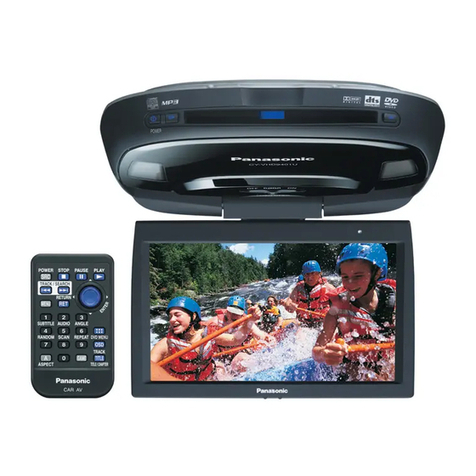
Panasonic CY-VHD9401U Service manual

Panasonic

Panasonic CY-VHD9401U Service manual

Stinger HEIGH10 RB10RAM13B installation manual

Stinger

Stinger HEIGH10 RB10RAM13B installation manual

Alpine IVA-W203 - 6.5" Touch Screen 2-DIN DVD In-Dash... owner's manual

Alpine

Alpine IVA-W203 - 6.5" Touch Screen 2-DIN DVD In-Dash... owner's manual

Eonon E1057 instructions

Eonon

Eonon E1057 instructions

Milion D2223 user manual

Milion

Milion D2223 user manual

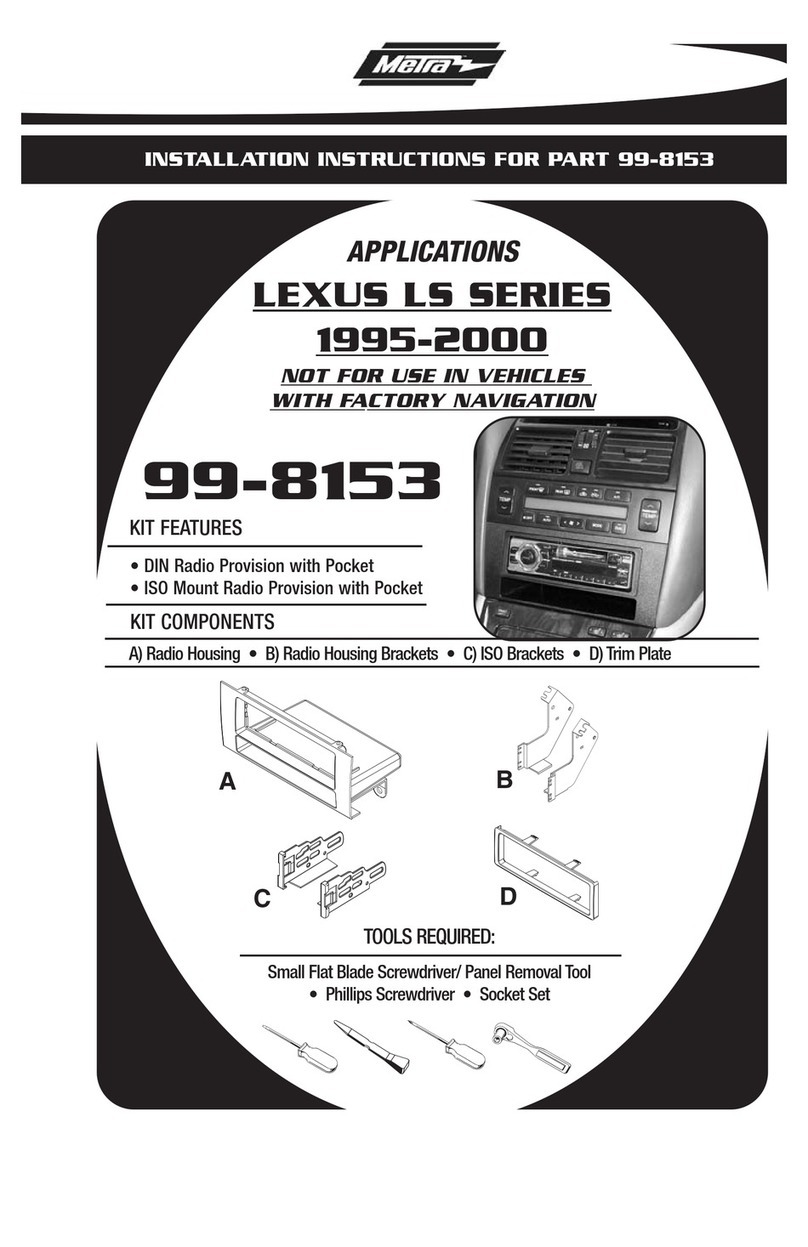
Metra Electronics 99-8153 installation instructions

Metra Electronics

Metra Electronics 99-8153 installation instructions

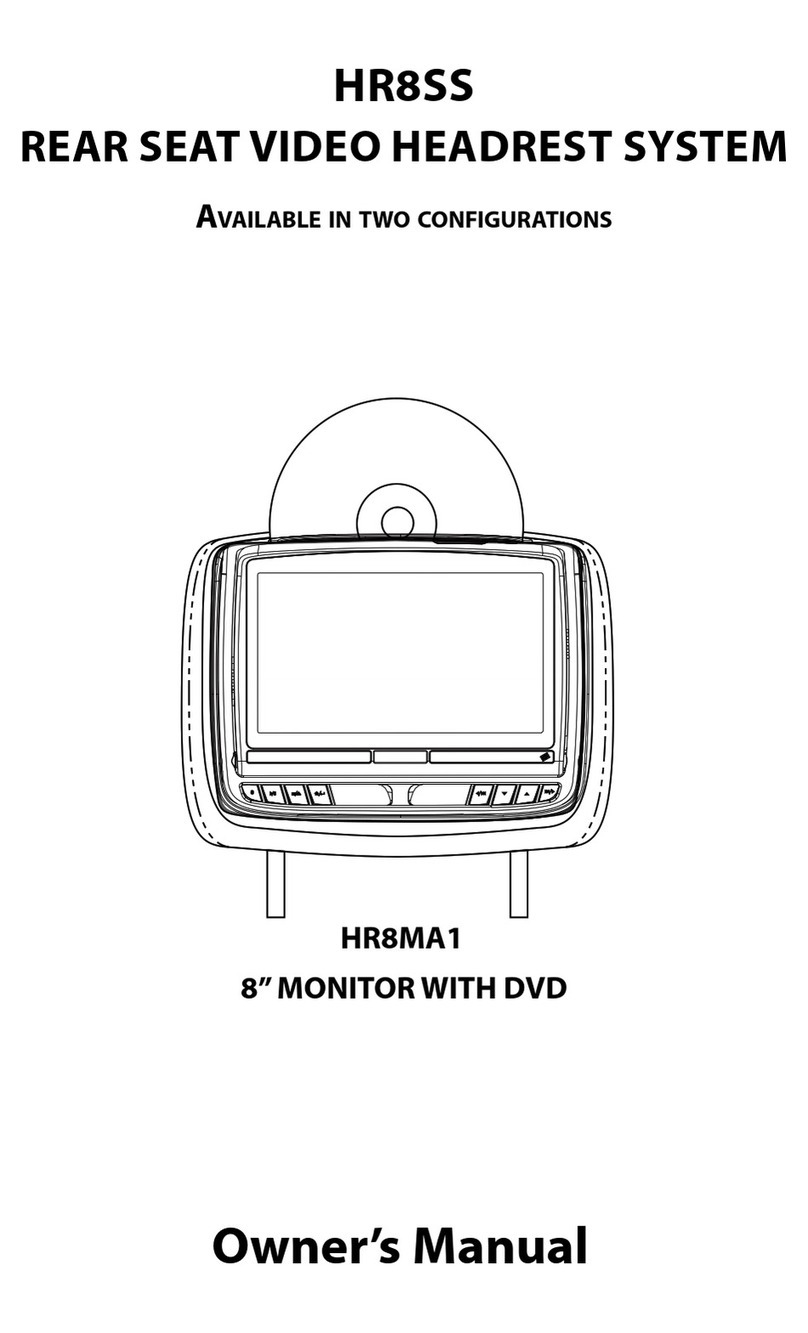
Voxx Electronics HR8MA1 owner's manual

Voxx Electronics

Voxx Electronics HR8MA1 owner's manual

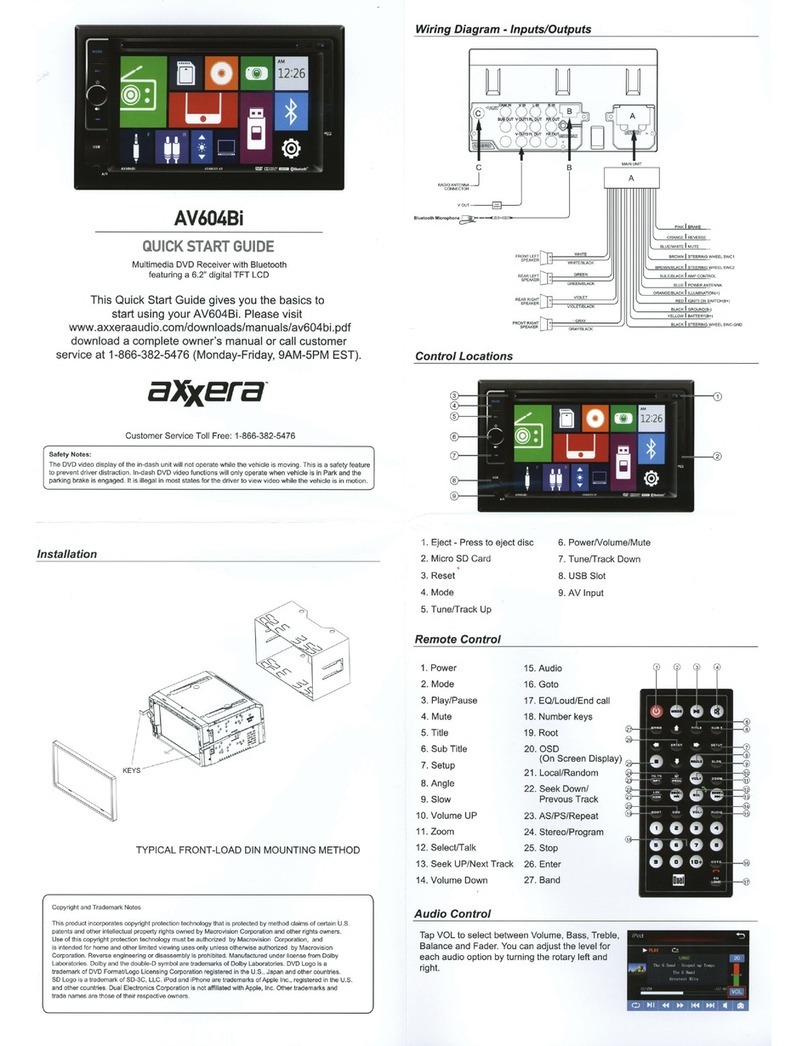
Axxera AV604Bi quick start guide

Axxera

Axxera AV604Bi quick start guide

Clarion NX706E owner's manual

Clarion

Clarion NX706E owner's manual

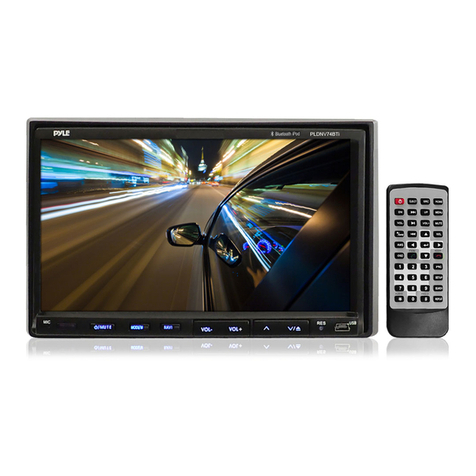
Pyle view PLDN74BTi owner's manual

Pyle view

Pyle view PLDN74BTi owner's manual

Clarion NX602 quick start guide

Clarion

Clarion NX602 quick start guide

RCA DRC6296 - Twin 9" Mobile DVD System Manual Del Usuario

RCA

RCA DRC6296 - Twin 9" Mobile DVD System Manual Del Usuario

Fiat Uconnect 5.0 manual

Fiat

Fiat Uconnect 5.0 manual

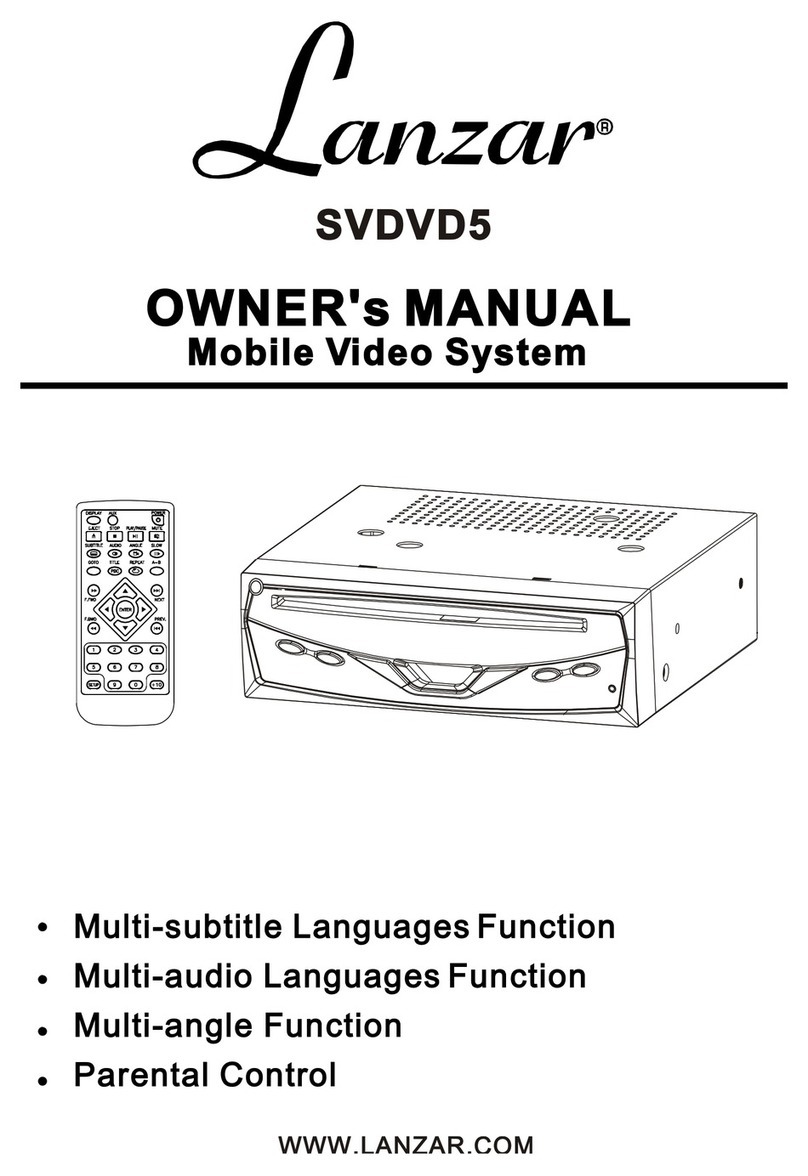
Lanzar SVDVD5 owner's manual

Lanzar

Lanzar SVDVD5 owner's manual

Eonon E1060 instructions

Eonon

Eonon E1060 instructions

manuals.online logo
manuals.online logoBrands
  • About & Mission
  • Contact us
  • Privacy Policy
  • Terms and Conditions

Copyright 2025 Manuals.Online. All Rights Reserved.

MM92HR
Dual 9.2” Wide TFT LCD Pre-Mounted
Headrest Monitors
128-8276
Operation/Installation
Manual
Important Notices
Installation of headrest products require careful planning and preparation. Be extremely careful of seats that have airbags
built into them. Keep wiring away from any air bag wiring (usually identified by yellow connectors and yellow wire jackets).
Damage to air bag wiring can result in personal injury to vehicle occupants. If you have any questions regarding wire
routing or installation in a vehicle, please contact Audiovox Technical Support at 1-800-225-6074.
When connecting power and ground in a mobile video installation, insure that the ACC wire is fused at the point where it is
connected to the vehicle ACC wiring. Failure to do so can result in damage to the vehicle if a short circuit develops
between the vehicle connection point and the mobile video product.
An LCD panel and/or video monitor may be installed in a motor vehicle and visible to the driver if the LCD panel or video
monitor is used for vehicle information, system control, rear or side observation or navigation. If the LCD panel or video
monitor is used for television reception, video or DVD play, the LCD panel or video monitor must be installed so that these
features will only function when the vehicle is in “park” or when the vehicle’s parking brake is applied.
An LCD panel or video monitor used for television reception, video or DVD play that operates when the vehicle is in gear
or when the parking is not applied must be installed to the rear of the driver’s seat where it will not be visible, directly or
indirectly, to the operator of the motor vehicle.
3
MM92HR System
The MM92HR system consists of two headrests each with a 9.2" LCD monitor. An additional DVD player (Audiovox AVD400A or MMDV5
or similar) is required in order to view DVD videos on this system. Alternatively, a gaming system can be used as a video input to play
video games. In either case, it is recommended that a video amplifier (such as Audiovox VA100) be used to eliminate video signal
loss which can result in poor picture quality.
In addition, 2-channel wireless IR (Infra-Red) headphones (Audiovox IR2CHS or similar) may be purchased to allow listening to the
system without wired headphones.
Quick Start Guide
1. Turn on the video source (DVD player, game, etc.).
2. Press the Power button on the monitor.
Note: When the DVD player or source is turned on, it will automatically turn on the headrest monitor if the monitor is set to AV1
input.
3. Press the AV button to view the video source. (If there is no video displayed or video source selected, the monitor will turn off.)
a. AV1 source is the DVD player, game, etc.
b. AV2 is the AV2 input on the front of the monitor next to the headphone jack. Use the supplied adapter to input a video
game or other video source.
4. When using the optional wired headphones, plug the headphones into the headphone jack on the front of the unit.
5. When using the optional 2-channel (A/B) wireless headphones, each headphone has an A/B switch on it. The monitor can be
set to broadcast on channel A (2.3MHz/2.8MHz), or channel B (3.2MHz/3.8MHz. (Refer to the Monitor Operation section to set
the Infrared transmitter to either channel A or channel B.)
4
Control Function Descriptions for Monitor M1 and M2
M1 / M2 Panel Control
1. Wired Earphone Jack
2. Audio/Video (AV2) Input Jack
3. SOURCE Button
4. MENU Button
5. Infrared (IR) Receiver/Transmitter
6. Audio Level Decrease/Cursor Down (-) Button
7. Audio Level Increase/Cursor Up (+) Button
8. POWER Button
9. TFT LCD Monitor
MONITOR CONTROLS AND INDICATORS
1
2 3 456 7 8
9
REMOTE CONTROL OPERATION
Battery Installation
To replace the battery in the Remote Control, perform the
following procedure:
1. Place the Remote Control face down on a flat surface.
Hold the Remote Control in place using one hand and
with the other hand insert a fingernail into the groove of
the spring catch (A in Step 1); insert thumbnail into the
Battery Holder groove (B in Step 1) and slide out
Battery holder.
2. Install “CR2025” Lithium Battery in the holder as shown
in Step 2.
3. Slide the Battery Holder back into the remote control
until it clicks in place as shown Step 3.
CR2025
A
B
STEP 1 STEP 2 STEP 3
REMOTE CONTROL
5
6
REMOTE CONTROL FUNCTIONS
* Function control is available on both the headrest monitor and remote control.
NOTE: To control the individual units (M1 Monitor / M2 Monitor) point remote directly at appropriate monitor and press the POWER
button.
1. POWER Button: Press this button to apply power to the M1
and M2 monitor.
2. INPUT Button: When pressed, selects AV1 or AV2 input
source for display.
3. Volume Increase/Menu Cursor Button: During normal play,
increases audio volume. In menu mode, moves cursor up/right
to desired function.
4. Escape (ESC) Button: Press to exit menu function.
5. Volume Decrease/Menu Cursor Button: During normal play,
decreases audio volume. In menu mode, moves cursor
down/left to desired function.
6. MENU Button: Press to display list of menu items.
1
2
3
4
5
6
MM92HR SYSTEM OVERVIEW
7
1) The MM92HR is a versatile audio / video system which includes two pre-mounted headrest monitors. Each can accept an
Audio / Video input to either the AV1 or AV2 inputs.
2) The M1 Monitor is comprised of a 9.2" TFT LCD monitor that allows the user to select from AV1 and AV2 sources. The M1
monitor has a built-in infrared audio transmitter for use with optional two-channel wireless headphones.
3) The M2 monitor is comprised of a 9.2" TFT LCD monitor that allows the user to select from AV1 and AV2, sources. The M2
monitor has a built-in infrared audio transmitter for use with optional two channel wireless headphones.
4) The monitors will show all of the functions with the comprehensive On Screen Display (OSD).
5) The optional IR Headphone sets (P/N IR2CHS) have an A-B switch that allow the users to select the audio from either the M1
(CH A) or the M2 (CH B).
6) The M1 and M2 Monitors will accept an audio / video input through either the AV2 input (located on the MM92HR front panel)
or the AV1 input via the monitor cable. The audio / video device could be a DVD player, video game system, video camera,
or other input device.
BRIGHTNESS CONTRAST
SATURATION HUE
VOLUME INFRARED
2.3 - 2.8MHz 3.2 - 3.8MHz
MODE
4 : 3 16 : 9
SOURCE
Av1 AV2
MONITOR OPERATION
Menu Functions
When the MENU button is pressed on the monitor or the remote control, the On Screen Display (OSD) functions are accessible in
conjunction with the Left (\) and right (]) buttons on the remote control or the + and - buttons on the headrest monitor. The following
OSD functions are available:
- +50 - +50
- +50 - +50
- +50 u
8
MM92HR HEADREST INSTALLATION
Installing the headrest monitor(s) is straightforward and requires minimum effort. If you are unsure of the installation process after
reading these instructions, you may want to have this product installed by a professional. To install the headrest monitor, proceed as
follows:
1) Release the existing headrest and pull it straight up until it clears the back of the seat.
2) Note the distance between the steel tubes of the headrest just removed and adjust the
monitor headrest tubes together or apart as shown until they match this dimension.
Note: If internal seatback sleeve diameter is too big, insert the 12mm or 14mm sleeves into the
existing sleeves before installing the monitor headrest assembly.
3) Guide the monitor headrest cable into and through the seat sleeves tubes while inserting the monitor
headrest tubes into the seat sleeves. At the back of the seat, under the seat fabric, grasp the
headrest monitor cable and pull it down, avoiding any twisting or kinks. It may be necessary to cut
fasteners at the bottom of the seat to access the cables.
4) Mate the headrest monitor cable with the monitor cable assembly (AV input and power) as shown below.
5) Route the monitor cable assemblies to the video source (DVD, Game etc.).
6) It is recommended that a video amplifier (Audiovox VA100) be wired in line between the DVD player or game and headrest AV
inputs. This will prevent signal degradation of the video signal.
7) Connect the black wires to a good vehicle ground.
Connect the red wires to an ACC (switched 12VDC) source. Make sure that all power wires are fused.
9
Adjust tubes together or apart
DVD
ACC
Video1(yellow)
Audio1 R(red)
Audio1 L(white)
DC12V
GND
TROUBLESHOOTING
PROBLEM
IR sensor inoperative
—Verify that the battery in the remote is fresh.
—Verify that the remote sensor eye is not obstructed.
Disc won't play
—Check the type of disc you put into disc tray. This monitor accepts only DVDs,
audio CDs and MP3s.
—Both the unit and the disc are coded by region. If the regional codes don’t match,
the disc can’t be played.
No sound or distorted sound —Make sure external DVD is connected properly. Make sure all cables are securely
inserted into the appropriate jacks.
—If you are using the IR headphones, make sure you turn on the IRT power, and
make sure the IR headphones are set to the correct channel (A or B), and that the
corresponding headrest IR transmitter is set to the correct channel.
Play starts, but then stops immediately
—The disc is dirty. Clean it.
—Condensation has formed. Allow external player to dry out.
SOLUTION
—Disc loaded backwards, turn disc over.
OSD Displays “Incorrect Disc Format”
10