manuals.online logo
Brands
  1. Home
  2. •
  3. Brands
  4. •
  5. Audiovox
  6. •
  7. Car Video System
  8. •
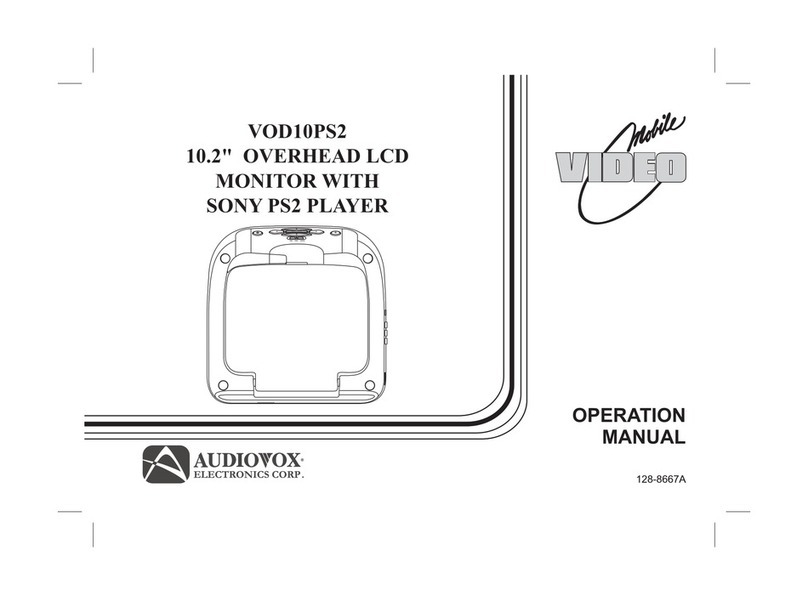
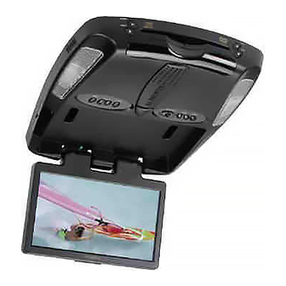
  9. Audiovox VOD10PS2 - Car - 16:9 Flipdown Monitor User manual

Audiovox VOD10PS2 - Car - 16:9 Flipdown Monitor User manual

Other manuals for VOD10PS2 - Car - 16:9 Flipdown Monitor

2

Other Audiovox Car Video System manuals

Audiovox VOH701 - VOH 701 - LCD Monitor User manual

Audiovox

Audiovox VOH701 - VOH 701 - LCD Monitor User manual

Audiovox LCM1041TV User manual

Audiovox

Audiovox LCM1041TV User manual

Audiovox VODDLX10 User manual

Audiovox

Audiovox VODDLX10 User manual

Audiovox VME 9325 BTA User manual

Audiovox

Audiovox VME 9325 BTA User manual

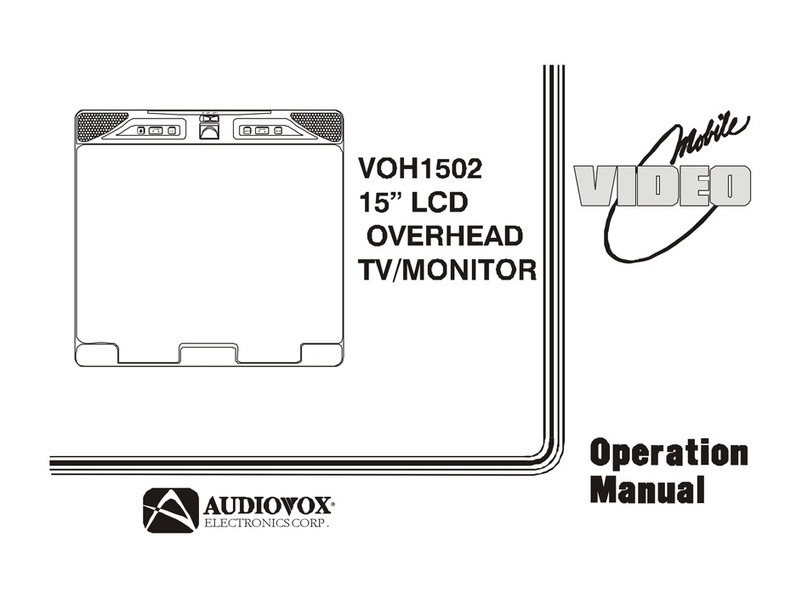
Audiovox VOH1502 User manual

Audiovox

Audiovox VOH1502 User manual

Audiovox HRDV700 User manual

Audiovox

Audiovox HRDV700 User manual

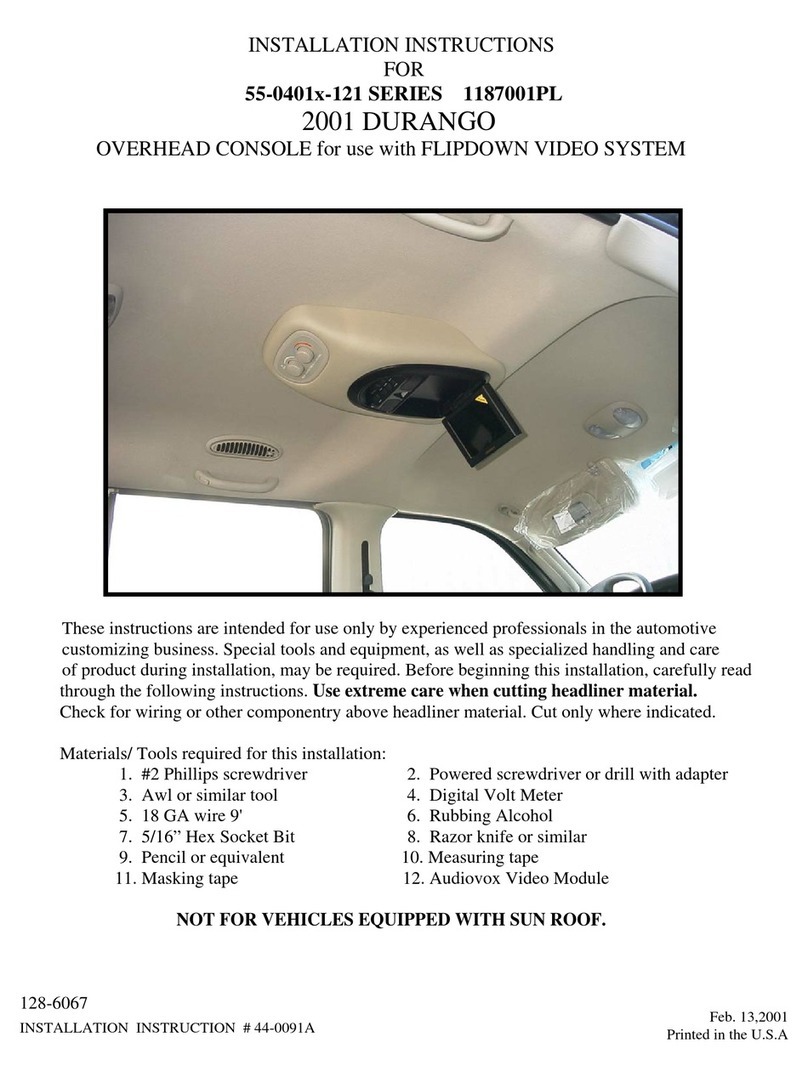
Audiovox 1187001PL User manual

Audiovox

Audiovox 1187001PL User manual

Audiovox VOD102 - DVD Player With LCD Monitor User manual

Audiovox

Audiovox VOD102 - DVD Player With LCD Monitor User manual

Audiovox VOD1023 - 10.2 Inch Dropdown Mobile Video... User manual

Audiovox

Audiovox VOD1023 - 10.2 Inch Dropdown Mobile Video... User manual

Audiovox Movies2Go AVXMTGHR1D User manual

Audiovox

Audiovox Movies2Go AVXMTGHR1D User manual

Audiovox Movies 2 Go AVXMTGHR1M Specification sheet

Audiovox

Audiovox Movies 2 Go AVXMTGHR1M Specification sheet

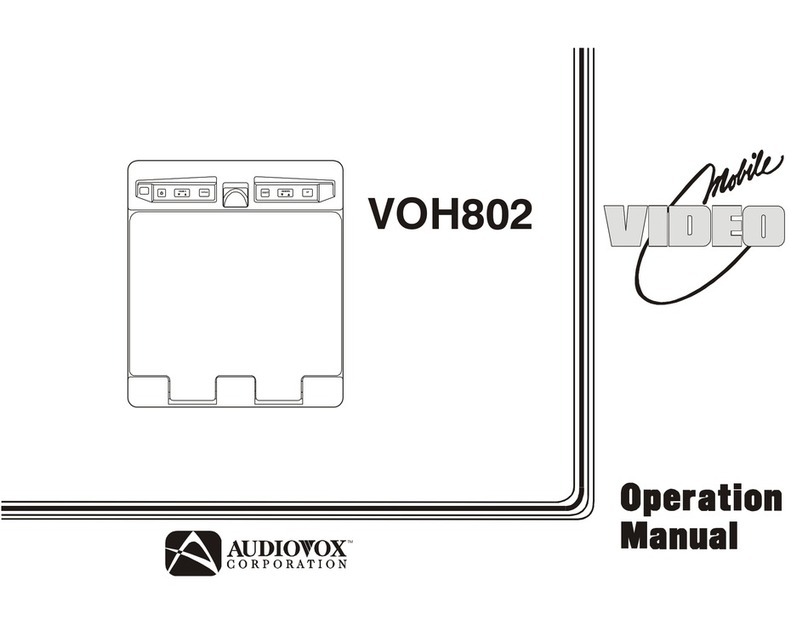
Audiovox VOH802 - VOH 802 - LCD Monitor User manual

Audiovox

Audiovox VOH802 - VOH 802 - LCD Monitor User manual

Audiovox VOD10PS2 - Car - 16:9 Flipdown Monitor User manual

Audiovox

Audiovox VOD10PS2 - Car - 16:9 Flipdown Monitor User manual

Audiovox VOD108 - 10.2" Overhead Video Monitor User manual

Audiovox

Audiovox VOD108 - 10.2" Overhead Video Monitor User manual

Audiovox Mobile Video VOD128A User manual

Audiovox

Audiovox Mobile Video VOD128A User manual

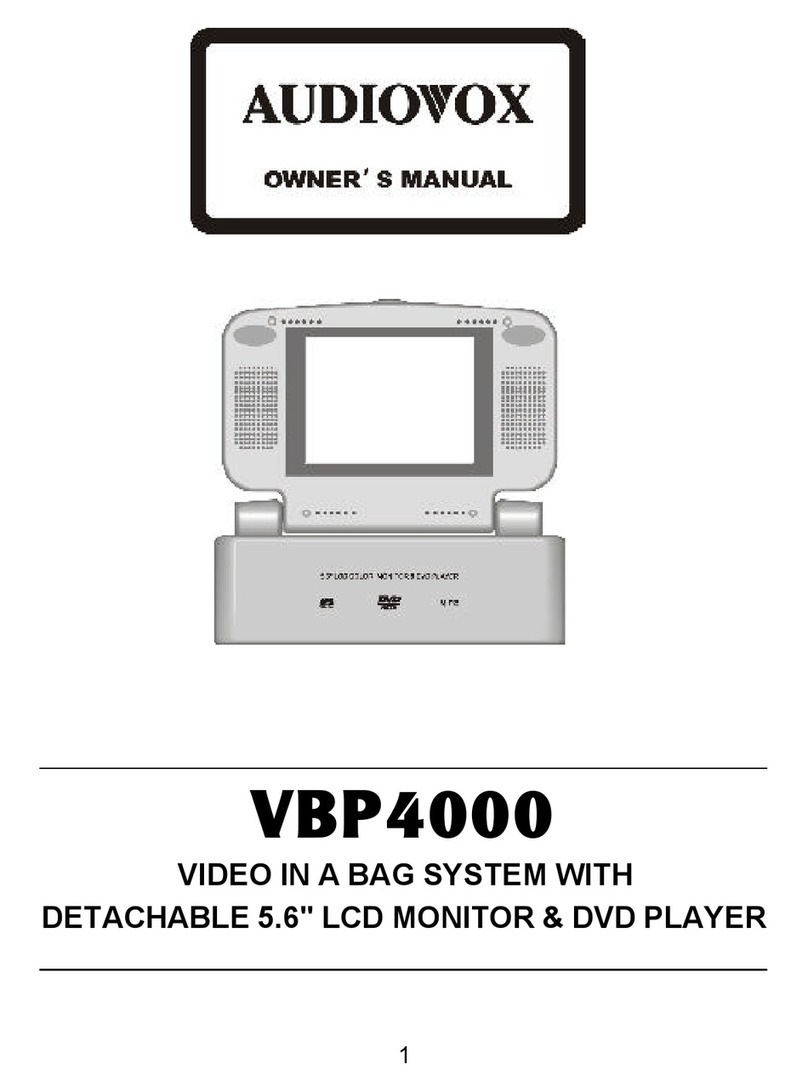
Audiovox VBP4000 - VBP 4000 DVD Player User manual

Audiovox

Audiovox VBP4000 - VBP 4000 DVD Player User manual

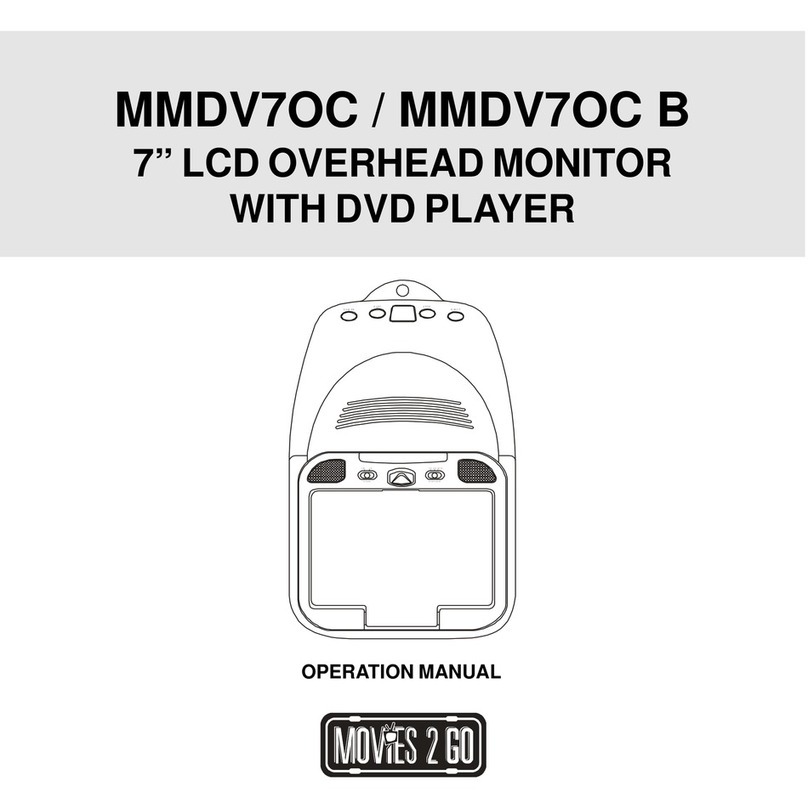
Audiovox MMDV70CB User manual

Audiovox

Audiovox MMDV70CB User manual

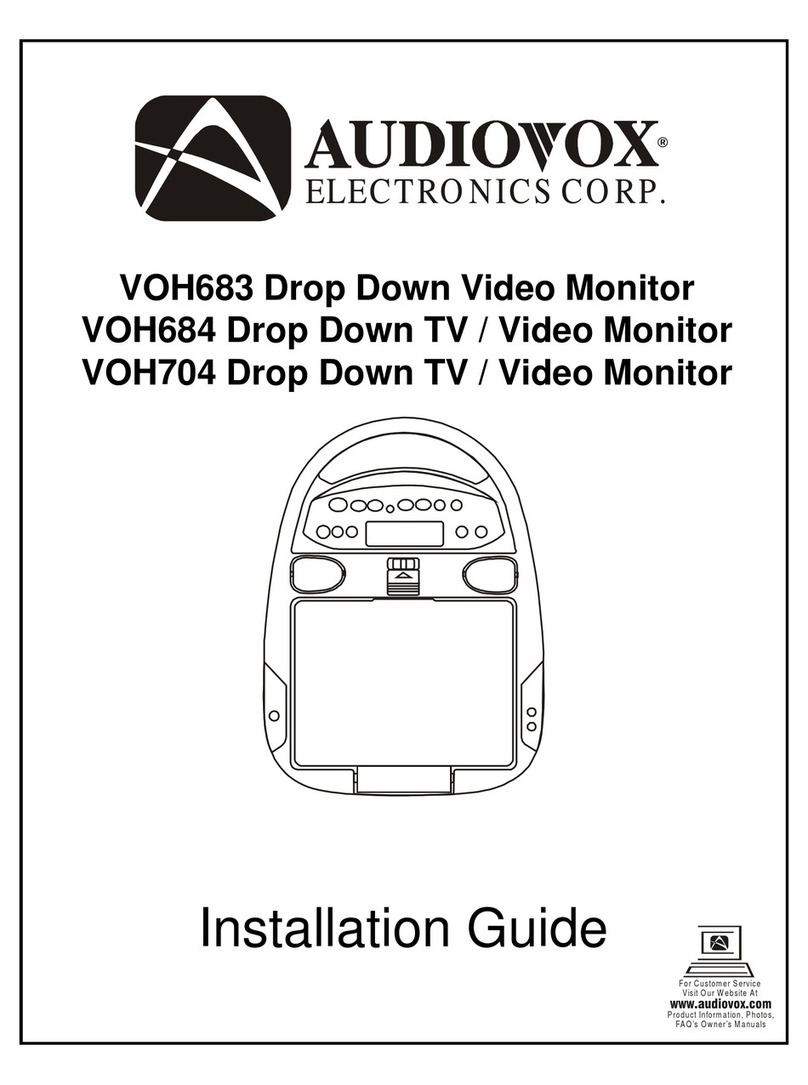
Audiovox VOH683 User manual

Audiovox

Audiovox VOH683 User manual

Audiovox MM92HR User manual

Audiovox

Audiovox MM92HR User manual

Audiovox Movies2Go MMD154 User manual

Audiovox

Audiovox Movies2Go MMD154 User manual

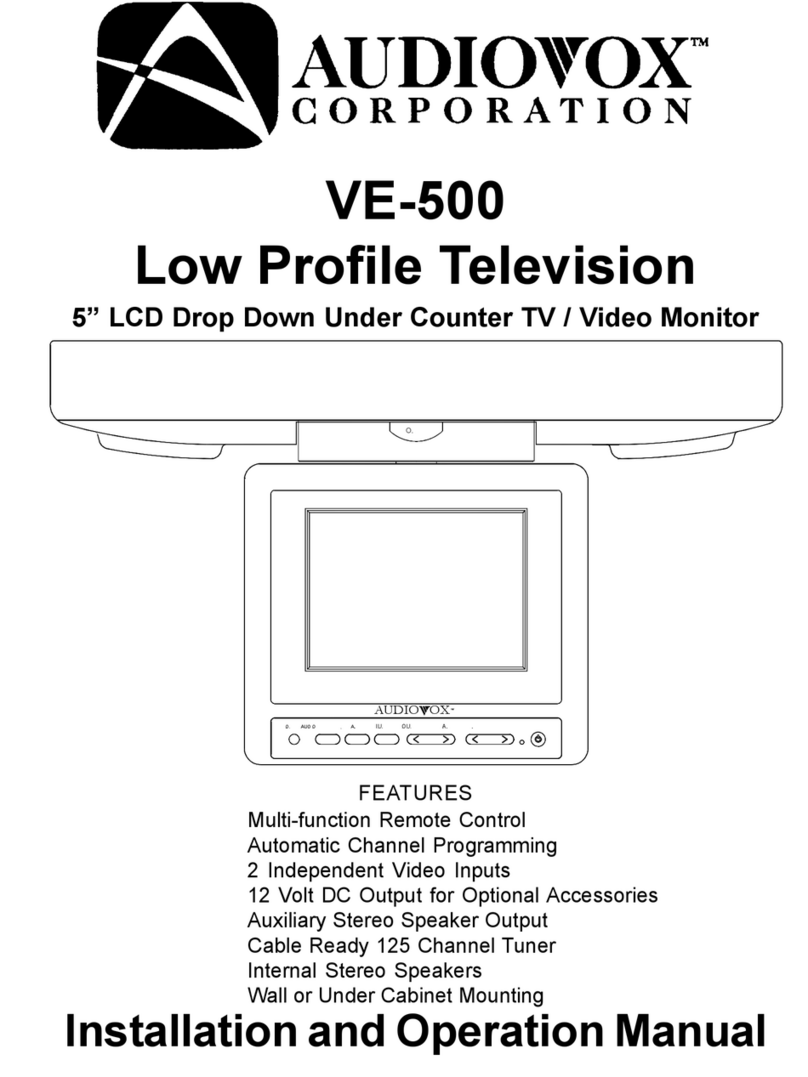
Audiovox VE-500 User manual

Audiovox

Audiovox VE-500 User manual

Audiovox Mobile Video VOD128 User manual

Audiovox

Audiovox Mobile Video VOD128 User manual

Audiovox AVXMTG10UA User manual

Audiovox

Audiovox AVXMTG10UA User manual

Audiovox PROV916 P User manual

Audiovox

Audiovox PROV916 P User manual

Popular Car Video System manuals by other brands

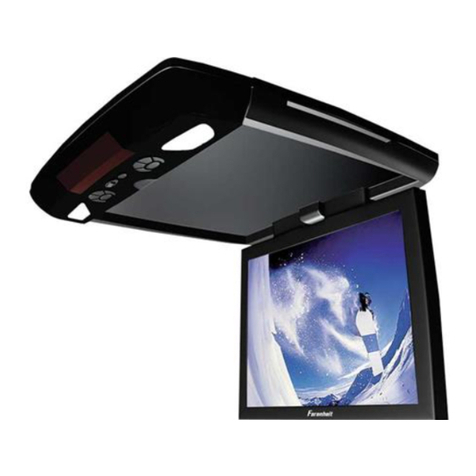
Farenheit MD-1510CM instruction manual

Farenheit

Farenheit MD-1510CM instruction manual

Mazda Connect manual

Mazda

Mazda Connect manual

RCA DRC97983 Manual de usuario

RCA

RCA DRC97983 Manual de usuario

Panasonic CY-VHD9401U Service manual

Panasonic

Panasonic CY-VHD9401U Service manual

Stinger HEIGH10 RB10RAM13B installation manual

Stinger

Stinger HEIGH10 RB10RAM13B installation manual

Alpine IVA-W203 - 6.5" Touch Screen 2-DIN DVD In-Dash... owner's manual

Alpine

Alpine IVA-W203 - 6.5" Touch Screen 2-DIN DVD In-Dash... owner's manual

Eonon E1057 instructions

Eonon

Eonon E1057 instructions

Milion D2223 user manual

Milion

Milion D2223 user manual

Metra Electronics 99-8153 installation instructions

Metra Electronics

Metra Electronics 99-8153 installation instructions

Voxx Electronics HR8MA1 owner's manual

Voxx Electronics

Voxx Electronics HR8MA1 owner's manual

Axxera AV604Bi quick start guide

Axxera

Axxera AV604Bi quick start guide

Clarion NX706E owner's manual

Clarion

Clarion NX706E owner's manual

Pyle view PLDN74BTi owner's manual

Pyle view

Pyle view PLDN74BTi owner's manual

Clarion NX602 quick start guide

Clarion

Clarion NX602 quick start guide

RCA DRC6296 - Twin 9" Mobile DVD System Manual Del Usuario

RCA

RCA DRC6296 - Twin 9" Mobile DVD System Manual Del Usuario

Fiat Uconnect 5.0 manual

Fiat

Fiat Uconnect 5.0 manual

Lanzar SVDVD5 owner's manual

Lanzar

Lanzar SVDVD5 owner's manual

Eonon E1060 instructions

Eonon

Eonon E1060 instructions

manuals.online logo
manuals.online logoBrands
  • About & Mission
  • Contact us
  • Privacy Policy
  • Terms and Conditions

Copyright 2025 Manuals.Online. All Rights Reserved.

OPERATION
MANUAL
VOD10PS2
10.2" OVERHEAD LCD
MONITOR WITH
SONY PS2 PLAYER
128-8667
MENU / ENTER
Important Notice
Installation of overhead products requires careful planning and preparation. Be extremely careful when working on a vehicle with side
curtain air bags. Do not route wires near any portion of the side curtain air bag assemblies. This includes any anchor points in A, B, C or
D pillars of the vehicle. Routing wires in these areas or running wires by the side curtain air bags can prevent the side curtain air bag from
fully deploying which can result in personal injury to vehicle occupants. If you have any questions regarding wire routing in a vehicle,
please contact Audiovox Technical Support at 1-800-225-6074.
When connecting power and ground in a mobile video installation ensure that the ACC wire is fused at the point where it is connected to
the vehicle ACC wiring. Failure to do so can result in damage to the vehicle if a short circuit develops between the vehicle connection
point and the mobile video product.
An LCD panel and/or video monitor may be installed in a motor vehicle and visible to the driver if the LCD panel or video monitor is used
for vehicle information, system control, rear or side observation or navigation. If the LCD panel or video monitor is used for television
reception, video or DVD play, the LCD panel or video monitor must be installed so that these features will only function when the vehicle is
in “park” or when the vehicle's parking brake is applied.
An LCD panel or video monitor used for television reception, video or DVD play that operates when the vehicle is in gear or when the
parking brake is not applied must be installed to the rear of the driver's seat where it will not be visible, directly or indirectly, to the operator
of the motor vehicle.
Licensed under one or more of the following patents: Patent NOS. 5,775,762 and 5,927,784
Warnings
•Do not use any solvents or cleaning materials when cleaning the video monitor.
•Do not use any abrasive cleaners, they may scratch the screen.
•Use only a lightly dampened lint free cloth to wipe the screen if it is dirty.
•Lock the LCD screen in the fully closed position when not in use.
•Before putting on headphones always adjust the volume setting to the lowest position.
•Remember to leave the dome light switch in the off or auto positions when the vehicle is unattended, as the dome lights, if left on, can drain
the vehicle's battery.
•Do not put pressure on the screen.
•Caution children to avoid touching or scratching the screen, as it may become dirty or damaged.
PlayStationÒ2 is a registered trademark of Sony Corporation

3
FEATURES
Congratulations
Congratulations on your purchase of the AUDIOVOX
VOD10PS2 Player with Drop-Down Video / Monitor. The
VOD10PS2 has been designed to give you and your family
many years of video entertainment in the mobile
environment. Please read the directions that follow to
familiarize yourself with the product to ensure that you obtain
the best results from your equipment.
Please note: Installation options vary, see the individual
owner's manuals for each component in your system to
obtain a full understanding of each component's operation.
Safety Precaution
For safety reasons, when changing video media it is
recommended that the vehicle is not in motion, and that you
do not allow children to unfasten seat-belts to change video
media or make any adjustments to the system. System
adjustments can be accomplished using the remote control,
while seat-belts remain fastened. Enjoy your AUDIOVOX
entertainment system but remember the safety of all
passengers remains the number one priority.
• 10.2” TFT (Thin Film Transistor) Active Matrix LCD
(Liquid Crystal Display) Monitor
•Built-in SONY PlayStation2 game console
• SONY
•
• OSD (On Screen Display) for Control of Picture Quality
and Functions
•
• 2 wireless IR headphones
•Audio/Video Source Inputs (PS2, AV1, AUX)
• A/V output via RCA pigtail
• Dome Lights with 3-Position Switch
•Built-in 16 Channel Frequency Wireless FM Modulator
•
•
•Plays DVD, CD and SONY Games
2 PlayStation2 Wireless Game Controllers
Full Function Remote Control
Screen Mode Selection (4:3, 16:9)
Backlit Controls
PlayStation2
Infrared Transmitter for IR Wireless Headphones
Quick Start Guide

1. Insert batteries into the PlayStation2 game controllers and the remote control (game controller transceivers are
preinstalled when the unit is shipped).
2. Turn the vehicle on (running this unit on battery power (accessory key setting) will drain the battery).
3. Press the screen release button to lower the LCD screen. Swing the screen back to allow the PlayStation2 to drop
down.
4. Push the PlayStation2 release button to drop down the PlayStation2
.
5. Press the (open) button on the PlayStation2 to open the PlayStation2 disc cover.
6. Insert a DVD or PlayStation2 game onto the spindle and press gently to seat the disc on the spindle.
7. Close the disc cover on the PlayStation2 by pressing down gently on the center of the cover.
8. Return the PlayStation2 to its docked position
9. Turn the VOD10PS2 on by pressing the power button
NOTE: If a blue screen is present, press the green RESET key on the remote control or the PlayStation2.
10. If a game is played and the game controllers are not linked, press the “Force Link” button on each game controller.
11. If a DVD is played press the PLAY key on the remote control, or the “X” key on the game controller or the
Menu/Enter key on the front of the overhead unit.
4
Quick Start Guide (Cont)
12. When using the wireless headphones install the batteries in each headphone. Turn the volume to minimum before
turning them on. Once they are turned on, place them on your head (pay attention to R/L earpieces) and slowly
adjust the volume to a comfortable listening level.
13. When listening to the system over the vehicle radio:
a. Using the remote control:
i. to turn on the FM modulator by pressing FMM ON/OFF
ii. Select an FM frequency by pressing FMM Select.
iii. Tune the vehicle radio to the FM frequency selected.
b. Using the MENU/ENTER Key on the front of the unit:
i. Press MENU/ENTER.
ii. Use the q (down) key to highlight FMM, press MENU/ENTER.
iii. Use the q(down) or p (up) key to select FMM ON.
iv. Press MENU/ENTER to select FMM ON.
v. To select the frequency press MENU/ENTER.
vi. Use the q (down) key to highlight FMM and press MENU/ENTER.
vii. Use the q (down) key to highlight FMM SELECT and press MENU/ENTER.
viii.Use the q(down) p (up) u (right) or t (left) keys to select an FM frequency.
(NOTE: For best sound quality select an FM Frequency that is not used in the area you will be driving)
ix. Press MENU/ENTER to set the FM frequency.
x. Tune your vehicle radio to the frequency just set in the steps above.
xi. Adjust the volume of the vehicle radio to a comfortable listening level.
5
Quick Start Guide (Cont)
U
q p u t )
sing the Control Panel
To access the Control Panel press the dark gray DISPLAY or dark gray SELECT button. The Control Panel (Below) can be
used to navigate the DVD disc. Refer to figure below:
Pressing the dark gray DISPLAY or dark gray SELECT button again will cause the Control Panel to change its position on
the screen. Pressing the DISPLAY or SELECT button a third time will turn off the Control Panel. Use the dark directional
buttons ( to select an icon. When the desired icon is selected, press the button.
NOTE: The Control Panel may appear at the end of some DVD movies.
For complete instructions regarding the functions provided by the Control Panel refer to the PlayStation2 User’s Guide.
6
1. SOURCE Button (S)
Use to select the sources: PS2, AV1 and AUX.
2. CURSOR Buttons (pqt u)
Use these buttons to access menu selections on the screen.
3. MENU/ENTER Button
Use this button to access SYSTEM MENU and select system
menu items.
4. Infrared Transmitter and Sensor
Transmits audio to wireless headphones, allows the remote
control to operate the unit and to control other accessories in the
system.
5. POWER Button ( )
Used to turn the system on/off (standby).
6. Dome Lights
Provide additional interior illumination.
7. Three Position Dome Light Switch
ON - Turns on the dome lights. (Do not leave switch on when
vehicle is off.)
OFF - The dome lights will not turn on in this position.
AUTO - Automatically switches on the dome lights in
Conjunction with the vehicle's interior illumination.
8. PlayStation2 CONSOLE
9. MEMORY CARD SLOT 1 & MEMORY CARD SLOT 2
(Memory Cards not supplied)
10. PS2 WIRELESS FORCE 2 CONTROLLER TRANSCEIVERS
(Transceivers supplied)
MEM ORY CARD MEM ORY CARD RESE T I /
MENU / ENTER
7
CONTROLS AND INDICATORS DIAGRAM (FRONT VIEW)
FORCE LINK
1234567
8
12
11
9
10
13
15
16
14
FORCE LINK
8
11. LCD Panel
12. Screen Release
Press to release the screen.
13. LCD Cut Off Switch
Used to turn off the LCD backlit when the LCD is in the closed
position.
14. OPEN
Push to open the tray.
15. OPEN ()
The disc tray opens.
16. RESET ( )
ON/Standby and RESET indicator.
PlayStation2
CONTROL FUNCTION DESCRIPTION
(SIDE VIEW)
1. HEADPHONE JACK
For wired headphone with a 1/8” (3.5mm) plug.
2. Auxiliary Audio Right Input
3. Auxiliary Audio Left Input
4. Auxiliary Video Input
VIDEOAUDIO L
R
1 2 3 4
9
MAIN FUNCTION OPERATION REMOTE CONTROL OPERATION
Battery Installation
Before attempting to operate your Remote Control, install the
batteries as described below.
1) Turn the Remote Control face down. Using your finger, slide
the battery cover off in the direction of the arrow.
2) Install Two “AAA” batteries. Make sure that proper polarity
(+ or -) is observed.
3) Align the cover tabs with the remote control and slide the
cover until it locks.
The remote control is designed to operate the unit. It is not a
universal remote control and will not control equipment from other
manufacturers.
Back View
Battery Cover
OPEN/
CLOSE
AUDIO SHUFFLE
1
4
2
5
3
6
78 9
ANGLE PROGRAM
SUBTITLE REPEAT
CLEAR
SLOW
SCAN PREV NEXT A-B
RESET
DISPLAY TOP MENU MENU RETURN
PAUSE STOPPLAY
ENTER
STARTSELECT
R1
L1 L3 R 3
L2 R2
ENTER
SOURCE
MUTE DISPLAY
FMM ON/OFF
FMM SELECT SYSTEM
MENU
IR ON/OFF
PIX
VOLUME
0
TIME
DVD /PLAYSTATION
P1
P2
P3
P4
P5
P6
P8
P9
P7
P10
P11
P12
P13
P15
P14
P16
P17
P18
P19
P20
M1
M2
M3
M4
M5
M6
P36
M7
M8
M9
M10
M11
P21
P22
P24
P23
P25
P26
P27
P28
P29
P30
P31
P32
P33
P34
P35
REMOTE CONTROL FUNCTIONS
The remote control is divided into two sections, Dark Gray buttons on the top, which control the built-in PlayStaion2 and Light Gray
buttons on the bottom of the remote control, that control the other functions of the unit.
PLAYSTATION CONTROLS (P1-P37) (Dark Gray Buttons)
NOTE: PlayStation2 controls (refer to the SONY PlayStation2 manual for details).
P1. OPEN/CLOSE
Not used on this model.
P2. AUDIO
Displays and changes DVD audio options.
P3. SHUFFLE
Starts playback of titles or chapters in random order.
P4. ANGLE
Displays and changes DVD viewing angle options.
P5. PROGRAM
Displays the Program Setup screen.
P6. SUBTITLE
Displays and changes DVD subtitle options.
P7. REPEAT
Selects repeated playback of all the titles on the disc, or one title or chapter.
10