Axon Dock User manual

Page 1
Axon Dock Quick Start Guide
English
Read, understand, and follow all warnings and instruc-
tions before using this product. The most up-to-date
warnings and instructions are available at www.axon.
com.
Introduction
The Axon Dock uploads videos from Axon Flex systems, Axon
Flex 2 systems, Axon Body cameras, Axon Body 2 cameras,
and Axon Fleet cameras to the Evidence.com cloud comput-
ing website. While your information is transferred securely
to your organization’s account, the dock also recharges the
battery in your Axon devices.
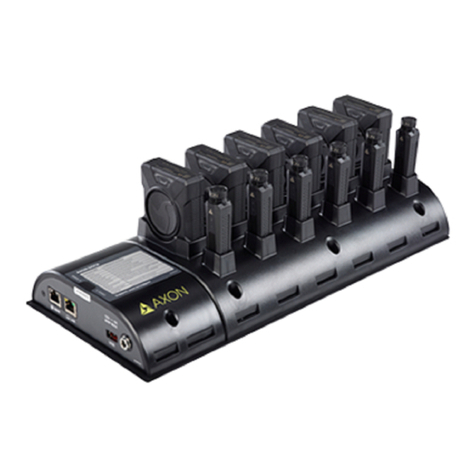
The Axon Dock has 2 major parts. One is the core, which
connects to the Internet and transfers your information
to Evidence.com. The other is the bay module, which has
docking ports for Axon cameras and controllers. The sys-
tem is modular, and up to 5 individual bay modules can be
connected to 1 core.
There is another type of bay, called the 6-bay module, which
has ports for 6 Axon systems.
There are 3 types of individual bays. One can accommodate
an Axon Body camera, or an Axon Flex camera and control-
ler. Another type of individual bay can accommodate an
Axon Body 2 camera or Axon Fleet camera. The third individ-
ual bay accomodates Axon Flex 2 cameras and controllers.
There also are 3 types of 6-bay modules; one that works with
Axon Body and Axon Flex devices, another other designed
for Axon Body 2 and Axon Fleet cameras, and a third for
Axon Flex 2 systems.
There is only one type of core module. It can be used with
any of the bays.
For instructions on attaching cores and bays, and setting up
the Axon Dock, see the Axon Dock Installation Manual.
Part 1: Conrm Setup
Ensure the Axon Dock is registered to your agency.
Consult with your system administrator for your dock’s
registration status.
Axon Flex and Axon Body cameras must be assigned
to an end user before being inserted into the dock. If
the camera is not assigned before it is inserted into the
dock, the videos will not upload. For information about
setting up end user accounts and assigning Axon cam-
eras, visit academy.axon.com. Unassigned Axon Body
2, Axon Flex 2, and Axon Fleet cameras will be auto-
matically assigned to the agency when inserted into
the dock.
When an Axon camera is in oine mode, the dock will
automatically register the camera to the agency and
upload the video to Evidence.com services. For infor-
mation on downloading videos in the oine mode,
visit academy.axon.com.
Part 2: Uploading Videos and Re-
charging Axon Devices
Insert the Axon camera and controller (if applicable) into the bay.
Left to right: Axon Body 2 camera; Axon Flex camera and control-
ler; Axon Fleet camera.
DO NOT unplug the power supply from the Axon Dock while Axon devices are inserted in the bays.
Core with 6-bay designed for the Axon Flex 2 camera
and controller
Core with 2 individual bays designed for the Axon
Flex camera and controller (shown) or the Axon Body
camera
Core with two individual bays designed for
the Axon Body 2 camera (shown) and Axon
Fleet camera
Core with 6-bay designed for the Axon Body
2 camera (shown) and Axon Fleet camera

Page 2
Camera LED Information
At rst, the LED on the camera will display red, but the color will change to indicate the camera’s status in the uploading
process.
See the camera’s user manual for more information about the camera and its LEDs.
Device Status Camera LED
Initial connection (momentary) Solid red (for 20 seconds or fewer)
In queue awaiting upload Solid yellow
Device ready (all videos uploaded successfully) and fully
charged
Solid green
Device not assigned, agency mismatch, camera set in the
oine mode, or device error
Blinking red
Uploading data Blinking yellow – DO NOT remove the camera from the
Axon Dock
Firmware update, internal battery charging, extremely low
battery, or memory full
Blinking red and yellow – DO NOT remove the camera from
the Axon Dock
Transfer error, device re-trying to transfer Blinking green and yellow
Network error (no connection) Blinking red, yellow, and then green (cycling all colors)
Axon Dock has no communication with the camera. Contact
Axon customer service.
LED o
Battery Charging Information
When you dock an Axon Flex controller, Axon Flex 2 controller, Axon Body camera, or Axon Body 2 camera in the bay, the
device will begin to charge. The LED around the EVENT button will indicate the battery’s status.
An Axon Fleet camera does not recharge from the Axon Dock, but the LED around the EVENT button will display solid green.
Battery Status LED around EVENT Button
Full charge Solid green
Charging in process Solid yellow
20 percent charge or less Solid red
Removing Devices from the Axon Dock
At the beginning of the next shift, ensure that your assigned camera displays with a green LED before removing it from the
dock.
, AXON, Axon, Axon Body, Axon Body 2, Axon Dock, Axon Fleet, Axon Flex, Axon Flex 2, and Evidence.com are trade-
marks of Axon Enterprise, Inc., some of which are registered in the US and other countries. For more information, visit
www.axon.com/legal. All rights reserved. ©2017 Axon Enterprise, Inc.
MMU0053 Rev: G
Other Axon Docking Station manuals