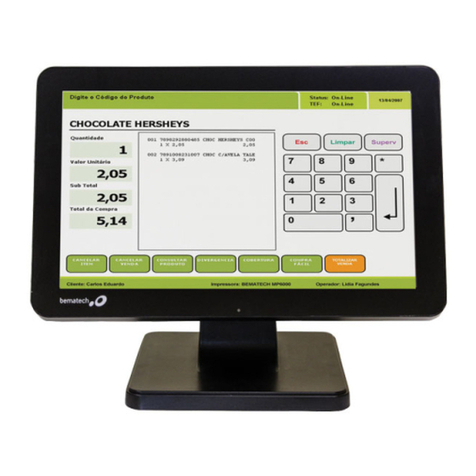
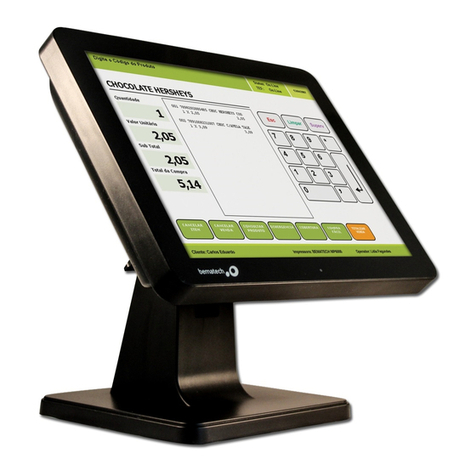
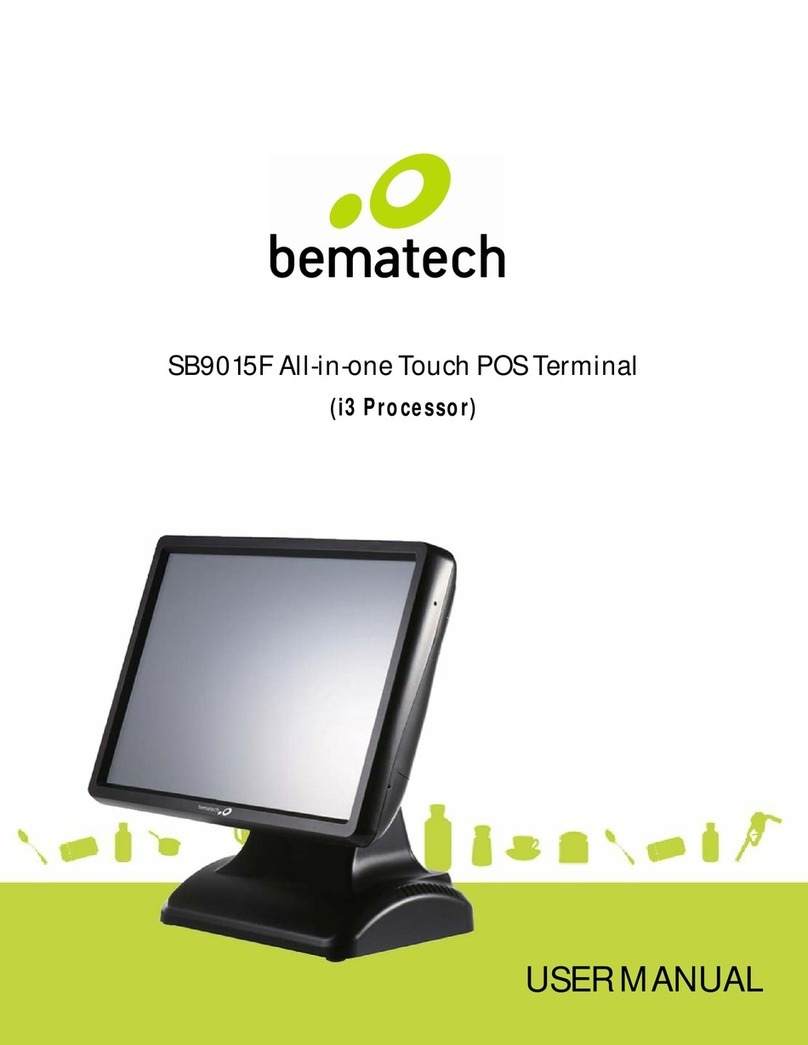
Bematech SB-9015D User manual

User’s Manual
SB-9015D

Copyrights i
Copyrights
©2012 Logic Controls. All rights reserved. The
information in this document is subject to change
without prior notice in order to improve reliability,
design and function and does not represent a
commitment on the part of the manufacturer.
This document contains proprietary information
protected by copyright. All rights are reserved.
No part of this manual may be reproduced by any
mechanical, electronic, or other means in any
form without prior written permission of the
manufacturer.
All trademarks are property of their respective
owners
Liability Disclaimer
In no event will the manufacturer be liable for direct,
indirect, special, incidental, or consequential
damages arising out of the use or inability to use the
product or documentation, even if advised of the
possibility of such damages.
Regulatory Information
FCC Notices
This equipment has been tested and found to comply
with the limits for a Class A digital device, pursuant to
Part 15 of the Federal Communications Commission
(FCC) Rules. These limits are designed to provide
reasonable protection against harmful interference in
a residential installation. This equipment generates,
uses, and can radiate radio frequency energy and, if
not installed and used in accordance with the
instructions, may cause harmful interference to radio
communications. However, there is no guarantee
that interference will not occur in a particular
installation. If this equipment does cause harmful
interference to radio or television reception, which
can be determined by turning the equipment off and
on, the user is encouraged to try to correct the
interference by one or more of the following
measures:
• Increase the separation between the equipment
and the receiver.
• Connect the equipment into an outlet on a circuit
different from that to which the receiver is connected.
• Consult the dealer or an experienced radio or
television technician for help.
This device complies with Part 15 (B) of the FCC
Rules. Operation is subject to the following two
conditions:
1) this device may not cause harmful interference
and
2) this device must accept any interference received,
including interference that may cause undesired
operation.
NOTE: THE MANUFACTURER IS NOT
RESPONSIBLE FOR ANY RADIO OR TV
INTERFERENCE CAUSED BY UNAUTHORIZED
MODIFICATIONS TO THIS DEVICE. SUCH
MODIFICATIONS COULD VOID THE USER'S
AUTHORITY TO OPERATE THE DEVICE.
CE Notice
This device complies with EMC Directive
2004/108/EC issued by the

Contents
ii
Commission of the European Community.
WEEE Notice
The WEEE mark applies only to countries within the
European Union (EU) and Norway.
This appliance is labeled in accordance with
European Directive 2002/96/EC concerning waste
electrical and electronic equipment (WEEE). The
Directive determines the framework for the return
and recycling of used appliances as applicable
throughout the European Union. This label is applied
to various products to indicate that the product is not
to be thrown away, but rather reclaimed upon end of
life per this Directive.

Contents iii
Contents
Copyrights .................................................................................................i
Liability Disclaimer ...................................................................................i
Regulatory Information.............................................................................i
FCC Notices.......................................................................................................... i
CE Notice .............................................................................................................. i
WEEE Notice........................................................................................................ ii
Contents...................................................................................................iii
1. Features ................................................................................................1
2. Unpacking the Box...............................................................................2
3. Hardware Setup....................................................................................3
3.1. Quick Tour .................................................................................................... 3
Front View...................................................................................................... 3
Back View ...................................................................................................... 3
Back Panel I/O ............................................................................................... 4
3.2. Peripherals Installation................................................................................ 4
Power Adapter ............................................................................................... 4
USB Mouse, USB Keyboard .......................................................................... 4
LAN Cable...................................................................................................... 5
Cash Drawer .................................................................................................. 5
MSR............................................................................................................... 5
Customer Display........................................................................................... 7
3.3 Turn on the Device .......................................................................................11
4. Driver and Utility Installation ............................................................12
4.1. Before the installation................................................................................ 12
4.2. Chipset Software Installation .................................................................... 12
4.3. VGA Driver Installation .............................................................................. 14
4.4. LAN Driver Installation............................................................................... 15
4.5. Audio Driver Installation ............................................................................ 17
4.6 Touch Screen Driver and Software Utility installation ............................. 19
5. TouchKit Utility Quick Guide.............................................................23
5.1. Launch TouchKit Utility ............................................................................. 23
5.2. General........................................................................................................ 23
5.3. Settings....................................................................................................... 25
5.4. Tools............................................................................................................ 28
5.5. Display ........................................................................................................ 29
5.6. Edge Compensation .................................................................................. 32

Contents
iv
6. I/O Definition.......................................................................................35
6.1. Power Connector ....................................................................................... 35
6.2. Serial Port ................................................................................................... 35
6.3. Cash Drawer ............................................................................................... 35
7. Specification.......................................................................................37

Chapter 1 1
1.
1. Features
Intel®low power consumption and high performance technology
Durable ultra-slim & robust die-casting aluminum chassis
easy upgrade and assembly/disassembly
4x USB 2.0,1 x DB-standard 25-pin parallel port, 6 x RS-232, 2 X Gigabit
Ethernet port (RJ-45), 1 X VGA port, 1 X COM2 (RJ-50) and cash drawer port
(RJ-11) equipped.
Wireless LAN supported (Optional)
Windows®XP/ XPe/ WES, WEPOS, POSReady, Windows®7, and Linux.

Chapter 2
2
2.
2. Unpacking the Box
Verify that the box contains the following items.
1. Device X 1 2. Power Adapter X 1
3. Power Cord X 1 4. Drive and Utility DVD X 1
5. RJ50 to DB9 COM port adapter cable X 1

Chapter 3 3
3.
3. Hardware Setup
3.1. Quick Tour
Front View
LED Indicator
The Power indicator will glow green when power is on.
The HDD indicator will blink green when the HDD is accessed.
The LAN indicator will blink green when transferring data though the LAN.
Back View

Chapter 3
4
Back Panel I/O
Note: For details of I/O ports on the back panel, please refer to Chapter 7 – I/O
Definition.
3.2. Peripherals Installation
Power Adapter
Connect the 4-pin output jack of the adapter to the DC 19V jack on the back panel
of the device.
USB Mouse, USB Keyboard
Connect your USB Mouse and USB Keyboard to USB ports on the back panel of
the device.

Chapter 3 5
LAN Cable
Connect one end of RJ-45 LAN cable to the LAN port on the back panel of the
device, another end to your internet device.
Cash Drawer
Connect one end of 6-PIN RJ-11 cable to the Cash Drawer port on the back
panel of the device, another end to your cash drawer.
MSR
1. Remove the two screws fixing the MSR cover.
Remove the MSR cover from the device.
Other manuals for SB-9015D
1
Table of contents
Other Bematech Touch Terminal manuals

Bematech
Bematech FIT Basic User manual

Bematech
Bematech SB9015T User manual

Bematech
Bematech SB1015AW User manual

Bematech
Bematech SB8015A User manual

Bematech
Bematech SB 8010A User manual

Bematech
Bematech MP-4000 User manual

Bematech
Bematech SB1015 User manual

Bematech
Bematech SB9095 User manual

Bematech
Bematech SB9011D User manual

Bematech
Bematech SB9015F User manual