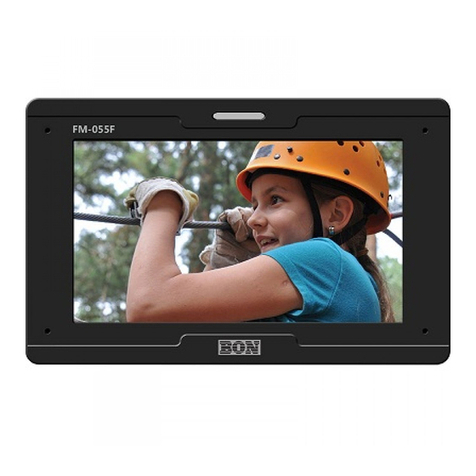
bon FM-073SCH User manual

Multi-Format Field Monitor
FM-073SCH
User’s Guide

Contents
Introduction...........................................................................................................3
Features.................................................................................................................3
Safety Instructions................................................................................................4
Front......................................................................................................................5
Rear.......................................................................................................................8
Tally.......................................................................................................................9
Audio Level Meters...............................................................................................9
OS Menu................................................................................................................10
VI EO..................................................................................................................10
ISPLAY 1...........................................................................................................13
ISPLAY 2...........................................................................................................15
COLOR.................................................................................................................17
MARKER..............................................................................................................18
OS 1...................................................................................................................19
OS 2...................................................................................................................21
AU IO..................................................................................................................23
GPI.......................................................................................................................25
SYSTEM..............................................................................................................26
External Remote Control....................................................................................28
List of Compatible Video Formats (H MI/Composite)......................................29
List of Compatible Video Formats (S I)............................................................31
Specifications......................................................................................................33
imensions..........................................................................................................35
Accessories.........................................................................................................36
Troubleshooting..................................................................................................37
Warranty Information..........................................................................................39
Modification of Product.......................................................................................39
Caution on Menu Operation................................................................................39
Caution for Monitor Placement...........................................................................39
2

Introduction
FM-073SCH is an 1100 cd/m² super bright on-camera monitor for SLR and ENG
cameras. New features such as H/V level meter, auto flip, still image overlay, and
PIP are included.
Features
Superbright LC Screen for Sunlight Visibility
Auto Flip
Firmware Update with USB Memory
Focus Assistance/False Color
Waveform/Vectorscope
SLR Scales
Closed Caption (CEA-608/708)
Time Code
8~16ch Audio Level Meter
Video Exposure Range Check
IM Mode
AF & V-CHIP(S I Only)
Various Markers
H/V elay
Pixel-to-Pixel View
Tally LE Control Output R/G/B/W Internal Patterns Rack & VESA Mount (Option)
H MI to S I, S I to H MI Conversion (Same Quality Conversion)
Auto Luminance Control
Auto Color Temperature Adjustment
Horizontal/Vertical Angle Level Meters
3G S I input (Level A/B)
1~16Ch Audio Level Meters
3

Safety Instructions
•To help avoid damaging your monitor, connect only one power (AC or C) in
operation.
•Rough handling of product may cause physical damage or malfunction.
•Never insert anything metallic into the monitor openings. oing so may create
the danger of electric shock.
•To avoid electric shock, never touch the inside of the monitor. Only a qualified
should open the monitor’s case.
•Openings in the monitor cabinet are provided for ventilation. To prevent
overheating, these openings should not be blocked or covered.
•Put your monitor in a location with low humidity and a minimum of dust. Avoid
places like damp basement or dusty hallways.
•Place the monitor on a solid surface and treat it carefully. The screen is made of
glass and can be damaged if dropped or sharply hit.
•o not attempt to remove the back cover, as you will be exposed to a shock
hazard. The back cover should only be removed by qualified service personnel.
•Unplug the monitor power before you connect external devices to the monitor.
•If your monitor does not operate normally, or if there are any unusual sounds or
smells coning from it, unplug it immediately and contact us.
•Please do not disassemble the monitor. No service will be provided in that case.
•isplaying fixed picture for a long time may cause an afterimage or dead spots.
To recover LC pixels, display whole white picture on screen for a n hour or
two and pixels will be recovered.
•No service will be provided for user’s own color calibration.
4

Front
1, ) SDI, HDMI Input Selection
3) Analog Input Selection
Switch input in the order of : YPbPr(Component), CVBS1, CVBS2,
CVBS3(Composites)
4) Marker On/Off
5) Zoom
Switch zoom mode in the order of : Pixel to Pixel, User Zoom, SLR Zoom
Pixel to Pixel
Shows the original picture with 1:1 pixel mapping. If the picture is larger than the
monitor’s LC resolution, the center part of the picture is shown. Use knob to see
a different part of the picture. 5 parts are selectable : CENTER, TOP-LEFT, TOP-
RIGHT, BOTTOM-LEFT, BOTTOM-RIGHT.
User Zoom
This is a custom zoom mode which user can set the zoom level. Turn the knob to
set your own zoom level in this mode.
5

DSLR Zoom
This zoom-in/out preset allows fully scaled-up monitoring of contracted video
from SLRs. Zoom-in/out area can also be customized to allow partial or full view.
To choose camera type, press Menu and choose Video, choose a SLR camera
from Canon 5 Mark II/7 , 60 , Nikon 800, Sony A77, Panasonic GH2 and Canon
5 Mark III.
6) H/V Delay
H/V elay allows you to check the outside signal of active picture area. This mode
is for broadcast professionals. By pressing the button, it switches the mode in the
order of : H elay, V elay, H/V elay, Off.
7) Daylight
This button switches luminance level in the order of : Indoor, Outdoor, aylight,
Auto. Press this button to switch the luminance to see the screen comfortably.
aylight mode provides maximum luminance for sunlight visibility. If you choose
Auto, the luminance changes automatically for the environment.
8) Enter
Enter Key.
9) Function Keys
User-preferred function can be assigned to function keys. Assignable functions are
listed below.
● ALM (Audio Level Meter) isplay On/Off
● Aspect On/Off
● Scan Mode
● IM isplay
● Exposure Range Check
● Audio Mute
● Freeze On/Off
● H/V Flip On/Off
● 1:1 Scan On/Off
● Caption isplay
● Time Code
6

10) Waveform / Vectorscope
Waveform enables users to check the luminance level. Vectorscope is for checking
chrominance values of the picture. The mode is switched in the order of :
Waveform, Waveform Parade, Vectorscope, Wide Waveform, Full-Screen
Waveform, Full-Screen Vectorscope.
* Some afterimage might be left on Waveform when the input picture
freezed long on interlace signal.
* On SDI 2K input with sf scanning mode, displaying Circle or
Horizontal Line pattern might cause an afterimage effect. However, it
will be disappeared after the picture is changed.
11) False Color
Shows pictures in specific colors as its luminance level other than the original
colors. Much exposed area is filled with red while little exposed area is purple.
* 10-bit, 12-bit Dithered gradient pattern might not be displayed
clearly in this mode.
1 ) Power Button
Power turns off when pressed for one second.
13) Tally Lamp
Tally lamp displays Red, Green, Amber color tally.
14) Focus Assist
isplays focus area when pressed. The focus sensitivity is adjustable on the
display menu.
15) R/G/B/Gray Only
isplays Red, Green, Blue or Gray only as the button is pressed.
16) Audio Out
Stereo phone jack for audio output.
17) Menu Button
Menu and Exit button.
18) Knobs
Brightness, Contrast, Chroma, Volume adjustable knobs. The brightness knob is
also used as arrow knob to move up and down on the menu, User Zoom, etc.
7

Rear
1) DC Power Jack
7V ~ 24V C power can be used.
) SDI 1, Input Ports
H S I or S S I input ports. S I signal should be fulfill SMPTE standards.
3) SDI Loop-Through and HDMI-to-SDI Out Port
This port can be used either S I Loop-through or S I out of H MI-to-S I
converter.
4) Component YPbPr or CVBS 1, ,3 Input Ports
Component YPbPr or CVBS(Composite) input ports.
5) Tally Input
To display Red, Green, Amber tally.
6) Update Port (RJ-11 Jack)
Serial communication port for updating firmware or monitor control.
7) Control Port
Monitor control port. The detail is in the chapter “Remote Terminal Assignment
Connection”
8

8) Internal Power Port
External battery power connection port. (7V ~ 24V)
9) USB Port
USB firmware update port.
Tally
Tally mode displays Red, Green, Amber color by the input from tally (RJ-45 GPI)
input port.
Audio Level Meters
Audio level meters displays max 16 channels. But it depends on the number of
channels contained in the signal itself. For example, if the signal contains 2

channels, the audio level should be 2 channels.
The odd channels are displayed in the left, whereas the even channels are in the
right. The position of the meters can be set to top or bottom of the screen on the
AU IO section of the menu.
9

OSD Menu
Menu opens up by pressing Menu button. This button also works as Exit button on
the Menu. The brightness knob works as up/down arrow. To select something,
press either enter button or the knob.
* The menu may disappear on no signal or instable signal input.
* Menu setting is saved for each input mode. So the user should make
selection on an appropriate input mode.
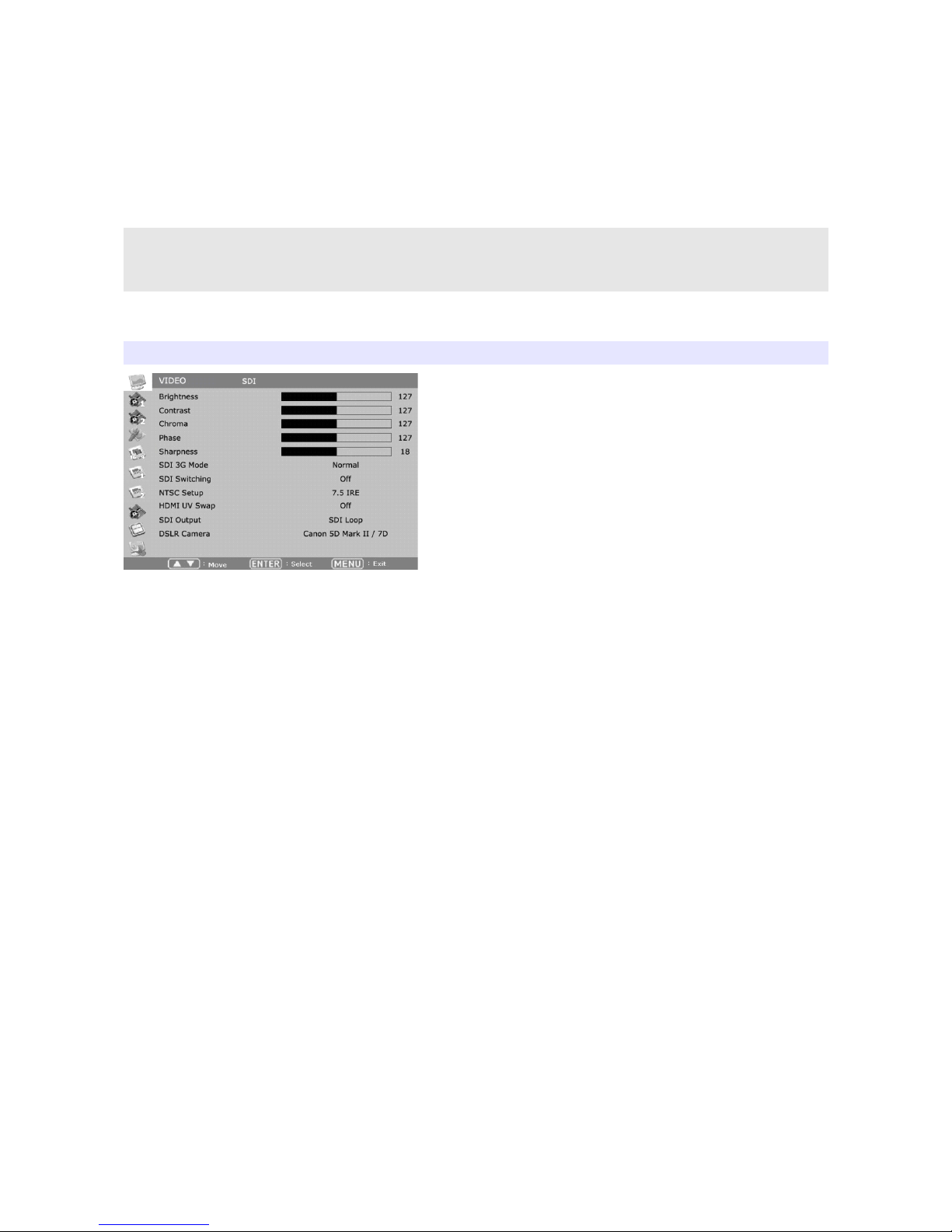
VIDEO
Brightness
Adjust brightness. efault: 127.
Contrast
Adjust contrast. efault: 127.
Chroma (Hue)
Adjust chroma. efault: 127.
Phase
Adjust phase. efault: 127.
Sharpness
Adjust sharpness. efault: 18.
SDI 3G Mode
Set this mode if the input is 3G H S I. S I 3G mode support SMPTE standards
listed below:
▶A_MS1_YCbCr422_10
10
Table of contents
Other bon Monitor manuals