manuals.online logo
Brands
  1. Home
  2. •
  3. Brands
  4. •
  5. Boss Audio Systems
  6. •
  7. Marine Equipment
  8. •
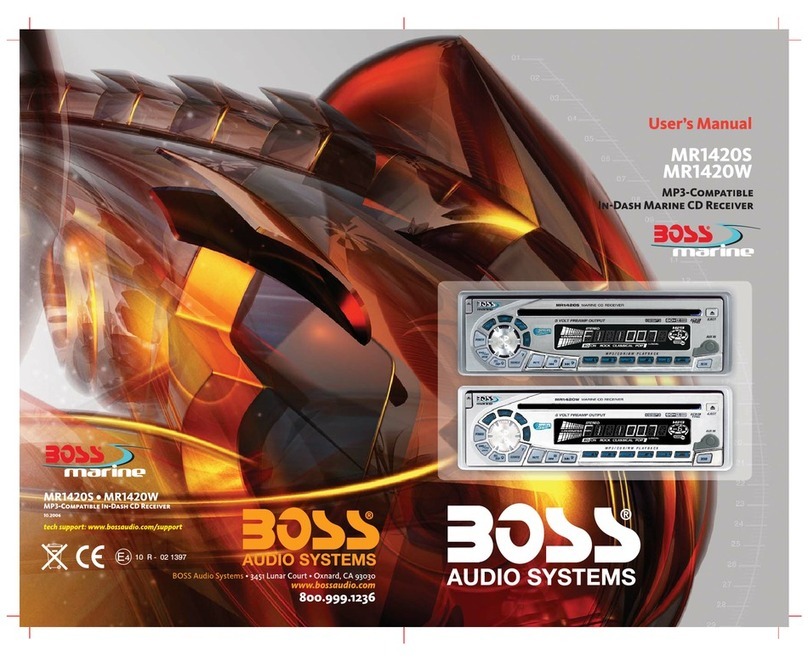
  9. Boss Audio Systems MR1420W User manual

Boss Audio Systems MR1420W User manual

Other manuals for MR1420W

2

This manual suits for next models

1

Other Boss Audio Systems Marine Equipment manuals

Boss Audio Systems MR1315WUA User manual

Boss Audio Systems

Boss Audio Systems MR1315WUA User manual

Boss Audio Systems MR648W User manual

Boss Audio Systems

Boss Audio Systems MR648W User manual

Boss Audio Systems MR1515W User manual

Boss Audio Systems

Boss Audio Systems MR1515W User manual

Boss Audio Systems MR637U User manual

Boss Audio Systems

Boss Audio Systems MR637U User manual

Boss Audio Systems MR1308UAB User manual

Boss Audio Systems

Boss Audio Systems MR1308UAB User manual

Boss Audio Systems MR1308UAB User manual

Boss Audio Systems

Boss Audio Systems MR1308UAB User manual

Boss Audio Systems MR637U Instruction Manual

Boss Audio Systems

Boss Audio Systems MR637U Instruction Manual

Boss Audio Systems MR1420W User manual

Boss Audio Systems

Boss Audio Systems MR1420W User manual

Boss Audio Systems MR1308UAB User manual

Boss Audio Systems

Boss Audio Systems MR1308UAB User manual

Boss Audio Systems MR752UAB User manual

Boss Audio Systems

Boss Audio Systems MR752UAB User manual

Boss Audio Systems MR1420W User manual

Boss Audio Systems

Boss Audio Systems MR1420W User manual

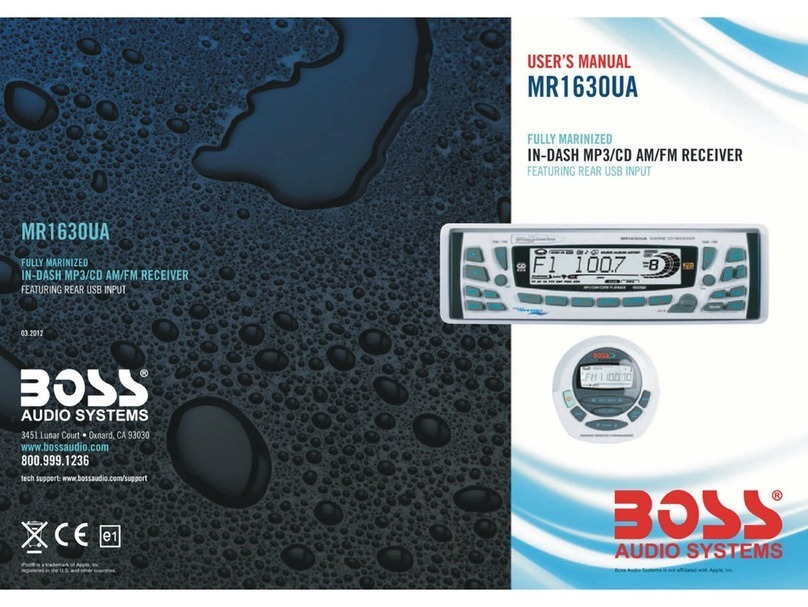
Boss Audio Systems MR1630UA User manual

Boss Audio Systems

Boss Audio Systems MR1630UA User manual

Popular Marine Equipment manuals by other brands

POWERWINCH 825 Operation manual

POWERWINCH

POWERWINCH 825 Operation manual

JRC JLN-628 brochure

JRC

JRC JLN-628 brochure

DIGITAL YACHT PilotLink2 Product handbook

DIGITAL YACHT

DIGITAL YACHT PilotLink2 Product handbook

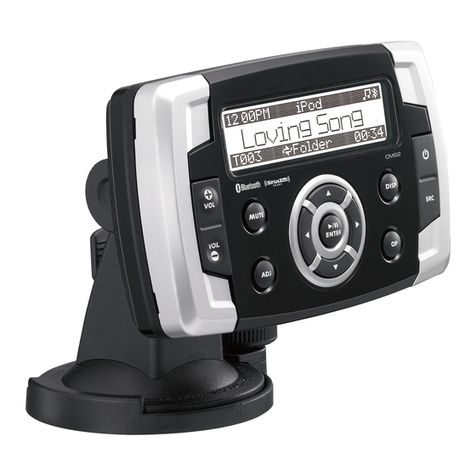
Clarion CMS2 Owner's manual & installation manual

Clarion

Clarion CMS2 Owner's manual & installation manual

EBS M7000 installation manual

EBS

EBS M7000 installation manual

Kongsberg M3 Bathy installation manual

Kongsberg

Kongsberg M3 Bathy installation manual

NPK SCS-1002 operating manual

NPK

NPK SCS-1002 operating manual

Furuno FE-800 installation manual

Furuno

Furuno FE-800 installation manual

Harken 1561 instructions

Harken

Harken 1561 instructions

Simrad DD15 manual

Simrad

Simrad DD15 manual

Notifier FS-BSO Installation and maintenance instructions

Notifier

Notifier FS-BSO Installation and maintenance instructions

Raymarine ST40 Quick reference guide

Raymarine

Raymarine ST40 Quick reference guide

Raymarine Maxiview ST80 Owner's handbook

Raymarine

Raymarine Maxiview ST80 Owner's handbook

E2S E2XS112UL Instructions/service manual

E2S

E2S E2XS112UL Instructions/service manual

GUIDANCE MARINE 20- Series Installer's guide

GUIDANCE MARINE

GUIDANCE MARINE 20- Series Installer's guide

R2Sonic 2026 Operation manual

R2Sonic

R2Sonic 2026 Operation manual

COBHAM SAILOR 6000 installation manual

COBHAM

COBHAM SAILOR 6000 installation manual

Raymarine ST60 Tridata Owner's handbook

Raymarine

Raymarine ST60 Tridata Owner's handbook

manuals.online logo
manuals.online logoBrands
  • About & Mission
  • Contact us
  • Privacy Policy
  • Terms and Conditions

Copyright 2025 Manuals.Online. All Rights Reserved.

4
10 R - 02 1397
1
1. BUTTONS LOCATION AND FUNCTIONS
13
10
8611
15
12
2
16
79
17
413 514 18
1. Panel Release Button
2. Mute Button
3. CD Eject Button
4. Audio Button
5. Display Button / ID3 Information Button
6. Local / Distant Button
7. Preset Memory Buttons
8. Mono / Stereo Button
9. Scan Button
10. Volume Knob
11. MP3 Menu Button & Automatically Store / Preset Scan Button
12. Power Button
13. Band/Loudness Button / MP3 Enter Button
14. Tuning Up/Down & Track Up / Down Buttons
15. Source Button
16. Preset Equalizer Button
17. Folder Down / Up Buttons
18. Aux In Jack
1. Bouton De Déclenchement Du Panneau
2. Bouton D'assourdissement
3. Bouton Éjection D'un Cd
4. Bouton De Sélection Audio / Entrée De MP3
5. Bouton D'écran / Affichage D'information Sur Les Disques MP3
6. Bouton Local/distant
7. Boutons Des Stations Préréglées (m1 ~m6)
8. Bouton De La Stéréo Du Mono
9. Bouton Du Scanner
10. Bouton De Volume
11. Bouton De Menu & Bouton De Stockage Des Stations Dans La Mémoire
12. Bouton D'alimentation
13. Bouton De Bande / Entrée De MP3
14. Bouton De Recherche Des Stations/pistes : En Avant / En Arrière
15. Bouton De Régime
16. Bouton De PEQ
17.Dossier En Le Bouton/ Vers Le Haut Le Bouton
1 8 . A u x A J a c k
1. Entriegel-Taste Bedienteil
2. Stumm-Taste
3. CD-Auswurftaste
4. Audio-Taste
5. Display-/ ID3-Taste
6. Local / Distant-Taste
7. Senderspeichertasten
8. Mono / Stereo-Taste
9. Scan- Taste
10. Lautstärkenregler
11. AMS Taste / MP3 Suchlauf Taste
12. Einschalt-Taste
13. Frequenzband-Taste / MP3 Eingabe-Taste
14. Titel AUF / AB - Taste
15. Source-Taste
16. PEQ-Taste
17. Folder Down / Up - Taste
18. Front-Audio-Anschluss
1. Tecla para remover o painel frontal
2. Tecla Mute
3. Tecla para ejetar o disco
4. Tecla de ajuste de audio
5. Tecla Display / informação MP3-iD3
6. Tecla Local/Distante
7. Teclas de memória de estações
8. Tecla estéreo/mono
9. Tecla Scan
10. Controle de volume
11. Tecla Menu e memorização automática (As) / Preset Scan (Ps)
12. Tecla Ligar/desligar
13. Tecla Banda / Loudness / MP3 Enter
14. Teclas de sintonização de estações /
mudança de faixas de música
15. Tecla Source
16. Tecla Equalizador pré-programado
17. Tecla Seleção de pastas
18. Entrada Auxiliar
1. Extracción del panel frontal
2. Mute / silenciamiento de sonido instantaneo.
3. Apertura del panel motorizado y expulsión del disco
4. Tecla Audio
5. Selección información Display/ID3 TAG muestra
6. Botón Distancia/Local
7. Botones de estaciones memorizadas
8. Botón selección mono/estéreo
9. Botón De Búsqueda
10. Botón De Volumen
11. Menú del Sistema de Memorización Automática de emisoras
/ selección de memorias
12. Encendido/Apagado
13. Selector Bandas / Bajos/MP3
14. Botón de selección de emisoras & banda de música
15. Selección modos Radio/CD/Entrada auxiliar
16.Tecla de ecualización
17.Botón de selección de carpeta/folder
18. Entrada de auxiliar
1. Tasto Rilascio Frontalino
2. Tasto Mute
3. Tasto Eject
4. Audio Controlla
5. Tasto Display/ID3 (informazioni)
6. Bottone Distante Locale
7. Tasti Stazioni Memorie Preimpostate
8. Bottone di Stereo/Mono
9. Tasto Scan
10. Tasto Volume
11. Tasto Menu & AS/PS
12. Tasto Power
13. Tasto Banda/Forte & Enter MP3
14. Tasto sintonizzazione su/gui & traccia su/gui
15. Tasto Mode
16. Bottone di equilizzatore preprogrammato
17. Bottone di Cartella su/gui
18. Entrada Aux

2. HANDLING COMPACT DISCS
MOISTURE CONDENSATION
NOTES ON CDs
P. 2
P. 3
P. 4
P. 1
P. 6
P. 7
1.
2.
3.
4.
5.
NOTES ON DISCS
There are paste residue.
Ink is sticky (P.5).
Stickers that are beginning
to peel away, leaving a
sticky residue (P.6).
Labels are attached (P.7).
On a rainy day or in a very damp area, moisture may condense on the lenses inside the unit. Should
this occur, the unit will not operate properly. In such a case, remove the disc and wait for about an
hour until the moisture has evaporated.
A dirty or defective disc may cause sound
dropouts while playing. To enjoy optimum
sound, handle the disc as follows.
Handle the disc by its edge. To keep the
disc clean, do not touch the surface (P.1).
If you use the discs explained below, the sticky
residue can cause the CD to stop spinning and
may cause malfunction or ruin your discs.
Do not use second-hand or rental CDs that have a
sticky residue on the surface (for example, from
peeled-off stickers or from ink, or glue leaking
from under the stickers).
Do not stick paper or tape on the disc (P.2).
Before playing, clean the discs with an
optional cleaning cloth. Wipe each disc from
the center out (P.4).
Do not use solvents such as benzine,
thinner,commercially available cleaners, or
antistatic spray intended for analog discs.
Do not expose the discs to direct sunlight or
heat sources such as hot air-ducts, or leave
them in a car parked in direct sunlight where
there can be a considerable rise in
temperature inside the car (P.3).
Do not use CDs with old labels that are beginning
to peel off.
Do not use your CDs with labels or stickers
attached.
**************
*******
*******
*******
*******
*******
*******
*******
*******
Do Not Use Special Shape CDs
Be sure to use round shape CDs only for this
unit and do not use any special shape CDs.
Use of special shape CDs may cause the unit
to malfunction.(P.8).
Be sure to use CDs with disc mark
P. 8
CD-Rs and CD-RWs which have not undergone
finalization processing cannot be played. (For
more information on finalization processing,
refer to the manual for your CD-R/CD-RW
writing software or CD-R/CD-RW recorder.)
Additionally, depending on the recording status,
it may prove impossible to play certain CDs
record on CD-R or CD-RW.
2
P. 5
****
*******
******* *******
*******
3. INSTALLATION
Before finally installing the unit, connect the wiring temporarily and make sure it is all connected up
properly and the unit and system work properly.
Use only the parts included with the unit to ensure proper installation. The use of unauthorized
parts can cause malfunctions.
Consult with your nearest dealer if installation requires the drilling of holes or other modifications of
the vehicle.
Install the unit where it does not get in the driver's way and cannot injure the passenger if there is a
sudden stop, like an emergency stop.
If installation angle exceeds 30° from horizontal, the unit might not give its optimum performance.
Avoid installing the unit where it would be subject to high temperature, such as from direct sunlight, or
from hot air, from heater, or where it would be subject to dust dirt or excessive vibration.
Be sure to remove the front panel before installing the unit.
DIN FRONT/REAR-MOUNT
This unit can be property installed either from “Front” (conventional DIN Front-mount) or “Rear”(DIN
Rear-mount installation, utilizing threaded screw holes at the sides of the unit chassis). For details,
refer to the following illustrated installation methods A and B.
DIN FRONT-MOUNT (Method A)
Installation the unit
1. Dashboard
2. Holder
After inserting the half sleeve into the
dashboard, select the appropriate tab according
to the thickness of the dashboard material and
bend them inwards to secure the holder in
place.
3. Screw
30°
1
7
4
23
5
61. Dashboard
2. Nut (5mm)
3. Spring washer
4. Screw (5x15mm)
5. Screw
6. Support Strap
Be sure to use the support strap to secure the
back of the unit in place. The strap can be bent
by hand to the desired angle.
7. Plain washer
182
53
12
3
3
DIN REAR-MOUNT (METHOD B)
Installation using the screw holes on the sides of the unit.
Fastening the unit to the factory radio mounting bracket.
1. Select a position where the screw
holes of the bracket and the screw
holes of the main unit become aligned
(are fitted) and tighten the screws at 2
places on each side.
2. Screw
3. Factory radio mounting bracket.
4. Dashboard or Console
5. Hook (Remove this part)
Note: the mounting box, outer trim ring,
and half-sleeve are not used for method B
installation.
5
2
4
3
25
a. Frame
b. Insert fingers into the groove in the front
of frame and pull out to remove the
frame. (When re-attaching the frame,
point the side with a groove down wards
and attach it.)
c. Insert the levers supplied with the unit
into the grooves at both sides of the unit
as shown in figure until they click. Pulling
the levers makes it possible to remove
the unit from the dashboard.
Trim Plate Installation:
Push the trim plate against the chassis until it is fitted.
You must do this before you install the front panel, otherwise it can't be attached.
Removing the unit
a
b
c
4
4. DETACHABLE CONTROL PANEL (D.C.P.)
Removing The Detachable Control Panel (D.C.P.).
1. Turn the power off
2. Press the D.C.P. release button
3. Remove the D.C.P.
PANEL RELEASE
BUTTON
B
A
2
Attaching the DCP
CAUTION
1. Attach the panel at the right side first, with point B
on the main unit touching point A on the D.C.P.
(As shown on the digram).
2. Then press the left side of D.C.P. onto the main
unit until a “click” sound is heard.
DO NOT insert the D.C.P from the left side. Doing so may damage it.
The D.C.P can easily be damaged by shocks. After removing it, place it in a protective case and be careful not to drop
it or subject it to strong shocks.
When the release button is pressed and the D.C.P is unlocked, the car's vibrations may cause it to fall. To prevent
damage to the D.C.P, always store it in a protective case after detaching it.
The rear connector that connects the main unit and the D.C.P is an extremely important part. Be careful not to
damage it by pressing on it with fingernails, pens, screwdrivers, etc.
Note:
If the D.C.P is dirty, wipe off the dirt with soft, dry
cloth only. And use a cotton swab soaked in
isopropyl alcohol to clean the socket on the back
of the D.C.P.
Socket
5
6
5. WIRING DIAGRAM ( )BUILT IN ISO PLUG
FUSE
1
2
3
4
5
6
7
8
4
5 7
8
A
B
R-CH L-CH
AMP
ANTENNA INPUT
CAVO ANTENNA ESTENDIBILE
ENTRADA PARA CABO DE ANTENA
ANTENA
ANTENNENVERLÄ NGERUNGS
D'EXTENSION D' ANTENNE
AMP
REAR LINE OUT/ LINE OUT POSTERIORE
RÜCKANSCHLUSS/SORTIE ARRIERE/SAIDA TRASEIRA
/SALIDA DE LINEA TRASERA/
L-CH
R-CH
FRONT LINE OUT/VORDERER AUSGANG/SAÍDA FRONTAL
/SALIDA DE LINEA TRASERA/LINE OUT POSTERIORE
FIGURE 2/ABB.2/DESSIN 2/FIGURA 2/FIGURE 2/FIG 2
//
//
RCA-TO-RCA CABLES (not supplied)
CABOS RCA A RCA (não fornecidos)
CAVO RCA A RCA ( non fornito)
RCA-TO-RCA-KABEL (nicht geliefert)
CABLES RCA-TO-RCA (non fournis.)
CABLES RCA A RCA (no incluidos)
REAR
L
R
RED/ROT/ROUGE/VERMELHO
/ROJO/ROSSO
15) SOURCE BUTTON (SOURCE)
Press this button to select Radio and CD modes.
The available selections depends on version:
Radio CD Player
Radio > CD > AUX in
Press this button to remove the control panel.
6. BASIC OPERATIONS
1) PANEL RELEASE BUTTON (REL)
12) POWER ON/OFF BUTTON
5) DISPLAY BUTTON (DISP)
Press this button to turn on or off the power.
Press this button briefly, the LCD will display the clock for about 2 seconds, then return to previous
display mode.
Clock Adjustment
Under clock display mode, press DISP button until the LCD flashes, press Tuning Up Button to adjust
hour and Tuning Down Button to adjust minute.
7
The RESET button is located on the main unit (as shown on the diagram). To press it vertically with a
ballpoint pen or metal object will activate it. The reset button is to be activated for the following reasons:
RESET BUTTON
Initial installation of the unit when all wiring is completed.
All the function buttons do not operate.
Error symbol on the display.
Note: If the unit cannot function normally after reseting please use a cotton swab soaked in
isopropyl alcohol to clean the socket on the back of the control panel.
,
Connect the external signal to AUX in jack located
at the front of the panel, then press SOURCE
button to select Aux mode. Press SOURCE
Button again to cancel Aux Mode and return to
previous mode.
18) FRONT AUXILIARY INPUT JACKS
3.5mm Audi o In Cabl e (not in clud ed)
Right Audi o
Left Audi o
Grou nd
1
2
3
AUX IN JACK IN PANEL
7. AUDIO OPERATIONS
4) AUDIO BUTTON
Press this button to select desired audio function.
While the selected function is displayed, turn Volume Knob to adjust the level within 5 seconds,
otherwise the unit will return to volume adjustment mode.
2) MUTE BUTTON (MUTE)
Press this button to mute the sound. Press it again to resume listening.
16) PRESET EQUALIZER BUTTON (EQ)
Press this button to toggle the following EQ settings:
At DSP OFF mode, EQ will be controlled by Bass/Treble setting.
13) BAND/LOUDNESS BUTTON (BAND/LOUD)
11) AREA - Tuner Frequency Spacing (MENU)
Press the Band/Loudness Button for couple of seconds to switch the loudness on or off. When Loudness is
on, display will show 'Loud On' for a few seconds.
Press this button to selection of the frequency spacing appropriate for your area. “AREA U.S.A” is the
default setting. Rotate the Encoder Volume Konb to select the EUROPE, U.S.A, OIRT (Russia), LATIN, ASIA
(Asia Pacific), MID-EAST(Middle East) or AUST(Australia) options.
ORDER OF FUNCTION:
VOLUME(VOL) -> BASS(BAS) -> TREBLE(TRE) ->BALANCE(BAL) ->FADER(FAD)
FLAT->CLASSICS->POP M->ROCK M->DSP OFF
10) VOLUME KNOB
8
Turn this knob to adjust desired volume level.
8. RADIO OPERATIONS
11) AUTO MEMORY STORE/PRESET SCAN BUTTON (AS/PS)
1. PRESET SCAN: Press AS/PS button briefly to enter Preset Scan mode, it will scan all the preset
stations in the memories, you can hear that it will stay on each station for about 5 seconds.
2. AUTO MEMORY STORE: Press AS/PS button for couple of seconds to enter Auto Store mode, this
feature will automatically scan the current band and enter up to 6 strongest stations into the 6 preset
memories. To stop Auto Store & Scan, press the AS/PS button again.
9
7) STATION PRESET BUTTONS (M1-M6)
14) TUNING / SEEK UP AND TUNING / SEEK DOWN BUTTONS
13) BAND/LOUDNESS BUTTON (BAND/LOUD)
1. Press these buttons briefly to recall the stored stations in the selected band.
2. Presetting stations manually, Press the BAND button to select the band for the stations to be preset.
Use Tuning Up/Down to tune in the stations to be preset. Press the Preset button at which you want
to store the station for at least 2 second. The preset number will appear on the display accompanied
by a beep, this indicates that the station has been stored into memory.
1. Press these buttons briefly, and the unit will operate in AUTO SEARCH tuning mode, the radio will
tune up or down to the next station and remain on that station.
2. Press these buttons for more than 2 seconds, operate as MANUAL SEARCH buttons, under this
mode the tuning frequency will advance up or down rapidly when the button is pressed. If the
buttons are not pressed within 3 seconds, they will return to auto search mode.
This a dual function button. Press this button shortly to change between BAND FM1, FM2, FM3 or AM
bands. Press this button for couple of seconds to turn Loudness function on or off.
8) MONO STEREO BUTTON (MO/ST)
When you receive a station,“ST” on the display will be on. Press this button to enter Mono mode.
9) SCAN BUTTON(SCAN)
Press this button, the radio will tune up to search stations, the available stations will blink
the display for a few seconds.
and stay on
6) LOCAL/DISTANT BUTTON (LOC)
During station tuning, this button allows you prior to access strong local station only (Local mode), or
to access a wider range of using distant mode (DX). When powered on, DX mode will be defaulted
automatically; Press LOC button briefly to select Local mode and “LOCAL” symbol on the LCD will
light up for a few seconds.