manuals.online logo
Brands
  1. Home
  2. •
  3. Brands
  4. •
  5. Boyo
  6. •
  7. Automobile Electronic
  8. •
  9. Boyo VTM7012FHD User manual

Boyo VTM7012FHD User manual

Other manuals for VTM7012FHD

2

Other Boyo Automobile Electronic manuals

Boyo VTM3501 User manual

Boyo

Boyo VTM3501 User manual

Boyo VTSR100 User manual

Boyo

Boyo VTSR100 User manual

Boyo Carkuda VTG500X User manual

Boyo

Boyo Carkuda VTG500X User manual

Boyo VTSR200 User manual

Boyo

Boyo VTSR200 User manual

Boyo VTM7012FHD User manual

Boyo

Boyo VTM7012FHD User manual

Popular Automobile Electronic manuals by other brands

GoldCruise GC90Ci installation manual

GoldCruise

GoldCruise GC90Ci installation manual

DRG LC 120 installation instructions

DRG

DRG LC 120 installation instructions

Blue Ox BX8848 installation instructions

Blue Ox

Blue Ox BX8848 installation instructions

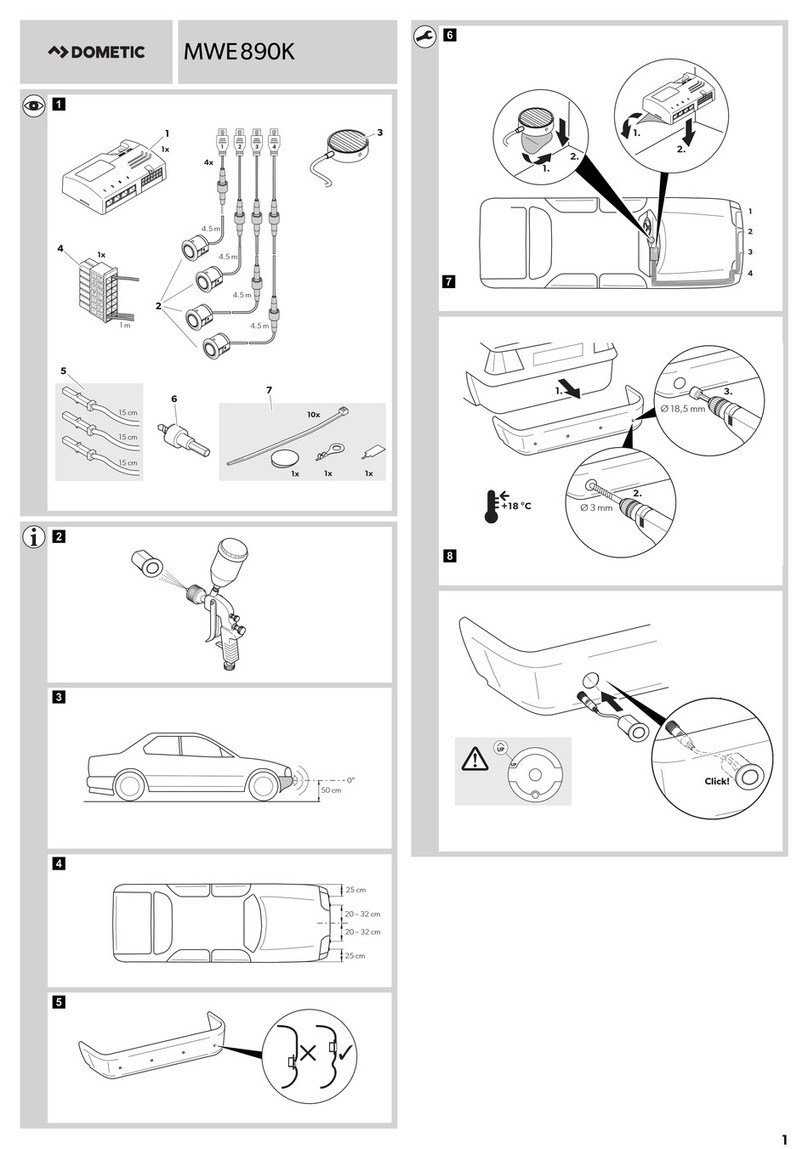
Dometic MAGICWATCH MWE890K Installation and operating manual

Dometic

Dometic MAGICWATCH MWE890K Installation and operating manual

Perfect Power SMT8-T5 Technical manual

Perfect Power

Perfect Power SMT8-T5 Technical manual

Honeywell Thor VM3A user guide

Honeywell

Honeywell Thor VM3A user guide

Waeco MagicWatch MWE250 Installation and operating manual

Waeco

Waeco MagicWatch MWE250 Installation and operating manual

Rydeen BKM091 user manual

Rydeen

Rydeen BKM091 user manual

Skoda 5E0 054 630 Fitting instructions

Skoda

Skoda 5E0 054 630 Fitting instructions

VDO SENDER UNIT 2159-0 datasheet

VDO

VDO SENDER UNIT 2159-0 datasheet

iDataLink maestro Rr install guide

iDataLink

iDataLink maestro Rr install guide

Audiovox PRO-PDA15 installation guide

Audiovox

Audiovox PRO-PDA15 installation guide

Movon MDAS-3LFFHD user manual

Movon

Movon MDAS-3LFFHD user manual

Pioneer Comfort adapter CA-D-PI.150 quick start guide

Pioneer

Pioneer Comfort adapter CA-D-PI.150 quick start guide

Dietz 1110 instruction manual

Dietz

Dietz 1110 instruction manual

Crux RVCFD-79 manual

Crux

Crux RVCFD-79 manual

Nonda ZUS user manual

Nonda

Nonda ZUS user manual

iDataLink Maestro installation guide

iDataLink

iDataLink Maestro installation guide

manuals.online logo
manuals.online logoBrands
  • About & Mission
  • Contact us
  • Privacy Policy
  • Terms and Conditions

Copyright 2025 Manuals.Online. All Rights Reserved.

VTM7012FHD
1. Remote control 1PC
2. Power cable 1PC
3. User manual 1PC
4. Warranty card 1PC
5. Product registration card 1PC
6. U shaped bracket 1PC
7. Sun shield 1PC
8. Allen Wrench 1PC
For technical support contact 888-941-3060 or email info@visiontechamerica.com
8.Accessories
5
WWW.VISIONTECHAMERICA.COM
1. Size: 7 inch HD LCD monitor
2. Screen Ratio: 16:9 wide screen
3. Resolution: 1024x600
4. 3 channel HD video input, supporting 720P@25/30, 720P@50/60, 1080P@25/30
5. Supporting 3 triggers
6. System: PAL/NTSC auto switchable
7. Power supply: DC 12V-24V
8. Mirror image can be set for each channel
9. Reverse time delay can be set
10.Screen display menu and remote control
This monitor uses high-resolution TFT LCD screen, easy to install, simple connection,
no radiation, low power consumption, flicker-free, gorgeous and vivid color, small and
exquisite outlook. It can be widely used in various cars, buses, trucks or special vehicles.
Panel operating instructions
Product function
Product usage
Back shell instruction
1. Blue 13P Power line interface
2. Yellow RCA female connector:
CH1 video signal input(AHD1);
3. Yellow RCA female connector:
CH2 video signal input(AHD2);
4. Yellow RCA female connector: CH3 video signal input (AHD3);
5. Brown electronic wire: Trigger and switch to CH1 video signal;
6. Blue electronic wire: Trigger and switch to CH2 video signal;
7. Gray electronic wire: Trigger and switch to CH3 video signal;
8. Black electronic wire: ground wire (GND)
9. Red electronic wire: connect 12 to 24V DC power supply
1. Negative decrease
2. Menu
3. Positive increase
4. Power
5. CH 1
6. CH 2
7. CH 3
8. R/C window
9. Bracket knobs
1.Function And Usage Of Products
2.Front Shell Instruction
3.Electrical Connection Instructions
2
3
4
5
6
9
1 2 3 4 5 6 7 8
9
1
8
7
1 2
1. Tail cable
2. Back splint
12
This machine can be set various parameters such as analog, setting method is as
follows: In the state of startup ,press the “MENU” button on the remote control or on
the front panel to bring up a MENU of operating, then we can set the parameters
such as brightness, contrast ratio, saturation, language, Reversing delay, turn over,
reset.etc. press the “MENU” button on the remote control or on the front panel to
proceed next MENU selection, then press the LEFT and RIGHT arrow key on the
panel or on the remote control to adjust specific numerical value.
Press the “MENU” button to switch to brightness options, then press the LEFT and
RIGHT arrow key on the panel or on the remote control to adjust the brightness of screen,
the brightness value can be set varies from 0-100,Save the settings as soon as retreating
from menu.
Brightness
Press the “MENU” button to switch to contrast ratio options, then press LEFT and RIGHT
arrow key on the panel or on the remote control to adjust the contrast ratio of screen, the
value of contrast ratio can be set varies from 0-100, Save the Settings as soon as retreating
from menu.
Contrast ratio
Saturation
Press the “MENU” button to switch to saturation options, then press the LEFT and RIGHT
arrow key on the panel or on the remote control to adjust the saturation of screen, the
value of saturation can be set varies from 0-100, Save the Settings as soon as retreating
from menu.
4.Remote Control
5.The Menu Setup Instructions
1. Power supply: DC 12V-24V
2. Maximum current: <500mA
3. System: PAL/NTSC
4. Screen ratio: 16:9
5. Resolution: 1024x600
6. Working temperature: -20 °C~70 °C
7. Storage temperature: -30 °C~80 °C
Language
Press the “MENU” button to switch to language options, then press LEFT and RIGHT
arrow key on the panel or on the remote control to adjust the language, the system can
be set Chinese or English two kind of language, save the Settings as soon as retreating
from menu. The system default is English.
Reversing delay
Press the “MENU” button to switch to language options, then press LEFT and RIGHT
arrow key on the panel or on the remote control to adjust the delay time which can be
set 0 to 15 seconds, when the system setup 0 seconds delay, it returns the current state
directly after trigger finished; when the system setup 3 seconds delay, it returns the
current state after system delay 3 seconds, save the settings as soon as retreating
from menu. The system default is 0 second.
Turn over of screen
Press the “MENU” button to switch to turn over options, then press LEFT and RIGHT
arrow key on the panel or on the remote control to set turn over up-side down.
Press the “MENU” button to switch to reset options, then press LEFT and RIGHT arrow
key on the panel or on the remote control to adjust system parameters, the setup only
suit for resetting brightness, contrast ratio, saturation, other parameters should reset
hand.
Reset
7.Performance Index
1. Power
2. CH1/CH2/CH3 change
3. Up
4. Menu
5. Down
6. Mode selection
3 4