8
ENGLISHDEUTSCHFRANÇAISESPAÑOLITALIANODANSK
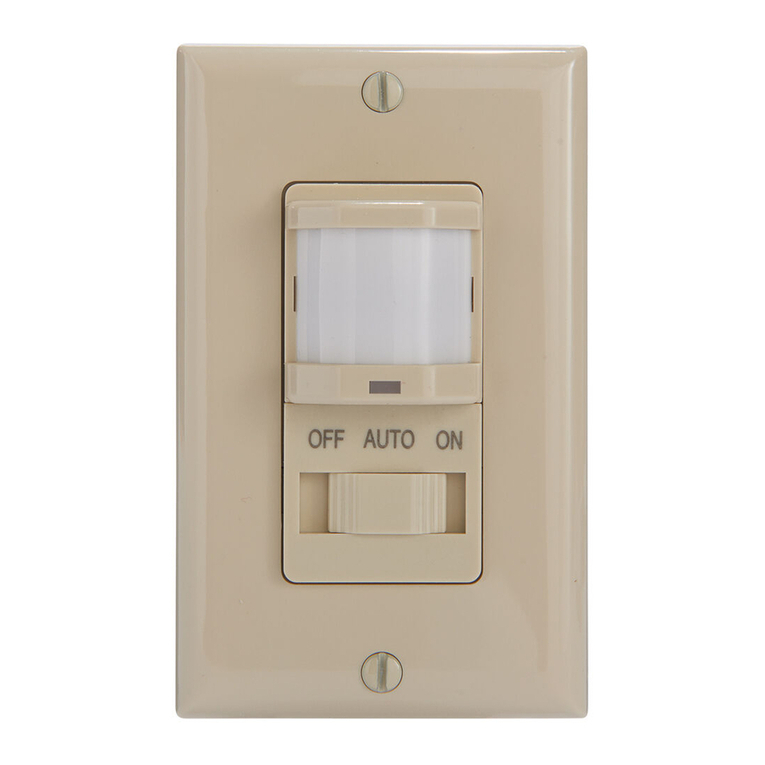
1. Teach the background
a. Place the white markers
like shown on the illustra-
tions (see fig. 6, 7 and 7.1),
to define the width and po-
sition of the entire door.
b. Press and hold the teach
button for 3 seconds until
all LEDs flash simultaneously.
c. Leave the motion area, all
LED’s will continue flashing
as long as there is move-
ment within the area.
d.When only the green LED
is flashing the background
is stored into the sensor.
2. Teach the presence
zone
a. Place the black markers
on top of the white markers,
defining the width and posi-
tion of the door.
b. Press teach button short-
ly. The 3 LEDs will start
flashing simultanously.
c. Leave the presence and
motion zone, all LEDs will
continue flashing as long as
there is movement within
the area.
d. When the LEDs stop
flashing and the green and
red LED lights is permantly
on, the safe zone is stored
in the sensor.
e. Remove the markers. The
green and red LED is on and
the sensor learn the ”nor-
mal” back-ground, (10, 30,
60 or 300 sec.) and the red
LED turn off.
Any failures during the teach-in procedure will cancel the settings and the
teach procedure must be repeated step a and b. This situation is shown with
the running light on all LEDs.
Test safe zone:
f. Verification of the presence zone must be done with a CA test body
DIN 18650-1
The presence zone can be verified using a test card. With advantage
you use a sheet of paper (i.e. A4 horisontally) as a test card. Please
use a testcard that provides the strongest possible contrast to the
background (the floor area) like black or white (see fig. 8).
Move the testcard from the motion zone into the safe zone and the
safe zone should react.
Fig. 6
Fig. 7.1
Motion zone
Motion zone
Precense zone
Fig. 7
Motion zone
Precense zone
Motion zone
The 2 marks shown on the two arrows must be placed
outside the moving door parts