Frequently Asked Questions SMART COMPUTER P. 5 FAQ
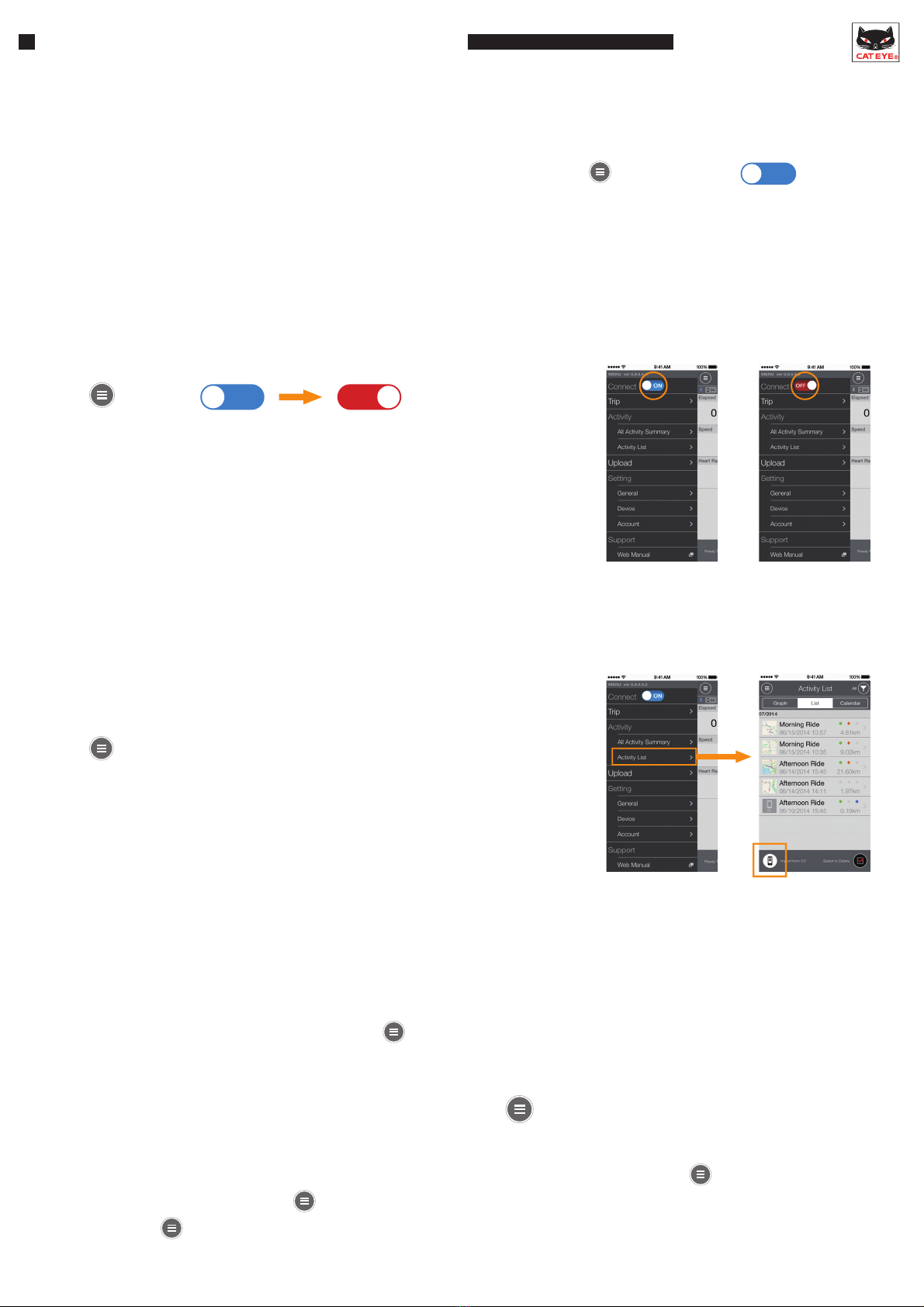
- How do I check what I've recorded in sensor direct mode?
- How can I make the notification icon on the Smart computer disappear?
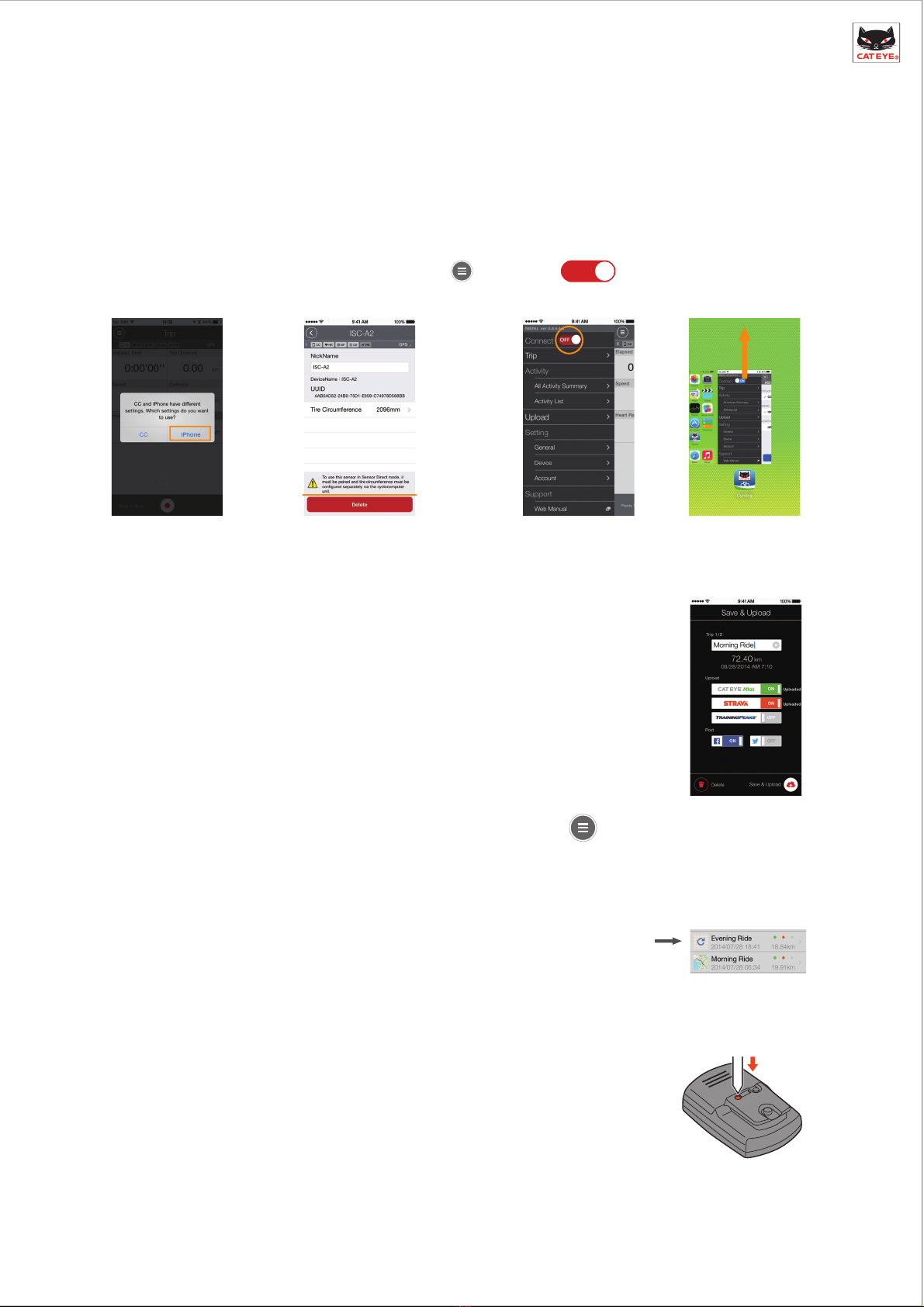
- Why isn't all my ride data displayed on the Upload screen?
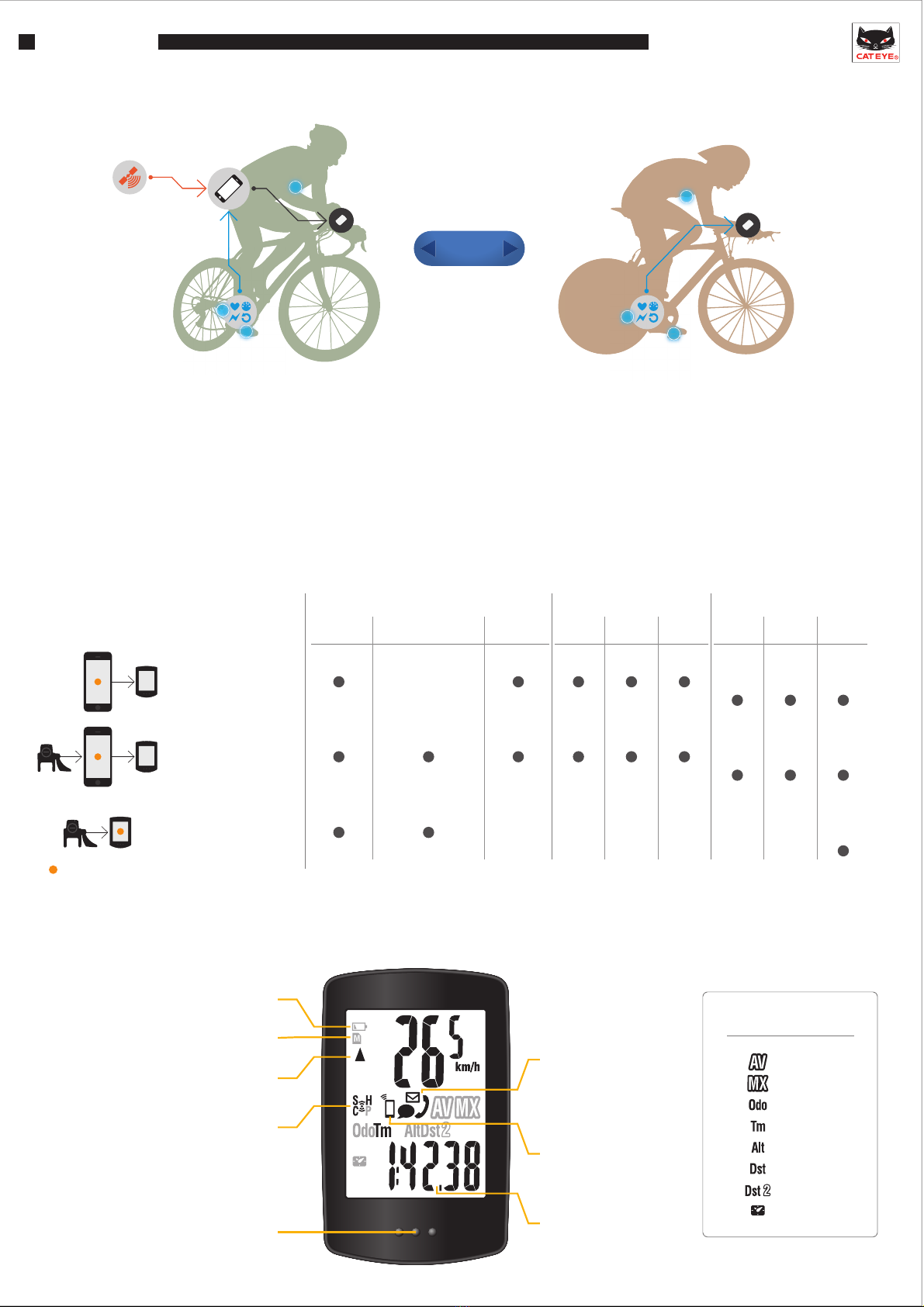
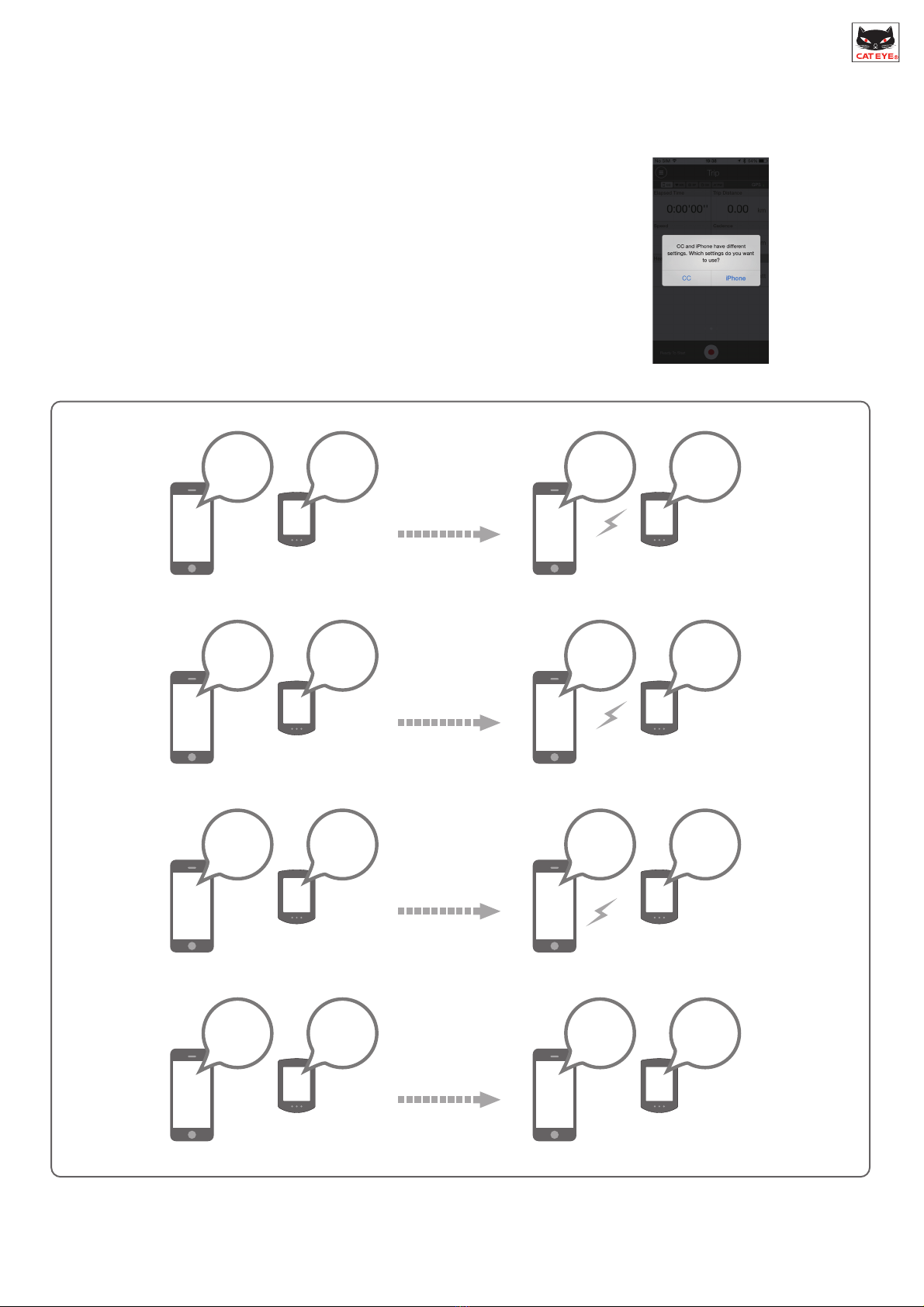
- When can I connect the Smart computer / a smart sensor to a smartphone?
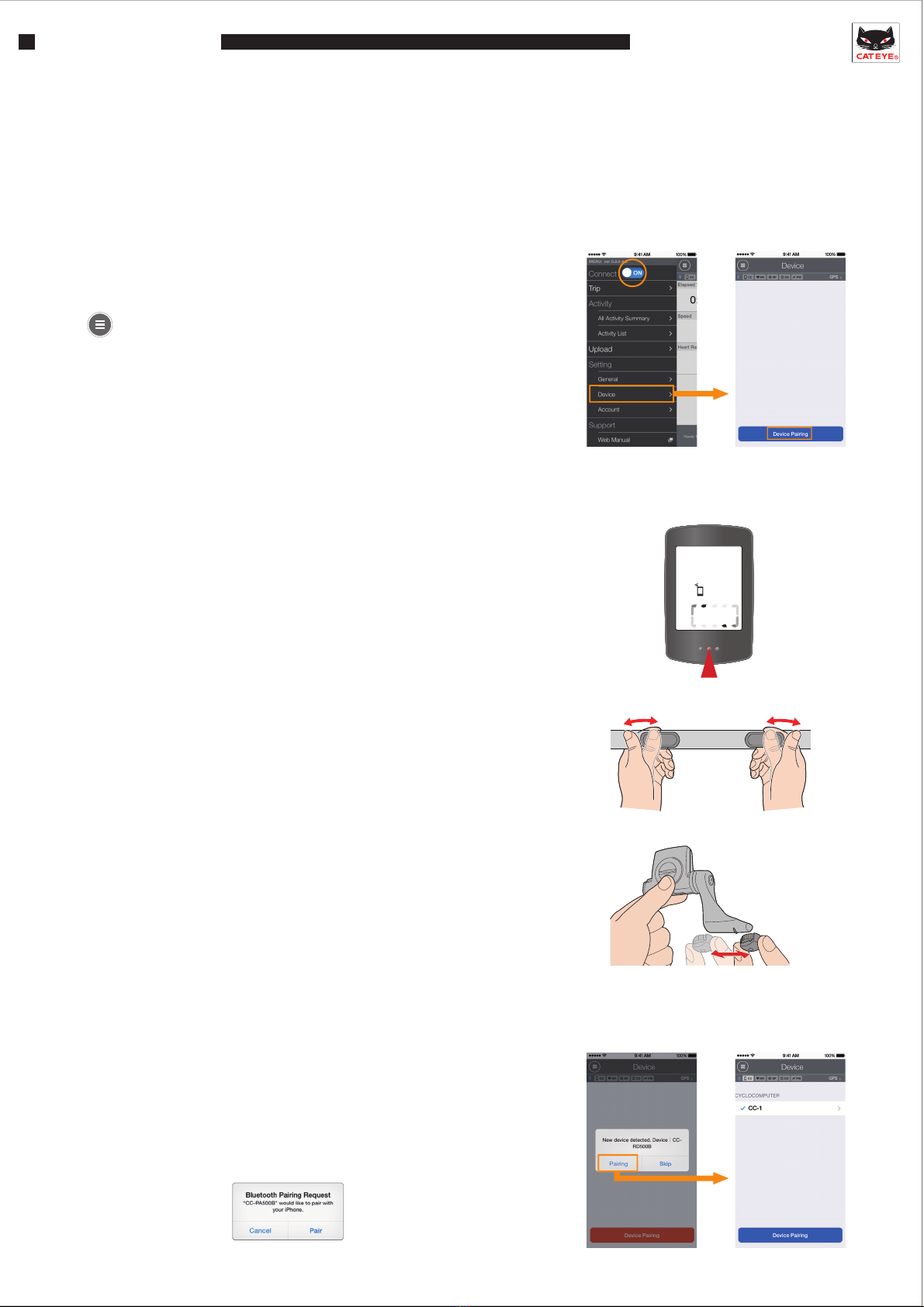
- How can I disconnect the smartphone from Smart computer or a smart sensor?
Devices can be disconnected from the smartphone.
If you return the Smart computer to sensor direct mode after disconnecting it,
the Smart computer and the smart sensor will connect directly to each other
and be ready for use.
ON OFF
Connect
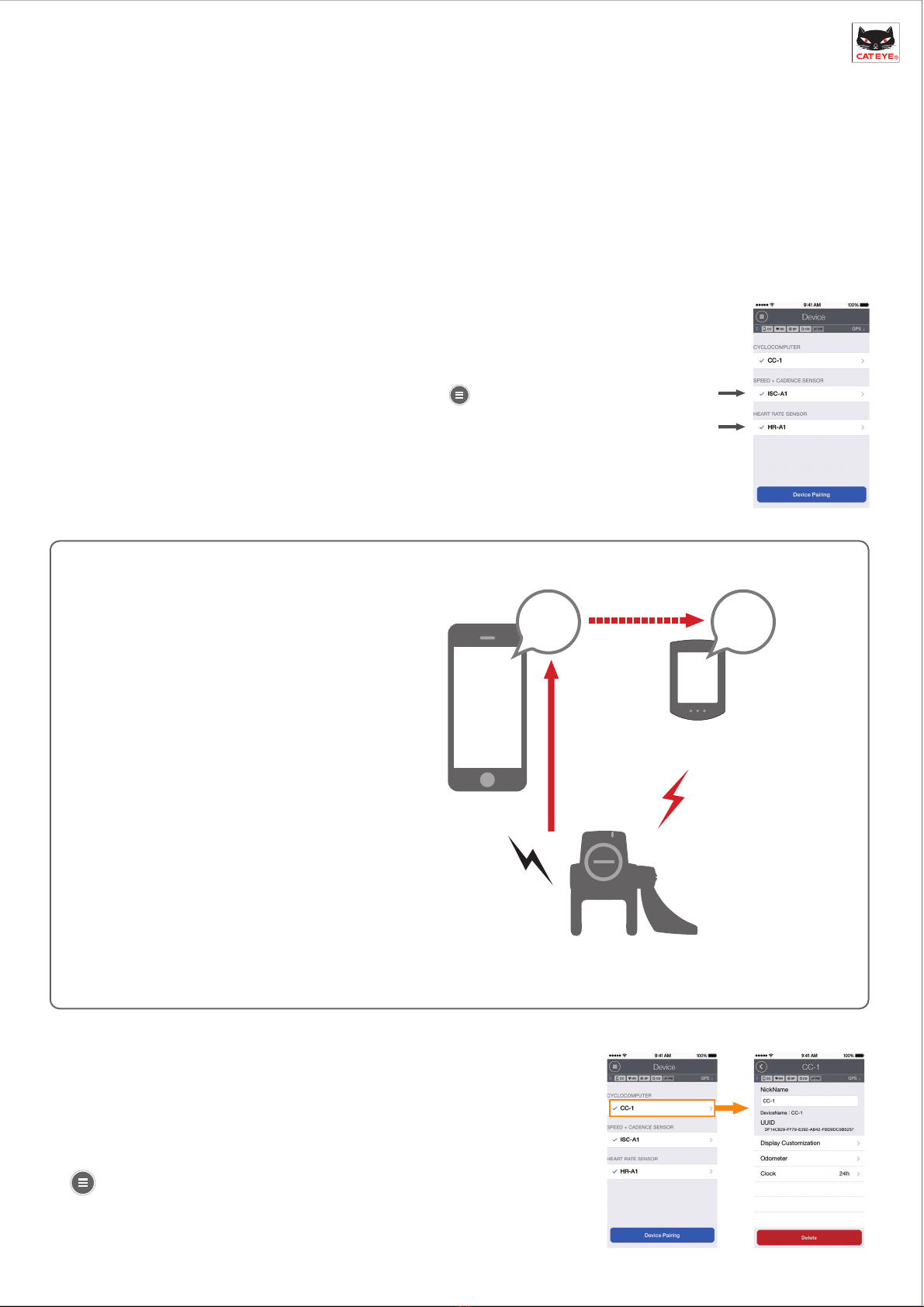
When the app is active (including when the screen is in sleep mode), as long as is set to , the smart-
phone will constantly search for paired devices. The Smart computer can be connected when it is in smartphone search
mode. Smart sensors can be connected simply by sending a signal.
If the connection between the smartphone and the device is cut o due to noise or distance, they will switch to search mode
and automatically reconnect.
ON
Connect
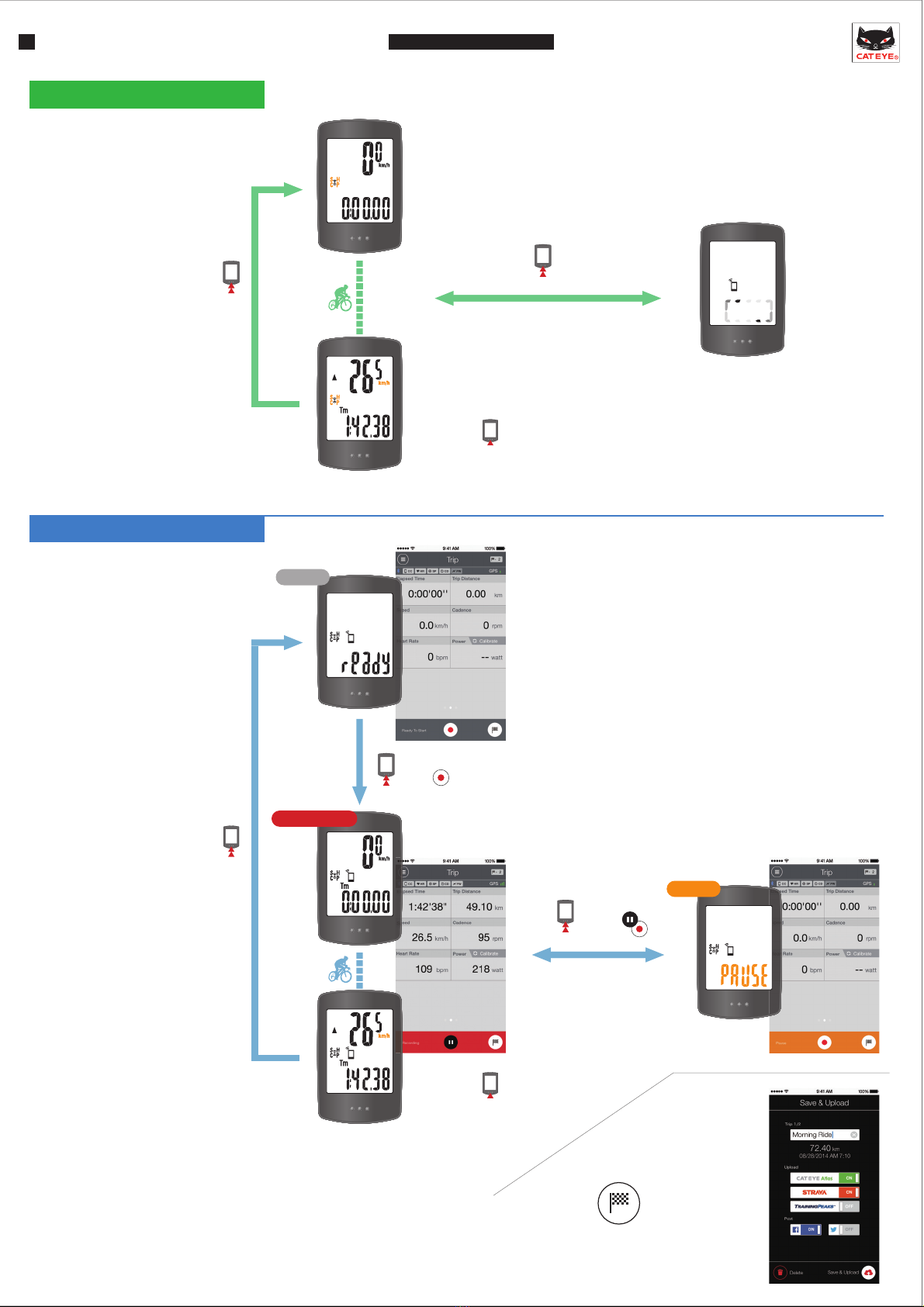
You can check ride data from sensor direct mode that is stored in the
Smart computer by moving it to the app.
* When the Smart computer is connected to the smartphone and data is
saved on the Smart computer, an icon appears.
* When the import nishes, ride data in the Smart computer is automatically
deleted.
Activity List > Import from CC
The icon is deleted each time you pause a trip, regardless of whether or not you have checked emails , calls or SMS(Text).
* Email notications must be congured under Device > CYCLOCOMPUTER .
Only ride data that has not been uploaded to CATEYE Atlas, STRAVA, or Training Peaks is displayed. If you want to
upload ride data that you have already uploaded to a dierent site, do so individually from the Activity List.
* When uploading data from the Upload screen, the app will start uploading data to the websites that are set to
ON on the Account screen.