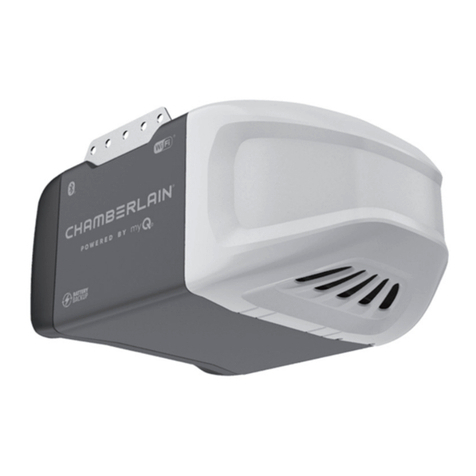
Chamberlain or other similar apps. For more information about the yQ Smart Garage Hub not registering, Lift aster
yQ Smart Hub - Troubleshooting Guide.
1. Verify the LED on the Hub is solid green before registering through obile Tech.
2. Log into the obileTech app.
3. Find the customer account.
4. Flick up and tap Package. Verify the Garage Door & Gate Control and LiftMaster Integration add-ons are included.
5. On the Home page, tap Equipment.
6. Tap LiftMaster Devices.
7. Tap Add Gateway and enter the yQ Smart Garage Hub’s serial number.
Note: The serial number can be found at the back of the Hub below the barcode. Please wait patiently as this
process may take several minutes.
8. After a few minutes, the Lift aster Gateway should appear in the equipment list.
9. To view the equipment list, tap followed by Equipment.
10. In LiftMaster Devices, tap the name of the yQ Smart Garage Hub that was just added.
11. Tap Add Device.
12. Select MyQ Wall Control,MyQ-Enabled garage door opener, or non-MyQ-Enabled garage door
opener depending on the equipment being used.
13. Tap Continue.
14. Follow the instructions presented in the wizard to add both door tilt sensors and garage door openers themselves
to the system.
Note: The G821L B-2SENSOR (red LED) communicates using RF and can be programmed into the 821L B
natively or the 821L and yQ-G0301 with the latest firmware. Please refer to Chamberlain's support
resources for questions about hub firmware. The 821L -SENSOR (yellow LED) uses a Bluetooth signal and
should only be programmed into the 821L or yQ-G0301.
◦ When adding a wall control, the internet gateway will be put into learn mode. Locate the learn button on the
wall control, then press the learn button twice to pair the wall control with your internet gateway. The red LED
on the control panel will light up. After pressing the learn button twice, tap Continue.
◦ When adding a yQ-enabled garage door opener, locate the learn button on the garage door opener.
Typically, this button can be found close to the wiring ports on the garage door opener. Press and hold the
learn button for two seconds to initiate pairing. The learn LED on the garage door opener will light up once
pairing has been initiated. After pressing the learn button, wait ten seconds, then tap Continue.
◦ When adding a non- yQ-enabled garage door opener, select a brand and the color of the program button,
then tap Continue for device-specific instructions.
Important: The 821L may attempt multiple frequencies to connect with the garage door opener. Please
allow for all attempts to be completed to ensure the correct frequency is found for the garage door opener.
The following image outlines the test button to enroll the Door Sensor:
https://answers.alarm.com/ADC/Partner/Installation_and_Troubleshooting/Garage/Lift aster_ yQ_Smart_Garage_Hub/Lift …
Updated: Tue, 05 Jan 2021 16:24:44 G T
10