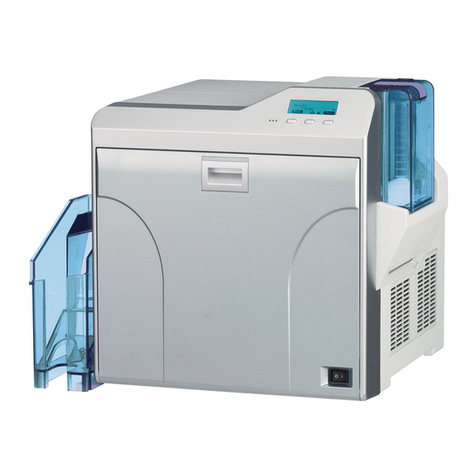
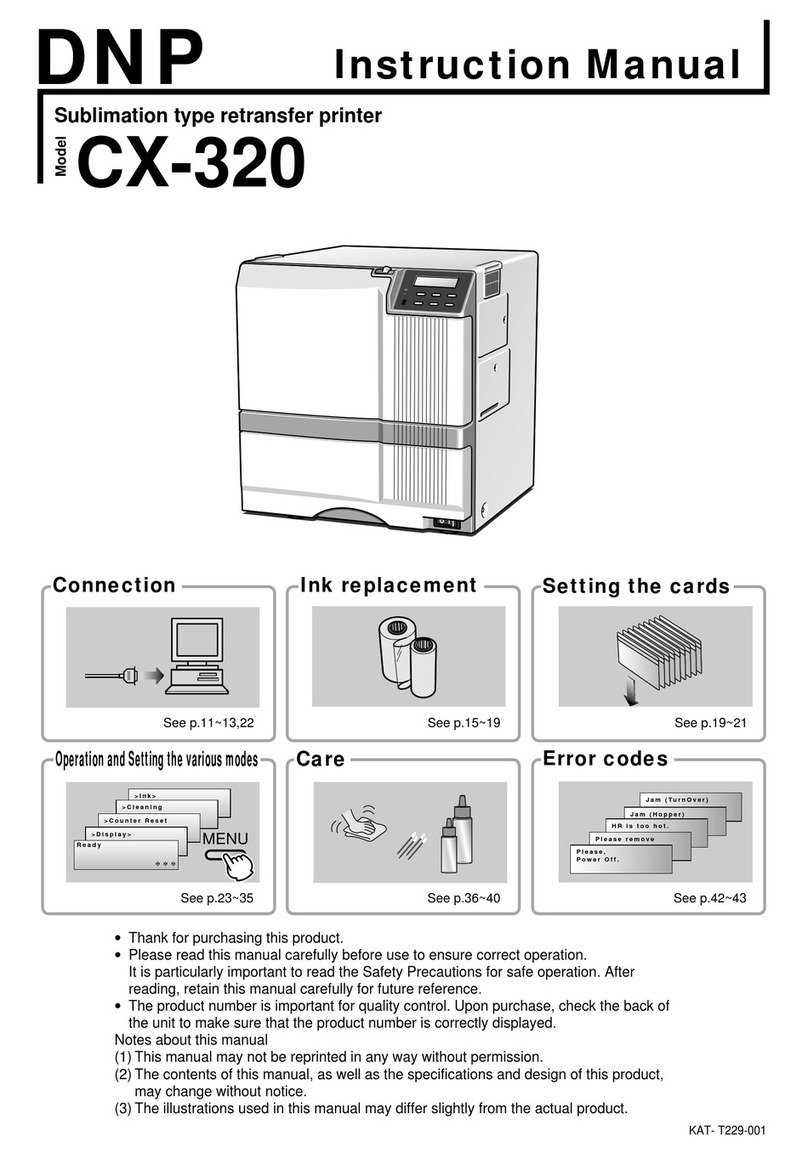
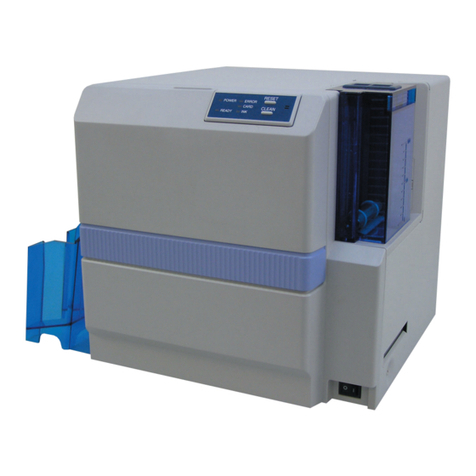
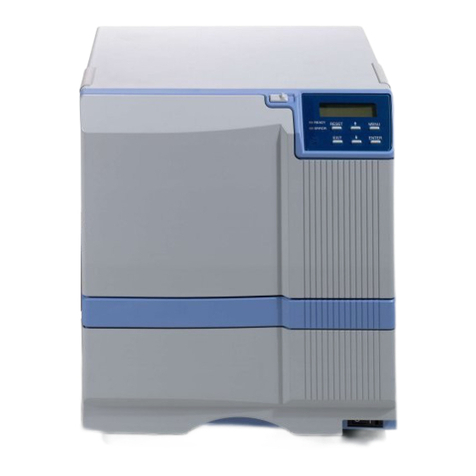
DNP CX-120 User manual

Direct Dye Sublimation Printer
CX-120
• Thank you for purchasing our product.
• Before using, be sure to read the "Notes for Safe Operation" and use the unit safely.
• Keep this instruction manual in a place near the printer and read it when necessary.
• The manufacturing number is important for quality control. Please check whether the manufacturing
number on the back of this unit is correct during purchase.
Notes regarding this manual.
(1) The contents of this manual shall not be reprinted or redistributed in any form without prior consent.
(2) The contents of this manual or the specifications and external appearance of this unit may be altered
without prior notice.
(3) Illustrations used in this manual may differ slightly from the actual shape of this unit.
KAT-
Instructions
Model
Operating the Printer ......................................... 2
Names of Various Sections on Control Panel .......... 2
LED Display ............................................................. 2
Button Control .......................................................... 3
Initialization .............................................................. 4
Test Printing ............................................................. 4
Differences Between Printing Modes ............... 4
How to Use the Status Monitor ......................... 5
Screen Configuration ............................................... 5
Monitoring Printer Status ......................................... 6
Ready Status Display ........................................... 7
Error Status Display ............................................. 7
Status Display ...................................................... 7
Changing Printer Settings ........................................ 8
Checking the Media and Printing Status .................. 9
Display When Ink is Unknown ................................ 10
Checking Printer Configuration .............................. 11
Upgrading Firmware .............................................. 12
Resetting the [No. of Cards Issued] Item ............... 13
Test Printing ........................................................... 13
Software Upgrade ............................................ 14
Update of Status Monitor ....................................... 14
Update of USB Driver - Windows XP ..................... 15
Update of USB Driver - Windows2000 ................... 16
Uninstalling Software ...................................... 19
Deletion of Status Monitor...................................... 19
Deletion of USB Driver - WindowsXP .................... 19
Deleting USB Driver - Windows2000 ..................... 20
Troubleshooting (Detailed Version) ........................... 22
Internal Configuration............................................. 22
List of Error Codes and Corresponding Actions ..... 23
When ink ribbon is torn .......................................... 25
Problems Related to Printing ................................. 25
Problems related to Color Printing ......................... 26
Problems Related to Text Printing .......................... 27
Actions to Take When Printer Fails to Start Up ...... 28
Version Upgrade ............................................... 29
Specifications ................................................... 30
Main Specifications ................................................ 30
External Dimension ................................................ 30
Table of Contents

2
Operating the Printer
Names of Various Sections on Control Panel
ERROR
CARD
INK
RESET
CLEAN
Buzzer
POWER
READY
1
25 7
34 6
1POWER LED (Green)
2READY LED (Green)
3ERROR LED (Red)
4CARD LED (Red)
5INK LED (Red)
6RESET Button
7CLEAN Button
Status
Description
Power Off
Power On
Not ready: Unable to issue card (unable to accept issuing command)
Ready: No card inside. Ready to issue card.
Active: Card inside. Ready to issue card.
No defect. Not lit in the cases of No Card and Ink End as these are not defects.
Irrecoverable error: Error that requires power to be turned off and on again.
Recoverable error: Error that requires reset or door to be opened and closed.
No defect or unknown defect related to card.
No card inside the card cassette.
Card transport error (JAM)
No defect or unknown defect related to ink ribbon.
Ink End
Ink defect (Ink ribbon ran out, unknown type of ink ribbon, etc)
INK (Ink ribbon status)
CARD (Card status)
ERROR (Error status)
READY (ONLINE/LOCAL)
Note) LED indicator status
-- Blinking -- Light on -- Light off
LED Name
POWER (Power supply status)
LED Display

3
Button Control
Other than when turning on the power, operation only starts after pressing the button for more than 1 second. Release
upon hearing a "beep" sound from the buzzer and the respective function will be activated. This is used to prevent
operational errors.
Operation Status Operation ReferenceRESET CLEAN
When turning on power
Initialization (Usual startup)
Changes to Product ID Setting mode Startup Guide
Connecting to multiple printers
Changes to Emergency Download mode
Troubleshooting in this manual
When startup fails
Initialization (Usual startup)
Changes to Magnetic Head Cleaning mode
Startup Guide
Cleaning of magnetic head
Initialization (Software reset)
Also initializes ink ribbon
Perform test pattern printing
Ready
Recoverable error
with printer door closed
Note (2)
Changes to Card Transport
Roller Cleaning mode
Startup Guide
Cleaning of card transport roller
Initialization (Software reset)
Also initializes ink ribbon
Irrecoverable error Not Applicable
(1) Button status: Not pressed. Pressed.
(2) Open and close printer door during a recoverable
error to start initialization automatically.
(3) For initialization without performing software re-
set, the ink ribbon will not be initialized if the same
ribbon is used. Refer to the next section of this
manual on initialization.
(4) When there is no error while card is inside the
printer, the RESET button cannot function. Open
and close printer door if you wish to remove the
cards.Initialization will start automatically and card
will be ejected from the Rejected Card Exit.
Caution
Operating the Printer

4
Initialization
Operating the Printer
Initialization operation can be understood as follows.
1.
Initialization starts automatically when
printer door is closed.
2.
Ink ribbon will be initialized when a different
ribbon is used.
However, ensure to initialize ink ribbon when initial-
ization is activated using the RESET button.
Test Printing
Even when not connected to the host computer, test print-
ing of built-in patterns can still be done in the Ready mode
by pressing the RESET and CLEAN buttons simulta-
neously for more than 1 second (a "beep" sound will be
heard from the buzzer) and releasing it. Refer to "Check-
ing After Changing the Thermal Head" in the Startup Guide
(P.34).
Differences Between Printing Modes
The setting of this printer can be switched between the
Standard mode and Fine mode for bothYMC (color) print-
ing and K Resin (text) printing by using the setting func-
tion in the status monitor (Printer setting tool). When car-
rying out double-sided printing on the card, the same mode
setting will apply to both the front and rear faces. (Setting
a separate mode for the front and back is not possible.)
A longer printing time will be required when set to the
Fine mode. The merits of using Fine mode printing and
reference values on the printing time are shown below.
YMC
K Resin
Approx. 5 sec / side
Approx. 2 sec / side
Improvement in evenness,
texture and sharper outline
Lesser broken and faded words
Additional Time when Set
to Fine Mode
Merits of Using Fine Mode
1) Upon removing a card during a card jam
Example
2) Upon changing an ink ribbon when ink runs
out
Caution

5
How to Use the Status Monitor
The Status Monitor is a software for displaying printer status and performing various printer settings.
Screen Configuration
A
B
C
A:Close button
Exits the status monitor
B:TAB for switching screens
Switches to the following screens.
1Status Display screen : Displays printer status.
2Printer Setting screen : For displaying/changing printer settings.
3
Media Information Display screen
: Displays status of card and ink ribbon.
4Property screen : Displays printer configuration.
5Others screen : For updating printer firmware and performing test printing. Number of cards
issued is set to 0.
C:Minimize button
Minimizes the Status Monitor to an icon. The icon is displayed in the task bar.

6
Monitoring Printer Status
1Printer status :Displays status of printer.
2Media status :Indicates whether cards are present as well as the remaining ink quantity.
3Ink :Displays information of the installed ink ribbon. The quantity and lot number will be blank
if ink ribbon is not recognized correctly. In such a case, it may not be possible to control
the ink ribbon properly. Check the installation status of the ink ribbon.
4
Quantity issued by printer
:Displays the number of cards issued by the printer.
5Quantity issued :Displays the number of cards issued. This figure can be reset to 0 on the Others screen.
6Version :Displays the version of the printer firmware.
7Printer Selection :Switches to the target printer when the same host computer is connected to multiple
printers. Update the printer connection status using the Update button.
How to Use the Status Monitor

7
Status indicating that the printer is ready to issue cards.
Shows the details of a failure. A is an error code indicating
the type of failure. Refer to the list of error codes on the
various error messages and corresponding actions to take.
A
Displays operating status of the printer.
Printer not connected
Initializing mechanism
Cleaning in progress
Offline mode
Self-diagnostic mode
Download mode
Loading card
Transporting card
Magnetic encoding in progress
Printing
Encoding Contact IC
Encoding Non-contact IC
Ejecting card
Ejecting Rejected card
Display Message
Power of printer is not switched on or the host computer and printer are not
connected properly with a USB cable.
Initializing printer. Printer will switch to the Ready mode after initialization is complete.
Cleaning of magnetic head in progress. Printer will switch to the Ready mode
after cleaning is complete.
Printer is in the offline mode.
Self-diagnostic mode. Turn on the printer power again to set printer to the
Ready mode.
Download mode. Turn on the printer power to set printer to the Ready mode.
Do not switch off printer's power when downloading as this will result in
failure.
Status of printer when it is issuing cards. Printer will return to the Ready
mode upon completion of card issuance.
Description
Ready Status Display Error Status Display
Status Display
How to Use the Status Monitor

8
Changing Printer Settings
A:Set button
Changes printer settings.
B:Display button
Displays printer settings on the screen
1
YMC Print Density
:Adjusts the print density of
YMC ink.
2
K Resin Print Density
:Adjusts the print density of
K Resin ink.
3OP Transfer Level : Adjusts the transfer level
of the OP layer (protective
layer) of the ink to the
card.
4
YMC Printing Mode
:Adjusts the printing quality
of YMC ink. If "Fine" is
selected, print quality will
be enhanced but printing
speed will decrease.
5
K Resin Printing Mode
:Adjusts the print quality of
K Resin ink. If "Fine" is
selected, print quality will
be enhanced but printing
speed will decrease.
6
Number of Write Retries
:Sets the maximum
number of retries when
error occurs while writing
to the magnetic stripe.
A
B
C
Offset X
Offset Y
Left
Down
Right
Card Stacker Side
Card Cassette Side
Up
How to Use the Status Monitor
Change printer settings on the Printer Settings screen.
7
Coercive Force Setting
:Change using C on the
screen. It will not be
displayed if the magnetic
unit is not installed on the
printer. Changes can only
be made if the magnetic
unit is the ISO type, but
not for the JIS type.
8
Printing Position Adjustment
:Sets the position to start
printing. 1 unit is
equivalent to 1/150 inch.
The following diagram
illustrates the direction of
movement for the print
image.

9
Checking the Media and Printing
Status
Check the status of the printer media and printing on the media information display screen.
1Ink :Displays the installed ink ribbon. "Unknown" when ink ribbon cannot be recognized correctly.
Printing may not be performed properly in such a case.
2Number of Rounds : Displays the number of rounds that the installed ink ribbon is capable of winding. In the
example on the screen, a YMC-K-OP ink ribbon with 750 rounds are installed. A YMC-K-P
cycle is counted as 1. The display will be blank when ink ribbon in use is unknown.
3Ink Lot Number :Displays the lot number of ink ribbon installed. The display will be blank when ink ribbon in
use is unknown.
4
Pieces Issued by Printer
:Displays number of cards issued. This figure can be set to 0.
5Pieces issued :Displays number of cards printed by the printer.
6
Number of Head Prints
:Displays number of printing ink panels of the thermal head. For example, 5 is added when all
YMCK-OP inks are used for printing.
7Ink volume :Displays remaining quantity of the ink ribbon.
8Card volume : Indicates whether cards are present.
How to Use the Status Monitor

10
Display When Ink is Unknown
A
Displays the tag status in Awhen it is "unknown".
●(252:Tag Data Defect) :Recorded data of tag is incorrect. Try again after replacing the ink ribbon.
●(253:Tag Data Defect) :Unable to communicate correctly with tag.Try again after replacing the ink ribbon.
●(254: No Tag) :Unable to read tag. Check to ensure that the ink ribbon is set correctly.
●(255: R/W Defect) :Printer's tag reader is defective. Repair of printer is required.
How to Use the Status Monitor
Other manuals for CX-120
2
Table of contents
Other DNP Printer manuals