manuals.online logo
Brands
  1. Home
  2. •
  3. Brands
  4. •
  5. DNP
  6. •
  7. Printer
  8. •
  9. DNP DS40 Guide

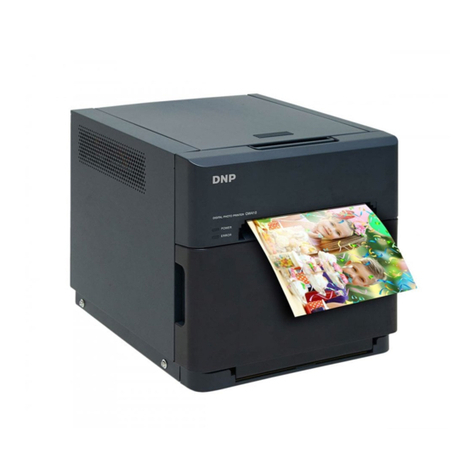
DNP DS40 Guide

Other manuals for DS40

6

Other DNP Printer manuals

DNP DS?RX1 Use and care manual

DNP

DNP DS?RX1 Use and care manual

DNP DS-ID400 Service manual

DNP

DNP DS-ID400 Service manual

DNP ID400 DC3 User manual

DNP

DNP ID400 DC3 User manual

DNP DS-SL20 User manual

DNP

DNP DS-SL20 User manual

DNP DP-DS80D User manual

DNP

DNP DP-DS80D User manual

DNP CX-D80 User manual

DNP

DNP CX-D80 User manual

DNP DS620A User manual

DNP

DNP DS620A User manual

DNP Q8 User manual

DNP

DNP Q8 User manual

DNP DS-SL10 User manual

DNP

DNP DS-SL10 User manual

DNP CX-120 User manual

DNP

DNP CX-120 User manual

DNP DS40 User manual

DNP

DNP DS40 User manual

DNP CX-7000 Series User manual

DNP

DNP CX-7000 Series User manual

DNP QW410 User manual

DNP

DNP QW410 User manual

DNP CX-D80D User manual

DNP

DNP CX-D80D User manual

DNP DS40 User manual

DNP

DNP DS40 User manual

DNP CX-330 User manual

DNP

DNP CX-330 User manual

DNP ID400DC2 User manual

DNP

DNP ID400DC2 User manual

DNP ID400W User manual

DNP

DNP ID400W User manual

DNP OP-TU80X User manual

DNP

DNP OP-TU80X User manual

DNP DP-DS620 User manual

DNP

DNP DP-DS620 User manual

DNP CX-120 User manual

DNP

DNP CX-120 User manual

DNP DS40 Installation guide

DNP

DNP DS40 Installation guide

DNP DP-DS620 User manual

DNP

DNP DP-DS620 User manual

DNP DS40 Release note

DNP

DNP DS40 Release note

Popular Printer manuals by other brands

Evolis Elypso user guide

Evolis

Evolis Elypso user guide

Lexmark 522n - C Color Laser Printer Service manual

Lexmark

Lexmark 522n - C Color Laser Printer Service manual

Panduit COUGAR LS9Q Operator's manual

Panduit

Panduit COUGAR LS9Q Operator's manual

Olivetti PG L2140 Operation guide

Olivetti

Olivetti PG L2140 Operation guide

Samsung SL-M2820DW user manual

Samsung

Samsung SL-M2820DW user manual

Kyocera FS-9530DN specification

Kyocera

Kyocera FS-9530DN specification

Canon LASER SHOT LBP-1210 Specifications

Canon

Canon LASER SHOT LBP-1210 Specifications

Canon PIXMA PRO-1 Series Getting started

Canon

Canon PIXMA PRO-1 Series Getting started

Canon LBP113w Getting started

Canon

Canon LBP113w Getting started

Lexmark Infoprint 1332 user manual

Lexmark

Lexmark Infoprint 1332 user manual

Epson M1120 user guide

Epson

Epson M1120 user guide

TransAct POSJET 1500 Spare parts

TransAct

TransAct POSJET 1500 Spare parts

Telpar MTP-1500 user manual

Telpar

Telpar MTP-1500 user manual

Star DP8340 SERIES user manual

Star

Star DP8340 SERIES user manual

MGI JETVARNISH 3DS user manual

MGI

MGI JETVARNISH 3DS user manual

Kyocera TASKalfa PA4500ci Operation guide

Kyocera

Kyocera TASKalfa PA4500ci Operation guide

Emaar EP-360 user manual

Emaar

Emaar EP-360 user manual

Fujitsu DL7400 user manual

Fujitsu

Fujitsu DL7400 user manual

manuals.online logo
manuals.online logoBrands
  • About & Mission
  • Contact us
  • Privacy Policy
  • Terms and Conditions

Copyright 2025 Manuals.Online. All Rights Reserved.

ON SET PRINTER MAINTENANCE – DS40 PHOTO PRINTERS
Standard Operating Procedure | Module 114
This procedure is to be completed in conjunction with the
following additional modules:
• 112 – Setting up a Santa set – POS Case
• 121 – Software required to operate a Santa Set -
TEPS
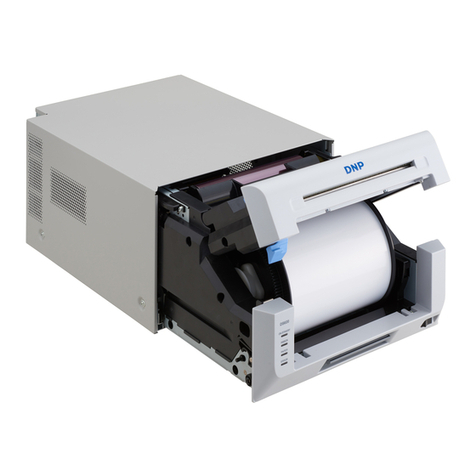
All locations use DNP DS40 printers.
DNP DS40 printers use a technique called Dye-Sublimation printing in which the ink
from a roll of coloured ribbon is transferred to the print substrate (paper) using heat,
followed by a clear, UV protective layer being laid on top of the finished image. This
produces a long lived & vibrantly coloured image that can be produced instantly, on
site.
The power switch for a DS40 printer is located on the bottom right of the front panel of
the printer (Figure 1).
When a printer requires a media change the orange lights on the front left-hand panel
of the printer will light up. Even though there are separate lights for both the ribbon &
the paper it is ESSENTIAL that both the paper roll & ribbon are changed together, as
a set. Even if it appears there is some paper remaining, this should be discarded along
with the used ribbon.
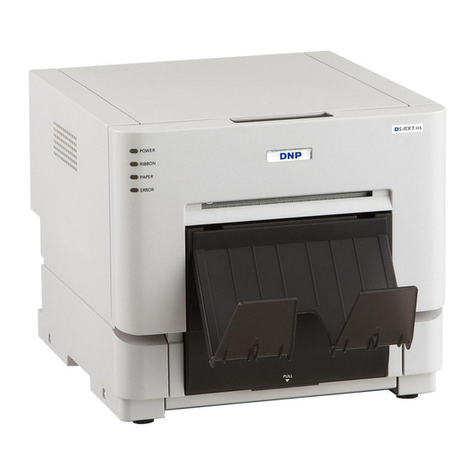
Figure 1 – DNP DS40 Printer
Procedure – Changing Media
Paper
1. To access the paper roll, open printer by lifting the
blue handle under scrap box and pulling gently
forward (Figure 2).
2. Push blue paper release lever, located on the left-
hand side of the printer (Figure 3). The top panel of
the printer face will pop up allowing you to access
the paper area.
3. Remove scrap box by pulling it straight up from the
printer base & set aside. Discard any offcuts at this
time.
4.
Remove the paper cassette, including spool ends &
any remaining paper by lifting it directly up from the
printer base. Discard any remaining paper.
DO
NOT DISCARD THE SPOOL ENDS.
5. Install the new roll of paper onto the spool ends
ensuring that there is no gap between the holder &
the edge of the paper roll.
6. Place the paper into the printer with the paper
feeding over the top and under into the printer
(Figure 4).
7. Gently feed the paper into the printer as shown in
the photo below. When this has been done correctly
you will hear a ‘beep’.
8. Reattach the scrap box by positioning it straight down from the top into the front of
the printer. Close the front cover.
Figure 2 – Opening the front of the printer
Figure 3 – Location of paper release lever
Figure 4 – Direction for feeding paper into
printer

Ribbon
1. Once the paper has been changed & the lid
closed you will be able to access the ribbon tray.
Grasp the black ‘handle’ of the ribbon tray & pull
upwards (Figure 5).
2. Remove & discard the used ribbon from the
ribbon tray.
DO NOT DISCARD THE RIBBON
TRAY.
3. Inset the new ribbon into the tray, Purple (supply)
spool to the front & orange (take up/waste) to the
rear with the ribbon going over the top of the
spools. Not the ribbon is designed to only go into
the holder one specific way (Figure 6). There is
a diagram on the inside of the tray if you require
any guidance.
4. Ensure there is no slack in the ribbon by gently
winding the supply side of the ribbon to tighten.
Replace the ribbon tray into the printer by sliding
the entire assembly into the printer mechanism.

5. Replace the emptied off-cut drawer then close the printer drawer by pushing it in

until it clicks shut. The LED’s will flash and the printer will initialize. The printer

will produce four offcuts as part of this process. Once this has finished your printer
is ready to go!
Figure 5 - Ribbon tray removal/replacement
Figure 6 - correctly seated ribbon in tray
mechanism
Troubleshooting
Other than media changes, the 3 most likely errors on a DS40 printer are either paper
or ribbon jams or dirt/dust getting into the mechanism. Each of these errors can be
corrected on set, quickly & easily without any intervention from tech support. Below is
a guide for how to identify the errors you may experience & the possible solutions:
Status
LED Indicators
Solution
Power
(Green)
Ribbon
(Orange)
Paper
(Orange)
Error
(Red)
Paper End
Replace paper roll (and ribbon)
Ribbon End
Replace ribbon (and paper roll)
Door Open
(no paper)
Ensure the paper properly is
properly set & the paper/ribbon
access panel door is closed
Door Open
Ensure the paper/ribbon access
panel door is closed
No Scrap Box
Ensure the scrap box is in place
correctly
Paper Error
Check for a paper jam & remove
Ribbon Error
Remove the ribbon tray & re-set
System Error
Turn the printer on & off. If this
does not re-set call tech support
Heads
Overheated
Allow the printer to cool down.
This will auto-recover when ready
Indicates light is lit/solid
Indicates light is flashing
Paper Jam
1. Open the Front panel as per changing paper instructions &
remove the ribbon tray.
2. You should be able to see the jammed paper feed below
where the ribbon tray was mounted. Gently pull the paper
upwards until the jammed paper is released & you can see
smooth, undamaged paper feeding through the feed (Figure
7).
3. Cut the damaged paper away, ensuring the cut is a straight
as possible.
4. Remove & rewind the paper spool as per instruction for
changing the paper roll & reset the paper as per normal
process.
Ribbon Jam
1. Remove the ribbon cartridge as per instructions for changing a ribbon & cut the
ribbon to free the main ribbon & cartridge (Figure 8).
2. Carefully pull the remaining jammed ribbon from the printer ensuring that no
remnants of the ribbon remain stuck as this will impact ongoing printing (Figure 9).
3. Use clear sticky tape to join the cut ends of the ribbon remaining in the cartridge
& then wind the ribbon onto the take up/waste spool until the tape is out of sight
(Figure 10). We would suggest a minimum of 1 full ‘set’ of ribbon colours is wound
on.
Figure 7 - Removal of
jammed paper
Figure 8 - Cutting the
ribbon
Figure 9 - gently pull
damaged ribbon from printer
Figure 10 - Direction to wind
damaged ribbon onto spool
Dirty Platen Roller
The Platen roller is responsible for feeding the paper roll through the printer at the
correct tension to ensure the correct feed rate of the paper. If prints are coming
out with marks on them, it is often dust on the platen roller that causes this. To
clean:
1. Remove the paper spool as per the instructions above.
2. Using the lint free wipes & cleaning alcohol provide in your
road case, wipe the platen roller with an alcohol soaked
wipe whilst rotating the roller (Figure 11).
3. Replace the paper spool.
Figure 11 - Cleaning the
platen roller