manuals.online logo
Brands
  1. Home
  2. •
  3. Brands
  4. •
  5. Dosch&Amand
  6. •
  7. Emergency Phone
  8. •
  9. Dosch&Amand DA1450 User manual

Dosch&Amand DA1450 User manual

Other manuals for DA1450

2

Other Dosch&Amand Emergency Phone manuals

Dosch&Amand DA1432 DECT indePendant Specification sheet

Dosch&Amand

Dosch&Amand DA1432 DECT indePendant Specification sheet

Popular Emergency Phone manuals by other brands

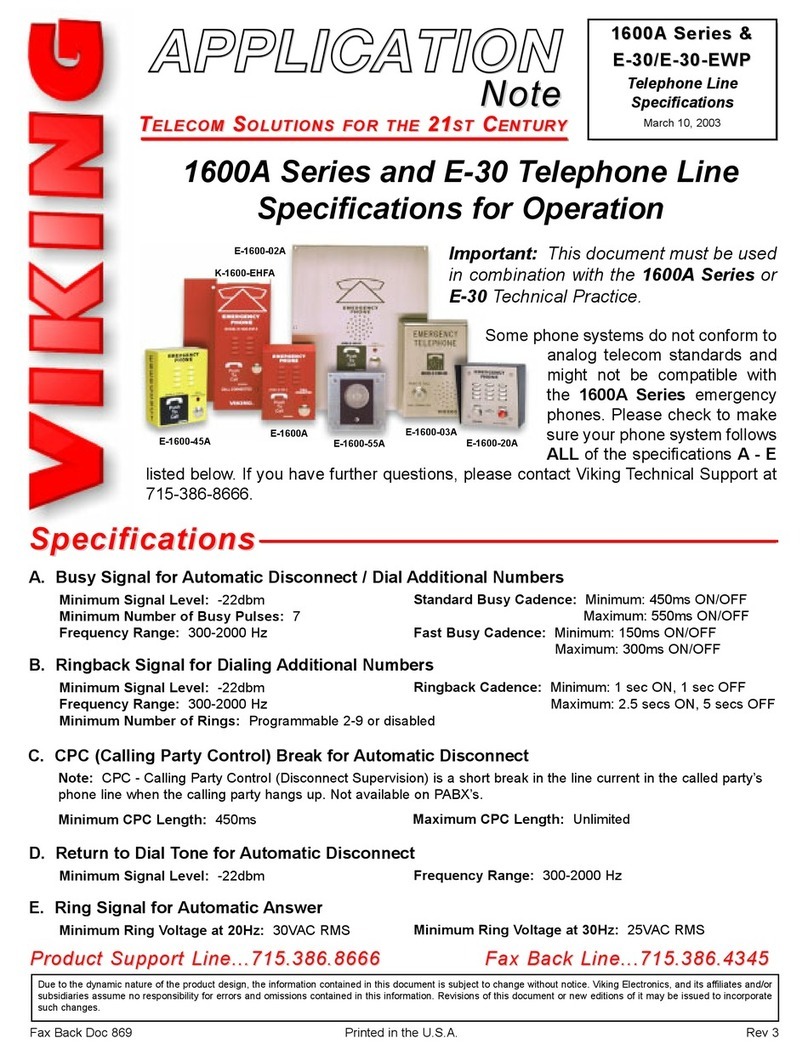
Viking E-1600A series Application note

Viking

Viking E-1600A series Application note

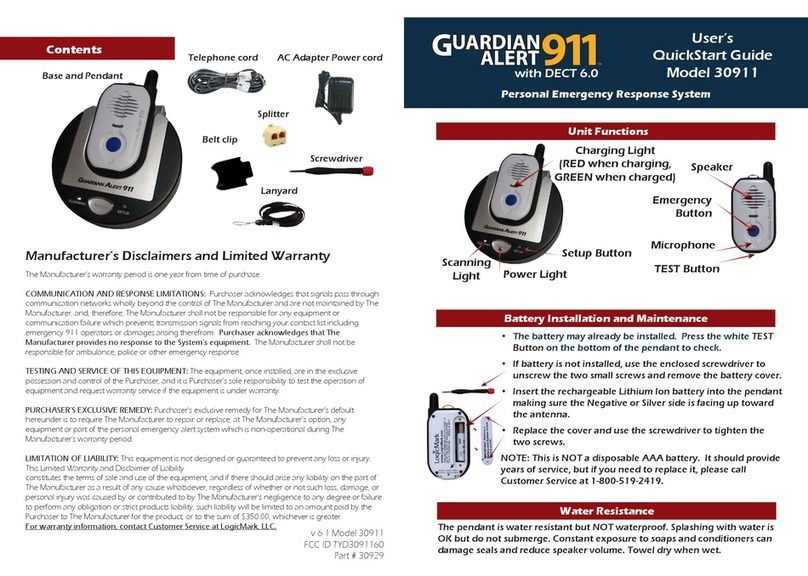
LogicMark GUARDIAN ALERT 911 User's quick start guide

LogicMark

LogicMark GUARDIAN ALERT 911 User's quick start guide

Rath 2500-205D Installation & operation manual

Rath

Rath 2500-205D Installation & operation manual

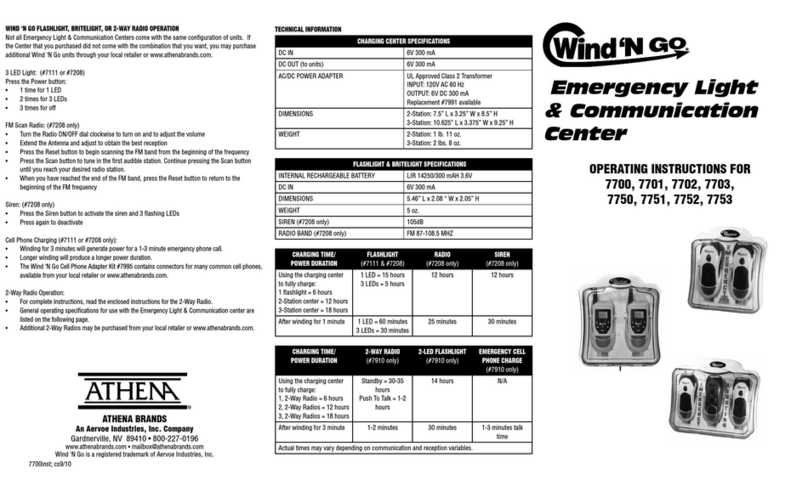
Wind n Go 7700 operating instructions

Wind n Go

Wind n Go 7700 operating instructions

Rath 2100-CPV Installation & operation manual

Rath

Rath 2100-CPV Installation & operation manual

Wind Crest ILO1 quick start guide

Wind Crest

Wind Crest ILO1 quick start guide

Bell System Master 200Plus Operator's manual

Bell System

Bell System Master 200Plus Operator's manual

Linear PERS-3600 Installation & operation instructions

Linear

Linear PERS-3600 Installation & operation instructions

ooma Safety Phone 700-0129-203 quick start guide

ooma

ooma Safety Phone 700-0129-203 quick start guide

CareTech Gina user guide

CareTech

CareTech Gina user guide

Rath SmartPhone VI Troubleshooting & Diagrams

Rath

Rath SmartPhone VI Troubleshooting & Diagrams

Paso PA8506-V Instructions for use

Paso

Paso PA8506-V Instructions for use

JNY Safetycare FDC user guide

JNY Safetycare

JNY Safetycare FDC user guide

Rath 2100-TL9 manual

Rath

Rath 2100-TL9 manual

Eldat Easywave Fon Alarm operating instructions

Eldat

Eldat Easywave Fon Alarm operating instructions

Merak MMk-656 instruction manual

Merak

Merak MMk-656 instruction manual

Assistive Technology Services TOUCH N TALK FD Advanced user's guide

Assistive Technology Services

Assistive Technology Services TOUCH N TALK FD Advanced user's guide

Great Arnoldi Just in Case owner's guide

Great Arnoldi

Great Arnoldi Just in Case owner's guide

manuals.online logo
manuals.online logoBrands
  • About & Mission
  • Contact us
  • Privacy Policy
  • Terms and Conditions

Copyright 2025 Manuals.Online. All Rights Reserved.

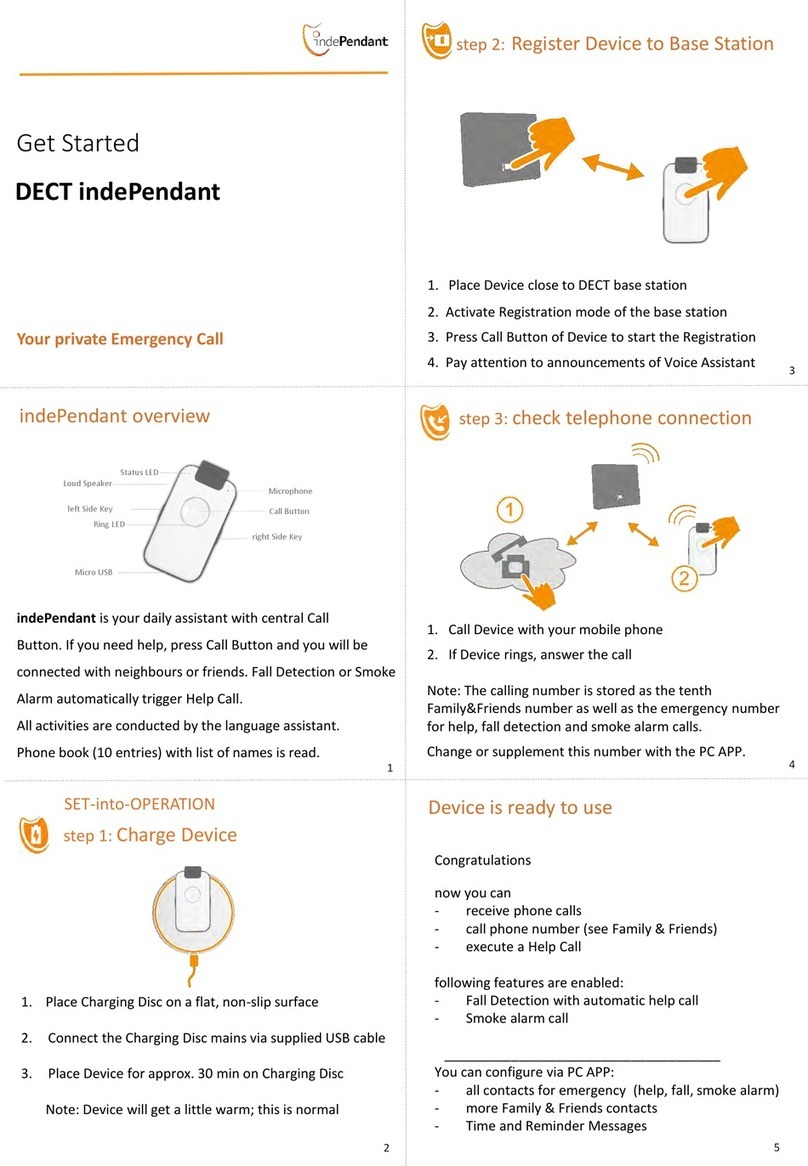
COMMISSIONING Step 1
Charging the device
 Place the charging disc on a flat, non-slip surface and
connect to the mains via the supplied USB cable and
power supply
 Place DA1450 on the charging disc for approx. 30 min
and make sure that the device is placed correctly
Voice Assistant : »Battery is charging»
This message is delayed in case of heavy discharge.
Note: DA1450 can only be switched on with the
charging disc
COMMISSIONING Step 2
Register DA1450 at DECT Base Station
 Bring DA1450 to your base station
 Activate the login mode of the base station
e.g. Telekom
Speedport
e.g. 1&1
Fritzbox
Note: The login mode remains active for about 5 minutes
 Press the DA1450 call button and pay attention to the
instructions of the voice assistant
"Registration activated"
Note: DA1450 logs on with PIN "0000". If the PIN code
of your DECT base station is different, you need to log in
via the PC APP. You can enter PIN codes up to 8 digits.
COMMISSIONING Step 3
Check phone connection
 Call your telephone line from external
e.g. with your mobile phone
 When the device rings,
answer the call.
DA1450 is now operational.
After you hang up, you will be asked if you want to put
this phone number in the phone book. If so, press the call
button. It is then stored as the first free phone number
and used as an emergency number for call for help, fall
and smoke alarm, as long as you have not entered any
other contacts via the PC APP.
 Add more numbers orchange existing numbers
via the PC APP program (step 4)
Info Positioning aid for loading disc
Self-adhesive rubber discs are included in the scope of
delivery. They are optionally used as a positioning aid
for DA1450 on the loading disc. We have tested
following placement that we recommend. You are free
to choose other placements
Always place the device on the charging disc when it is
not needed, when you leave or at night. Do not turn off
the device !
Note: Only on the charging disc the automatic smoke
alarm detectionis activated.
Install PC APP Step 4
Important:
Download the program PC APP DA1450 to your
Windows PC via the following link:
www.da-products.de/DA1450/download
After you have downloaded the PC APP to your-
computer, you need to install the PC APP and the
associated applications.
To do this, start the SETUP program.
Confirm a few inputs, usually NEXT or OK or CONTINUE
If you are asked if you allow the application to access
your computer, confirm this with YES or OK.
After successful installation, you will
see an ICON on your screen.
With doubleclick on the ICON, start the
PC APP.
DA1450 Configure Step 5
start PC APP and connect DA1450
IMPORTANT: Connect DA1450 to the PC using the
charging disk’s USB cable. This cable contains the
necessary data connection.
Now enter all contacts with name and phone number in
peace. Make sure that often used contacts are placed
first. Give the phone register understandable titles.
How many registers and contacts you enter is
completely free.
Note: The three help numbers are monitored by
DA1450 Call Manager. He ensures that calls from
answering machines (TAM) are not accepted. If help
numbers are canceled prematurely, turn off TAM
Detection using PC APP in sector SYSTEM.

Set time (new)
When you remove the device from the charging disc, it
automatically checks the operational capability of the
device, including whether there is a correct time in the
device. If there is no time, the announcement comes
"Time is not available "
The time can be restored via the PC APP or via an
external call. To do this, you can call a person from the
phone list or you can call them. This person must enter
the following string on the keyboard: #TIME#hhmm#
(System is 24h)
hh = hour Example 9:45 = 09
mm = minute example 45 minutes mm = 45
results in #TIME#0945#- equals to #8463#0945#
»Time updated
Note: When the device is turned off, the time must be
re-entered.
RETURN DELIVERY Note
Deliver to
Dealer/Company
...................................................................
Street. Nr .............................................................
ZIP Code City ............... .................................................
Sender
Name .......................................................
Street. Nr .............................................................
Postcode City ............... .................................................
Order no...........................................
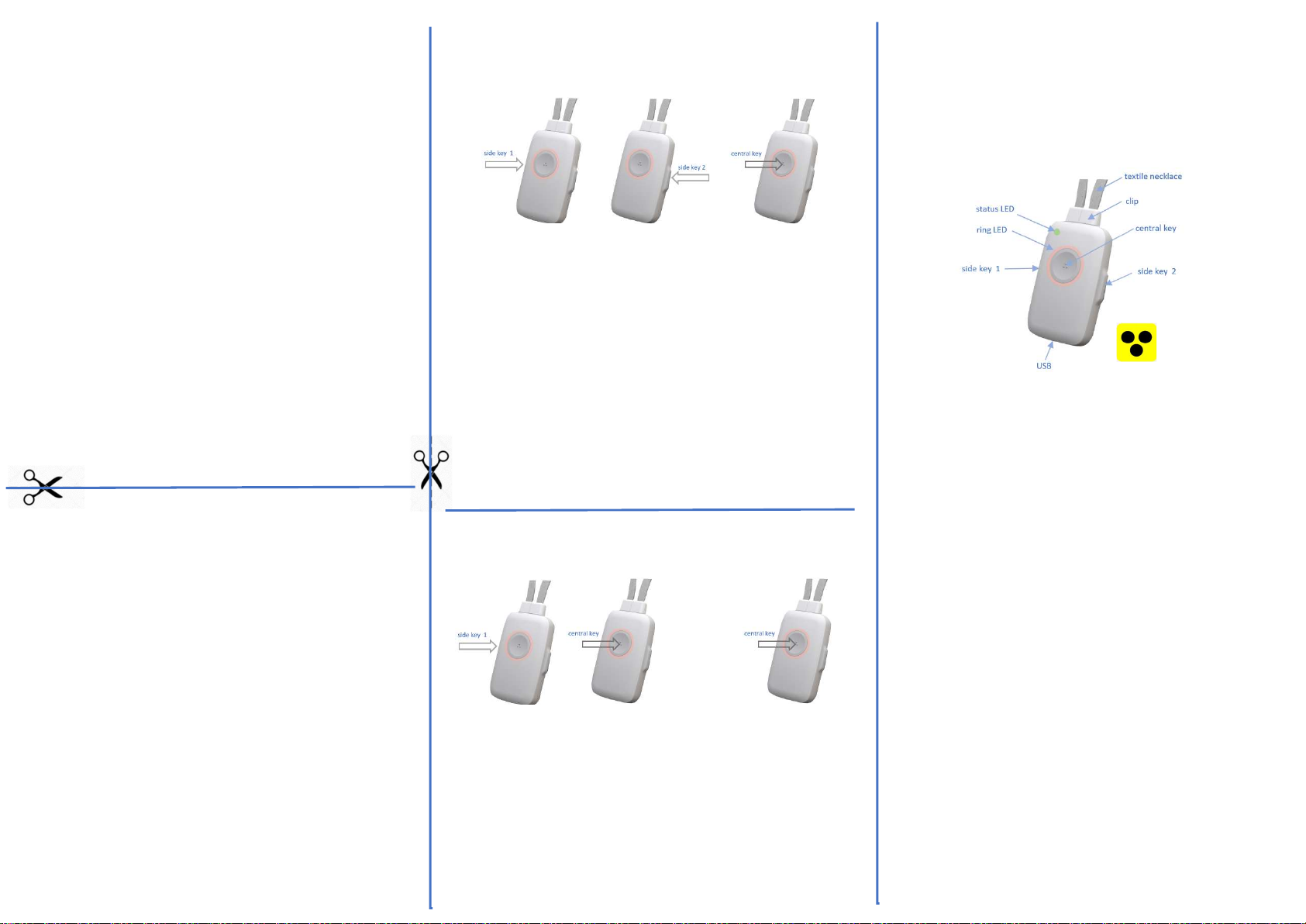
Make phone call Method 1
via side buttons Quick dial
the fast selection for experienced
1,2 3 4
select Register select name execute call
1 press side key to open "Phone Book”
2 press side button to select Register
3 press opposite side key press to select Name
4 Press the call button "Hubert is called"
Quick dial: You want to call Hubert.
Hubert is in 5th place in the 3rd register
(abbreviation side key = SK)
Press quickly without waiting for announcements:
1 time SK1 3 times SK1 (register) 5 times SK2 (name)
followed by Central Key "Hubert is called"
Make a phone call Method 2
in case of severe disability read aloud
Names
will be read aloud
1 2 3
1 press side key to open "Phone Book”
2 press central key to start reading names aloud
3 press central key "Hubert is called"
Waiting time between names is adjustable: 1, 2 seconds
(see the sheet : NOTES)
The operation can be aborted by pressing the Central Key
for min 2 seconds
Quick
DA1450
the universal emergency call
Blind phone Fall detection
DA1450 has all the functions necessary for a safe life and
for the preservation of social contacts.
DA1450 a DECT cordless phone for your phone system at
home. They are always and everywhere immediately
accessible, in the house and in the garden.
In an emergency, you can manually trigger a call for help
with a cardial-up to several people.
Optionally, the call for help can also be performedas a
silentr alarm.
In the event of a fall or smoke alarm, the specified
contacts are called automatically.
The operating mode is individually configurable, as is
your personal phone book by number/name.
The built-in voice assistant is a particularly valuable
feature of the emergency call transmitter. It gives
important information, reads the names from the
telephone list, informs the called emergency call contact
about the situation, person and location
"This is a fall alarm at Maria Mustermann"